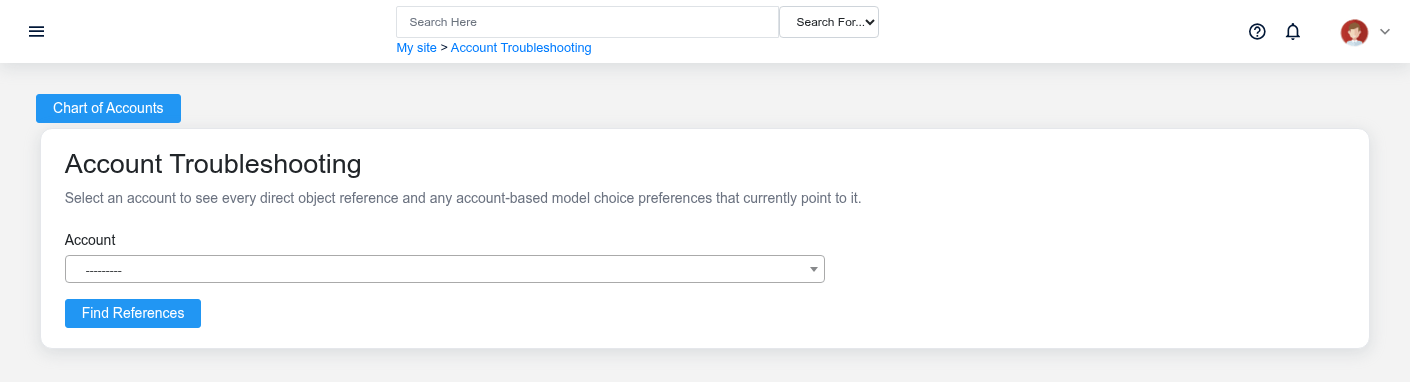
Use Account Reference Troubleshooting when a chart-of-accounts record cannot be safely disabled, replaced, or removed, or when you need to understand where the account is used. The report searches both saved model relationships and system/user preference values; it does not modify any reference.
Review account references
The Account Reference Troubleshooting references screen in the Brisk documentation demo.
1. Select the [Account](https://help.brisksystems.us/link/2567#bkmrk-overview) and choose **Find References**.
2. Read the total reference counts before opening individual rows.
3. Review each grouped model/field section. The **Object** and **ID** identify the record; open the record through its normal screen when a link is available.
4. Review **Preference References** separately. These show scope, preference label/key, and user when a system or user default still names the account.
Interpret the result
A reference can be historical, operational, or configuration-only. A posted transaction normally should keep its original account for audit and reporting. An open transaction may need correction at its source. A preference may need to be reassigned so future documents stop selecting the account. Do not mass-change every occurrence without distinguishing those cases.
Replace an obsolete account safely
Create or identify the approved replacement, update organization and user defaults, then update open setup or transactions through their normal workflows. Prefer disabling the obsolete account when historical transactions still refer to it. Re-run the reference report and document any references intentionally retained.
If the report is empty or surprising
Confirm the selected account and whether the dependency is stored directly, through a parent account, or in a posted transaction. This screen reports known model and preference relationships; code, imported files, external reports, or free-text notes may still mention an account number. Validate critical replacements with representative posting and reports before considering the work complete.
# Receivables
# Receivables, Statements, and Finance Charges
# Receivables, Statements, and Finance Charges
Purpose and when to use this screen
These screens turn posted [Receivable Transactions](https://help.brisksystems.us/link/2586#bkmrk-overview) into collection analysis, customer statements, and finance charges. Use them after sales, payments, credits, write-offs, and customer setup are complete for the reporting cutoff. Resolve questionable balances before communicating them to customers or creating new charges.
Review accounts-receivable aging
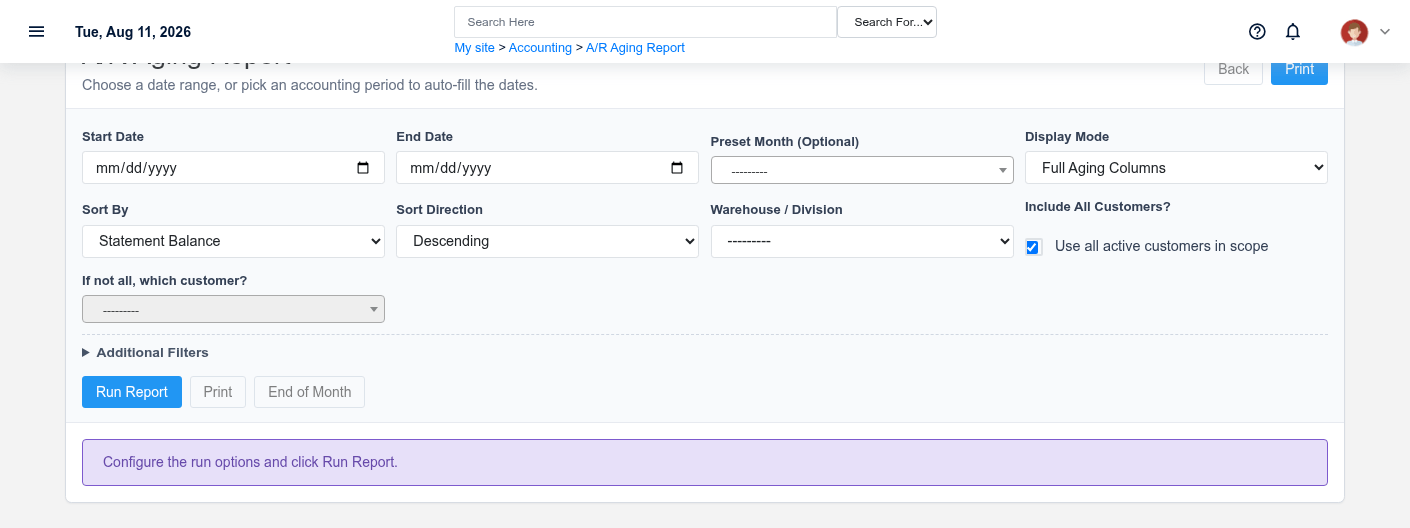
The Receivables, Statements, and Finance Charges aging screen in the Brisk documentation demo.
Choose a start/end date or a closed-month preset, then set display mode, sort, warehouse/division, and customer scope. Decide whether to include zero balances, credit balances, only overdue buckets, written-off customers, and customer numbers. Run the report and read **Statement Balance**, Current, 30, 60, 90, 90+, **Overdue Total**, and credit amount together. A customer with a credit or unapplied payment can have a misleading gross aging if you focus on one bucket alone.
Sort by overdue total or oldest bucket for collections work; use customer-name/number order for reconciliation and filing. Confirm the report cutoff before comparing it with a live customer balance.
Prepare customer statements
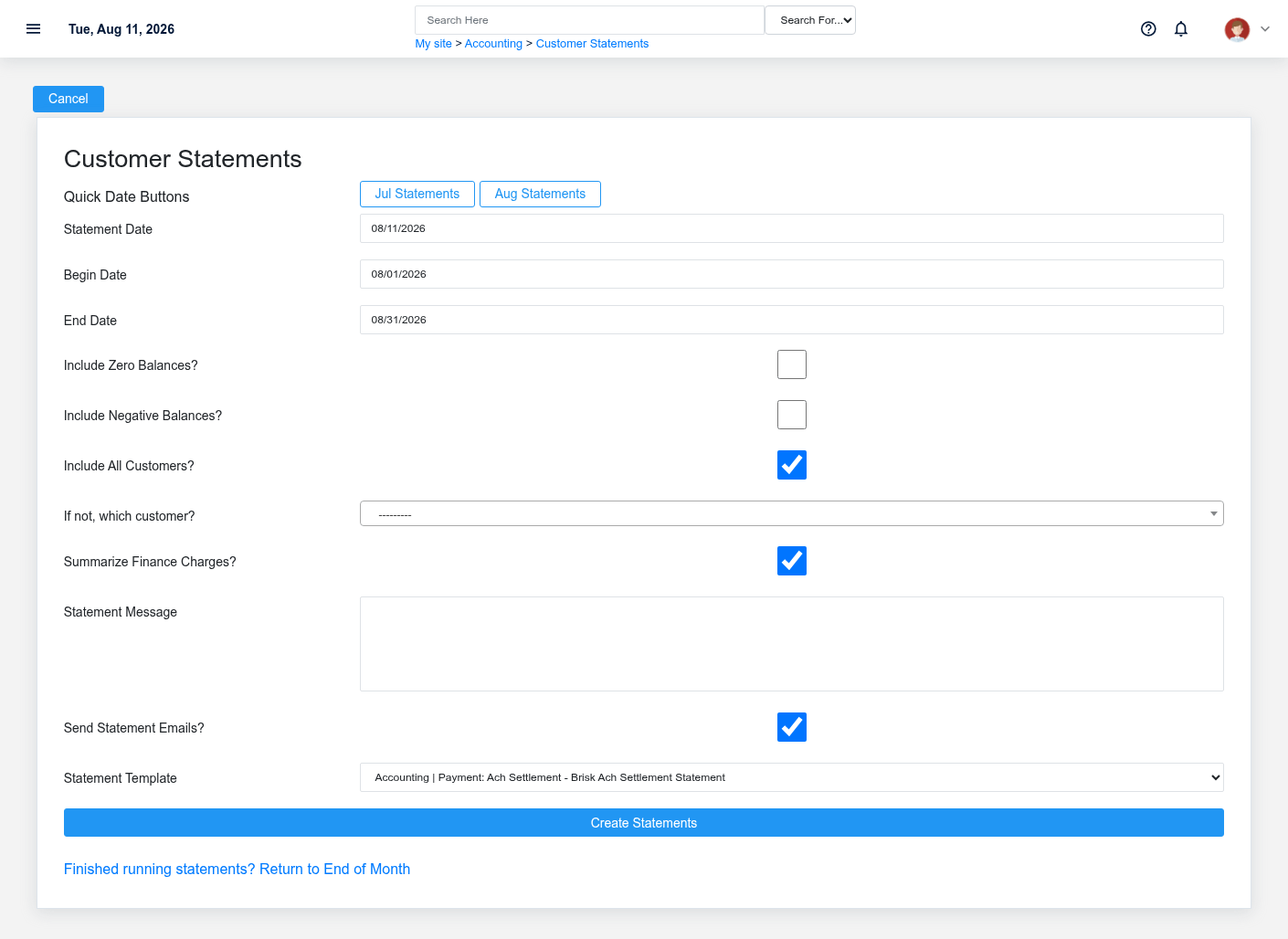
The Receivables, Statements, and Finance Charges statements screen in the Brisk documentation demo.
Set **Statement Date**, **Begin Date**, and **End Date**, or use the quick month buttons. Choose all customers or one customer and decide whether to include zero or negative balances. Select whether finance charges are summarized, enter the customer-facing statement message, choose the statement PDF template, and review **Send Statement Emails?** before generating.
Preview representative statements before a batch send. Confirm opening activity, invoices, payments, credits, finance charges, ending balance, remittance details, branding, pagination, and customer email address. A statement is communication, not a posting transaction; correct the source record and regenerate it rather than editing the output.
Assess finance charges
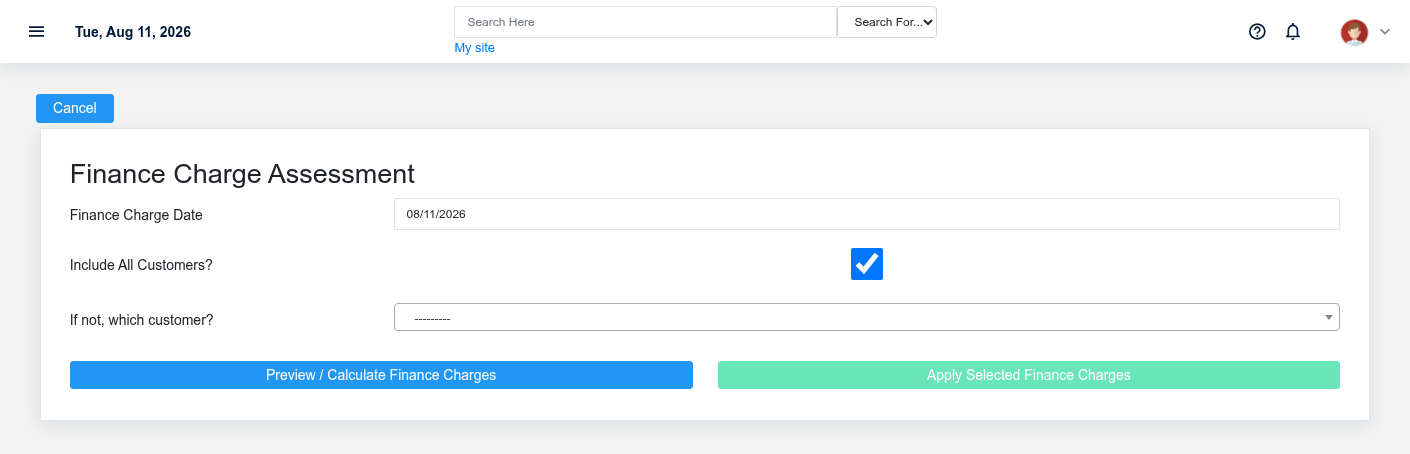
The Receivables, Statements, and Finance Charges finance charges screen in the Brisk documentation demo.
Select the finance-charge date and customer scope, then use **Preview / Calculate Finance Charges**. Review every proposed customer, charge amount, original transaction source, and memo. Clear any row that should not be applied and investigate why it qualified. Apply only from the current preview; Brisk uses a preview token to protect the calculation/apply sequence.
Finance-charge eligibility comes from customer/group and payment-term policy plus the overdue transaction state. Fix incorrect terms, dates, groups, payments, credits, or write-offs before applying. Afterward, review the applied list and regenerate statements if they should include the new charges.
Working safely and effectively
Reconcile aging totals to the receivable register, document exceptions, and restrict statement/email output to authorized recipients. Do not repeatedly apply finance charges because a page timed out; check the customer’s transactions first. Preserve the original charge and use the approved credit/adjustment process when a posted finance charge must be reversed.
# Period Close
# Close Accounting Periods
# Close Accounting Periods
Purpose and when to use this screen
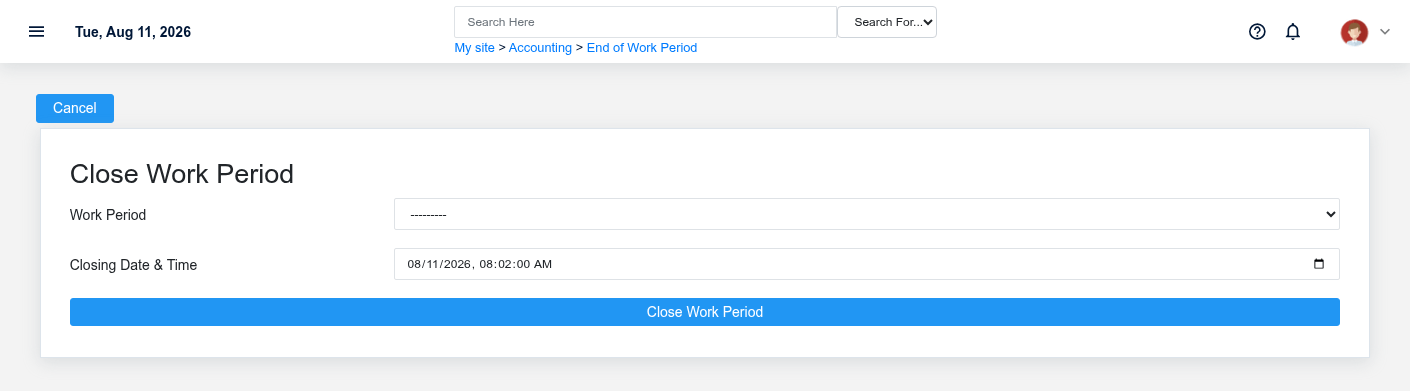
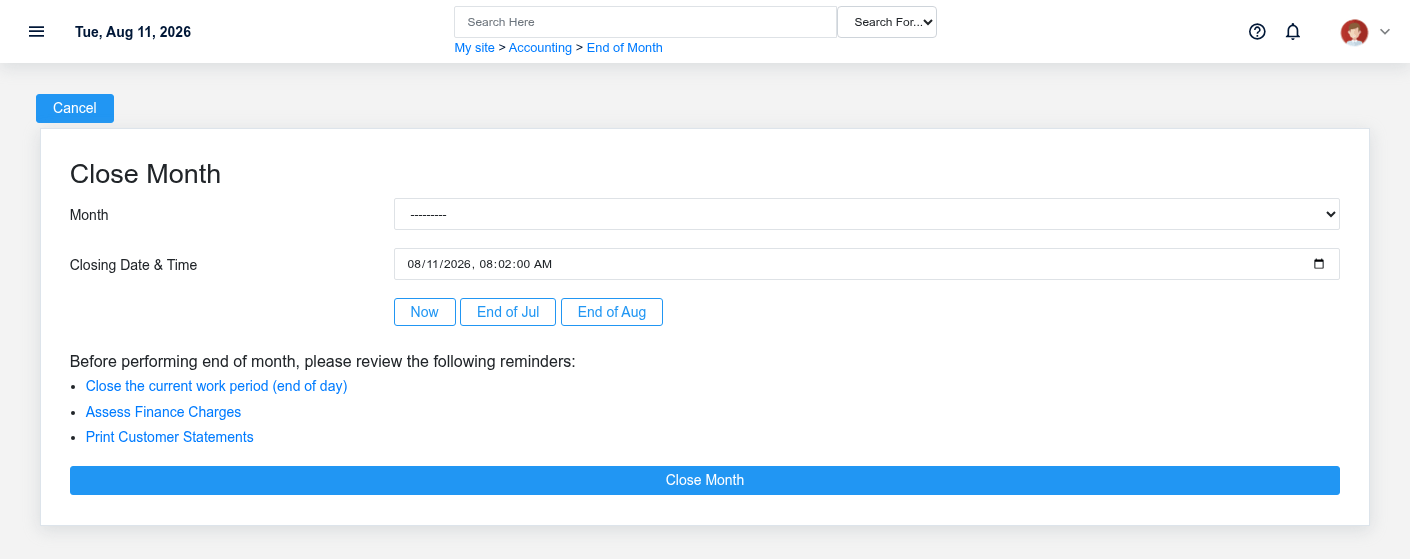
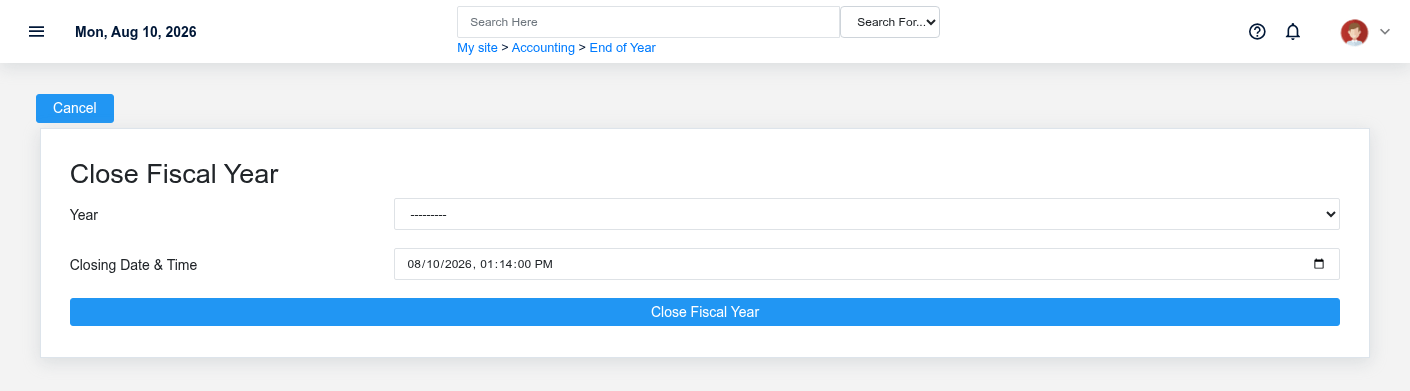
Period close establishes operational and financial cutoffs and makes reports available from a stable boundary. Close from the smallest period outward: work periods first, then the month, then the year. The selected **Closing Date & Time** is an accounting control; do not use the current time automatically when the intended business cutoff is different.
Close a work period
The Close Accounting Periods day screen in the Brisk documentation demo.
Select an open [Work Period](https://help.brisksystems.us/link/2595#bkmrk-overview) and confirm its warehouse, open time, expected cutoff, sales/tenders, deposits, cash drawer activity, payouts, returns, tax, and over/short transactions. Resolve open sales, missing deposits, uncertain payments, and unexplained differences. Enter the closing timestamp once and process **End of Work Period**. Brisk redirects to the period detail where close reports can be reviewed.
Close a month
The Close Accounting Periods month screen in the Brisk documentation demo.
Confirm every required work period is closed and all sales, receivables, payables, inventory receipts, vendor invoices, payments, deposits, reconciliations, tax work, and approved journal entries belong to the intended month. Preview finance charges and required customer statements according to policy. Select the open [Month](https://help.brisksystems.us/link/2582#bkmrk-overview), use **End of previous month** or **End of current month** only when it matches the intended cutoff, and review reports after closing.
Close a year
The Close Accounting Periods year screen in the Brisk documentation demo.
Close the year only after all required months are closed and year-end adjustments, reconciliations, tax reporting, inventory valuation, receivables/payables review, and management approval are complete. Select the open [Year](https://help.brisksystems.us/link/2596#bkmrk-overview), enter the approved fiscal cutoff, process once, and retain the year-end report package and review evidence.
Working safely and effectively
Record who approved the close and reconcile pre-close control totals to post-close reports. If a close request times out, inspect the period detail before retrying. Do not create a new period, backdate into a closed period, or use a journal entry to conceal an operational error without accounting authorization. Reopening or correcting closed periods requires an explicit, documented process because later reports may already have been distributed.
If the expected period is unavailable
The selectors show open periods only. Confirm it is not already closed, the prior period sequence is complete, the user has permission to change that period type, and the intended warehouse/year structure exists. Investigate the current state rather than creating a duplicate period.