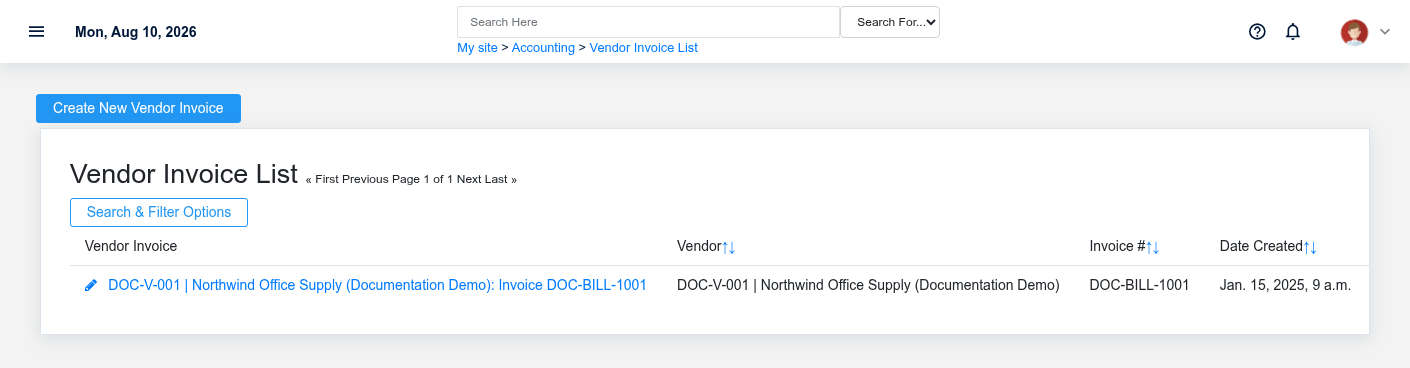
The Accounting workspace related to this reference article.
Use Accounting to manage the records that support payables, receivables, banking, posting, and financial reporting. Begin with the task you need to complete; record articles explain the fields, actions, and consequences for the whole record instead of splitting each screen into a separate page.
Choose a task
- **Configure the ledger:** maintain [Account Categories](https://help.brisksystems.us/link/2566#bkmrk-overview), the [Chart of Accounts](https://help.brisksystems.us/link/2567#bkmrk-overview), [Taxes](https://help.brisksystems.us/link/2589#bkmrk-overview), and [Payment Terms](https://help.brisksystems.us/link/2583#bkmrk-overview) before posting live transactions.
- **Handle vendor obligations:** enter and review [Vendor Invoices](https://help.brisksystems.us/link/2594#bkmrk-overview), apply vendor credits, and issue [Payments](https://help.brisksystems.us/link/2584#bkmrk-overview) from the correct bank account.
- **Manage customer balances:** investigate [Receivable Transactions](https://help.brisksystems.us/link/2586#bkmrk-overview), run aging, prepare statements, and preview finance charges before applying them.
- **Work with cash and cards:** group receipts into [Deposits](https://help.brisksystems.us/link/2574#bkmrk-overview), reconcile statement activity with [Reconciliations](https://help.brisksystems.us/link/2587#bkmrk-overview), and record credit-card charges against the correct payable account.
- **Make controlled adjustments:** use [Journal Entries](https://help.brisksystems.us/link/2579#bkmrk-overview) only when a normal sales, purchasing, payment, or banking workflow does not represent the event.
- **Close a period:** complete the [Period Close](https://help.brisksystems.us/link/2965#bkmrk-overview) sequence only after operational transactions and exceptions have been resolved.
Follow the source transaction
Most general-ledger transactions are created by other Brisk workflows. A sale creates revenue, tax, tender, and receivable activity; receiving and vendor invoicing create inventory and payable activity; payments, deposits, and reconciliations complete the bank-side trail. Start troubleshooting with the business document that caused the posting, then use the transaction detail to confirm the accounts and amounts. Do not repair a source-document error with an unrelated journal entry unless the organization’s accounting policy specifically calls for it.
For the complete inventory purchasing sequence, use [Purchase to Pay](https://help.brisksystems.us/link/2921#bkmrk-overview).
Financial controls that matter
Verify warehouse, accounting date, open period, posting state, bank account, and document balance before finalizing work. Closed work periods, months, quarters, and years are controls—not labels—and should be reopened or bypassed only through an authorized correction process. Reconcile reports to their source registers before distributing statements or financial results.