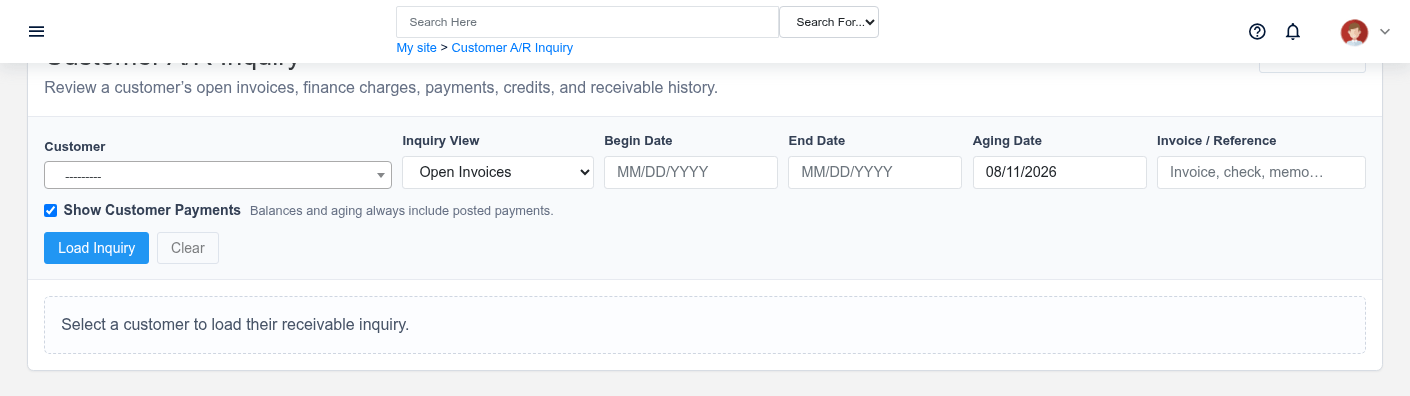
The Receivable Transactions overview screen in the Brisk documentation demo.
Trace the charge, payment, credit, or adjustment that changed a customer’s accounts-receivable balance.
## At a glance
- **Identify it by:** **Due Date Override**, and **Payment Date**.
- **Check its business context:** **Transaction**, **Customer**, and **Payment Terms**.
- **Why care:** Dates, accounts, amounts, posting state, and period locks can change financial reports. Verify them against the source document before finalizing the record.
- **Why care:** Treat posted, processed, paid, reversed, and edit-locked states as controls—not ordinary descriptive fields. Confirm the source transaction before changing any state that the screen permits you to change.
## Before you begin
You need the Brisk permission for the action you are taking on receivable transactions. If a Create, Edit, or Delete control is absent, do not work around it with another user’s account; ask an administrator to review your role.
Have valid **Transaction**, and **Customer** records ready first. Those selections determine where this Receivable Transaction belongs and which later screens can find it.
## Fields and business rules
Brisk stores 6 user-relevant fields for this Receivable Transaction, including 3 linked-record selections and 0 controlled-choice fields. Create and edit screens may hide calculated or workflow-managed values from this full reference.
| Field | Required | What it controls |
|---|---:|---|
| **Transaction** | Yes | The transaction associated with this receivable transaction. |
| **Customer** | Yes | The customer associated with this receivable transaction. |
| **Payment Terms** | No | The payment terms associated with this receivable transaction. |
| **Paid** | No | Whether the paid option applies to this receivable transaction. |
| **Due Date Override** | No | This field, if not left blank, overrides the due date set by this transaction's payment terms. |
| **Payment Date** | No | Date and time recorded for payment date on this receivable transaction. |
## What happens next
Use **Transaction**, **Customer**, and **Payment Terms** to interpret this Receivable Transaction. If it records a failure or exception, correct the source process and create a new successful event rather than rewriting the audit trail.
## Common mistakes and troubleshooting
- **The record will not save:** Recheck **Transaction**, and **Customer** and any message beside the field. A required related record may also be inactive or unavailable to your role.
- **The values look right but the result is wrong:** Open **Transaction**, **Customer**, and **Payment Terms** from the detail page. Correct the specific relationship that is wrong instead of forcing a total or status to compensate for it.