# Sales and Retail
# Customer Order to Cash
This workflow follows a named customer order from entry through fulfillment, payment or receivable status, inventory activity, and financial review. The original request, customer PO, item rows, and downstream records remain traceable, so the next employee can continue from saved work instead of rebuilding it.
> **Demonstration notice:** All names, identifiers, amounts, contact information, and transactions shown here are fictional and exist only in the Brisk documentation environment. Payment examples use saved test states and do not contact a processor.
Workflow at a glance
| | |
|---|---|
| **Outcome** | A fulfilled sale with a supported payment or receivable state and reviewable downstream history |
| **Starts with** | A verified customer request |
| **Ends with** | Sale, fulfillment, inventory, payment or receivable, and reporting review |
| **Primary roles** | Salesperson, fulfillment clerk, cashier, accounts-receivable clerk |
| **Brisk areas involved** | Customers, Sales, Inventory, Accounting, Payments |
| **Common businesses** | Parts, equipment, feed-and-supply, wholesale, general business |
| **Approximate handoffs** | Three |
Why this workflow matters
A customer order carries more than a total. Staff need the requested items, customer PO, warehouse, price and tax decisions, delivery expectation, and payment terms. When those facts stay on the sale, fulfillment and accounting can work from the same source.
The statuses also prevent a common shortcut: treating an entered order as shipped or an initiated payment as collected. Brisk keeps fulfillment and payment status separately, allowing each team to verify its own part.
Before you begin
Confirm the customer record before relying on its terms, pricing, tax, or credit context.
- Required: customer, active warehouse, saleable items and units, tax setup, and permission to create and update sales.
- Required for on-account work: valid payment terms and an authorized credit decision.
- Optional: price class, customer PO, fulfillment method, email receipt, or sandbox payment provider.
- Confirm stock separately. The draft documentation sale does not reserve or consume inventory.
End-to-end steps
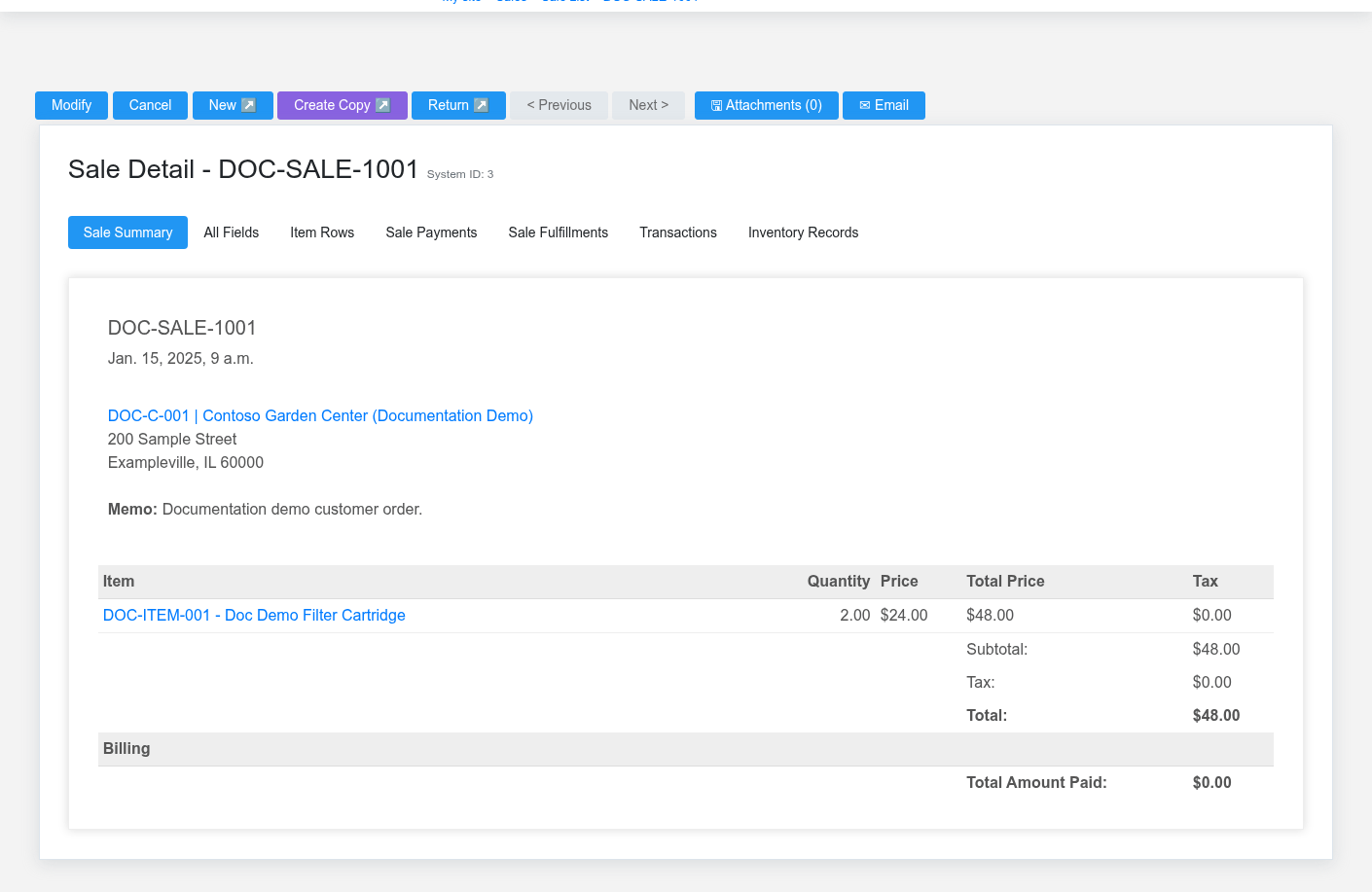
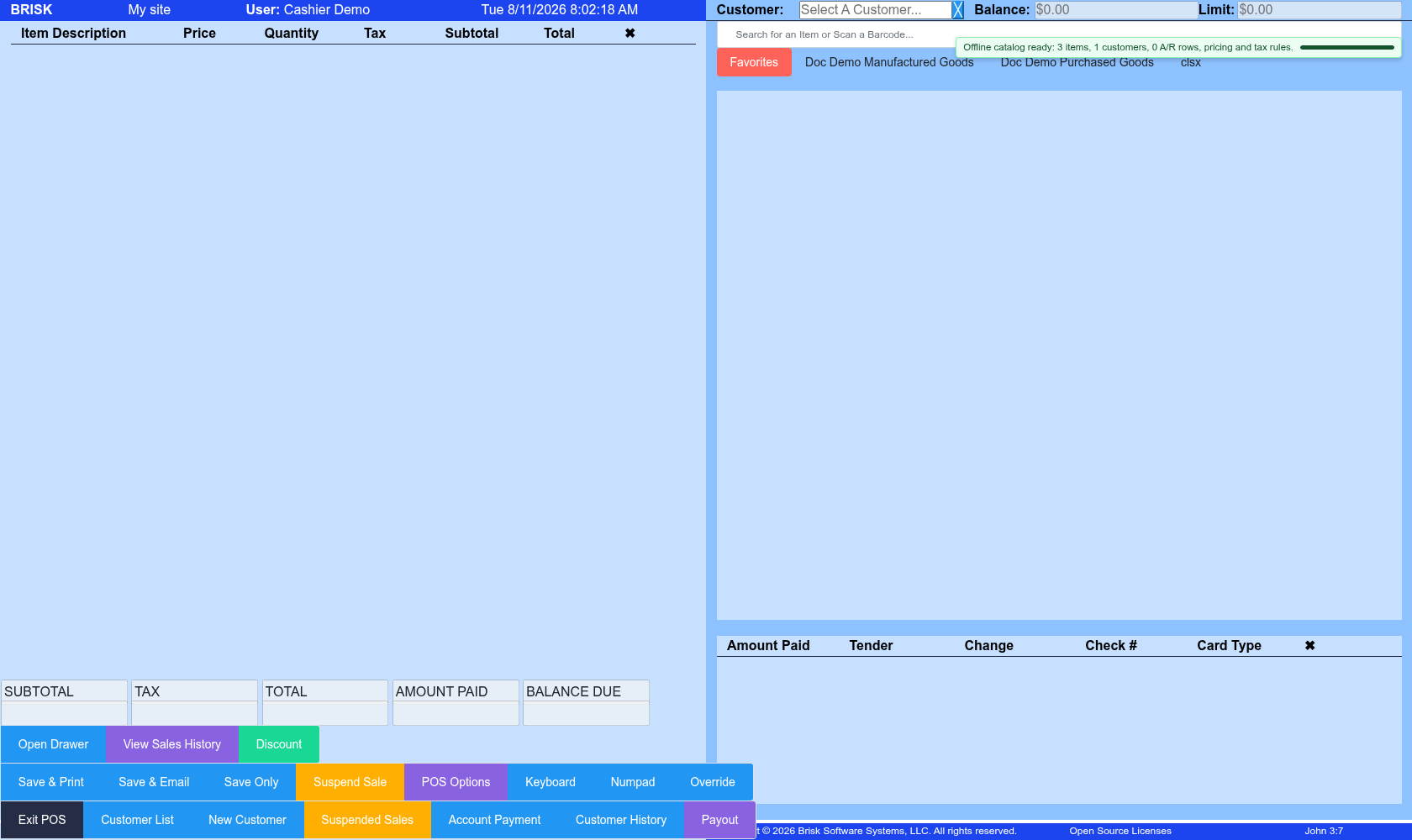
DOC-SALE-1001 retains the customer PO, warehouse, lines, totals, fulfillment state, and balance.The sales workspace applies the selected customer and item context before payment or submission.
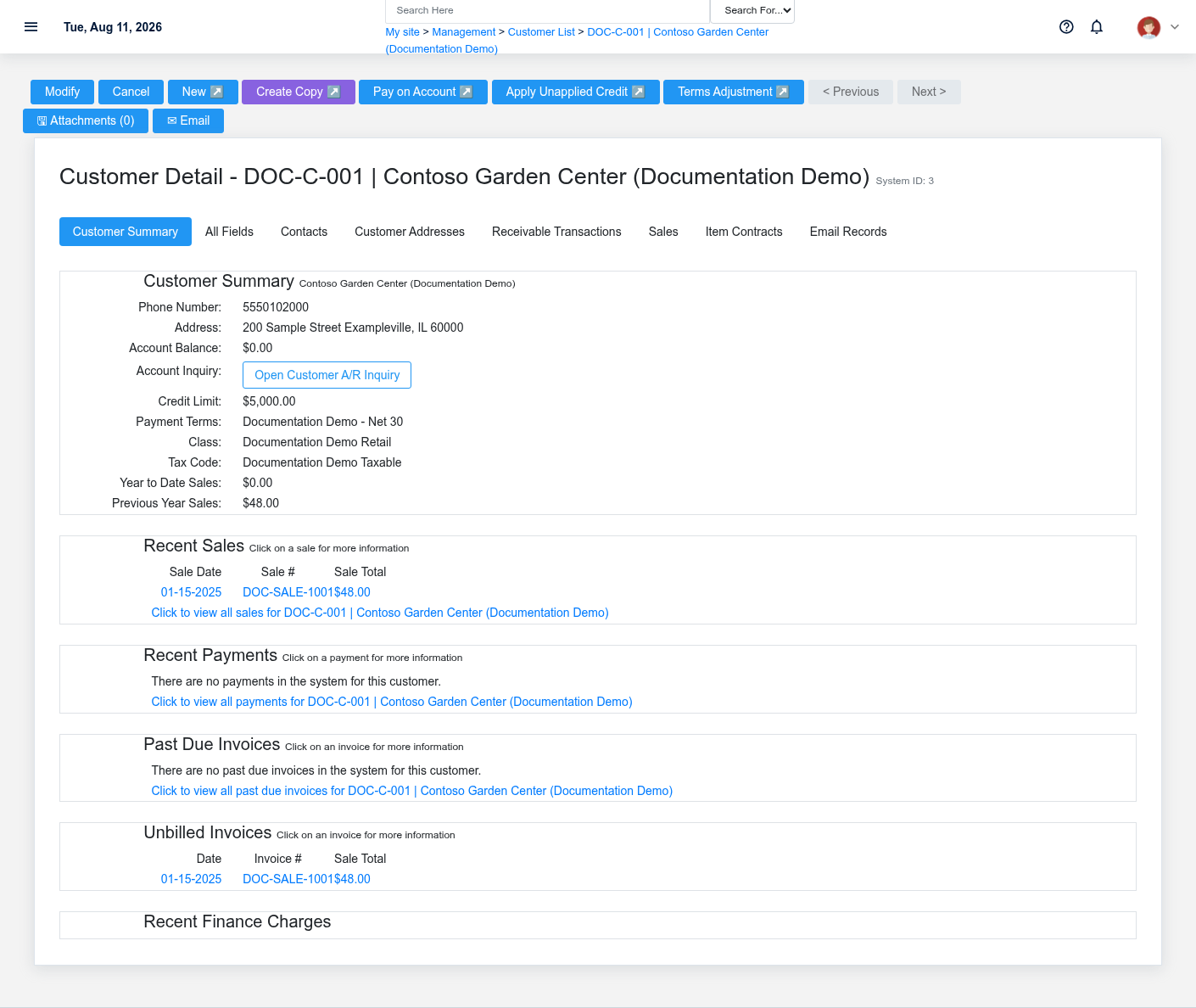
1. **Salesperson — verify the customer.** Open [Customers](https://help.brisksystems.us/link/2680#bkmrk-detail). Confirm identity, terms, tax code, price context, account status, credit context, and fulfillment defaults before entering lines.
2. **Salesperson — build the order.** In [Point of Sale](https://help.brisksystems.us/link/2953#bkmrk-sale) or the supported sale form, select the customer and warehouse. Add each item, quantity, unit, price, authorized discount, tax treatment, and customer PO. DOC-SALE-1001 contains two stocked cartridges and remains Draft.
3. **Salesperson — review the intended outcome.** Confirm totals, fulfillment requirement, requested method, and payment path. Finalize once through the action appropriate to the tender or on-account sale. Do not call a Draft sale a quote; Brisk has a separate [Quote](https://help.brisksystems.us/link/2742#bkmrk-overview) record.
4. **Fulfillment clerk — act on the saved sale.** Use the sale’s fulfillment records and status. Verify the picked quantity and delivery, shipping, or pickup evidence before marking work complete. Inventory is consumed by processed sale fulfillment for qualifying item rows, not by merely opening a cart.
5. **Cashier or receivables clerk — record value received.** Record a supported tender or leave the finalized sale in Receivable status under authorized terms. A processor launch, URL, or authorization is not settlement.
6. **Manager — verify the chain.** Review the completed [Sale](https://help.brisksystems.us/link/2746#bkmrk-detail), fulfillment history, item history, customer history, payment application, and [Receivable Transactions](https://help.brisksystems.us/link/2586#bkmrk-overview) when the sale is on account.
What Brisk keeps connected
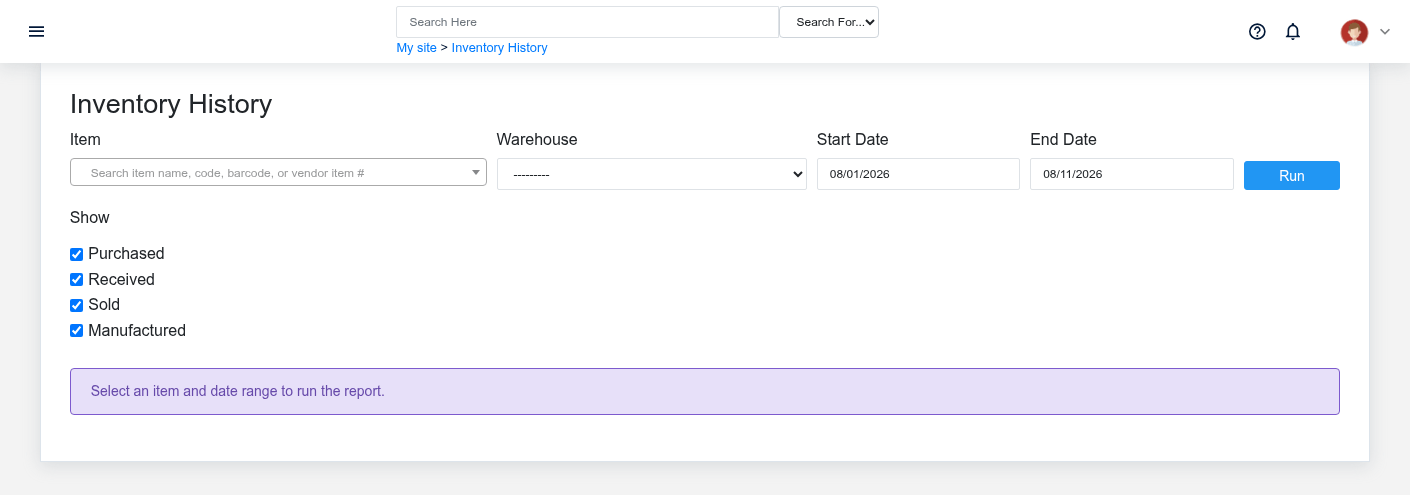
Inventory history is the place to verify posted item movement; draft order entry alone does not prove movement.The saved sale remains available for operational follow-up rather than being reconstructed from the payment.
| Action | Result or downstream record | Where to verify it |
|---|---|---|
| Select customer and enter rows | Customer, PO reference, warehouse, items, pricing, tax, and totals remain on the sale | Sale detail |
| Complete supported fulfillment | Fulfillment status and processed item movement | Sale fulfillment and item inventory history |
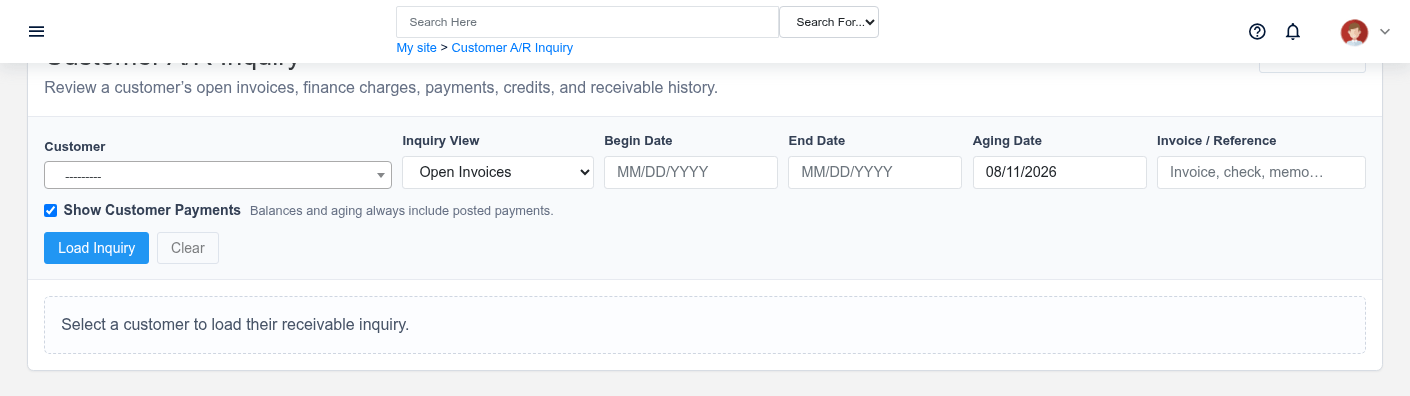
| Finalize as Receivable | Customer obligation and due-date context | Receivable inquiry and customer history |
| Record payment | Tender/application history; processor state remains separate when used | Sale payment history and provider record |
Handoffs and controls
When a finalized sale is placed on account, accounting verifies the resulting obligation from receivable history.
Sales hands the saved sale to fulfillment; fulfillment hands verified completion to accounting or payment staff. Draft, Submitted, Complete, Paid, and Receivable are business controls, not decorative labels. The sale remains the source for customer and line detail, while its fulfillment and payment records are the evidence for those later events.
Exceptions and safe corrections
- Wrong customer or line on a draft: correct the same sale before finalization.
- Short stock or partial delivery: record only the quantity actually fulfilled and leave the remainder visibly outstanding when the configured path supports it.
- Uncertain payment response: check both the saved sale and provider history before retrying.
- Completed error: use the supported return, void, credit, or linked correction. Do not create an unrelated opposite sale.
- Missing permission or setup: stop at the current state and have the responsible administrator correct access or configuration.
Related documentation
### Start here
- [Customers](https://help.brisksystems.us/link/2680#bkmrk-overview)
- [Point of Sale](https://help.brisksystems.us/link/2953#bkmrk-overview)
### Continue with
- [Sales](https://help.brisksystems.us/link/2746#bkmrk-overview)
- [Inventory Items](https://help.brisksystems.us/link/2629#bkmrk-overview)
- [Receivable Transactions](https://help.brisksystems.us/link/2586#bkmrk-overview)
### Related controls and reports
- [Offline POS Queue](https://help.brisksystems.us/link/2952#bkmrk-overview)
- [Receivables, Statements, and Finance Charges](https://help.brisksystems.us/link/2946#bkmrk-overview)
# Counter Sale to Reconciled Work Period
This workflow follows a counter sale from the cashier’s cart through tender, receipt, inventory review, operating reports, and work-period close. It shows why checkout is only the first control point: the business must still explain stock movement, tender totals, deposits, payouts, returns, and material differences.
> **Demonstration notice:** All displayed names, identifiers, amounts, contact information, and transactions are fictional. Tender results are seeded test states; no live card, ACH, or EMV request is made.
Workflow at a glance
| | |
|---|---|
| **Outcome** | A completed sale reviewed within its work-period cutoff |
| **Starts with** | An open workstation, drawer, warehouse, and work period |
| **Ends with** | Close evidence and reports traced to source transactions |
| **Primary roles** | Cashier, shift lead, accounting reviewer |
| **Brisk areas involved** | POS, Sales, Inventory, Cash Drawers, Accounting, Reports |
| **Common businesses** | Retail, parts counters, farm stores, service counters |
| **Approximate handoffs** | Two |
Why this workflow matters
A receipt confirms what the cashier finalized, but it does not explain the whole period. Supervisors still need to compare tender types, deposits, payouts, returns, cash activity, and over/short entries with the saved sales.
Brisk keeps those records available under one operating cutoff. That lets staff investigate a difference at its source instead of changing a close total to make it look correct.
Before you begin
The cashier confirms workstation, drawer, customer, and warehouse context before scanning items.
- Required: configured workstation, cash drawer, warehouse, open work period, saleable items, tax setup, and cashier permissions.
- Required: an approved walk-in customer or the correct named customer.
- Optional: barcode scanner, receipt printer, and sandbox terminal.
- The [Offline POS Queue](https://help.brisksystems.us/link/2952#bkmrk-overview) is a recovery tool, not the normal successful path.
End-to-end steps
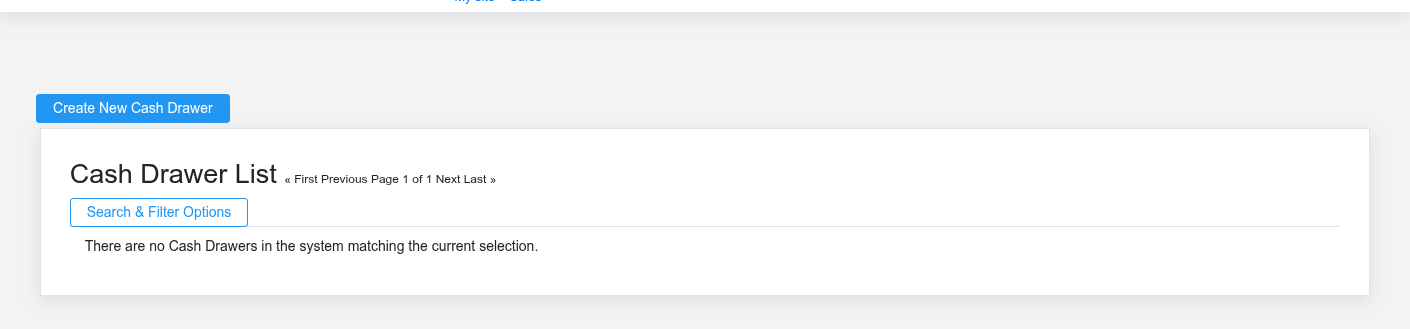
A saved sale preserves lines, pricing, tax, payment, and fulfillment context after checkout.Drawer identity matters because tender activity must be reviewed against the correct physical till.
1. **Cashier — confirm operating context.** Open [Point of Sale](https://help.brisksystems.us/link/2953#bkmrk-sale). Verify workstation, warehouse, open work period, and the [Cash Drawer](https://help.brisksystems.us/link/2736#bkmrk-overview) that matches the physical till.
2. **Cashier — build the cart.** Select the authorized walk-in or named customer. Scan or search two or three stocked items, then confirm quantity, unit, price, discount authorization, tax, fulfillment, and total.
3. **Cashier — accept the actual tender.** Select cash or the supported test tender, verify references, and finalize once. Do not retry an uncertain processor attempt until the sale and provider history have been checked.
4. **Cashier — verify completion.** Review the completed [Sale](https://help.brisksystems.us/link/2746#bkmrk-detail) and receipt. Confirm the displayed payment and fulfillment states match what happened, then review item history for the processed inventory effect.
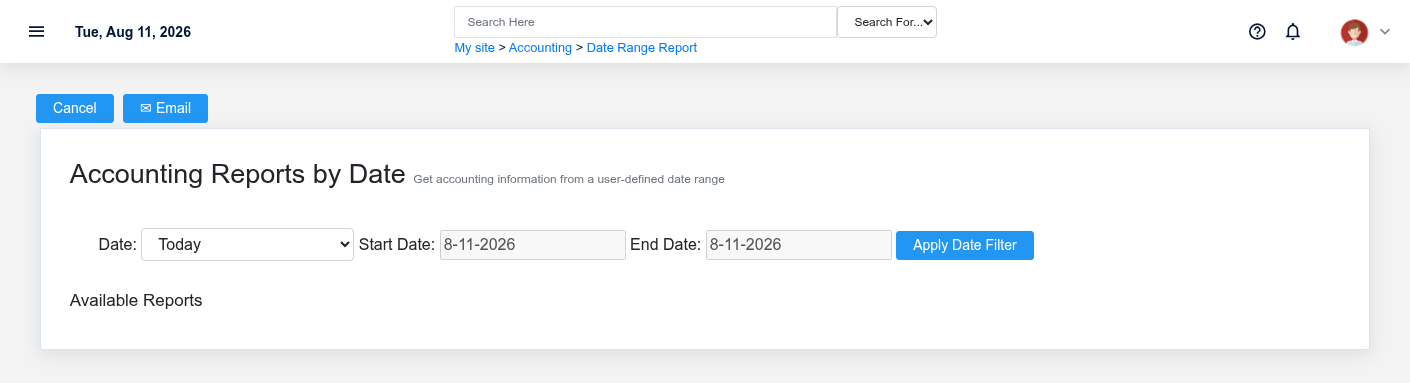
5. **Shift lead — review the period.** Compare sales, tenders, cash, deposits, payouts, returns, and over/short activity. Use [Work Period Reports](https://help.brisksystems.us/link/2951#bkmrk-report) with one deliberate cutoff.
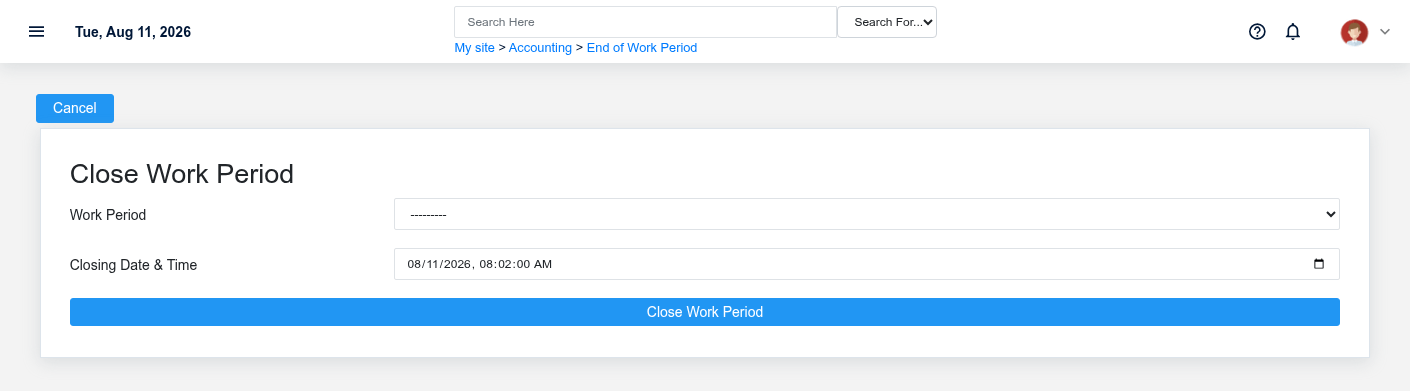
6. **Shift lead or accounting — close after exceptions are resolved.** Use [Close Accounting Periods](https://help.brisksystems.us/link/2965#bkmrk-day) to close the intended work period. A closed period is not automatically reconciled; retain the report and explanation for any approved variance.
What Brisk keeps connected
Apply one defined cutoff before comparing sales, tenders, deposits, and exception totals.The sales register supplies detail behind the period totals.
| Action | Result or downstream record | Where to verify it |
|---|---|---|
| Finalize the cart | Saved sale, lines, totals, tender and receipt context | Sale detail and receipt |
| Process fulfillment | Item movement for qualifying rows | Item inventory history |
| Record cash, deposit, payout, or return | Period activity with its own source record | Drawer and period reports |
| Close the work period | Saved cutoff and close detail | Work Period detail and close reports |
Handoffs and controls
Closing creates a boundary after staff resolve material differences; it does not reconcile inaccurate source records.
The cashier supplies completed sales and physical tender evidence. The shift lead reviews the drawer and exceptions; accounting relies on the saved cutoff and source records. Supervisory overrides require the authorized user—never shared credentials. The sale stays authoritative for checkout while the work period supplies the cutoff.
Exceptions and safe corrections
- Wrong item before finalization: correct the cart.
- Duplicate-submission uncertainty: search Sales and provider history before retrying.
- Completed sales error: use the supported return or void tied to the original transaction.
- Offline ticket: inspect each queued item and live Sales before retrying; do not use **Retry All** without individual verification.
- Drawer difference: trace deposits, payouts, returns, tender selection, and timestamps. Closing does not repair missing activity.
Related documentation
### Start here
- [Point of Sale](https://help.brisksystems.us/link/2953#bkmrk-overview)
### Continue with
- [Sales](https://help.brisksystems.us/link/2746#bkmrk-overview)
- [Cash Drawers](https://help.brisksystems.us/link/2736#bkmrk-overview)
- [Work Periods](https://help.brisksystems.us/link/2595#bkmrk-overview)
### Related controls and reports
- [Work Period Reports](https://help.brisksystems.us/link/2951#bkmrk-overview)
- [Offline POS Queue](https://help.brisksystems.us/link/2952#bkmrk-overview)
- [Close Accounting Periods](https://help.brisksystems.us/link/2965#bkmrk-day)