# Purchase to Pay
This workflow follows an inventory purchase from an approved order through a partial receipt, vendor invoice, and allocated payment. Vendor, warehouse, item, quantity, cost, receipt, obligation, and payment evidence remain connected so purchasing, receiving, and accounting can review the same chain without re-entering it.
Demonstration scenario
> **Demonstration notice:** Every vendor, item, identifier, amount, bank reference, and transaction is fictional. Documentation fixtures persist safe states without sending purchase orders, issuing payments, or contacting external systems.
Workflow at a glance
| | |
|---|---|
| **Outcome** | Received inventory, supported vendor obligation, and traceable payment application |
| **Starts with** | Reviewed vendor, item, warehouse, and purchase need |
| **Ends with** | Payment allocation plus any visible remaining amount |
| **Primary roles** | Buyer, receiving clerk, accounts-payable clerk |
| **Brisk areas involved** | Vendors, Purchase Orders, Receiving, Vendor Invoices, Payments |
| **Common businesses** | Retail, feed/supply, parts, equipment, wholesale |
| **Approximate handoffs** | Three |
Why this workflow matters
Purchasing staff know what was ordered, receiving knows what arrived, and accounting sees what the vendor billed. Keeping those records linked makes partial delivery, cost, freight, invoice, and payment differences visible rather than burying them in a single payable total.
Each status marks a real control point. A submitted order is not a receipt, a receipt is not a verified vendor invoice, and an allocated partial payment does not make the invoice fully paid.
Before you begin
Confirm vendor terms and accounting setup before creating the purchase order.
- Required: valid [Vendor](https://help.brisksystems.us/link/2691#bkmrk-overview), items, units, destination warehouse, payable/fee accounts, terms, and permissions.
- Required when receipt freight is entered: Receiving Freight Accrual Account preference.
- Required for final-cost processing: supported vendor and vendor invoice reference.
- Disable external payment actions in documentation environments.
End-to-end steps
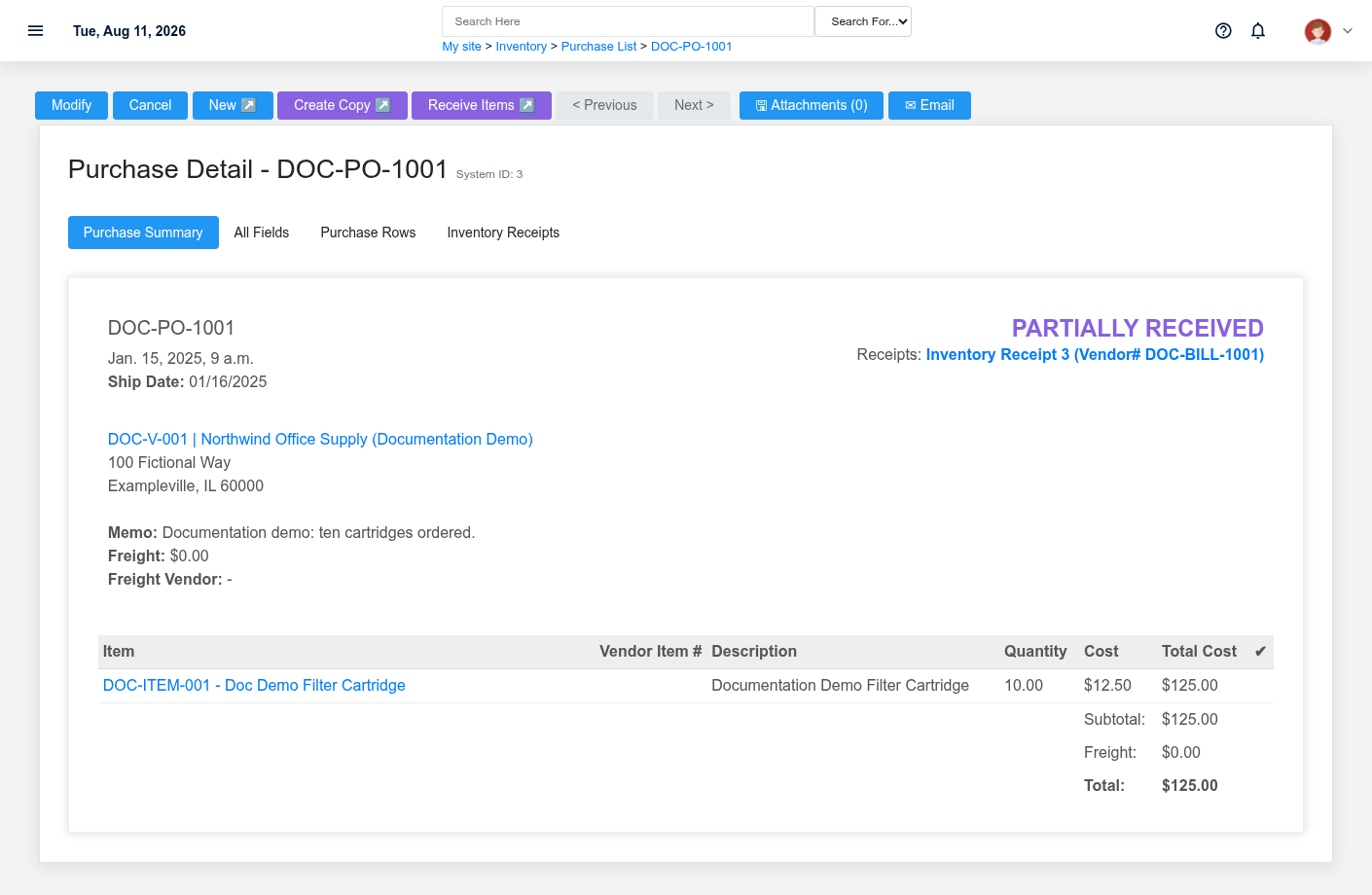
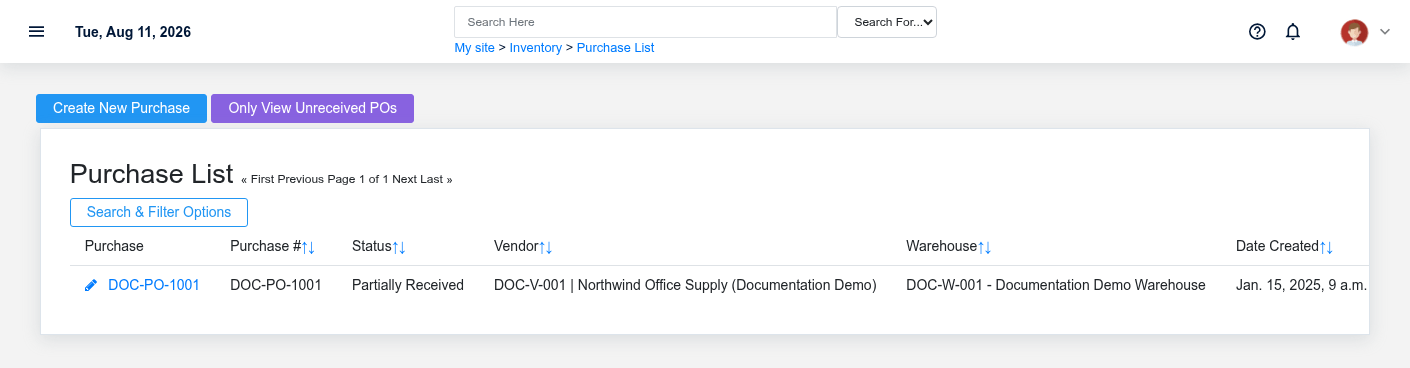
The order retains the vendor, warehouse, ordered quantity, and remaining quantity after partial receipt.The purchase register shows the order in the purchasing pipeline before receipt.
1. **Buyer — verify vendor and need.** Confirm vendor, warehouse, requested dates, item, unit, quantity, cost, freight, and total. If the need came from Restock, first review [Automatic Restock to Replenished Inventory](https://help.brisksystems.us/link/2988).
2. **Buyer — create and submit the Purchase Order.** Create [Purchase Order](https://help.brisksystems.us/link/2639#bkmrk-create) DOC-PO-1001. It begins Draft. Review rows before the supported submission action; submission alone does not prove a vendor received a message.
Receiving checkpoint
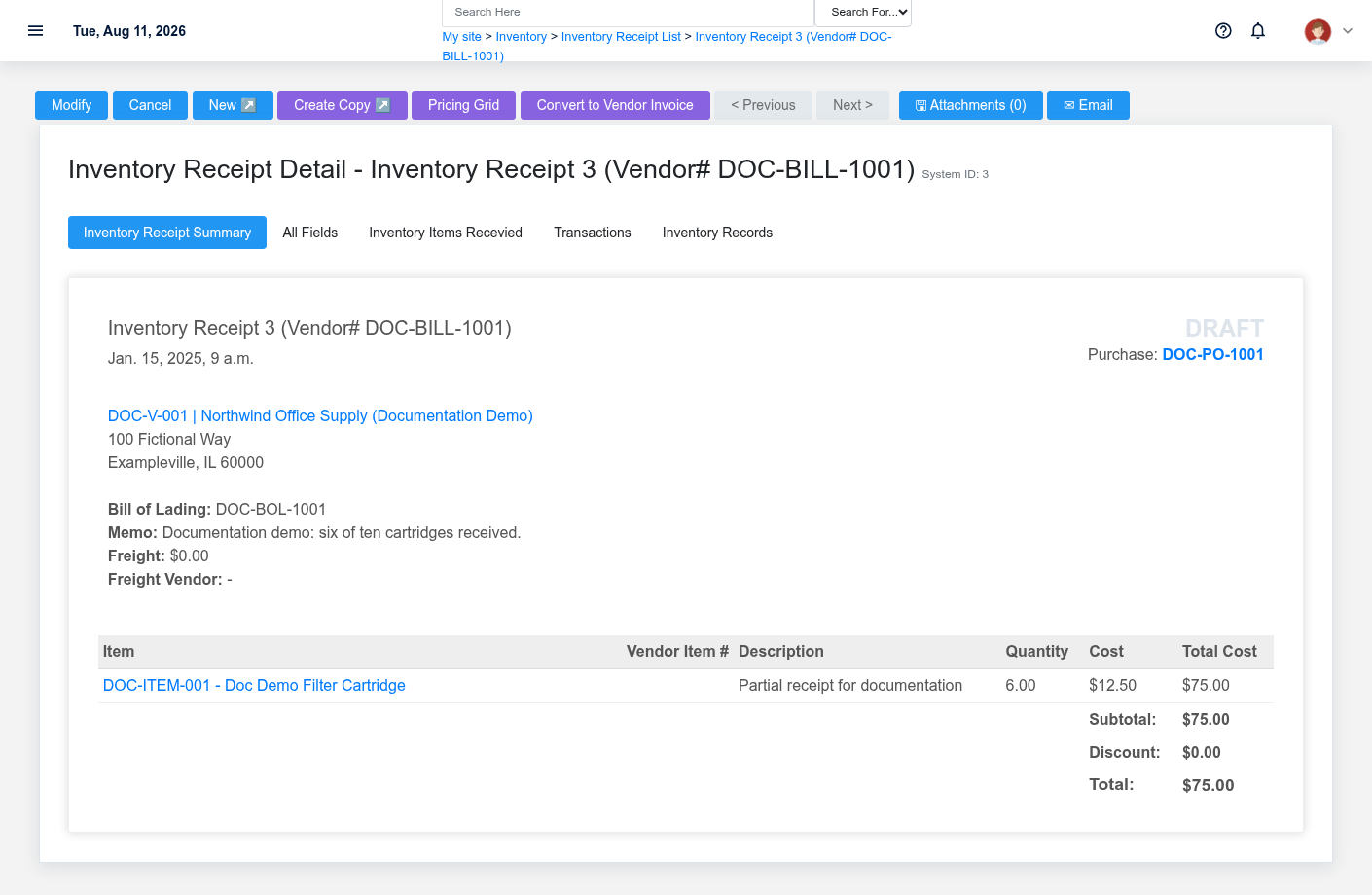
3. **Receiving clerk — record delivered quantity.** Convert the order to an [Inventory Receipt](https://help.brisksystems.us/link/2631#bkmrk-create). DOC-BILL-1001 records six of ten cartridges. Purchase status becomes Partially Received because the receipt total is below the ordered quantity.
4. **Receiving/accounting — review receipt costing.** Confirm accepted quantity, date, warehouse, BOL, freight, costs, and remaining quantity. Deferred/final-cost processing can require the vendor and vendor invoice number.
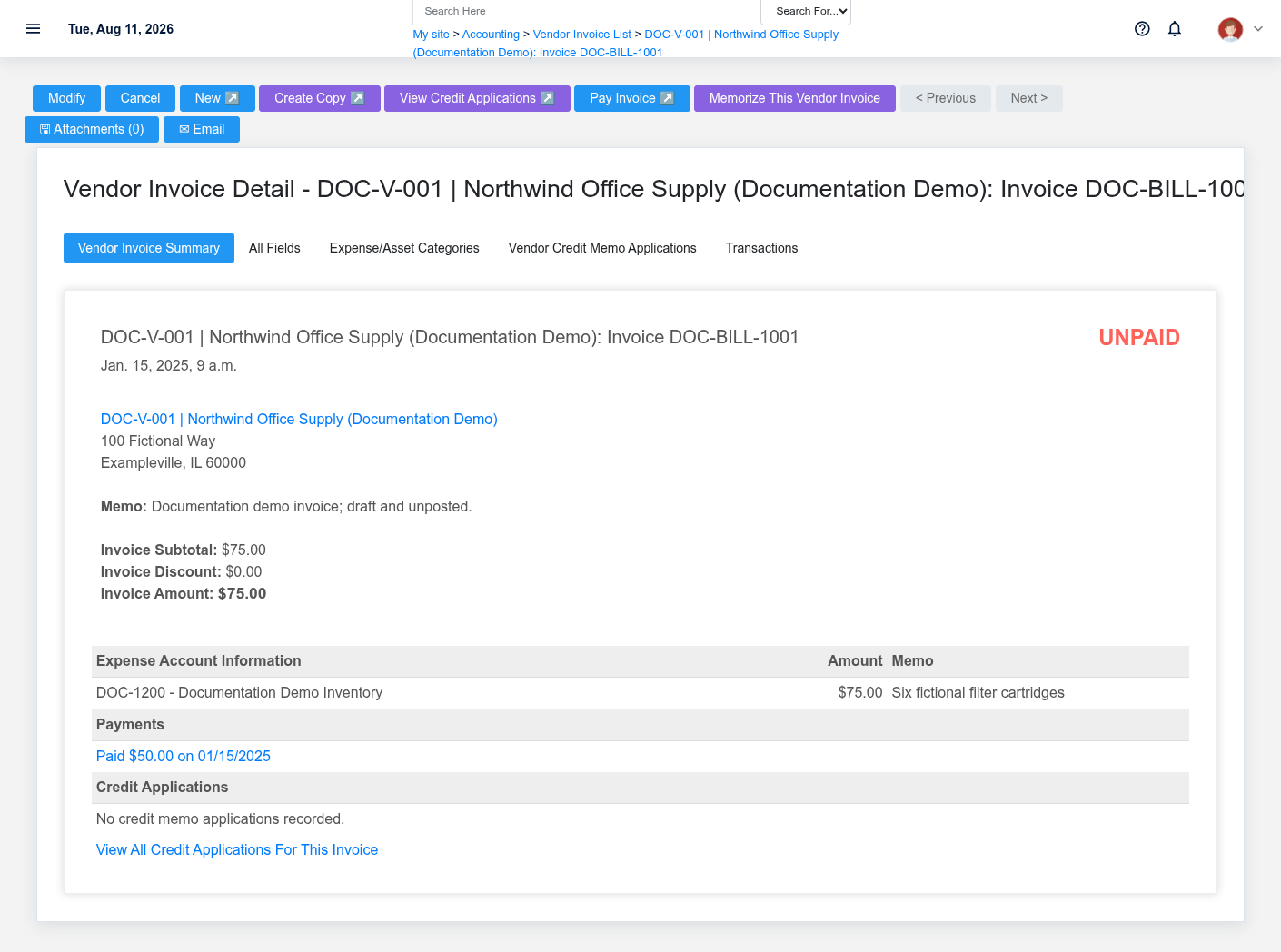
5. **Accounts payable — enter the vendor invoice.** Create [Vendor Invoice](https://help.brisksystems.us/link/2594#bkmrk-create) DOC-BILL-1001 from the vendor document. Verify invoice/due dates, terms, subtotal, amount, receipt links, allocation accounts, and posting state.
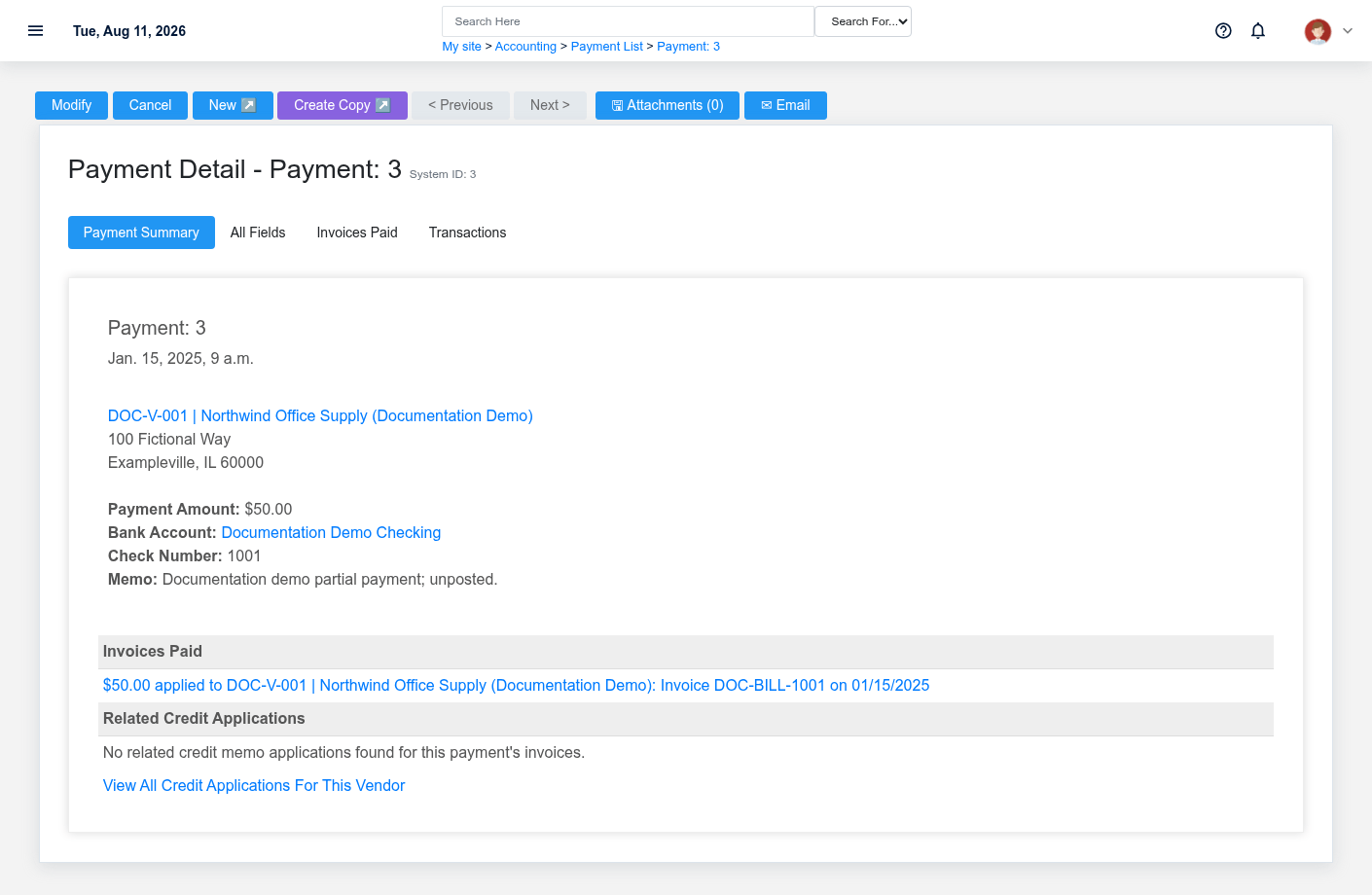
6. **Authorized payer — record payment.** Use **Pay Invoice** to create [Vendor Payment](https://help.brisksystems.us/link/2584#bkmrk-create). Check 1001 allocates $50 to the $75 fictional invoice. Confirm account, amount, date, reference, and allocation before posting or issuing anything.
7. **Reviewer — verify the chain.** Review Purchase, Receipt, Vendor Invoice, credits, payment applications, accounting transactions, and the remaining open quantity/obligation.
What Brisk keeps connected
The vendor invoice remains Draft until accounting verifies dates, terms, amount, allocation, and receipt support.Receiving records only the six units that physically arrived and keeps their link to the order row.
| Action | Result or downstream record | Where to verify it |
|---|---|---|
| Submit Purchase | Vendor/warehouse order with item rows | Purchase detail |
| Receive quantity | Receipt rows tied to purchase rows; partial status when incomplete | Receipt and Purchase detail |
| Record Vendor Invoice | Payable document with allocations and receipt support | Vendor Invoice detail |
| Allocate Vendor Payment | Payment-to-invoice link and remaining unpaid amount | Payment and Vendor Invoice detail |
Handoffs and controls
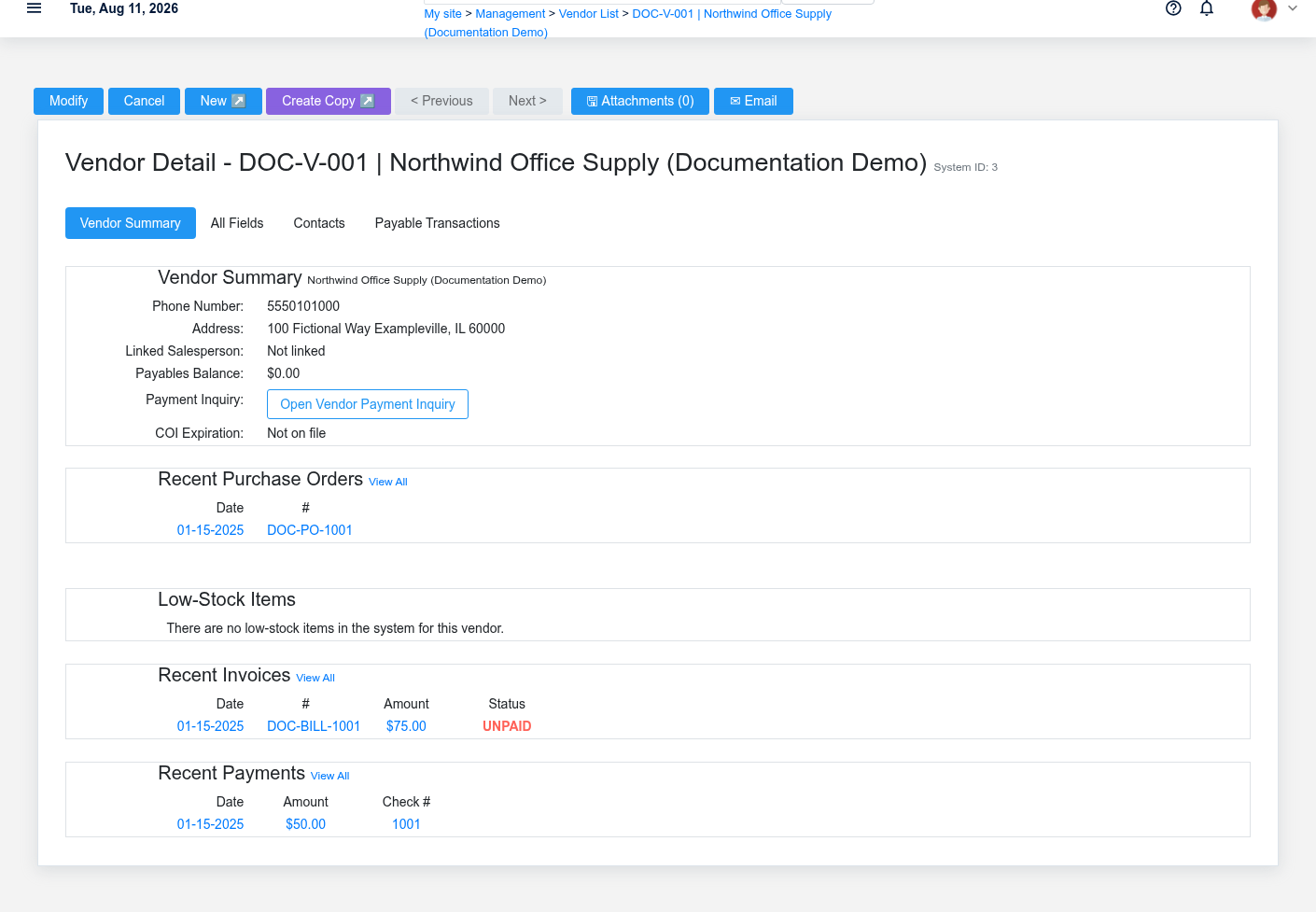
The partial payment retains its invoice allocation while the remaining obligation stays visible.
The buyer hands an approved order and delivery expectation to receiving. Receiving supplies quantity and freight/cost evidence to accounting. Accounts payable matches vendor invoice, receipt, and purchase before payment. Purchase, Receipt, Vendor Invoice, and Payment each remain authoritative for their own business event.
Exceptions and safe corrections
- Wrong draft vendor/item/quantity: correct the Purchase before submission.
- Short delivery: receive only accepted units and keep the order Partially Received.
- Missing freight account or final-cost inputs: correct configuration/evidence before processing.
- Duplicate vendor invoice: search vendor and invoice number before creating another.
- Wrong posted invoice/payment: use the supported credit, void, reversal, or corrected allocation; do not delete material history or create an unrelated opposite record.
Related documentation
### Start here
- [Purchase Orders](https://help.brisksystems.us/link/2639#bkmrk-overview)
### Continue with
- [Inventory Receipts](https://help.brisksystems.us/link/2631#bkmrk-overview)
- [Vendor Invoices](https://help.brisksystems.us/link/2594#bkmrk-overview)
- [Vendor Payments](https://help.brisksystems.us/link/2584#bkmrk-overview)
### Related controls and reports
- [Automatic Restock to Replenished Inventory](https://help.brisksystems.us/link/2988)
- [Inventory](https://help.brisksystems.us/link/2627#bkmrk-overview)