Define the common reporting accounts that receive mapped balances from individual stores.
## At a glance
- **Identify it by:** **Code**, and **Name**.
- **Why care:** Consolidated results are only as reliable as store connectivity, account mapping, currency/timezone setup, and the status of the latest run.
- **Why care:** Availability and publication flags affect future use without erasing history. Prefer disabling an obsolete setup record when existing transactions still refer to it.
## Before you begin
You need the Brisk permission for the action you are taking on consolidated accounts. If a Create, Edit, or Delete control is absent, do not work around it with another user’s account; ask an administrator to review your role.
Create a Consolidated Account
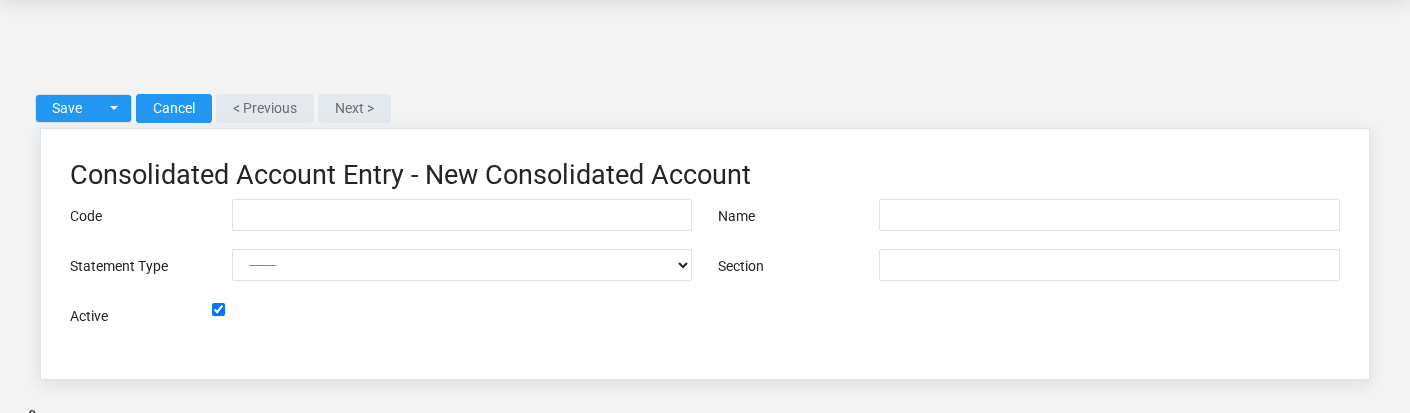
The Consolidated Accounts create screen in the Brisk documentation demo.
Create a Consolidated Account after searching for the person, organization, item, location, or resource under alternate names and identifiers. Merge or correct an existing master record instead of creating a duplicate.
1. Select the business context first.
2. Enter the required identifying and operational values: **Code**, **Name**, and **Statement Type**.
3. Review **Statement Type**, and **Active** deliberately; these choices control availability or workflow rather than merely describing the record.
4. Save the Consolidated Account, then confirm **Code**, and **Name** on its detail page before continuing.
After saving: Verify this Consolidated Account in **Adjustment Lines**, **Adjustment Snapshot Lines**, **General Ledger Snapshot Lines**, and **General Ledger Snapshot States**, plus the remaining screen fields before staff build new activity on it; correct ownership, classification, and active state now rather than after transactions accumulate.
Delete a Consolidated Account
Delete this Consolidated Account only if it is an unused duplicate or setup mistake. Once other records refer to it, preserve that history and make the value inactive when the screen provides that option.
If the record is merely obsolete, use **Active** to remove it from future use while preserving existing references.
Before confirming, check for related **Adjustment Lines**, **Adjustment Snapshot Lines**, **General Ledger Snapshot Lines**, **General Ledger Snapshot States**, and **Store Account Map Snapshots**, plus the remaining screen fields. Brisk may refuse deletion when another record depends on this one; resolve the duplicate or use the supported correction workflow instead of breaking the trail.
On the confirmation page, verify **Code**, and **Name**. After confirmation, return to the Consolidated Accounts list and make sure only the intended Consolidated Account was removed.
Review Consolidated Account details
Use the detail page as the shared record of what this Consolidated Account currently means. Verify **Statement Type**, and **Active** before relying on it for a decision.
Compare the Consolidated Account with its source document or approved setup request before deciding that it needs correction.
Next check: Verify this Consolidated Account in **Adjustment Lines**, **Adjustment Snapshot Lines**, **General Ledger Snapshot Lines**, and **General Ledger Snapshot States**, plus the remaining screen fields before staff build new activity on it; correct ownership, classification, and active state now rather than after transactions accumulate.
Edit an existing Consolidated Account
Edit this Consolidated Account to keep the same real-world party, item, location, or resource accurate. Do not repurpose it for a different entity after activity is attached.
1. Open the detail page. Compare **Code**, and **Name** with the supporting document or approved request.
2. Recheck **Statement Type**, and **Active**. These values are most likely to change store mapping and consolidated statement results.
3. Save the change, return to the list, and confirm that the Consolidated Account now appears under the expected **Statement Type**, and **Active**.
After the change: Verify this Consolidated Account in **Adjustment Lines**, **Adjustment Snapshot Lines**, **General Ledger Snapshot Lines**, and **General Ledger Snapshot States**, plus the remaining screen fields before staff build new activity on it; correct ownership, classification, and active state now rather than after transactions accumulate.
Find and review consolidated accounts
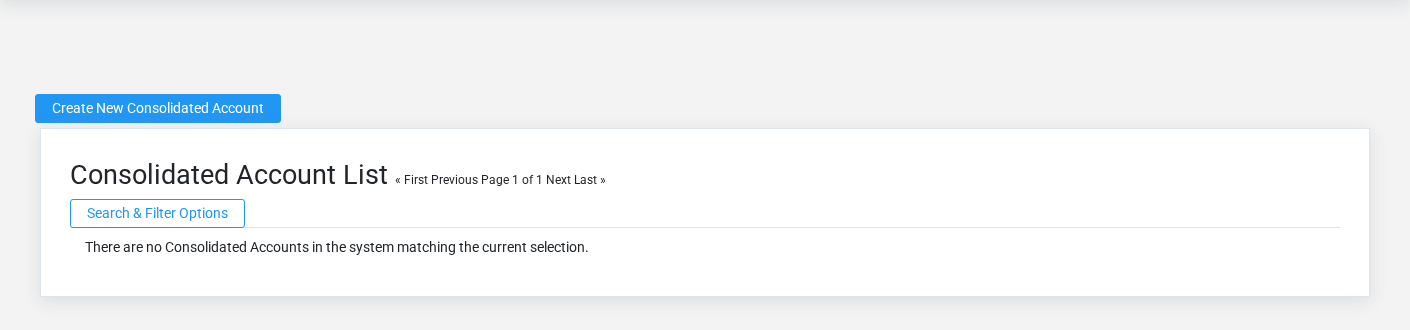
The Consolidated Accounts list screen in the Brisk documentation demo.
Use the Consolidated Accounts list to find the correct record before opening or changing it. Compare **Code**, and **Name**. Compare the full identifier rather than relying on a similar name.
- Keyword search checks **Code**, **Name**, **Statement Type**, and **Section**.
- The initial order emphasizes **Statement Type**, **Section**, **Code**, and **Name**. Select a column heading when you need a different comparison.
Open the Consolidated Account whose **Code**, and **Name** match the task. If it is missing, clear the list filters and recheck **Statement Type**, and **Active** rather than creating a replacement immediately.
## Fields and business rules
Brisk stores 5 user-relevant fields for this Consolidated Account, including 0 linked-record selections and 1 controlled-choice field. Create and edit screens may hide calculated or workflow-managed values from this full reference.
| Field | Required | What it controls |
|---|---:|---|
| **Code** | Yes | Short code used to identify this consolidated account. |
| **Name** | Yes | Human-readable name for this consolidated account. |
| **Statement Type** | Yes | The statement type recorded for this consolidated account. Available values: Balance Sheet, Profit & Loss. |
| **Section** | No | The section recorded for this consolidated account. |
| **Active** | No | Whether this consolidated account is active and available for use. |
## What happens next
Verify this Consolidated Account in **Adjustment Lines**, **Adjustment Snapshot Lines**, **General Ledger Snapshot Lines**, and **General Ledger Snapshot States**, plus the remaining screen fields before staff build new activity on it; correct ownership, classification, and active state now rather than after transactions accumulate.
## Common mistakes and troubleshooting
- **The record will not save:** Recheck **Code**, **Name**, and **Statement Type** and any message beside the field. A required related record may also be inactive or unavailable to your role.
- **The record saved but is not available where expected:** Recheck **Statement Type**, and **Active**, then clear the filters on the destination list. A saved record can still be inactive, unpublished, locked, unapproved, or in the wrong workflow state.
- **The values look right but the result is wrong:** Compare this Consolidated Account with the source document or approved setup decision, then check the downstream screen where it is used.
# Adjustment Entries
# Adjustment Entries
Purpose and when to use this record
Record a dated topside or elimination adjustment used only in consolidated reporting.
## At a glance
- **Identify it by:** **Name**, and **Entry Date**.
- **Why care:** Consolidated results are only as reliable as store connectivity, account mapping, currency/timezone setup, and the status of the latest run.
- **Why care:** Availability and publication flags affect future use without erasing history. Prefer disabling an obsolete setup record when existing transactions still refer to it.
## Before you begin
You need the Brisk permission for the action you are taking on adjustment entries. If a Create, Edit, or Delete control is absent, do not work around it with another user’s account; ask an administrator to review your role.
Find and review adjustment entries
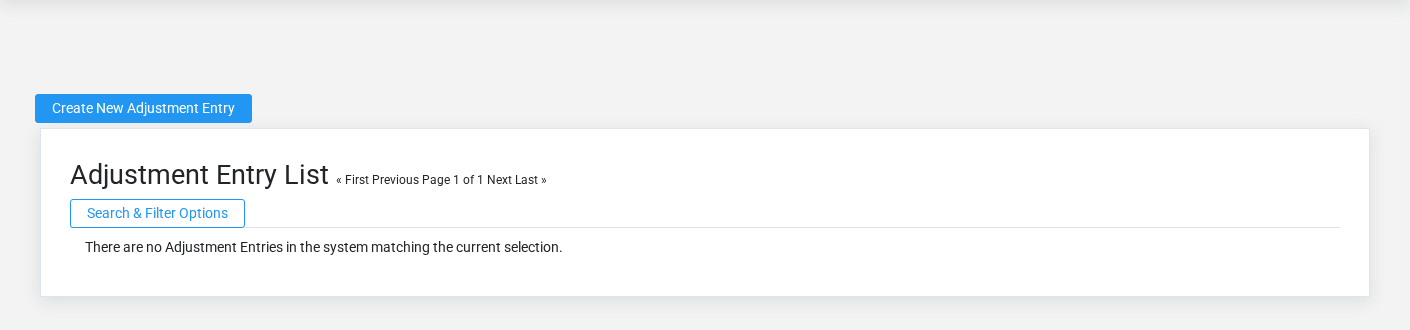
The Adjustment Entries list screen in the Brisk documentation demo.
Use the Adjustment Entries list to find the correct record before opening or changing it. Compare **Name**, and **Entry Date**. Compare the full identifier rather than relying on a similar name.
- Keyword search checks **Name**, **Memo**, and **Type**.
- The initial order emphasizes **Entry Date**, and **Name**. Select a column heading when you need a different comparison.
Open the Adjustment Entry whose **Name**, and **Entry Date** match the task. If it is missing, clear the list filters and recheck **Type**, and **Active** rather than creating a replacement immediately.
Create an Adjustment Entry
Create an Adjustment Entry only after confirming that the source document or operational event has not already been entered.
1. Select the business context first.
2. Enter the required identifying and operational values: **Name**, **Entry Date**, and **Type**.
3. Review **Type**, and **Active** deliberately; these choices control availability or workflow rather than merely describing the record.
4. Save the Adjustment Entry, then confirm **Name**, and **Entry Date** on its detail page before continuing.
After saving: Verify **Type**, and **Active** on the detail page, then continue the consolidation workflow only when those values agree with the source document and actual work performed.
Delete an Adjustment Entry
Delete this Adjustment Entry only when it was entered by mistake and no downstream history depends on it. Use a reversal, void, credit, counter-adjustment, or status correction for a real event that later changed.
If the record is merely obsolete, use **Active** to remove it from future use while preserving existing references.
Before confirming, check for related **Adjustment Lines**. Brisk may refuse deletion when another record depends on this one; resolve the duplicate or use the supported correction workflow instead of breaking the trail.
On the confirmation page, verify **Name**, and **Entry Date**. After confirmation, return to the Adjustment Entries list and make sure only the intended Adjustment Entry was removed.
Review Adjustment Entry details
Use the detail page as the shared record of what this Adjustment Entry currently means. Verify **Entry Date**, **Type**, and **Active** before relying on it for a decision.
Compare the Adjustment Entry with its source document or approved setup request before deciding that it needs correction.
Next check: Verify **Type**, and **Active** on the detail page, then continue the consolidation workflow only when those values agree with the source document and actual work performed.
Edit an existing Adjustment Entry
Edit this Adjustment Entry to correct or complete the same source document or operational event; use the supported reversal or follow-up workflow when the business event itself changed.
1. Open the detail page. Compare **Name**, and **Entry Date** with the supporting document or approved request.
2. Recheck **Entry Date**, **Type**, and **Active**. These values are most likely to change store mapping and consolidated statement results.
3. Save the change, return to the list, and confirm that the Adjustment Entry now appears under the expected **Type**, and **Active**.
After the change: Verify **Type**, and **Active** on the detail page, then continue the consolidation workflow only when those values agree with the source document and actual work performed.
## Fields and business rules
Brisk stores 5 user-relevant fields for this Adjustment Entry, including 0 linked-record selections and 1 controlled-choice field. Create and edit screens may hide calculated or workflow-managed values from this full reference.
| Field | Required | What it controls |
|---|---:|---|
| **Name** | Yes | Human-readable name for this adjustment entry. |
| **Entry Date** | Yes | Date recorded for entry date on this adjustment entry. |
| **Memo** | No | The memo recorded for this adjustment entry. |
| **Type** | Yes | The type recorded for this adjustment entry. Available values: Topside, Elimination. |
| **Active** | No | Whether this adjustment entry is active and available for use. |
## What happens next
Verify **Type**, and **Active** on the detail page, then continue the consolidation workflow only when those values agree with the source document and actual work performed.
## Common mistakes and troubleshooting
- **The record will not save:** Recheck **Name**, **Entry Date**, and **Type** and any message beside the field. A required related record may also be inactive or unavailable to your role.
- **The record saved but is not available where expected:** Recheck **Type**, and **Active**, then clear the filters on the destination list. A saved record can still be inactive, unpublished, locked, unapproved, or in the wrong workflow state.
- **The values look right but the result is wrong:** Compare this Adjustment Entry with the source document or approved setup decision, then check the downstream screen where it is used.
# Sync Runs
# Sync Runs
Purpose and when to use this record
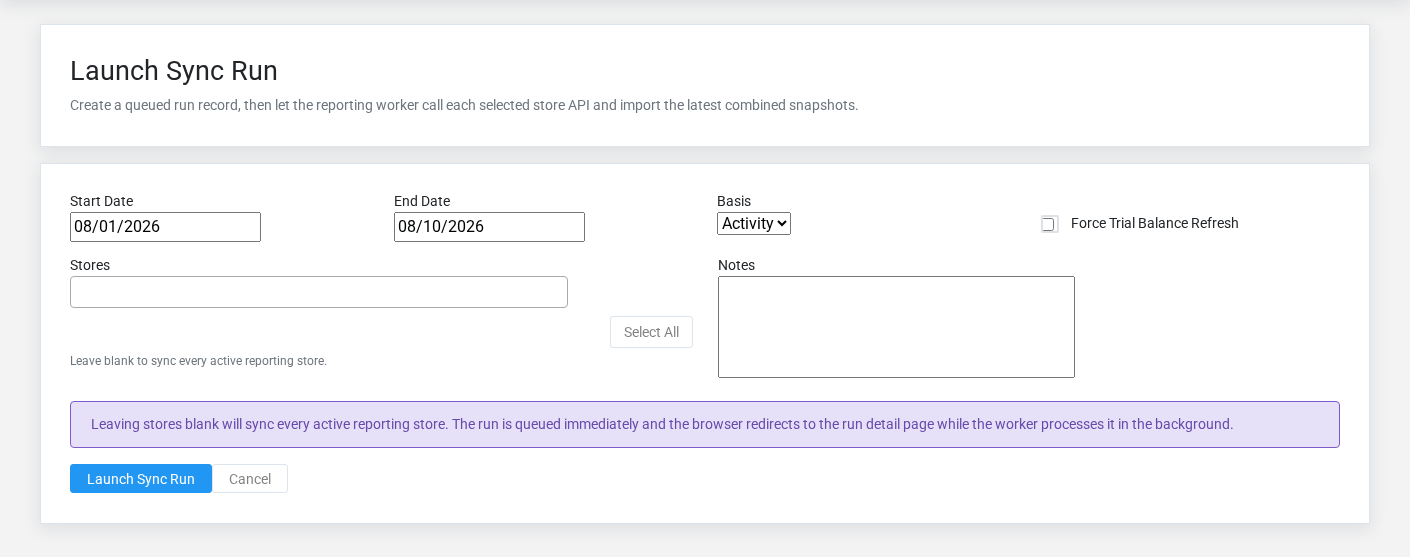
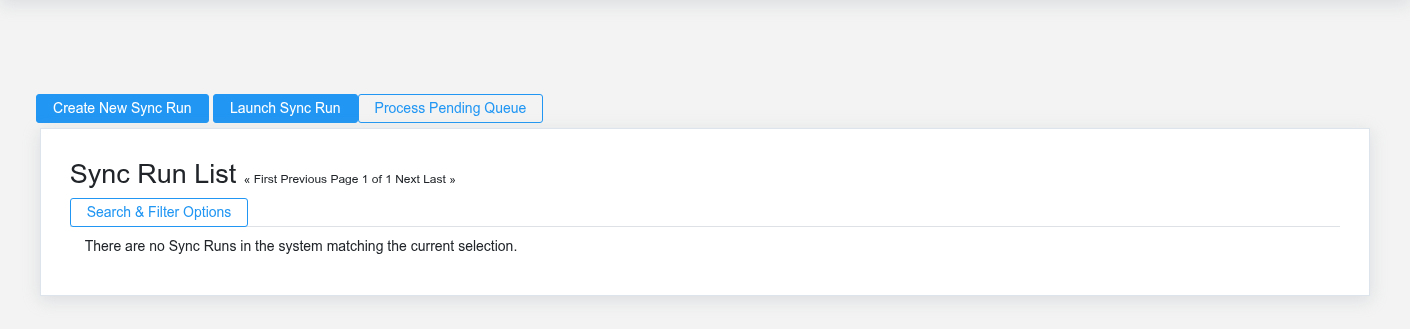
The Sync Runs overview screen in the Brisk documentation demo.The Sync Runs overview screen in the Brisk documentation demo.The Sync Runs overview screen in the Brisk documentation demo.The Sync Runs overview screen in the Brisk documentation demo.
Request and monitor a multi-store reporting refresh for a date range and activity or ending-balance basis.
## At a glance
- **Identify it by:** **Start Date**, **End Date**, and **Status**.
- **Check its business context:** **Requested By**.
- **Why care:** Consolidated results are only as reliable as store connectivity, account mapping, currency/timezone setup, and the status of the latest run.
- **Why care:** Status communicates workflow progress to other staff. Change it only when the underlying work, approval, payment, or handoff has actually occurred.
## Before you begin
You need the Brisk permission for the action you are taking on sync runs. If a Create, Edit, or Delete control is absent, do not work around it with another user’s account; ask an administrator to review your role.
Find and review sync runs
The Sync Runs list screen in the Brisk documentation demo.
Use the Sync Runs list to find the correct record before opening or changing it. Compare **Start Date**, **End Date**, and **Status**. Records with similar names or numbers can still belong to different **Requested By**.
- Keyword search checks **Status**, **Notes**, and **Last Error**.
- The initial order emphasizes **Created At**. Select a column heading when you need a different comparison.
Open the Sync Run whose **Start Date**, **End Date**, and **Status** match the task. If it is missing, clear the list filters and recheck **Basis**, and **Status** rather than creating a replacement immediately.
Review Sync Run details
Use the detail page as the shared record of what this Sync Run currently means. Verify **Start Date**, **End Date**, **Basis**, and **Status** before relying on it for a decision.
Follow **Requested By** to determine whether the issue is on this Sync Run or on one of those linked records.
Next check: Review each store result and the Last Error field before relying on consolidated statements for the requested period.
## Fields and business rules
Brisk stores 10 user-relevant fields for this Sync Run, including 1 linked-record selection and 2 controlled-choice fields. Create and edit screens may hide calculated or workflow-managed values from this full reference.
| Field | Required | What it controls |
|---|---:|---|
| **Requested By** | No | The requested by associated with this run. |
| **Start Date** | Yes | Date recorded for start date on this run. |
| **End Date** | Yes | Date recorded for end date on this run. |
| **Basis** | No | The basis recorded for this run. Available values: Activity, Ending. |
| **Force Refresh** | No | Whether the force refresh option applies to this run. |
| **Status** | No | Current status of this run. Available values: Pending, Running, Success, Partial, Failed. |
| **Started At** | No | Date and time recorded for started at on this run. |
| **Finished At** | No | Date and time recorded for finished at on this run. |
| **Notes** | No | Additional internal notes about this run. |
| **Last Error** | No | The last error recorded for this run. |
## What happens next
Review each store result and the Last Error field before relying on consolidated statements for the requested period.
## Common mistakes and troubleshooting
- **The record will not save:** Recheck **Start Date**, and **End Date** and any message beside the field. A required related record may also be inactive or unavailable to your role.
- **The record saved but is not available where expected:** Recheck **Basis**, and **Status**, then clear the filters on the destination list. A saved record can still be inactive, unpublished, locked, unapproved, or in the wrong workflow state.
- **The values look right but the result is wrong:** Open **Requested By** from the detail page. Correct the specific relationship that is wrong instead of forcing a total or status to compensate for it.
# Reporting Stores
# Reporting Stores
Purpose and when to use this record
Configure a participating store’s reporting endpoint, timezone, currency, transport safeguards, and synchronization health.
## At a glance
- **Identify it by:** **Name**.
- **Why care:** Consolidated results are only as reliable as store connectivity, account mapping, currency/timezone setup, and the status of the latest run.
- **Why care:** Availability and publication flags affect future use without erasing history. Prefer disabling an obsolete setup record when existing transactions still refer to it.
## Before you begin
You need the Brisk permission for the action you are taking on reporting stores. If a Create, Edit, or Delete control is absent, do not work around it with another user’s account; ask an administrator to review your role.
Create a Reporting Store
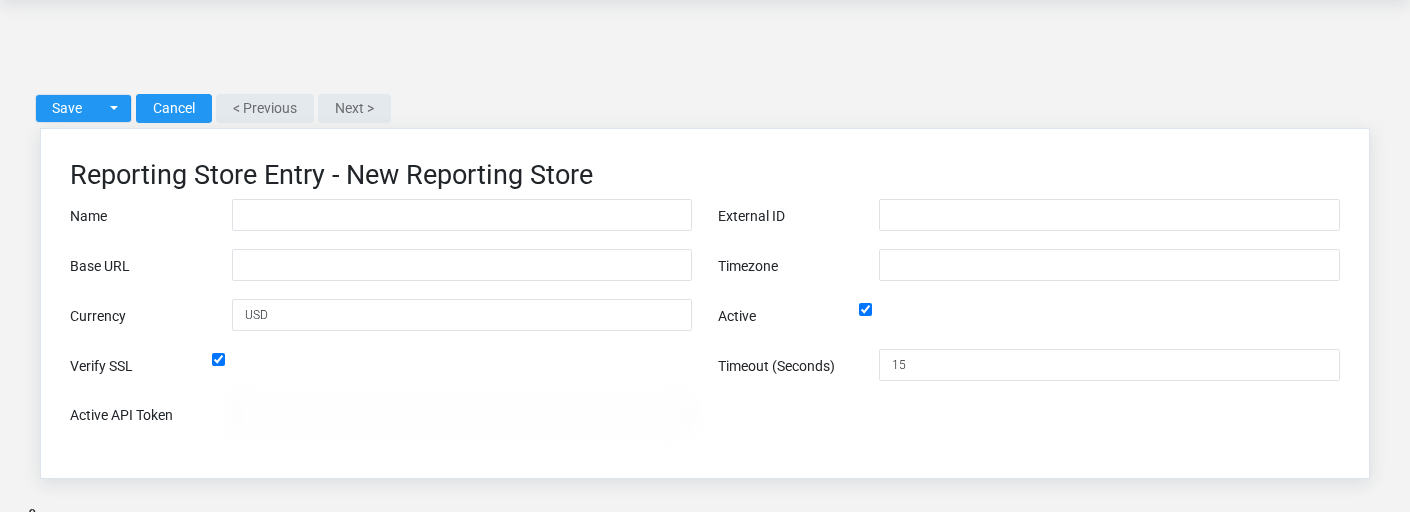
The Reporting Stores create screen in the Brisk documentation demo.
Create a Reporting Store after searching for the person, organization, item, location, or resource under alternate names and identifiers. Merge or correct an existing master record instead of creating a duplicate.
1. Select the business context first.
2. Enter the required identifying and operational values: **Name**, and **Base Url**.
3. Review **Active**, and **Verify Ssl** deliberately; these choices control availability or workflow rather than merely describing the record.
4. Save the Reporting Store, then confirm **Name** on its detail page before continuing.
After saving: Verify this Reporting Store in **Adjustment Lines**, **Adjustment Snapshot Lines**, **General Ledger Snapshot Lines**, and **General Ledger Snapshot States**, plus the remaining screen fields before staff build new activity on it; correct ownership, classification, and active state now rather than after transactions accumulate.
Delete a Reporting Store
Delete this Reporting Store only if it is an unused duplicate or setup mistake. Once other records refer to it, preserve that history and make the value inactive when the screen provides that option.
If the record is merely obsolete, use **Active** to remove it from future use while preserving existing references.
Before confirming, check for related **Adjustment Lines**, **Adjustment Snapshot Lines**, **General Ledger Snapshot Lines**, **General Ledger Snapshot States**, and **Reporting Store Accounts**, plus the remaining screen fields. Brisk may refuse deletion when another record depends on this one; resolve the duplicate or use the supported correction workflow instead of breaking the trail.
On the confirmation page, verify **Name**. After confirmation, return to the Reporting Stores list and make sure only the intended Reporting Store was removed.
Review Reporting Store details
Use the detail page as the shared record of what this Reporting Store currently means. Verify **Active** before relying on it for a decision.
Compare the Reporting Store with its source document or approved setup request before deciding that it needs correction.
Next check: Verify this Reporting Store in **Adjustment Lines**, **Adjustment Snapshot Lines**, **General Ledger Snapshot Lines**, and **General Ledger Snapshot States**, plus the remaining screen fields before staff build new activity on it; correct ownership, classification, and active state now rather than after transactions accumulate.
Edit an existing Reporting Store
Edit this Reporting Store to keep the same real-world party, item, location, or resource accurate. Do not repurpose it for a different entity after activity is attached.
1. Open the detail page. Compare **Name** with the supporting document or approved request.
2. Recheck **Active**. These values are most likely to change store mapping and consolidated statement results.
3. Save the change, return to the list, and confirm that the Reporting Store now appears under the expected **Active**.
After the change: Verify this Reporting Store in **Adjustment Lines**, **Adjustment Snapshot Lines**, **General Ledger Snapshot Lines**, and **General Ledger Snapshot States**, plus the remaining screen fields before staff build new activity on it; correct ownership, classification, and active state now rather than after transactions accumulate.
Find and review reporting stores
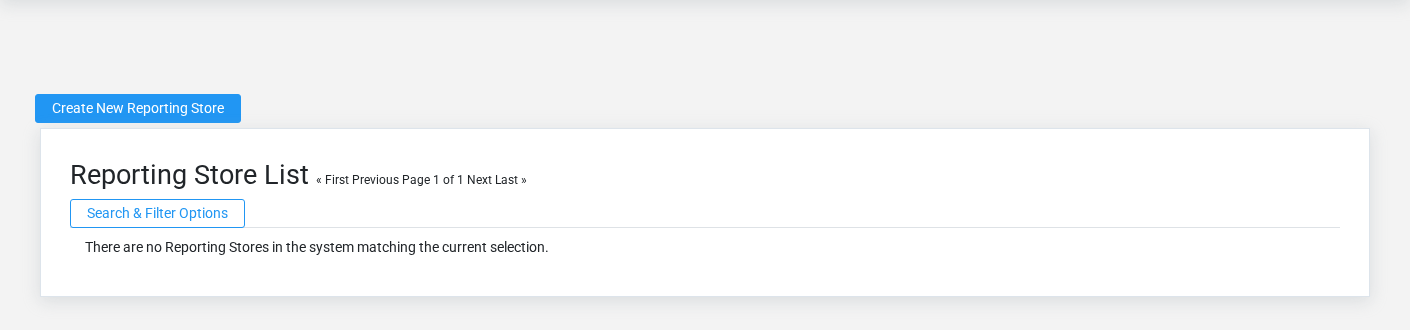
The Reporting Stores list screen in the Brisk documentation demo.
Use the Reporting Stores list to find the correct record before opening or changing it. Compare **Name**. Compare the full identifier rather than relying on a similar name.
- Keyword search checks **Name**, **External Id**, **Base Url**, **Timezone**, **Currency**, and **Last Error**.
- The initial order emphasizes **Name**. Select a column heading when you need a different comparison.
Open the Reporting Store whose **Name** match the task. If it is missing, clear the list filters and recheck **Active** rather than creating a replacement immediately.
## Fields and business rules
Brisk stores 11 user-relevant fields for this Reporting Store, including 0 linked-record selections and 0 controlled-choice fields. Create and edit screens may hide calculated or workflow-managed values from this full reference.
| Field | Required | What it controls |
|---|---:|---|
| **Name** | Yes | Human-readable name for this reporting store. |
| **External Id** | No | URL-safe identifier for this reporting store. |
| **Base Url** | Yes | URL recorded as base url for this reporting store. |
| **Timezone** | No | The timezone recorded for this reporting store. |
| **Currency** | No | The currency recorded for this reporting store. |
| **Active** | No | Whether this reporting store is active and available for use. |
| **Verify Ssl** | No | Whether the verify ssl option applies to this reporting store. |
| **Timeout (Seconds)** | No | The timeout (seconds) value recorded for this reporting store. |
| **Last Successful Sync At** | No | Date and time recorded for last successful sync at on this reporting store. |
| **Last Ping At** | No | Date and time recorded for last ping at on this reporting store. |
| **Last Error** | No | The last error recorded for this reporting store. |
## What happens next
Verify this Reporting Store in **Adjustment Lines**, **Adjustment Snapshot Lines**, **General Ledger Snapshot Lines**, and **General Ledger Snapshot States**, plus the remaining screen fields before staff build new activity on it; correct ownership, classification, and active state now rather than after transactions accumulate.
## Common mistakes and troubleshooting
- **The record will not save:** Recheck **Name**, and **Base Url** and any message beside the field. A required related record may also be inactive or unavailable to your role.
- **The record saved but is not available where expected:** Recheck **Active**, then clear the filters on the destination list. A saved record can still be inactive, unpublished, locked, unapproved, or in the wrong workflow state.
- **The values look right but the result is wrong:** Compare this Reporting Store with the source document or approved setup decision, then check the downstream screen where it is used.
# Store Account Maps
# Store Account Maps
Purpose and when to use this record
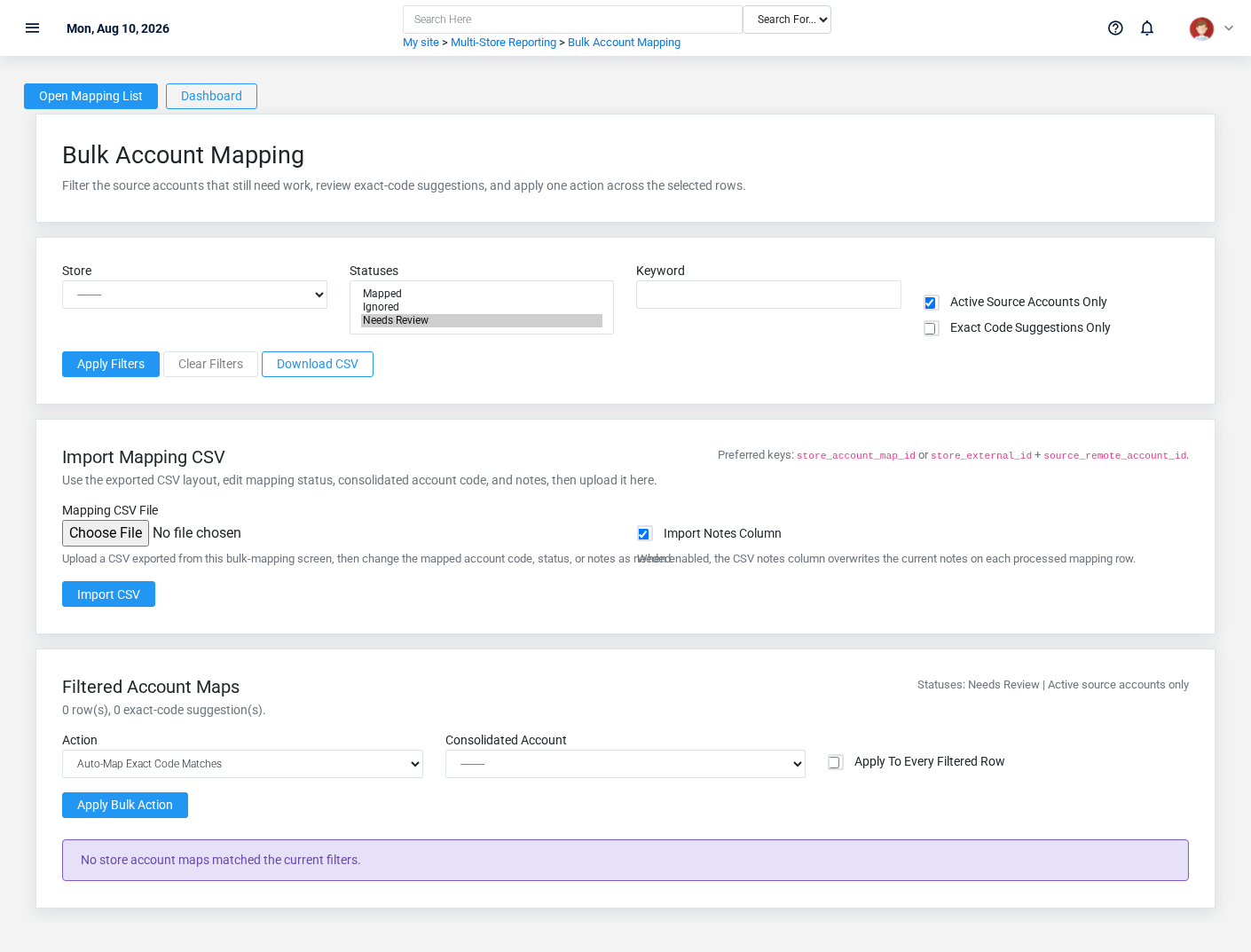
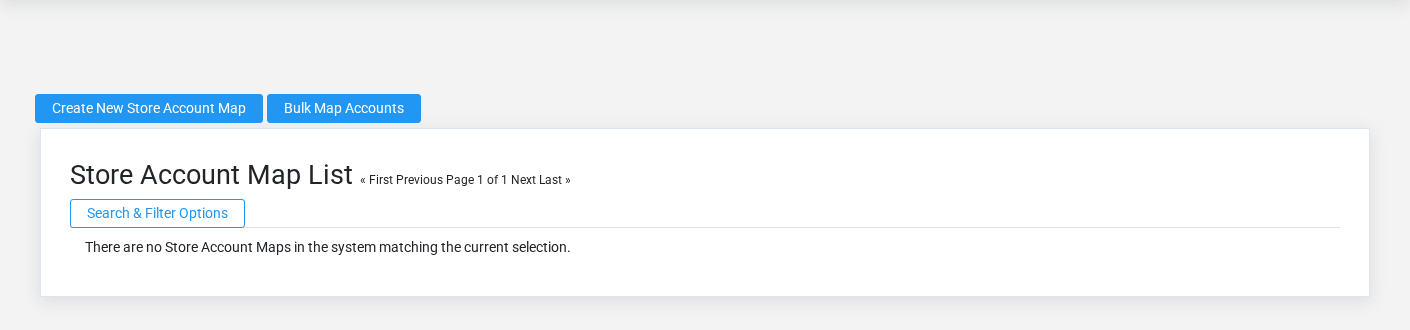
The Store Account Maps overview screen in the Brisk documentation demo.
Map or intentionally ignore a store-level account when rolling balances into the consolidated chart.
## At a glance
- **Identify it by:** **Consolidated Account**, and **Mapping Status**.
- **Check its business context:** **Store**, **Reporting Store Account**, and **Consolidated Account**.
- **Why care:** Consolidated results are only as reliable as store connectivity, account mapping, currency/timezone setup, and the status of the latest run.
## Before you begin
You need the Brisk permission for the action you are taking on store account maps. If a Create, Edit, or Delete control is absent, do not work around it with another user’s account; ask an administrator to review your role.
Have valid **Store**, and **Reporting Store Account** records ready first. Those selections determine where this Store Account Map belongs and which later screens can find it.
Create a Store Account Map
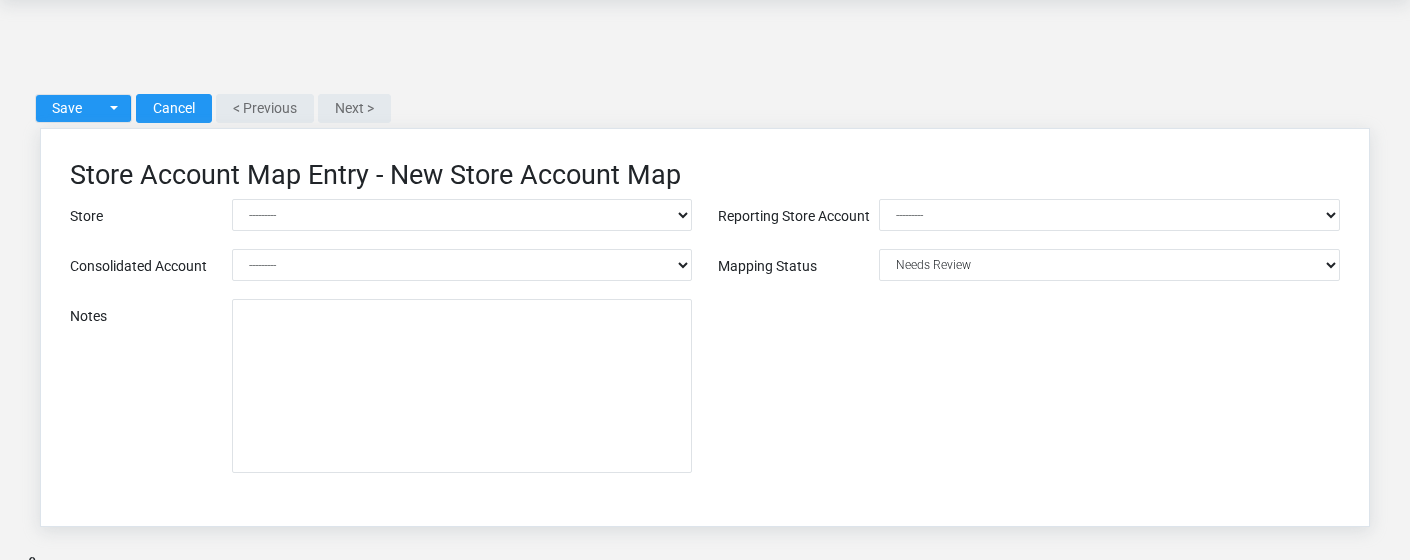
The Store Account Maps create screen in the Brisk documentation demo.
Create a Store Account Map after searching for the person, organization, item, location, or resource under alternate names and identifiers. Merge or correct an existing master record instead of creating a duplicate.
1. Select the business context first: **Store**, **Reporting Store Account**, and **Consolidated Account**.
2. Enter the required identifying and operational values: **Store**, and **Reporting Store Account**.
3. Review **Mapping Status** deliberately; these choices control availability or workflow rather than merely describing the record.
4. Save the Store Account Map, then confirm **Consolidated Account**, and **Mapping Status** on its detail page before continuing.
After saving: Run or refresh consolidation and clear every Needs Review mapping before distributing consolidated financial statements.
Delete a Store Account Map
Delete this Store Account Map only if it is an unused duplicate or setup mistake. Once other records refer to it, preserve that history and make the value inactive when the screen provides that option.
On the confirmation page, verify **Consolidated Account**, and **Mapping Status**. After confirmation, return to the Store Account Maps list and make sure only the intended Store Account Map was removed.
Review Store Account Map details
Use the detail page as the shared record of what this Store Account Map currently means. Verify **Consolidated Account**, and **Mapping Status** before relying on it for a decision.
Follow **Store**, **Reporting Store Account**, and **Consolidated Account** to determine whether the issue is on this Store Account Map or on one of those linked records.
Next check: Run or refresh consolidation and clear every Needs Review mapping before distributing consolidated financial statements.
Edit an existing Store Account Map
Edit this Store Account Map to keep the same real-world party, item, location, or resource accurate. Do not repurpose it for a different entity after activity is attached.
1. Open the detail page. Compare **Store**, **Reporting Store Account**, and **Consolidated Account** with the supporting document or approved request.
2. Recheck **Reporting Store Account**, **Consolidated Account**, and **Mapping Status**. These values are most likely to change store mapping and consolidated statement results.
3. Save the change, return to the list, and confirm that the Store Account Map now appears under the expected **Mapping Status**.
After the change: Run or refresh consolidation and clear every Needs Review mapping before distributing consolidated financial statements.
Find and review store account maps
The Store Account Maps list screen in the Brisk documentation demo.
Use the Store Account Maps list to find the correct record before opening or changing it. Compare **Consolidated Account**, and **Mapping Status**. Records with similar names or numbers can still belong to different **Store**, **Reporting Store Account**, and **Consolidated Account**.
- Keyword search checks **Code**, **Name**, **Mapping Status**, and **Notes**.
- Narrow the list with **Store**, and **Consolidated Account** filters.
- The initial order emphasizes **Name**, and **Code**. Select a column heading when you need a different comparison.
Open the Store Account Map whose **Consolidated Account**, and **Mapping Status** match the task. If it is missing, clear the list filters and recheck **Store**, **Consolidated Account**, and **Mapping Status** rather than creating a replacement immediately.
## Fields and business rules
Brisk stores 5 user-relevant fields for this Store Account Map, including 3 linked-record selections and 1 controlled-choice field. Create and edit screens may hide calculated or workflow-managed values from this full reference.
| Field | Required | What it controls |
|---|---:|---|
| **Store** | Yes | The store associated with this store account map. |
| **Reporting Store Account** | Yes | The reporting store account associated with this store account map. |
| **Consolidated Account** | No | The consolidated account associated with this store account map. |
| **Mapping Status** | No | The mapping status recorded for this store account map. Available values: Mapped, Ignored, Needs Review. |
| **Notes** | No | Additional internal notes about this store account map. |
## What happens next
Run or refresh consolidation and clear every Needs Review mapping before distributing consolidated financial statements.
## Common mistakes and troubleshooting
- **The record will not save:** Recheck **Store**, and **Reporting Store Account** and any message beside the field. A required related record may also be inactive or unavailable to your role.
- **The values look right but the result is wrong:** Open **Store**, **Reporting Store Account**, and **Consolidated Account** from the detail page. Correct the specific relationship that is wrong instead of forcing a total or status to compensate for it.
# Start Here
# Consolidation
# Consolidation
Consolidation overview
The Consolidation workspace related to this reference article.
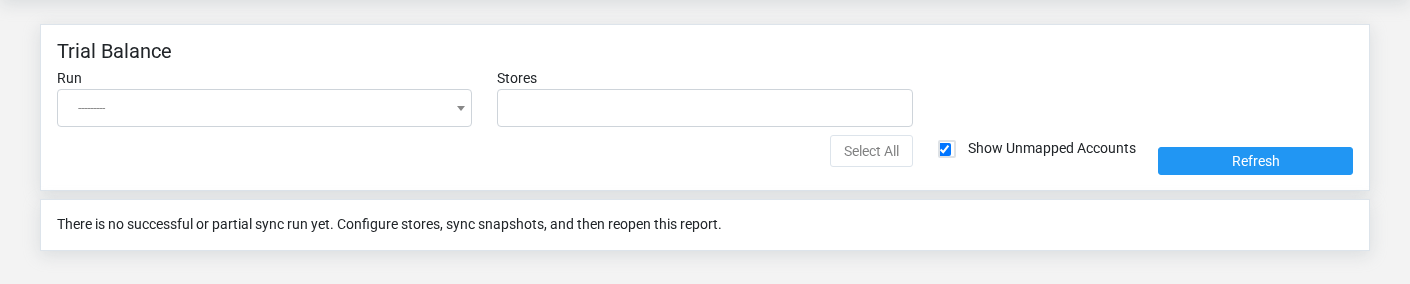
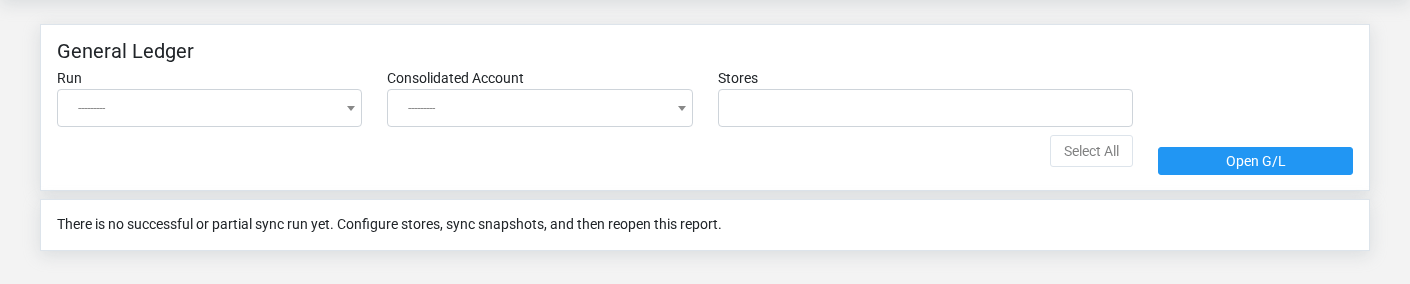
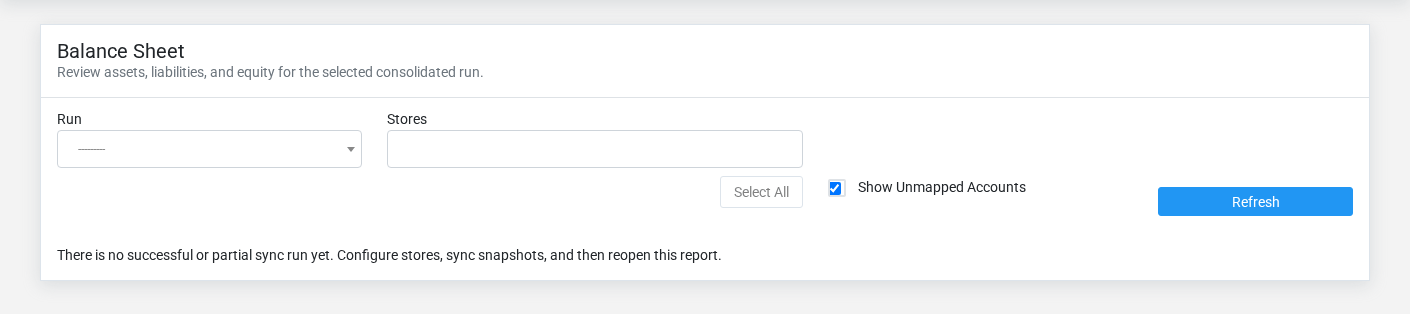
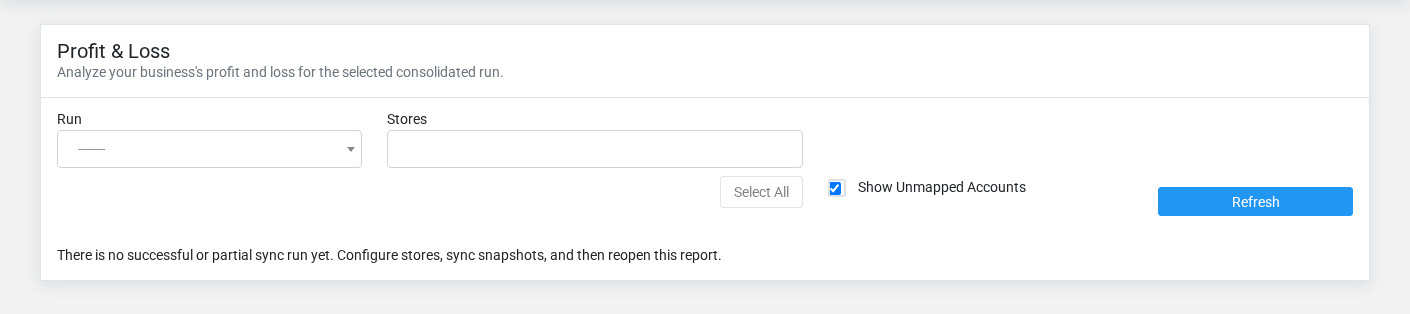
Consolidation—shown in Brisk as Multi-Store Reporting—collects reporting data from participating stores, maps their local accounts into a common chart, and produces group-level trial balance, general ledger, and financial statement output. It does not replace each store’s operational ledger or repair incorrect source transactions.
Set up the reporting structure
Create a [Reporting Store](https://help.brisksystems.us/link/2602#bkmrk-overview) for each participating business, including its endpoint, timezone, currency, and transport safeguards. Define [Consolidated Accounts](https://help.brisksystems.us/link/2598#bkmrk-overview) for the common reporting chart. Use [Store Account Maps](https://help.brisksystems.us/link/2603#bkmrk-overview) to map each source account—or intentionally ignore it with a documented reason.
Run and review synchronization
Launch a [Sync Run](https://help.brisksystems.us/link/2600#bkmrk-overview) for the intended date range and activity or ending-balance basis. Monitor pending and failed stores, review unmapped accounts, and retain the run artifacts that explain what was collected. A completed run is not trustworthy when a required store failed or material accounts still need review.
Adjust without changing store books
Use [Adjustment Entries](https://help.brisksystems.us/link/2599#bkmrk-overview) for topside or elimination adjustments that belong only in consolidated reporting. Record balanced lines, effective date, purpose, and supporting memo. Reconcile consolidated totals to the included store trial balances plus these adjustments, and investigate currency, timezone, mapping, or cutoff differences before distributing group results.