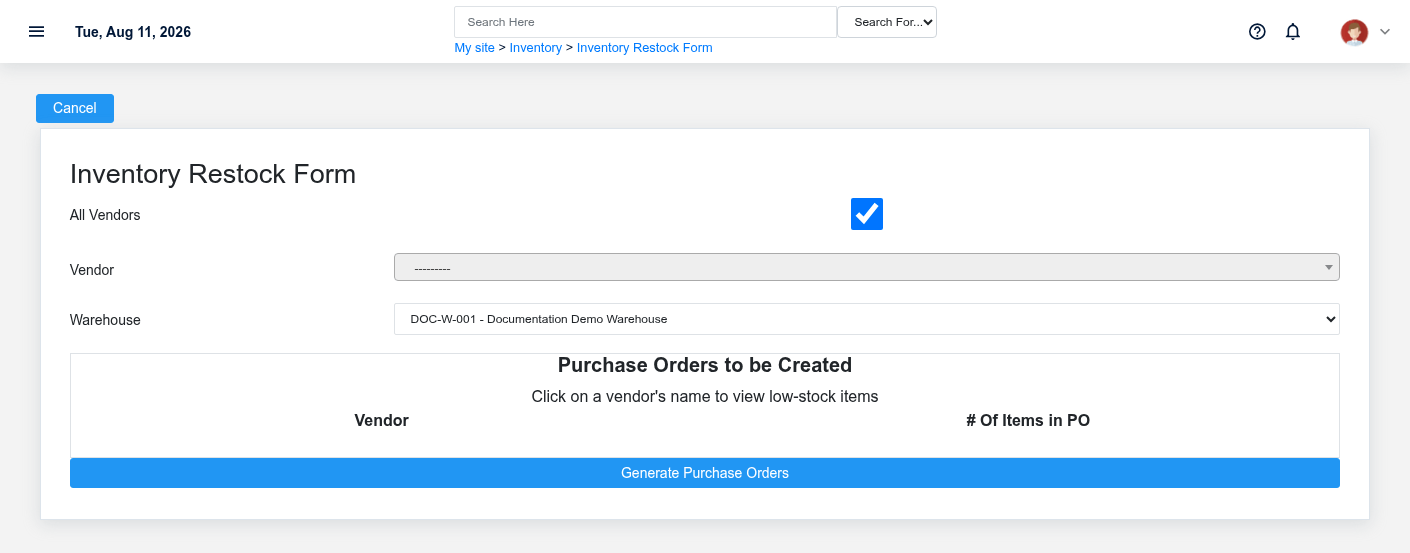
Use the Restock Form to turn configured reorder levels into draft purchase orders for one warehouse. It is appropriate when item/vendor assignments and warehouse reorder and maximum quantities are already maintained. It is not a demand-forecasting worksheet and does not place one combined order across unrelated vendors.
Prepare a restock list
The Restock Form restock screen in the Brisk documentation demo.
1. Select the **Warehouse** that needs stock. Reorder levels, current purchase quantity, and open purchase orders are evaluated in that warehouse context.
2. Leave **All Vendors** selected to evaluate every vendor, or clear it and choose one **Vendor** for a focused run.
3. Before submitting, confirm that each affected item has the correct primary vendor, item cost, reorder quantity, and maximum quantity.
4. Submit the form. Brisk creates an automatic-purchase record and a separate draft [Purchase Order](https://help.brisksystems.us/link/2639#bkmrk-overview) for each vendor that has qualifying items.
5. Review the generated purchase-order list before sending anything to a vendor.
How Brisk calculates a suggestion
Brisk evaluates Inventory and Manufactured items assigned to the vendor. An item qualifies when its current purchase quantity plus incomplete purchase-order quantity is at or below the warehouse reorder quantity. The suggested order quantity fills toward the configured maximum, reduced by stock already in the purchasing pipeline. Items with missing reorder/maximum setup or a non-positive maximum are skipped.
Review generated purchase orders
Check vendor, warehouse, item, unit, quantity, description, cost, requested date, and any vendor minimum or pack-size requirement. The calculation prevents obvious duplication from open purchase rows, but it cannot know about an order placed outside Brisk, unusual seasonal demand, damaged stock not yet adjusted, or incoming stock recorded under the wrong warehouse.
If expected items are missing
Verify the item’s vendor, item type, warehouse reorder and maximum quantities, current stock/purchase quantity, and incomplete purchase rows. Do not rerun the form repeatedly until you understand the first result; repeated runs can create additional draft purchase orders if earlier work has not been reviewed.