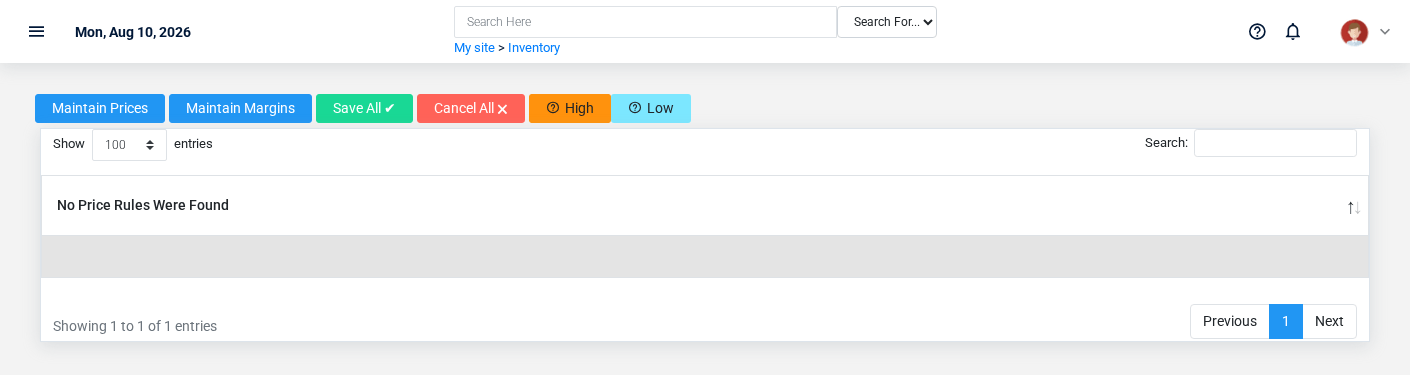
The Price Rules overview screen in the Brisk documentation demo.
Review the conditional pricing rules that select a price from customer, quantity, schedule, item, and date context.
## At a glance
- **Identify it by:** **Customer Class**, **Item**, **Rule Base**, and **Rule Value**.
- **Check its business context:** **Customer Class**, and **Item**.
- **Why care:** Warehouse, item, unit, quantity, and cost must describe the same physical movement. A wrong warehouse or unit can make availability and valuation misleading.
## Before you begin
You need the Brisk permission for the action you are taking on price rules. If a Create, Edit, or Delete control is absent, do not work around it with another user’s account; ask an administrator to review your role.
Have valid **Customer Class** records ready first. Those selections determine where this price rule belongs and which later screens can find it.
Review price rule details
Use the detail page as the shared record of what this price rule currently means. Verify **Rule Base**, and **Modifier** before relying on it for a decision.
Follow **Customer Class**, and **Item** to determine whether the issue is on this price rule or on one of those linked records.
Next check: Use **Customer Class**, and **Item** to interpret this price rule. If it records a failure or exception, correct the source process and create a new successful event rather than rewriting the audit trail.
## Fields and business rules
Brisk stores 8 user-relevant fields for this price rule, including 2 linked-record selections and 2 controlled-choice fields. Create and edit screens may hide calculated or workflow-managed values from this full reference.
| Field | Required | What it controls |
|---|---:|---|
| **Customer Class** | Yes | The customer class associated with this price rule. |
| **Item** | No | Links this price rule to the selected Item; verify the relationship before saving. |
| **Rule Base** | Yes | Use this field to determine whether to mark up from cost or mark down from MSRP. Available values: Cost, MSRP. |
| **Rule Value** | No | Use this field to enter an arbitrary value for Cost or MSRP to calculate a price. If used as a cost, this field will intelligently try to suggest existing costs but the value here does not tamper with the costing system -- for all intents and purposes this value is used for planning pricing. |
| **Modifier** | Yes | This field determines whether the Value field will behave as a percentage of the base or if it will be straight additional margin. Available values: Percent, Margin. |
| **Value** | Yes | The value value recorded for this price rule. |
| **Calculated Price** | No | The calculated price value recorded for this price rule. |
| **Info** | No | Automatic pricing systems in Brisk will annotate their calculations here. |
## What happens next
Use **Customer Class**, and **Item** to interpret this price rule. If it records a failure or exception, correct the source process and create a new successful event rather than rewriting the audit trail.
## Common mistakes and troubleshooting
- **The record will not save:** Recheck **Customer Class**, **Rule Base**, **Modifier**, and **Value** and any message beside the field. A required related record may also be inactive or unavailable to your role.
- **The values look right but the result is wrong:** Open **Customer Class**, and **Item** from the detail page. Correct the specific relationship that is wrong instead of forcing a total or status to compensate for it.