Batch Sheet Printing scales an approved item assembly/formula into shop-floor quantities and produces a PDF. It does not create or complete a manufacturing instance, reserve ingredients, or prove what was actually consumed and produced.
Print batch sheets
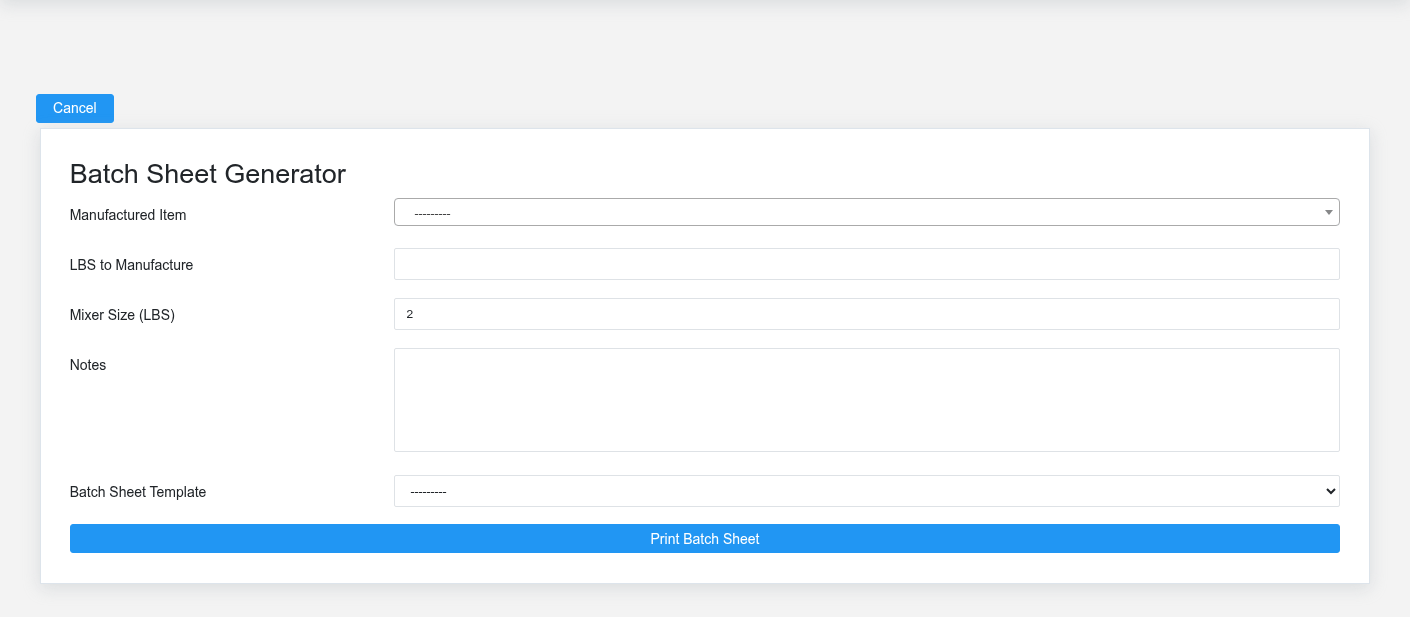
The Batch Sheet Printing batch sheet screen in the Brisk documentation demo.
1. Select the **Manufactured Item** whose [Item Assembly](https://help.brisksystems.us/link/2695#bkmrk-overview) is approved for use.
2. Enter **LBS to Manufacture** for the total requested output.
3. Confirm **Mixer Size (LBS)**. Brisk uses the configured default, but the actual equipment limit and operating procedure should control the value.
4. Add **Notes** that operators need for this run; do not use notes to replace formula revision control or required safety procedures.
5. Select a **Batch Sheet Template** and submit the form to download the PDF.
How quantities are scaled
When the requested quantity is below the mixer size, Brisk creates one batch scaled from the formula’s manufactured quantity. For larger runs, it rounds the number of batches up, divides the total evenly, and scales each ingredient to that equal batch size. Review total output, number of batches, per-batch quantity, units, ingredient order, and accumulated quantities on the PDF.
Before releasing the sheet
Verify formula identity and revision, manufactured unit, ingredient units, allergen or handling instructions, equipment capacity, warehouse availability, expected yield, and operator notes. A mathematically correct sheet can still be operationally wrong if the selected formula, unit, or mixer size is wrong.
Record actual production separately
After production, enter actual inputs, outputs, dates, quantities, and completion state on the [Manufacturing Instance](https://help.brisksystems.us/link/2702#bkmrk-overview). Do not edit the formula or print a replacement sheet merely to make planned quantities resemble actual results.
# Manufacturing Price and Cost Update
# Manufacturing Price and Cost Update
Purpose and when to use this screen
Use Manufacturing Price and Cost Update after ingredient costs, formulas, shrink, or pricing policy change and the business deliberately wants to recalculate manufactured-item costs and customer-class price rules. Submitting the form changes saved costs and prices; the result table is a post-update review, not a harmless preview.
Review and apply updates
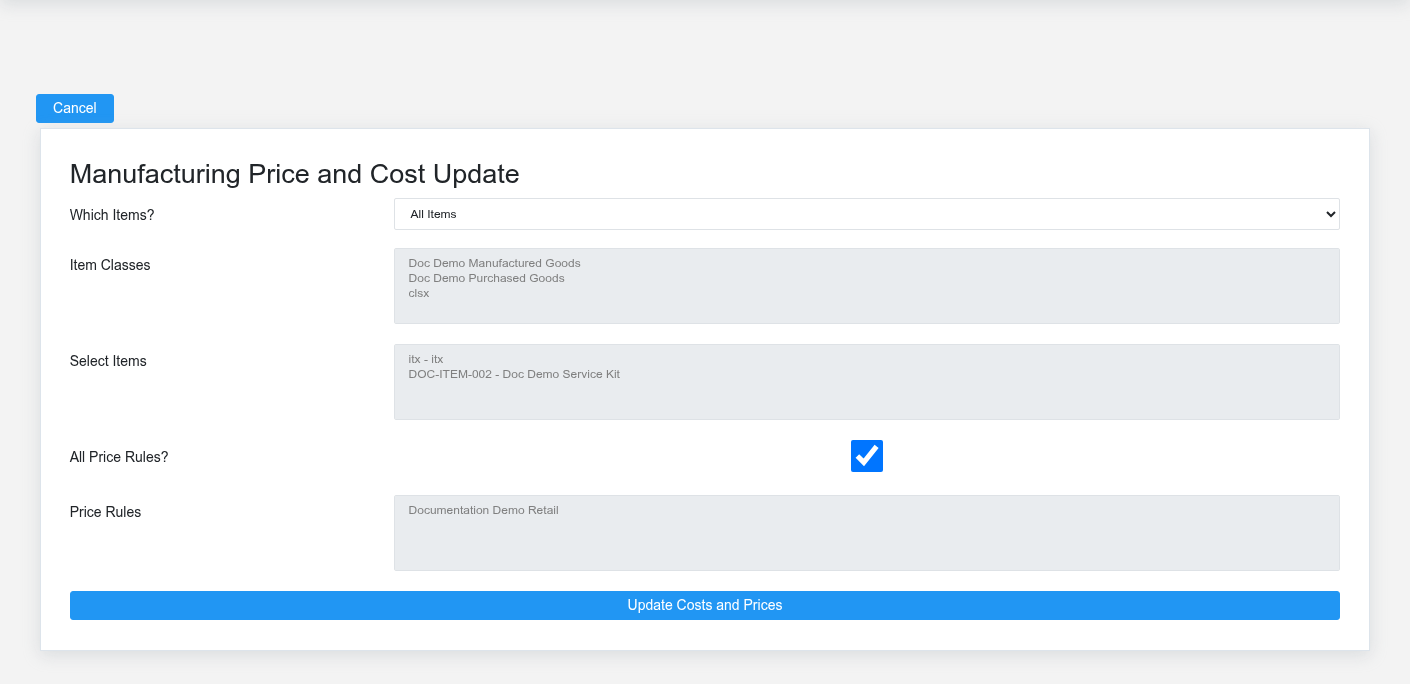
The Manufacturing Price and Cost Update update screen in the Brisk documentation demo.
1. Under **Which Items?**, choose **All Items**, **Selected Classes**, or **Selected Items**. Use the narrowest scope that matches the approved change.
2. If using selected classes, choose the item classes. If using selected items, choose the manufactured items/assemblies explicitly.
3. Leave **All Price Rules?** selected only when every customer class should receive recalculated prices. Otherwise select the intended customer classes under **Price Rules**.
4. Record or export the current costs and prices before submitting when the change is material.
5. Submit once. Brisk first updates each selected manufactured item’s cost from its blueprint ingredients, then updates the selected customer-class price rules using the item’s new cost and blueprint shrink.
6. Review **Item**, **Rule**, **Prev Cost**, **Prev Price**, **Updated Cost**, and **Updated Price** in the results.
Confirm the actual scope
Only items with manufacturing blueprints are considered. Item-class selection filters that set; individual selection uses the manufactured items attached to the selected blueprints. Customer-class selection controls which price rules are recalculated, not which customer records are edited.
Controls before a bulk update
Verify ingredient costs, formula quantities and units, expected yield, shrink, item class, and pricing policy. Run large changes in a safe environment first and have someone review representative low-, normal-, and high-cost products. Coordinate the effective date with open quotes, price schedules, ecommerce listings, and printed price material.
If a result is unexpected
Stop before rerunning. Inspect the item assembly, ingredient cost and unit, shrink, and customer-class price rule. Restore or correct the source setup through the approved process; repeated bulk updates will not repair a bad formula.