# Core Records
# Batch Export Records
# Batch Export Records
Purpose and when to use this record
Review the audit record for a manufacturing batch exported to an external process or file.
## At a glance
- **Identify it by:** **Success**, **Manufacturing Instance**, **Software**, and **File Path**.
- **Check its business context:** **Manufacturing Instance**.
- **Why care:** Confirm item, formula, unit, warehouse, quantity, and production state together; mistakes can distort both material consumption and finished-goods cost.
## Before you begin
You need the Brisk permission for the action you are taking on batch export records. If a Create, Edit, or Delete control is absent, do not work around it with another user’s account; ask an administrator to review your role.
Find and review batch export records
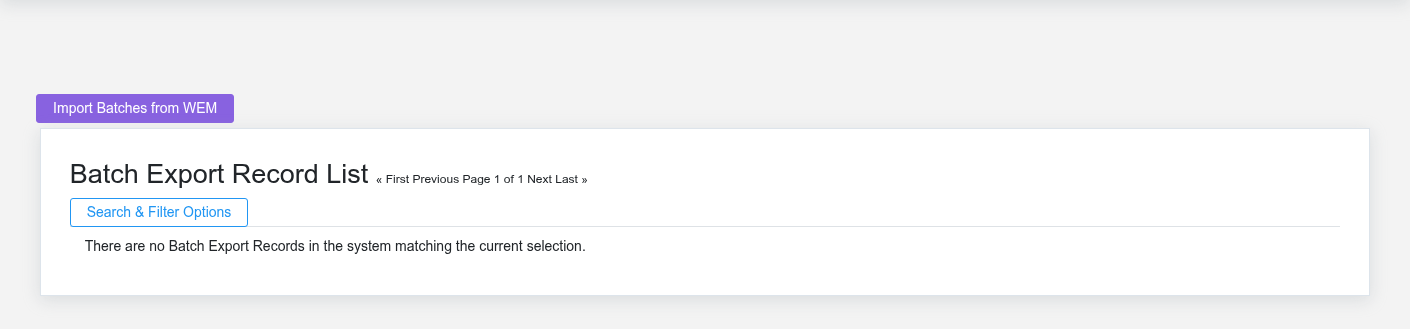
The Batch Export Records list screen in the Brisk documentation demo.
Use the Batch Export Records list to find the correct record before opening or changing it. Compare **Success**, **Manufacturing Instance**, **Software**, and **File Path**. Records with similar names or numbers can still belong to different **Manufacturing Instance**.
- Keyword search checks **Software**, **File Path**, and **Message**.
- The date filter uses **Date Created**; choose a range that matches the business event you are reconciling.
Open the Batch Export Record whose **Success**, **Manufacturing Instance**, **Software**, and **File Path** match the task. If it is missing, clear the list filters and recheck **Date Created** rather than creating a replacement immediately.
## Fields and business rules
Brisk stores 5 user-relevant fields for this Batch Export Record, including 1 linked-record selection and 0 controlled-choice fields. Create and edit screens may hide calculated or workflow-managed values from this full reference.
| Field | Required | What it controls |
|---|---:|---|
| **Success** | No | Indicates whether or not the import was successful. |
| **Manufacturing Instance** | No | The manufacturing instance associated with this batch export record. |
| **Software** | Yes | Indicates which software this import file was pulled from. |
| **File Path** | Yes | Indicates the local path from which the import file was read. |
| **Message** | Yes | Records error or success information. |
## What happens next
Use **Manufacturing Instance** to interpret this Batch Export Record. If it records a failure or exception, correct the source process and create a new successful event rather than rewriting the audit trail.
## Common mistakes and troubleshooting
- **The record will not save:** Recheck **Software**, **File Path**, and **Message** and any message beside the field. A required related record may also be inactive or unavailable to your role.
- **The values look right but the result is wrong:** Open **Manufacturing Instance** from the detail page. Correct the specific relationship that is wrong instead of forcing a total or status to compensate for it.
# Batch Import Records
# Batch Import Records
Purpose and when to use this record
Review the audit record for a manufacturing batch imported from an external process or file.
## At a glance
- **Identify it by:** **Success**, **Manufacturing Instance**, **Software**, and **File Path**.
- **Check its business context:** **Manufacturing Instance**.
- **Why care:** Confirm item, formula, unit, warehouse, quantity, and production state together; mistakes can distort both material consumption and finished-goods cost.
## Before you begin
You need the Brisk permission for the action you are taking on batch import records. If a Create, Edit, or Delete control is absent, do not work around it with another user’s account; ask an administrator to review your role.
Find and review batch import records
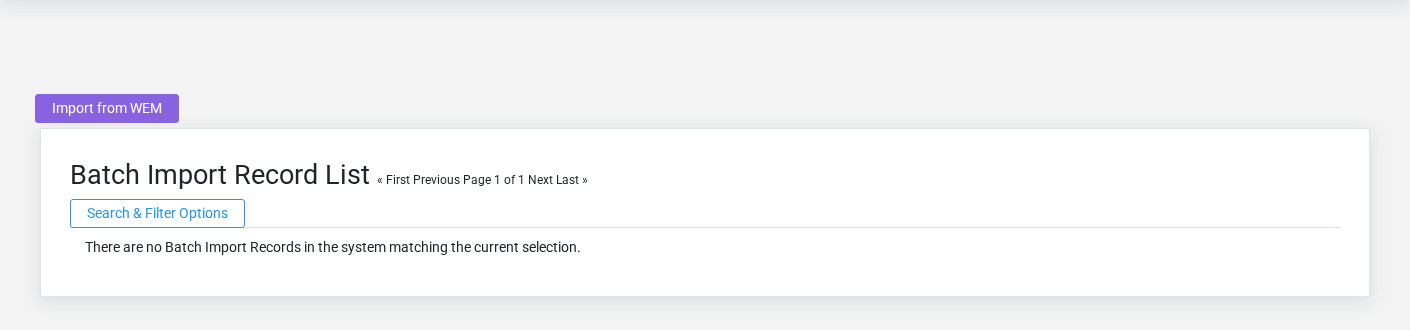
The Batch Import Records list screen in the Brisk documentation demo.
Use the Batch Import Records list to find the correct record before opening or changing it. Compare **Success**, **Manufacturing Instance**, **Software**, and **File Path**. Records with similar names or numbers can still belong to different **Manufacturing Instance**.
- Keyword search checks **Software**, **File Path**, and **Message**.
- The date filter uses **Date Created**; choose a range that matches the business event you are reconciling.
Open the Batch Import Record whose **Success**, **Manufacturing Instance**, **Software**, and **File Path** match the task. If it is missing, clear the list filters and recheck **Date Created** rather than creating a replacement immediately.
## Fields and business rules
Brisk stores 5 user-relevant fields for this Batch Import Record, including 1 linked-record selection and 0 controlled-choice fields. Create and edit screens may hide calculated or workflow-managed values from this full reference.
| Field | Required | What it controls |
|---|---:|---|
| **Success** | No | Indicates whether or not the import was successful. |
| **Manufacturing Instance** | No | The manufacturing instance associated with this batch import record. |
| **Software** | Yes | Indicates which software this import file was pulled from. |
| **File Path** | Yes | Indicates the local path from which the import file was read. |
| **Message** | Yes | Records error or success information. |
## What happens next
Use **Manufacturing Instance** to interpret this Batch Import Record. If it records a failure or exception, correct the source process and create a new successful event rather than rewriting the audit trail.
## Common mistakes and troubleshooting
- **The record will not save:** Recheck **Software**, **File Path**, and **Message** and any message beside the field. A required related record may also be inactive or unavailable to your role.
- **The values look right but the result is wrong:** Open **Manufacturing Instance** from the detail page. Correct the specific relationship that is wrong instead of forcing a total or status to compensate for it.
# Blueprint Types
# Blueprint Types
Purpose and when to use this record
Classify assemblies and formulas for organization, filtering, and manufacturing behavior.
## At a glance
- **Identify it by:** **Name**.
- **Why care:** Confirm item, formula, unit, warehouse, quantity, and production state together; mistakes can distort both material consumption and finished-goods cost.
## Before you begin
You need the Brisk permission for the action you are taking on blueprint types. If a Create, Edit, or Delete control is absent, do not work around it with another user’s account; ask an administrator to review your role.
Create a blueprint type
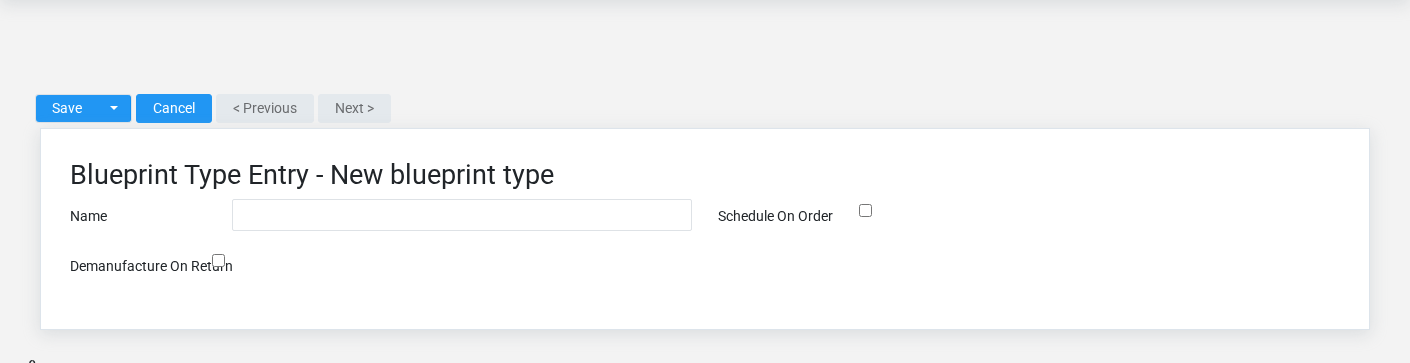
The Blueprint Types create screen in the Brisk documentation demo.
Create a blueprint type only when the existing choices do not represent the policy or classification you need. Near-duplicate setup values split reporting and make later selection harder.
1. Select the business context first.
2. Enter the required identifying and operational values: **Name**.
3. Review **Schedule On Order**, and **Demanufacture On Return** deliberately; these choices control availability or workflow rather than merely describing the record.
4. Save the blueprint type, then confirm **Name** on its detail page before continuing.
After saving: Open **Item Assemblies** and confirm the blueprint type appears with the intended label and availability. Keep the old value for historical records when changing it would split or relabel prior reporting.
Delete a blueprint type
Delete this blueprint type only if it is an unused duplicate or setup mistake. Once other records refer to it, preserve that history and make the value inactive when the screen provides that option.
Before confirming, check for related **Item Assemblies**. Brisk may refuse deletion when another record depends on this one; resolve the duplicate or use the supported correction workflow instead of breaking the trail.
On the confirmation page, verify **Name**. After confirmation, return to the Blueprint Types list and make sure only the intended blueprint type was removed.
Review blueprint type details
Use the detail page as the shared record of what this blueprint type currently means. Verify **Name**, **Schedule On Order**, and **Demanufacture On Return** before relying on it for a decision.
Compare the blueprint type with its source document or approved setup request before deciding that it needs correction.
Next check: Open **Item Assemblies** and confirm the blueprint type appears with the intended label and availability. Keep the old value for historical records when changing it would split or relabel prior reporting.
Edit an existing blueprint type
Edit this blueprint type when the underlying policy or classification changed. First determine whether historical transactions should retain the old value; if so, deactivate the old choice and create a new one.
1. Open the detail page. Compare **Name** with the supporting document or approved request.
2. Recheck the identifying information shown on the screen. These values are most likely to change material demand, production status, output quantity, and cost.
3. Save the change, return to the list, and confirm that the blueprint type now appears under the expected **Name**.
After the change: Open **Item Assemblies** and confirm the blueprint type appears with the intended label and availability. Keep the old value for historical records when changing it would split or relabel prior reporting.
Find and review blueprint types
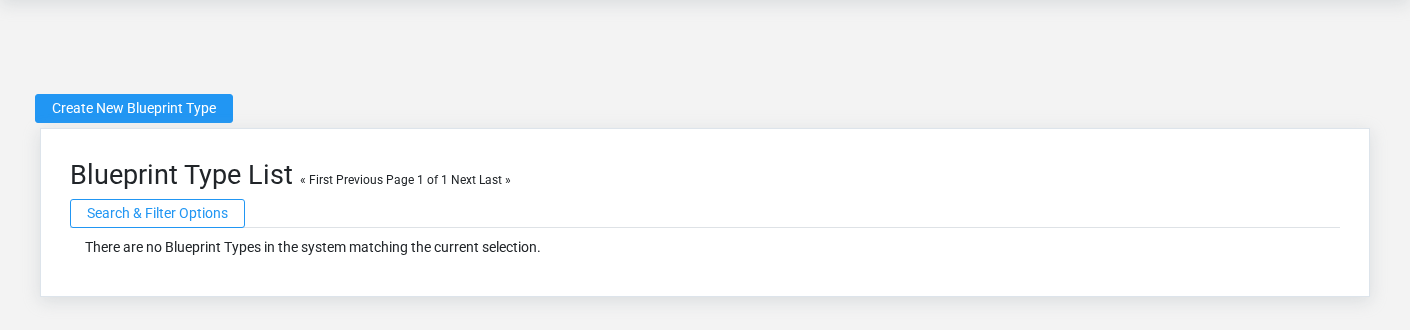
The Blueprint Types list screen in the Brisk documentation demo.
Use the Blueprint Types list to find the correct record before opening or changing it. Compare **Name**. Compare the full identifier rather than relying on a similar name.
Open the blueprint type whose **Name** match the task. If it is missing, clear the list filters and recheck the identifying information shown on the screen rather than creating a replacement immediately.
## Fields and business rules
Brisk stores 3 user-relevant fields for this blueprint type, including 0 linked-record selections and 0 controlled-choice fields. Create and edit screens may hide calculated or workflow-managed values from this full reference.
| Field | Required | What it controls |
|---|---:|---|
| **Name** | Yes | Human-readable name for this blueprint type. |
| **Schedule On Order** | No | If enabled, all items manufactured set to this blueprint type will create scheduled manufacturing instances. |
| **Demanufacture On Return** | No | If enabled, any time an item of this type is returned, its constituent parts will be returned to inventory instead of the manufactured good. |
## What happens next
Open **Item Assemblies** and confirm the blueprint type appears with the intended label and availability. Keep the old value for historical records when changing it would split or relabel prior reporting.
## Common mistakes and troubleshooting
- **The record will not save:** Recheck **Name** and any message beside the field. A required related record may also be inactive or unavailable to your role.
- **The values look right but the result is wrong:** Compare this blueprint type with the source document or approved setup decision, then check the downstream screen where it is used.
# Item Assemblies
# Item Assemblies
Purpose and when to use this record
Define an item assembly or formula, its inputs, quantities, outputs, and instructions for repeatable production.
## At a glance
- **Identify it by:** **Manufactured Item**, **Manufactured Quantity**, **Manufactured Uom**, and **Ingredient Total**.
- **Check its business context:** **Manufactured Item**, **Manufactured Uom**, **Ingredient Uom**, **Container**, and **Type**.
- **Why care:** Confirm item, formula, unit, warehouse, quantity, and production state together; mistakes can distort both material consumption and finished-goods cost.
## Before you begin
You need the Brisk permission for the action you are taking on item assemblies. If a Create, Edit, or Delete control is absent, do not work around it with another user’s account; ask an administrator to review your role.
Have valid **Manufactured Item**, and **Manufactured Uom** records ready first. Those selections determine where this Item Assembly belongs and which later screens can find it.
Find and review item assemblies
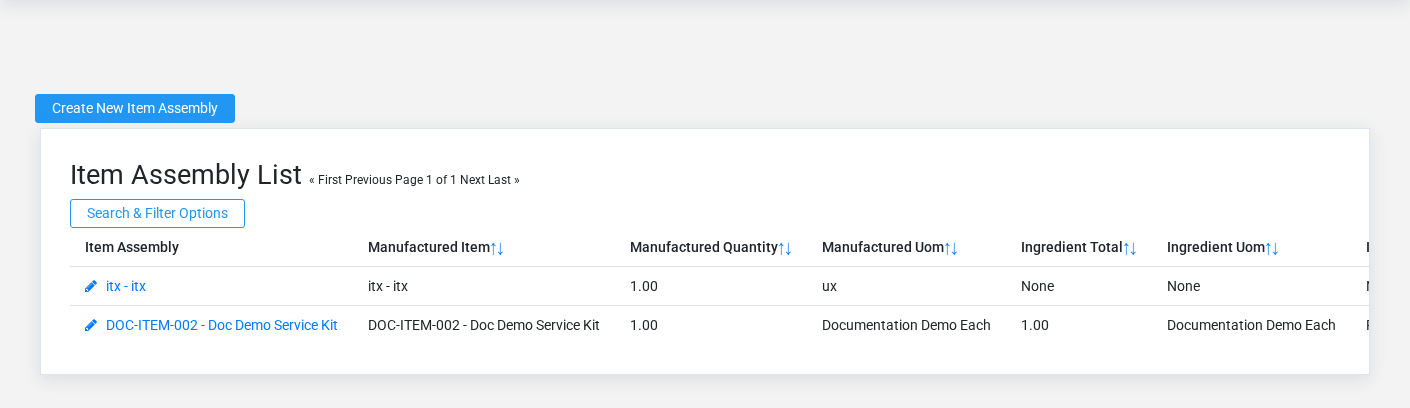
The Item Assemblies list screen in the Brisk documentation demo.
Use the Item Assemblies list to find the correct record before opening or changing it. Compare **Manufactured Item**, **Manufactured Quantity**, **Manufactured Uom**, and **Ingredient Total**. Records with similar names or numbers can still belong to different **Manufactured Item**, **Manufactured Uom**, **Ingredient Uom**, **Container**, **Type**, and **Mixer**.
Open the Item Assembly whose **Manufactured Item**, **Manufactured Quantity**, **Manufactured Uom**, and **Ingredient Total** match the task. If it is missing, clear the list filters and recheck the identifying information shown on the screen rather than creating a replacement immediately.
Create an Item Assembly
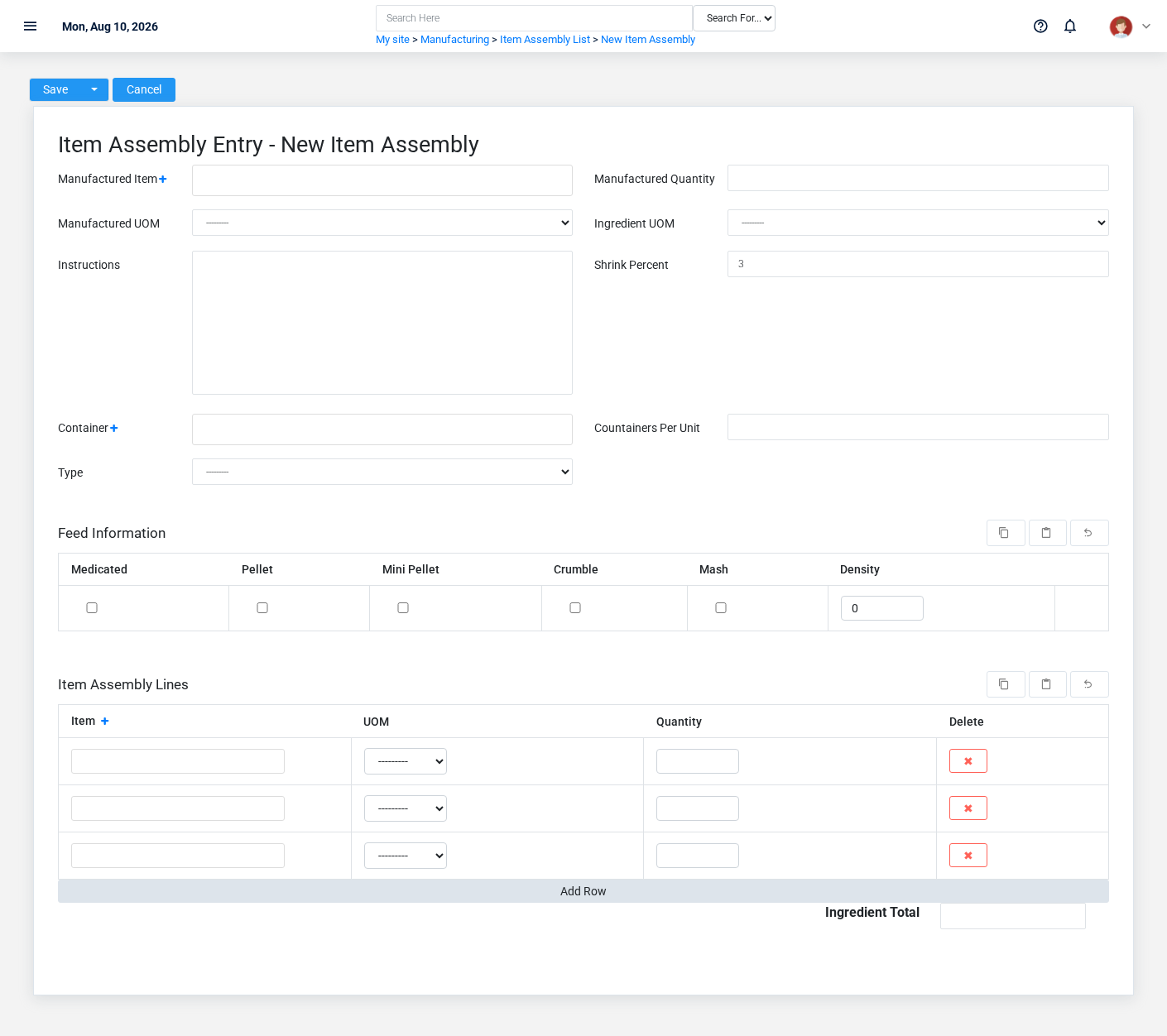
The Item Assemblies create screen in the Brisk documentation demo.
Create an Item Assembly after searching for the person, organization, item, location, or resource under alternate names and identifiers. Merge or correct an existing master record instead of creating a duplicate.
1. Select the business context first: **Manufactured Item**, **Manufactured Uom**, **Ingredient Uom**, **Container**, **Type**, and **Mixer**.
2. Enter the required identifying and operational values: **Manufactured Item**, **Manufactured Quantity**, and **Manufactured Uom**.
3. Review **Auto Manufacture** deliberately; these choices control availability or workflow rather than merely describing the record.
4. Save the Item Assembly, then confirm **Manufactured Item**, **Manufactured Quantity**, **Manufactured Uom**, **Ingredient Total**, **Ingredient Uom**, and **Instructions**, plus the remaining screen fields on its detail page before continuing.
After saving: Verify this Item Assembly in **Feed Information**, **Formula Import Records**, **Item Assembly Lines**, and **Manual Production Inputs**, plus the remaining screen fields before staff build new activity on it; correct ownership, classification, and active state now rather than after transactions accumulate.
Delete an Item Assembly
Delete this Item Assembly only if it is an unused duplicate or setup mistake. Once other records refer to it, preserve that history and make the value inactive when the screen provides that option.
Before confirming, check for related **Feed Information**, **Formula Import Records**, **Item Assembly Lines**, **Manufacturing Instances**, and **Manual Production Inputs**. Brisk may refuse deletion when another record depends on this one; resolve the duplicate or use the supported correction workflow instead of breaking the trail.
On the confirmation page, verify **Manufactured Item**, **Manufactured Quantity**, **Manufactured Uom**, and **Ingredient Total**. After confirmation, return to the Item Assemblies list and make sure only the intended Item Assembly was removed.
Review Item Assembly details
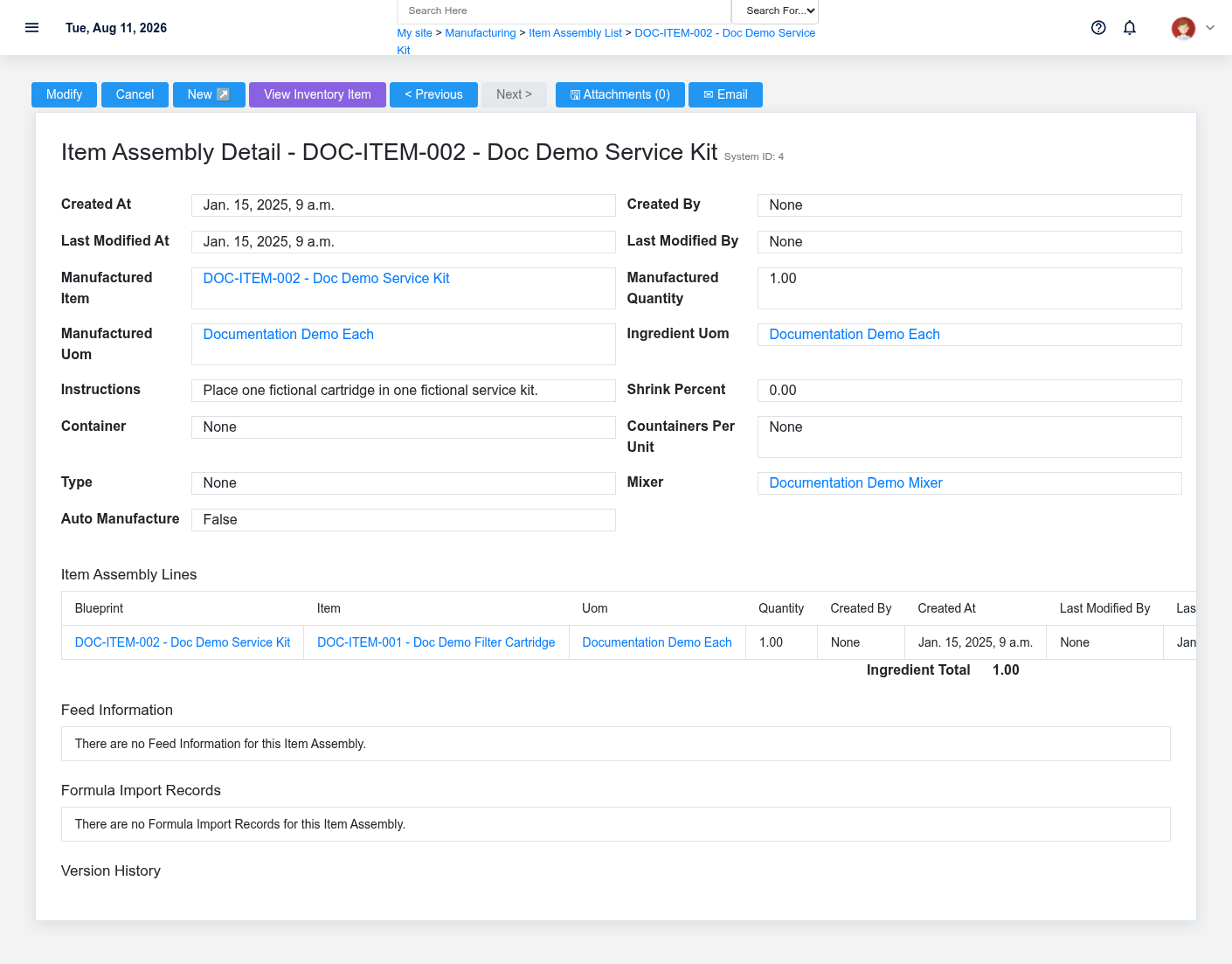
The Item Assemblies detail screen in the Brisk documentation demo.
Use the detail page as the shared record of what this Item Assembly currently means. Verify **Ingredient Total** before relying on it for a decision.
Follow **Manufactured Item**, **Manufactured Uom**, **Ingredient Uom**, **Container**, **Type**, and **Mixer** to determine whether the issue is on this Item Assembly or on one of those linked records.
Next check: Verify this Item Assembly in **Feed Information**, **Formula Import Records**, **Item Assembly Lines**, and **Manual Production Inputs**, plus the remaining screen fields before staff build new activity on it; correct ownership, classification, and active state now rather than after transactions accumulate.
Edit an existing Item Assembly
Edit this Item Assembly to keep the same real-world party, item, location, or resource accurate. Do not repurpose it for a different entity after activity is attached.
1. Open the detail page. Compare **Manufactured Item**, **Manufactured Uom**, **Ingredient Uom**, **Container**, **Type**, and **Mixer** with the supporting document or approved request.
2. Recheck **Manufactured Quantity**, and **Ingredient Total**. These values are most likely to change material demand, production status, output quantity, and cost.
3. Save the change, return to the list, and confirm that the Item Assembly now appears under the expected the identifying information shown on the screen.
After the change: Verify this Item Assembly in **Feed Information**, **Formula Import Records**, **Item Assembly Lines**, and **Manual Production Inputs**, plus the remaining screen fields before staff build new activity on it; correct ownership, classification, and active state now rather than after transactions accumulate.
## Fields and business rules
Brisk stores 12 user-relevant fields for this Item Assembly, including 6 linked-record selections and 0 controlled-choice fields. Create and edit screens may hide calculated or workflow-managed values from this full reference.
| Field | Required | What it controls |
|---|---:|---|
| **Manufactured Item** | Yes | The manufactured item recorded for this blueprint. |
| **Manufactured Quantity** | Yes | The manufactured quantity value recorded for this blueprint. |
| **Manufactured Uom** | Yes | The manufactured uom associated with this blueprint. |
| **Ingredient Total** | No | The ingredient total value recorded for this blueprint. |
| **Ingredient Uom** | No | The ingredient uom associated with this blueprint. |
| **Instructions** | No | The instructions recorded for this blueprint. |
| **Shrink Percent** | No | Shrink acts as a padding to the reported cost of the finished good without affecting the inventory or general ledger. Shrink is meant to fiscally account for loss of ingredients during the manufacturing process by encouraging slightly higher markups. |
| **Container** | No | Optionally sets the container used for this formula (e.g. bags, boxes, crates). |
| **Countainers Per Unit** | No | Sets the number of containers used for each "Manufactured UOM" produced. For example, if the Manufactured UOM is Ton, and the container is a 50 Pound Bag, this field would have a value of 40. |
| **Type** | No | Sets the type of blueprint. |
| **Mixer** | No | Optionally sets the mixer used by this blueprint. If left blank, this blueprint will use the system Default Mixer preference instead. |
| **Auto Manufacture** | No | If this field is checked, Brisk will attempt to create and relieve a manufacturing batch on this product any time it is sold. WARNING: Brisk Software Systems cannot guarantee the accuracy of your inventory if this is enabled. |
## What happens next
Verify this Item Assembly in **Feed Information**, **Formula Import Records**, **Item Assembly Lines**, and **Manual Production Inputs**, plus the remaining screen fields before staff build new activity on it; correct ownership, classification, and active state now rather than after transactions accumulate.
## Common mistakes and troubleshooting
- **The record will not save:** Recheck **Manufactured Item**, **Manufactured Quantity**, and **Manufactured Uom** and any message beside the field. A required related record may also be inactive or unavailable to your role.
- **The values look right but the result is wrong:** Open **Manufactured Item**, **Manufactured Uom**, **Ingredient Uom**, **Container**, **Type**, and **Mixer** from the detail page. Correct the specific relationship that is wrong instead of forcing a total or status to compensate for it.
# Carriers
# Carriers
Purpose and when to use this record
Maintain the trucking or freight carriers used for commodity and manufacturing movements.
## At a glance
- **Identify it by:** **Name**.
- **Why care:** Confirm item, formula, unit, warehouse, quantity, and production state together; mistakes can distort both material consumption and finished-goods cost.
## Before you begin
You need the Brisk permission for the action you are taking on carriers. If a Create, Edit, or Delete control is absent, do not work around it with another user’s account; ask an administrator to review your role.
Create a carrier
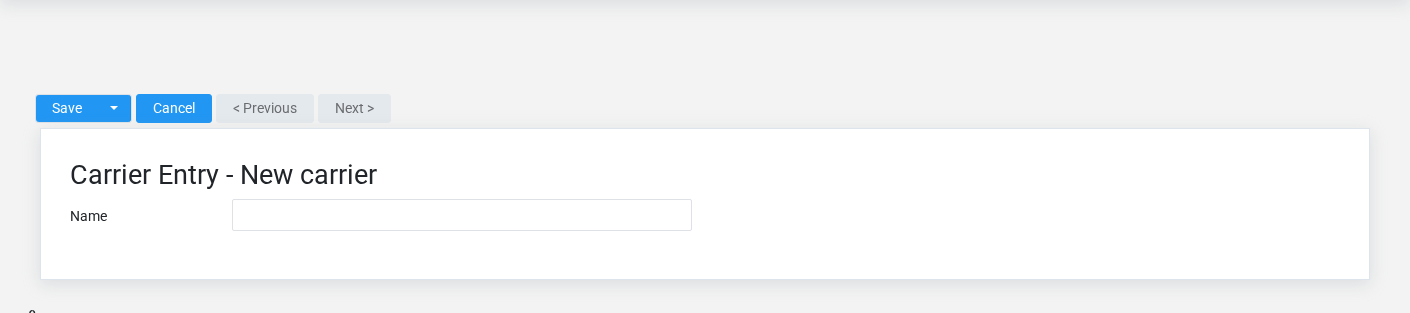
The Carriers create screen in the Brisk documentation demo.
Create a carrier after searching for the person, organization, item, location, or resource under alternate names and identifiers. Merge or correct an existing master record instead of creating a duplicate.
1. Select the business context first.
2. Enter the required identifying and operational values: **Name**.
3. Review the identifying information shown on the screen against the source document or approved setup decision.
4. Save the carrier, then confirm **Name** on its detail page before continuing.
After saving: Verify this carrier in **Manufacturing Orders** before staff build new activity on it; correct ownership, classification, and active state now rather than after transactions accumulate.
Delete a carrier
Delete this carrier only if it is an unused duplicate or setup mistake. Once other records refer to it, preserve that history and make the value inactive when the screen provides that option.
Before confirming, check for related **Manufacturing Orders**. Brisk may refuse deletion when another record depends on this one; resolve the duplicate or use the supported correction workflow instead of breaking the trail.
On the confirmation page, verify **Name**. After confirmation, return to the Carriers list and make sure only the intended carrier was removed.
Review carrier details
Use the detail page as the shared record of what this carrier currently means. Verify **Name** before relying on it for a decision.
Compare the carrier with its source document or approved setup request before deciding that it needs correction.
Next check: Verify this carrier in **Manufacturing Orders** before staff build new activity on it; correct ownership, classification, and active state now rather than after transactions accumulate.
Edit an existing carrier
Edit this carrier to keep the same real-world party, item, location, or resource accurate. Do not repurpose it for a different entity after activity is attached.
1. Open the detail page. Compare **Name** with the supporting document or approved request.
2. Recheck the identifying information shown on the screen. These values are most likely to change material demand, production status, output quantity, and cost.
3. Save the change, return to the list, and confirm that the carrier now appears under the expected **Name**.
After the change: Verify this carrier in **Manufacturing Orders** before staff build new activity on it; correct ownership, classification, and active state now rather than after transactions accumulate.
Find and review carriers
The Carriers list screen in the Brisk documentation demo.
Use the Carriers list to find the correct record before opening or changing it. Compare **Name**. Compare the full identifier rather than relying on a similar name.
Open the carrier whose **Name** match the task. If it is missing, clear the list filters and recheck the identifying information shown on the screen rather than creating a replacement immediately.
## Fields and business rules
Brisk stores 1 user-relevant fields for this carrier, including 0 linked-record selections and 0 controlled-choice fields. Create and edit screens may hide calculated or workflow-managed values from this full reference.
| Field | Required | What it controls |
|---|---:|---|
| **Name** | Yes | Human-readable name for this carrier. |
## What happens next
Verify this carrier in **Manufacturing Orders** before staff build new activity on it; correct ownership, classification, and active state now rather than after transactions accumulate.
## Common mistakes and troubleshooting
- **The record will not save:** Recheck **Name** and any message beside the field. A required related record may also be inactive or unavailable to your role.
- **The values look right but the result is wrong:** Compare this carrier with the source document or approved setup decision, then check the downstream screen where it is used.
# Commodity Items
# Commodity Items
Purpose and when to use this record
Configure an item’s commodity-specific units, pricing, grading, or settlement behavior.
## At a glance
- **Identify it by:** **Name**, and **Item Code**.
- **Check its business context:** **Purchase Uom**, **Sales Uom**, **Expense Account**, **Cogs Account**, and **Revenue Account**.
- **Why care:** Confirm item, formula, unit, warehouse, quantity, and production state together; mistakes can distort both material consumption and finished-goods cost.
## Before you begin
You need the Brisk permission for the action you are taking on commodity items. If a Create, Edit, or Delete control is absent, do not work around it with another user’s account; ask an administrator to review your role.
Have valid **Expense Account**, **Cogs Account**, **Revenue Account**, and **Default Tax** records ready first. Those selections determine where this Commodity Item belongs and which later screens can find it.
Create a Commodity Item
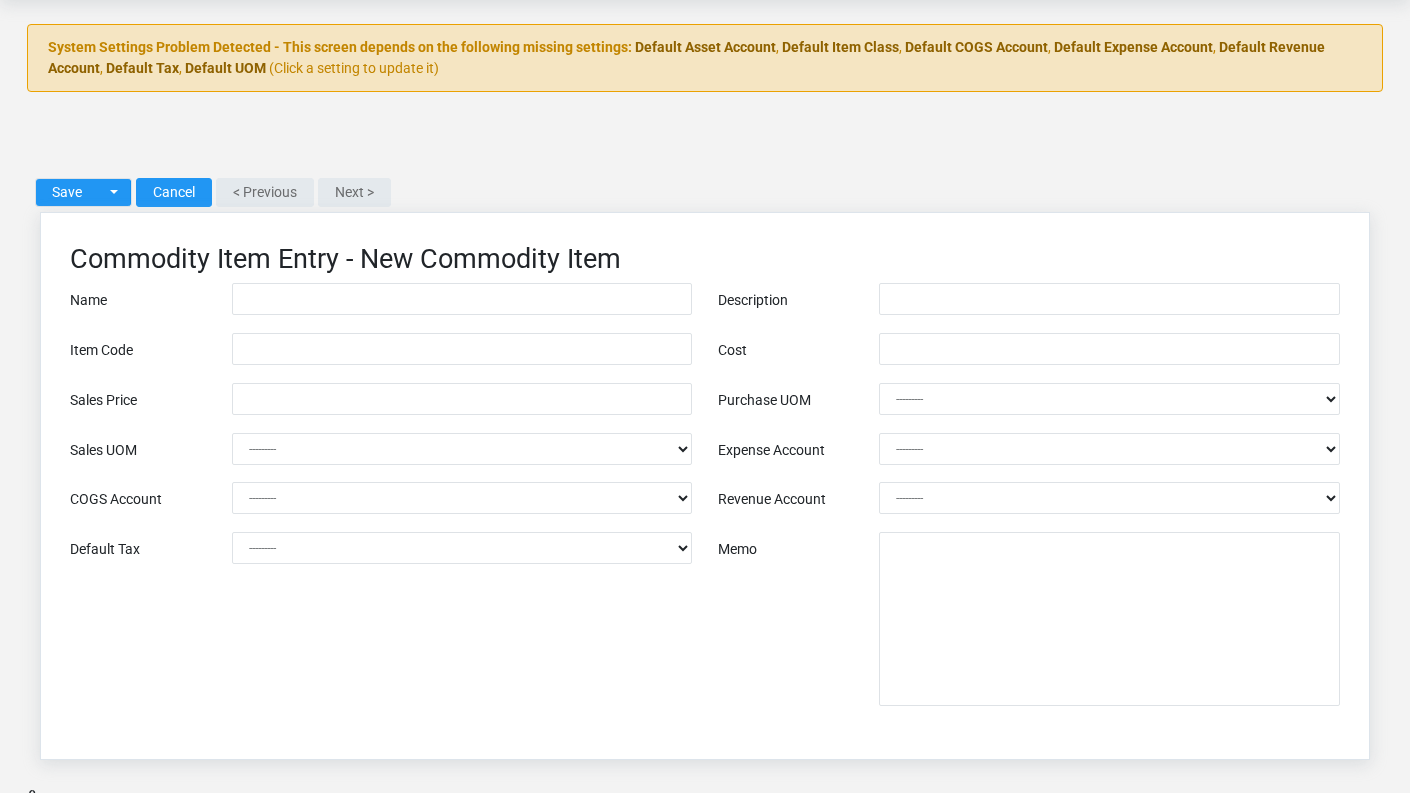
The Commodity Items create screen in the Brisk documentation demo.
Create a Commodity Item after searching for the person, organization, item, location, or resource under alternate names and identifiers. Merge or correct an existing master record instead of creating a duplicate.
1. Select the business context first: **Purchase Uom**, **Sales Uom**, **Expense Account**, **Cogs Account**, **Revenue Account**, and **Default Tax**.
2. Enter the required identifying and operational values: **Name**, **Cost**, **Sales Price**, **Expense Account**, **Cogs Account**, and **Revenue Account**, plus the remaining screen fields.
3. Review **Description**, **Item Code**, and **Memo** against the source document or approved setup decision.
4. Save the Commodity Item, then confirm **Name**, and **Item Code** on its detail page before continuing.
After saving: Verify this Commodity Item in **Commodity Invoices**, and **Item Rows** before staff build new activity on it; correct ownership, classification, and active state now rather than after transactions accumulate.
Delete a Commodity Item
Delete this Commodity Item only if it is an unused duplicate or setup mistake. Once other records refer to it, preserve that history and make the value inactive when the screen provides that option.
Before confirming, check for related **Commodity Invoices**, and **Item Rows**. Brisk may refuse deletion when another record depends on this one; resolve the duplicate or use the supported correction workflow instead of breaking the trail.
On the confirmation page, verify **Name**, and **Item Code**. After confirmation, return to the Commodity Items list and make sure only the intended Commodity Item was removed.
Review Commodity Item details
Use the detail page as the shared record of what this Commodity Item currently means. Verify **Name**, **Description**, **Item Code**, and **Cost** before relying on it for a decision.
Follow **Purchase Uom**, **Sales Uom**, **Expense Account**, **Cogs Account**, **Revenue Account**, and **Default Tax** to determine whether the issue is on this Commodity Item or on one of those linked records.
Next check: Verify this Commodity Item in **Commodity Invoices**, and **Item Rows** before staff build new activity on it; correct ownership, classification, and active state now rather than after transactions accumulate.
Edit an existing Commodity Item
Edit this Commodity Item to keep the same real-world party, item, location, or resource accurate. Do not repurpose it for a different entity after activity is attached.
1. Open the detail page. Compare **Purchase Uom**, **Sales Uom**, **Expense Account**, **Cogs Account**, **Revenue Account**, and **Default Tax** with the supporting document or approved request.
2. Recheck **Cost**, **Sales Price**, **Expense Account**, **Cogs Account**, and **Revenue Account**. These values are most likely to change material demand, production status, output quantity, and cost.
3. Save the change, return to the list, and confirm that the Commodity Item now appears under the expected **Name**, and **Item Code**.
After the change: Verify this Commodity Item in **Commodity Invoices**, and **Item Rows** before staff build new activity on it; correct ownership, classification, and active state now rather than after transactions accumulate.
Find and review commodity items
The Commodity Items list screen in the Brisk documentation demo.
Use the Commodity Items list to find the correct record before opening or changing it. Compare **Name**, and **Item Code**. Records with similar names or numbers can still belong to different **Purchase Uom**, **Sales Uom**, **Expense Account**, **Cogs Account**, **Revenue Account**, and **Default Tax**.
- Keyword search checks **Name**, **Description**, and **Item Code**.
- The initial order emphasizes **Name**. Select a column heading when you need a different comparison.
Open the Commodity Item whose **Name**, and **Item Code** match the task. If it is missing, clear the list filters and recheck the identifying information shown on the screen rather than creating a replacement immediately.
## Fields and business rules
Brisk stores 12 user-relevant fields for this Commodity Item, including 6 linked-record selections and 0 controlled-choice fields. Create and edit screens may hide calculated or workflow-managed values from this full reference.
| Field | Required | What it controls |
|---|---:|---|
| **Name** | Yes | Human-readable name for this commodity item. |
| **Description** | No | Description of this commodity item. |
| **Item Code** | No | Short code used to identify this commodity item. |
| **Cost** | Yes | Represents the current average cost for this product in inventory. For FIFO and LIFO settings, individual transactions will use the actual cost of the inventory that is being used. Under the Average value system, this field will update automatically upon receiving. In Manual and Market settings, this field will never update automatically and will always be used for financial calculations. |
| **Sales Price** | Yes | The sales price value recorded for this commodity item. |
| **Purchase Uom** | No | Unit of measure used when purchasing the item from a vendor. |
| **Sales Uom** | No | Unit of measure used when selling the item to a customer. |
| **Expense Account** | Yes | The expense account associated with this commodity item. |
| **Cogs Account** | Yes | The cogs account associated with this commodity item. |
| **Revenue Account** | Yes | The revenue account associated with this commodity item. |
| **Default Tax** | Yes | The default tax associated with this commodity item. |
| **Memo** | No | The memo recorded for this commodity item. |
## What happens next
Verify this Commodity Item in **Commodity Invoices**, and **Item Rows** before staff build new activity on it; correct ownership, classification, and active state now rather than after transactions accumulate.
## Common mistakes and troubleshooting
- **The record will not save:** Recheck **Name**, **Cost**, **Sales Price**, **Expense Account**, **Cogs Account**, and **Revenue Account**, plus the remaining screen fields and any message beside the field. A required related record may also be inactive or unavailable to your role.
- **The values look right but the result is wrong:** Open **Purchase Uom**, **Sales Uom**, **Expense Account**, **Cogs Account**, **Revenue Account**, and **Default Tax** from the detail page. Correct the specific relationship that is wrong instead of forcing a total or status to compensate for it.
# Commodity Sales
# Commodity Sales
Purpose and when to use this record
Record the sale and movement of a commodity, including customer, quantity, pricing, carrier, and settlement details.
## At a glance
- **Identify it by:** **Sale #**, **Date Created**, **Fulfillment Status**, **Payment Status**, and **Foodservice Ticket Number**.
- **Check its business context:** **Customer**, **Salesperson**, **Warehouse**, **Cash Drawer**, and **Foodservice Table**.
- **Why care:** Confirm item, formula, unit, warehouse, quantity, and production state together; mistakes can distort both material consumption and finished-goods cost.
- **Why care:** Treat posted, processed, paid, reversed, and edit-locked states as controls—not ordinary descriptive fields. Confirm the source transaction before changing any state that the screen permits you to change.
## Before you begin
You need the Brisk permission for the action you are taking on commodity sales. If a Create, Edit, or Delete control is absent, do not work around it with another user’s account; ask an administrator to review your role.
Have valid **Customer**, and **Sale Ptr** records ready first. Those selections determine where this Commodity Sale belongs and which later screens can find it.
Find and review commodity sales
The Commodity Sales list screen in the Brisk documentation demo.
Use the Commodity Sales list to find the correct record before opening or changing it. Compare **Sale #**, **Date Created**, **Fulfillment Status**, **Payment Status**, and **Foodservice Ticket Number**. Records with similar names or numbers can still belong to different **Customer**, **Salesperson**, **Warehouse**, **Cash Drawer**, **Foodservice Table**, and **Foodservice Server**, plus the remaining screen fields.
- Keyword search checks **Memo**.
- Narrow the list with **Customer** filters.
- The date filter uses **Date Created**; choose a range that matches the business event you are reconciling.
Open the Commodity Sale whose **Sale #**, **Date Created**, **Fulfillment Status**, **Payment Status**, and **Foodservice Ticket Number** match the task. If it is missing, clear the list filters and recheck **Customer**, **Date Created**, **Fulfillment Status**, **Payment Status**, **Amount Paid**, and **Edit Locked** rather than creating a replacement immediately.
Create a Commodity Sale
Create a Commodity Sale only after confirming that the source document or operational event has not already been entered.
1. Select the business context first: **Customer**, **Salesperson**, **Warehouse**, **Cash Drawer**, **Foodservice Table**, and **Foodservice Server**, plus the remaining screen fields.
2. Enter the required identifying and operational values: **Sale #**, **Customer**, **Date Created**, and **Sale Ptr**.
3. Review **Fulfillment Status**, **Fulfillment Required**, **Payment Status**, and **Edit Locked** deliberately; these choices control availability or workflow rather than merely describing the record.
4. Save the Commodity Sale, then confirm **Sale #**, **Date Created**, **Fulfillment Status**, **Payment Status**, and **Foodservice Ticket Number** on its detail page before continuing.
After saving: Verify **Fulfillment Status**, **Payment Status**, **Amount Paid**, **Edit Locked**, **Customer**, and **Salesperson**, plus the remaining screen fields on the detail page, then continue the manufacturing workflow only when those values agree with the source document and actual work performed.
Delete a Commodity Sale
Delete this Commodity Sale only when it was entered by mistake and no downstream history depends on it. Use a reversal, void, credit, counter-adjustment, or status correction for a real event that later changed.
Before confirming, check for related **Commodity Invoices**, **Customer Credits**, **Customer Payoff Records**, **Emv Refunds**, and **Freight Invoices**, plus the remaining screen fields. Brisk may refuse deletion when another record depends on this one; resolve the duplicate or use the supported correction workflow instead of breaking the trail.
On the confirmation page, verify **Sale #**, **Date Created**, **Fulfillment Status**, **Payment Status**, and **Foodservice Ticket Number**. After confirmation, return to the Commodity Sales list and make sure only the intended Commodity Sale was removed.
Review Commodity Sale details
Use the detail page as the shared record of what this Commodity Sale currently means. Verify **Date Created**, **Fulfillment Status**, **Payment Status**, **Non-Discount Subtotal**, **Subtotal**, and **Tax Total**, plus the remaining screen fields before relying on it for a decision.
Follow **Customer**, **Salesperson**, **Warehouse**, **Cash Drawer**, **Foodservice Table**, and **Foodservice Server**, plus the remaining screen fields to determine whether the issue is on this Commodity Sale or on one of those linked records.
Next check: Verify **Fulfillment Status**, **Payment Status**, **Amount Paid**, **Edit Locked**, **Customer**, and **Salesperson**, plus the remaining screen fields on the detail page, then continue the manufacturing workflow only when those values agree with the source document and actual work performed.
Edit an existing Commodity Sale
Edit this Commodity Sale to correct or complete the same source document or operational event; use the supported reversal or follow-up workflow when the business event itself changed.
1. Open the detail page. Compare **Customer**, **Salesperson**, **Warehouse**, **Cash Drawer**, **Foodservice Table**, and **Foodservice Server**, plus the remaining screen fields with the supporting document or approved request.
2. Recheck **Customer**, **Date Created**, **Warehouse**, **Fulfillment Status**, **Payment Status**, and **Customer Po #**, plus the remaining screen fields. These values are most likely to change customer totals, tax, payment, fulfillment, and receivables.
3. Save the change, return to the list, and confirm that the Commodity Sale now appears under the expected **Fulfillment Status**, **Payment Status**, **Amount Paid**, and **Edit Locked**.
After the change: Verify **Fulfillment Status**, **Payment Status**, **Amount Paid**, **Edit Locked**, **Customer**, and **Salesperson**, plus the remaining screen fields on the detail page, then continue the manufacturing workflow only when those values agree with the source document and actual work performed.
## Fields and business rules
Brisk stores 31 user-relevant fields for this Commodity Sale, including 8 linked-record selections and 2 controlled-choice fields. Create and edit screens may hide calculated or workflow-managed values from this full reference.
| Field | Required | What it controls |
|---|---:|---|
| **Sale #** | Yes | A sale's friendly name, used to identify the transaction in receipts, reports, and searches. |
| **Customer** | Yes | The customer that made this purchase. |
| **Date Created** | Yes | The date and time that this transaction was started. |
| **Salesperson** | No | The salesperson assigned to this sale. |
| **Warehouse** | No | The physical location from which inventory items for this sale are sourced. |
| **Fulfillment Status** | No | Status information for pending deliveries or shipments for this sale. Available values: Draft, Submitted, Fulfilled, Contested, Complete, Cancelled. |
| **Fulfillment Required** | No | Marked as false for direct retail sales and service items, marked as true when shipments or deliveries are necessary. |
| **Payment Status** | No | Status information for pending payments and/or accounts receivable. Available values: Draft, Unbilled, Receivable, Paid, Refunded, Cancelled. |
| **Memo** | No | An open text field for employees to make notes about this transaction. |
| **Customer Po #** | No | An optional field to make note of the customer's purchase order number. |
| **Non-Discount Subtotal** | No | If a cash discount is applied to the ticket, this field represents the original, undiscounted subtotal. |
| **Subtotal** | No | The total sales price of all line items before sales tax. |
| **Tax Total** | No | The total sales tax due for this sale. |
| **Non-Discount Total** | No | If a cash discount is applied to the ticket, this field represents the original, undiscounted total. |
| **Payment Terms Discount** | No | Discount granted when eligible payment terms are paid immediately by cash, check, or card. |
| **Total** | No | The total value recorded for this sale. |
| **Amount Paid** | No | The amount paid value recorded for this sale. |
| **Balance** | No | The balance value recorded for this sale. |
| **Edit Locked** | No | Whether the edit locked option applies to this sale. |
| **Cash Drawer** | No | Links this sale to the cash drawer that it was rung up at. |
| **Pos Client Request Id** | No | Idempotency key supplied by the Point of Sale client for online and offline ticket submissions. |
| **Foodservice Mode** | No | The foodservice mode recorded for this sale. |
| **Foodservice Order Type** | No | The foodservice order type recorded for this sale. |
| **Foodservice Ticket Number** | No | The foodservice ticket number recorded for this sale. |
| **Foodservice Notes** | No | The foodservice notes recorded for this sale. |
| **Guest Count** | No | The guest count value recorded for this sale. |
| **Foodservice Table** | No | The foodservice table associated with this sale. |
| **Foodservice Server** | No | The foodservice server associated with this sale. |
| **Sale Ptr** | Yes | Links this Commodity Sale to the selected sale; verify the relationship before saving. |
| **Freight Vendor** | No | Sets the freight vendor associated with this sale; assumed to be FOB if left blank. |
| **Estimated Freight** | No | Enter the estimated freight cost for this sale. |
## What happens next
Verify **Fulfillment Status**, **Payment Status**, **Amount Paid**, **Edit Locked**, **Customer**, and **Salesperson**, plus the remaining screen fields on the detail page, then continue the manufacturing workflow only when those values agree with the source document and actual work performed.
## Common mistakes and troubleshooting
- **The record will not save:** Recheck **Sale #**, **Customer**, **Date Created**, and **Sale Ptr** and any message beside the field. A required related record may also be inactive or unavailable to your role.
- **The record saved but is not available where expected:** Recheck **Fulfillment Status**, **Payment Status**, **Amount Paid**, and **Edit Locked**, then clear the filters on the destination list. A saved record can still be inactive, unpublished, locked, unapproved, or in the wrong workflow state.
- **The values look right but the result is wrong:** Open **Customer**, **Salesperson**, **Warehouse**, **Cash Drawer**, **Foodservice Table**, and **Foodservice Server**, plus the remaining screen fields from the detail page. Correct the specific relationship that is wrong instead of forcing a total or status to compensate for it.
# Formula Import Records
# Formula Import Records
Purpose and when to use this record
Review the audit record for formula or assembly data imported into manufacturing.
## At a glance
- **Identify it by:** **Success**, **Formula**, **Software**, and **File Path**.
- **Check its business context:** **Formula**.
- **Why care:** Confirm item, formula, unit, warehouse, quantity, and production state together; mistakes can distort both material consumption and finished-goods cost.
## Before you begin
You need the Brisk permission for the action you are taking on formula import records. If a Create, Edit, or Delete control is absent, do not work around it with another user’s account; ask an administrator to review your role.
Find and review formula import records
The Formula Import Records list screen in the Brisk documentation demo.
Use the Formula Import Records list to find the correct record before opening or changing it. Compare **Success**, **Formula**, **Software**, and **File Path**. Records with similar names or numbers can still belong to different **Formula**.
- Keyword search checks **Software**, **File Path**, **Message**, and **Item**.
- Narrow the list with **Formula** filters.
- The date filter uses **Date Created**; choose a range that matches the business event you are reconciling.
Open the Formula Import Record whose **Success**, **Formula**, **Software**, and **File Path** match the task. If it is missing, clear the list filters and recheck **Formula**, and **Date Created** rather than creating a replacement immediately.
## Fields and business rules
Brisk stores 5 user-relevant fields for this Formula Import Record, including 1 linked-record selection and 0 controlled-choice fields. Create and edit screens may hide calculated or workflow-managed values from this full reference.
| Field | Required | What it controls |
|---|---:|---|
| **Success** | No | Indicates whether or not the import was successful. |
| **Formula** | No | The formula associated with this formula import record. |
| **Software** | Yes | Indicates which software this import file was pulled from. |
| **File Path** | Yes | Indicates the local path from which the import file was read. |
| **Message** | Yes | Records error or success information. |
## What happens next
Use **Formula** to interpret this Formula Import Record. If it records a failure or exception, correct the source process and create a new successful event rather than rewriting the audit trail.
## Common mistakes and troubleshooting
- **The record will not save:** Recheck **Software**, **File Path**, and **Message** and any message beside the field. A required related record may also be inactive or unavailable to your role.
- **The values look right but the result is wrong:** Open **Formula** from the detail page. Correct the specific relationship that is wrong instead of forcing a total or status to compensate for it.
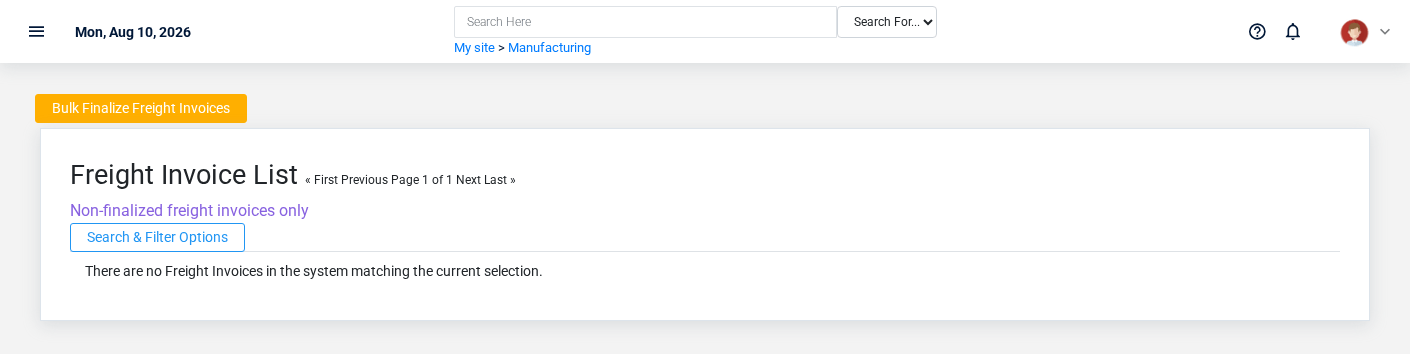
# Freight Invoices
# Freight Invoices
Purpose and when to use this record
The Freight Invoices overview screen in the Brisk documentation demo.
Record carrier freight charges connected to a purchase or commodity movement so the payable and landed cost can be reviewed together.
## At a glance
- **Identify it by:** **Invoice #**, **Date Created**, **Invoice Date**, **Due Date**, and **Tonnage Report Start Date**.
- **Check its business context:** **Vendor**, **Payment Terms**, **Tonnage State**, **Corn Checkoff Item**, and **Vendorinvoice Ptr**.
- **Why care:** Confirm item, formula, unit, warehouse, quantity, and production state together; mistakes can distort both material consumption and finished-goods cost.
- **Why care:** Treat posted, processed, paid, reversed, and edit-locked states as controls—not ordinary descriptive fields. Confirm the source transaction before changing any state that the screen permits you to change.
## Before you begin
You need the Brisk permission for the action you are taking on freight invoices. If a Create, Edit, or Delete control is absent, do not work around it with another user’s account; ask an administrator to review your role.
Have valid **Vendor**, **Vendorinvoice Ptr**, and **Commodity Sale** records ready first. Those selections determine where this Freight Invoice belongs and which later screens can find it.
## Fields and business rules
Brisk stores 20 user-relevant fields for this Freight Invoice, including 6 linked-record selections and 0 controlled-choice fields. Create and edit screens may hide calculated or workflow-managed values from this full reference.
| Field | Required | What it controls |
|---|---:|---|
| **Vendor** | Yes | Please select the vendor for this invoice. |
| **Invoice #** | Yes | The invoice number provided by the vendor. |
| **Date Created** | No | The date and time that this invoice was entered into the Brisk system. |
| **Invoice Date** | No | Date that the vendor generated the invoice. |
| **Payment Terms** | No | The payment terms associated with this vendor invoice. |
| **Due Date** | No | Deadline date to pay this invoice, based on the payment terms. |
| **Memo** | No | The memo recorded for this vendor invoice. |
| **Paid** | No | Whether the paid option applies to this vendor invoice. |
| **Posted** | No | Whether the posted option applies to this vendor invoice. |
| **Edit Locked** | No | Whether the edit locked option applies to this vendor invoice. |
| **Subtotal** | No | The subtotal value recorded for this vendor invoice. |
| **Discount** | No | The discount value recorded for this vendor invoice. |
| **Amount** | Yes | The amount value recorded for this vendor invoice. |
| **Tonnage State** | No | Populated automatically when this vendor invoice is generated from the tonnage tax report. |
| **Tonnage Report Start Date** | No | Starting date of the tonnage report range used to generate this vendor invoice. |
| **Tonnage Report End Date** | No | Ending date of the tonnage report range used to generate this vendor invoice. |
| **Corn Checkoff Item** | No | Optional: the inventory item subject to corn checkoff for this vendor invoice. |
| **Corn Checkoff Quantity** | No | Quantity of the corn checkoff item in the purchase UOM. |
| **Vendorinvoice Ptr** | Yes | Links this Freight Invoice to the selected Vendor Invoice; verify the relationship before saving. |
| **Commodity Sale** | Yes | Connects this commodity invoice to a commodity sale. |
## What happens next
Match the carrier charge to the commodity sale and vendor-invoice trail, then include the payable in payment and landed-cost review.
## Common mistakes and troubleshooting
- **The record will not save:** Recheck **Vendor**, **Invoice #**, **Amount**, **Vendorinvoice Ptr**, and **Commodity Sale** and any message beside the field. A required related record may also be inactive or unavailable to your role.
- **The record saved but is not available where expected:** Recheck **Paid**, **Posted**, and **Edit Locked**, then clear the filters on the destination list. A saved record can still be inactive, unpublished, locked, unapproved, or in the wrong workflow state.
- **The values look right but the result is wrong:** Open **Vendor**, **Payment Terms**, **Tonnage State**, **Corn Checkoff Item**, **Vendorinvoice Ptr**, and **Commodity Sale** from the detail page. Correct the specific relationship that is wrong instead of forcing a total or status to compensate for it.
# Manufacturing Instances
# Manufacturing Instances
Purpose and when to use this record
Record an actual production run, the inputs consumed, outputs produced, dates, quantities, and completion state.
## At a glance
- **Identify it by:** **Date Entered**, and **Status**.
- **Check its business context:** **Blueprint**, **Warehouse**, **Container**, **Mfg. Report**, and **Parent Sale**.
- **Why care:** Confirm item, formula, unit, warehouse, quantity, and production state together; mistakes can distort both material consumption and finished-goods cost.
- **Why care:** Treat posted, processed, paid, reversed, and edit-locked states as controls—not ordinary descriptive fields. Confirm the source transaction before changing any state that the screen permits you to change.
- **Why care:** Status communicates workflow progress to other staff. Change it only when the underlying work, approval, payment, or handoff has actually occurred.
## Before you begin
You need the Brisk permission for the action you are taking on manufacturing instances. If a Create, Edit, or Delete control is absent, do not work around it with another user’s account; ask an administrator to review your role.
Have valid **Blueprint**, and **Warehouse** records ready first. Those selections determine where this Manufacturing Instance belongs and which later screens can find it.
Create a Manufacturing Instance
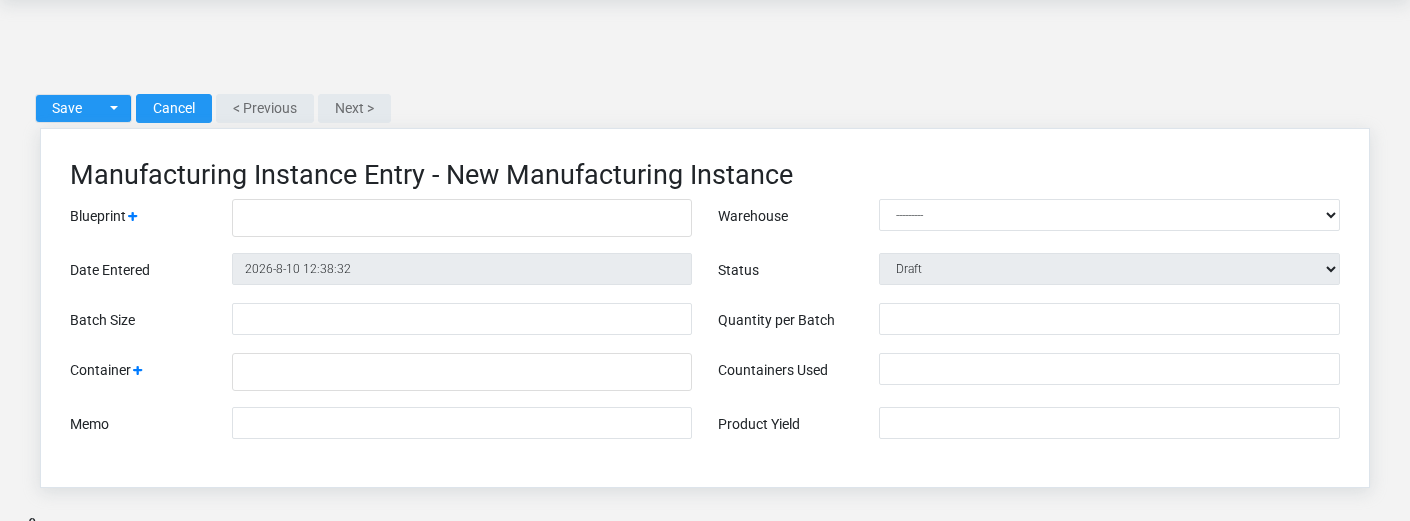
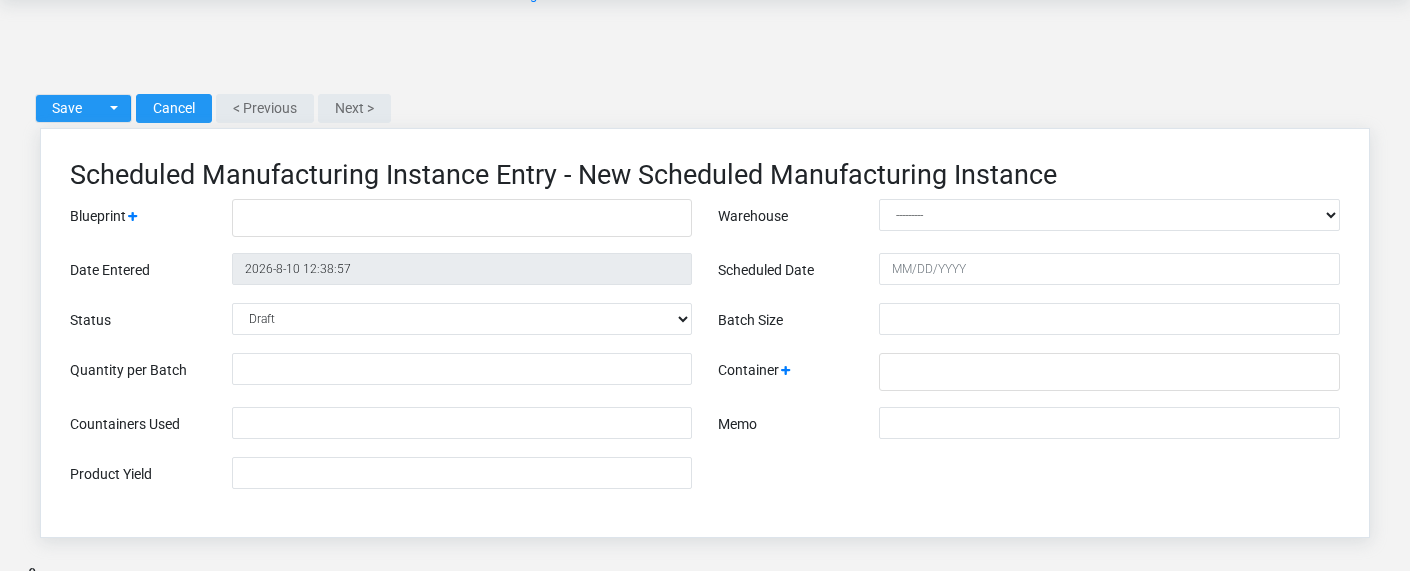
The Manufacturing Instances create screen in the Brisk documentation demo.
Create a Manufacturing Instance after searching for the person, organization, item, location, or resource under alternate names and identifiers. Merge or correct an existing master record instead of creating a duplicate.
1. Select the business context first: **Blueprint**, **Warehouse**, **Container**, **Mfg. Report**, and **Parent Sale**.
2. Enter the required identifying and operational values: **Blueprint**, and **Warehouse**.
3. Review **Status**, **Materials Consumed**, **Inventory Added**, and **Edit Locked** deliberately; these choices control availability or workflow rather than merely describing the record.
4. Save the Manufacturing Instance, then confirm **Date Entered**, and **Status** on its detail page before continuing.
After saving: Review consumed inputs, finished output, yield, and cost, then confirm the finished inventory is available in the intended warehouse.
Delete a Manufacturing Instance
Delete this Manufacturing Instance only if it is an unused duplicate or setup mistake. Once other records refer to it, preserve that history and make the value inactive when the screen provides that option.
Before confirming, check for related **Batch Export Records**, **Batch Import Records**, **Inventory Records**, **Item Instances**, and **Item Rows**, plus the remaining screen fields. Brisk may refuse deletion when another record depends on this one; resolve the duplicate or use the supported correction workflow instead of breaking the trail.
On the confirmation page, verify **Date Entered**, and **Status**. After confirmation, return to the Manufacturing Instances list and make sure only the intended Manufacturing Instance was removed.
Review Manufacturing Instance details
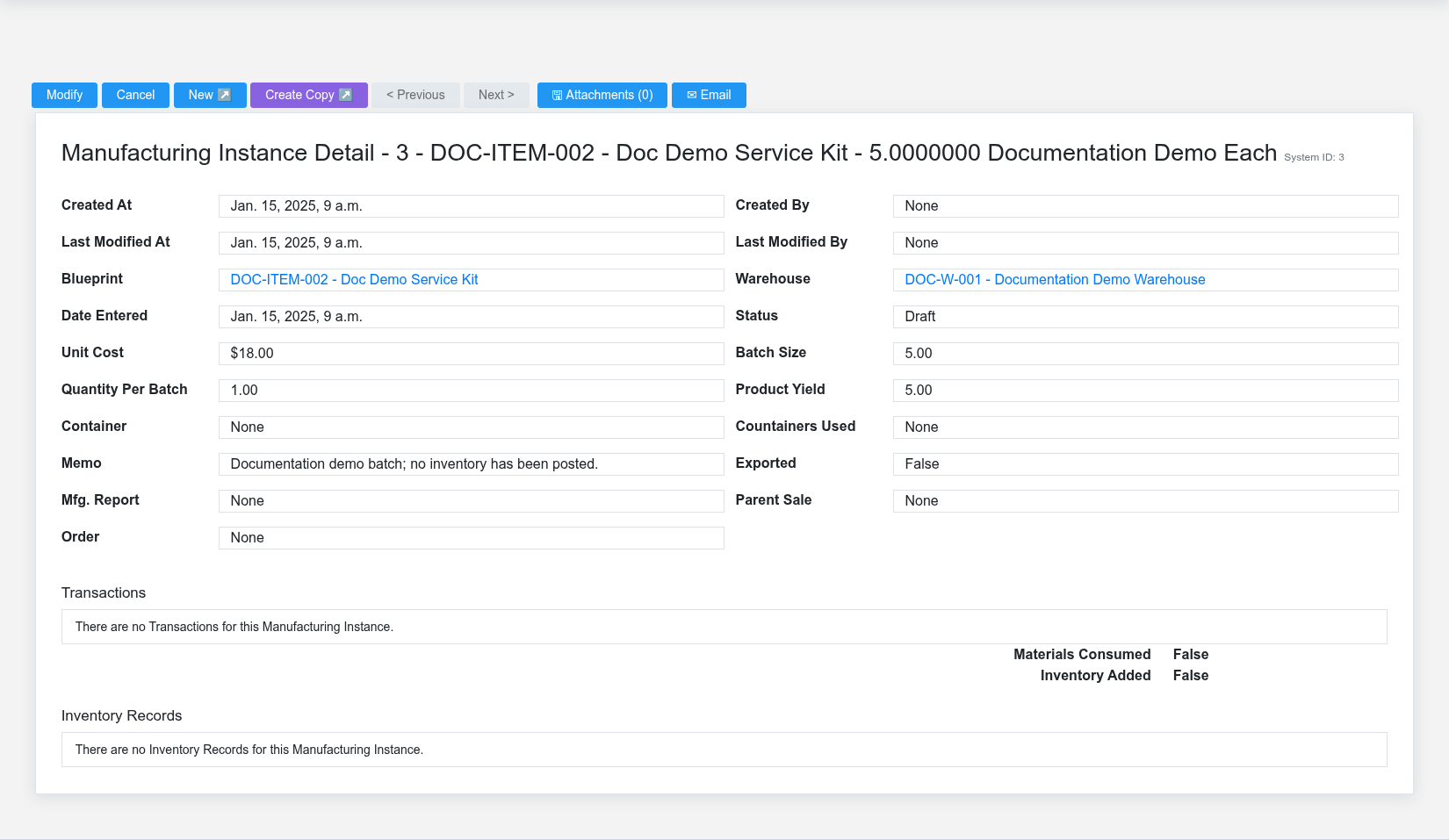
A fictional manufacturing batch before material consumption and finished-inventory posting.
Use the detail page as the shared record of what this Manufacturing Instance currently means. Verify **Date Entered**, **Status**, and **Edit Locked** before relying on it for a decision.
Follow **Blueprint**, **Warehouse**, **Container**, **Mfg. Report**, and **Parent Sale** to determine whether the issue is on this Manufacturing Instance or on one of those linked records.
Next check: Review consumed inputs, finished output, yield, and cost, then confirm the finished inventory is available in the intended warehouse.
Edit an existing Manufacturing Instance
Edit this Manufacturing Instance to keep the same real-world party, item, location, or resource accurate. Do not repurpose it for a different entity after activity is attached.
1. Open the detail page. Compare **Blueprint**, **Warehouse**, **Container**, **Mfg. Report**, and **Parent Sale** with the supporting document or approved request.
2. Recheck **Warehouse**, **Date Entered**, **Status**, **Unit Cost**, **Quantity Per Batch**, and **Edit Locked**. These values are most likely to change material demand, production status, output quantity, and cost.
3. Save the change, return to the list, and confirm that the Manufacturing Instance now appears under the expected **Status**, and **Edit Locked**.
After the change: Review consumed inputs, finished output, yield, and cost, then confirm the finished inventory is available in the intended warehouse.
Find and review manufacturing instances
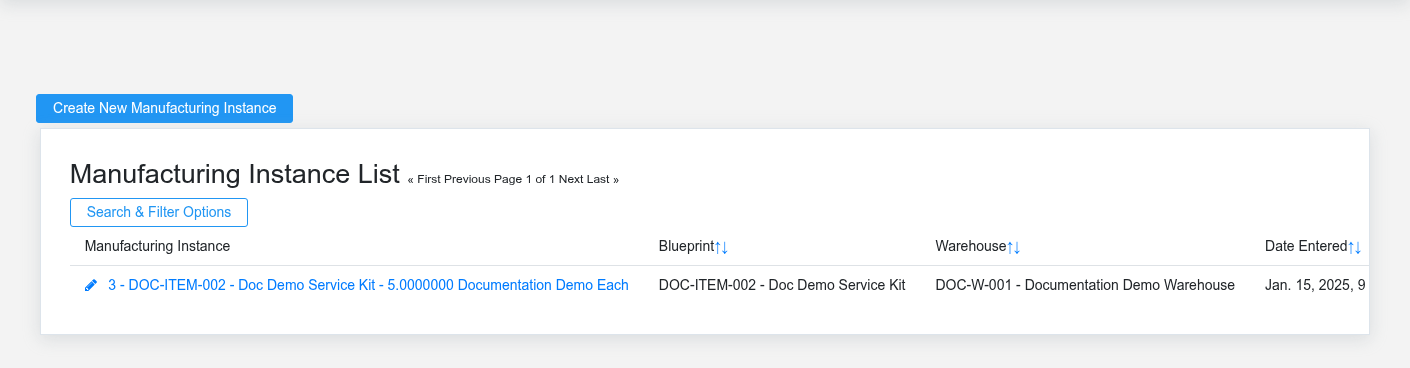
The Manufacturing Instances list screen in the Brisk documentation demo.
Use the Manufacturing Instances list to find the correct record before opening or changing it. Compare **Date Entered**, and **Status**. Records with similar names or numbers can still belong to different **Blueprint**, **Warehouse**, **Container**, **Mfg. Report**, and **Parent Sale**.
Open the Manufacturing Instance whose **Date Entered**, and **Status** match the task. If it is missing, clear the list filters and recheck **Status**, and **Edit Locked** rather than creating a replacement immediately.
## Fields and business rules
Brisk stores 16 user-relevant fields for this Manufacturing Instance, including 5 linked-record selections and 1 controlled-choice field. Create and edit screens may hide calculated or workflow-managed values from this full reference.
| Field | Required | What it controls |
|---|---:|---|
| **Blueprint** | Yes | Links this Manufacturing Instance to the selected Item Assembly; verify the relationship before saving. |
| **Warehouse** | Yes | The warehouse associated with this manufacturing instance. |
| **Date Entered** | No | Date and time recorded for date entered on this manufacturing instance. |
| **Status** | No | Current status of this manufacturing instance. Available values: Draft, Scheduled, Sequenced, In Manufacturing, Complete. |
| **Unit Cost** | No | The unit cost value recorded for this manufacturing instance. |
| **Batch Size** | No | For a scheduled instance, this is the requested amount of product to manufacture. |
| **Quantity Per Batch** | No | Manually override the batch size used on the batch sheet. Automatically calculated if left blank. |
| **Product Yield** | No | Represents the actual amount of product yielded from the manufacturing process. |
| **Container** | No | Optionally sets the container used for this product (e.g. bags, boxes, crates). |
| **Countainers Used** | No | Records the number of containers used in this instance. |
| **Memo** | No | The memo recorded for this manufacturing instance. |
| **Materials Consumed** | No | Whether the materials consumed option applies to this manufacturing instance. |
| **Inventory Added** | No | Whether the inventory added option applies to this manufacturing instance. |
| **Edit Locked** | No | Whether the edit locked option applies to this manufacturing instance. |
| **Mfg. Report** | No | Connects this manufacturing instance to a Manufacturing Report. |
| **Parent Sale** | No | If this instance was produced by the auto manufacture feature, records the sale that produced it. |
## What happens next
Review consumed inputs, finished output, yield, and cost, then confirm the finished inventory is available in the intended warehouse.
## Common mistakes and troubleshooting
- **The record will not save:** Recheck **Blueprint**, and **Warehouse** and any message beside the field. A required related record may also be inactive or unavailable to your role.
- **The record saved but is not available where expected:** Recheck **Status**, and **Edit Locked**, then clear the filters on the destination list. A saved record can still be inactive, unpublished, locked, unapproved, or in the wrong workflow state.
- **The values look right but the result is wrong:** Open **Blueprint**, **Warehouse**, **Container**, **Mfg. Report**, and **Parent Sale** from the detail page. Correct the specific relationship that is wrong instead of forcing a total or status to compensate for it.
# Manufacturing Invoices
# Manufacturing Invoices
Purpose and when to use this record
Review the invoice produced from manufacturing or commodity activity and its accounting handoff.
## At a glance
- **Identify it by:** **Sale #**, **Date Created**, **Fulfillment Status**, **Payment Status**, and **Foodservice Ticket Number**.
- **Check its business context:** **Customer**, **Salesperson**, **Warehouse**, **Cash Drawer**, and **Foodservice Table**.
- **Why care:** Confirm item, formula, unit, warehouse, quantity, and production state together; mistakes can distort both material consumption and finished-goods cost.
- **Why care:** Treat posted, processed, paid, reversed, and edit-locked states as controls—not ordinary descriptive fields. Confirm the source transaction before changing any state that the screen permits you to change.
## Before you begin
You need the Brisk permission for the action you are taking on manufacturing invoices. If a Create, Edit, or Delete control is absent, do not work around it with another user’s account; ask an administrator to review your role.
Have valid **Customer**, **Sale Ptr**, and **Order** records ready first. Those selections determine where this Manufacturing Invoice belongs and which later screens can find it.
Find and review manufacturing invoices
The Manufacturing Invoices list screen in the Brisk documentation demo.
Use the Manufacturing Invoices list to find the correct record before opening or changing it. Compare **Sale #**, **Date Created**, **Fulfillment Status**, **Payment Status**, and **Foodservice Ticket Number**. Records with similar names or numbers can still belong to different **Customer**, **Salesperson**, **Warehouse**, **Cash Drawer**, **Foodservice Table**, and **Foodservice Server**, plus the remaining screen fields.
- Keyword search checks **Memo**, **Customer Po #**, and **Order #**.
- Narrow the list with **Customer**, and **Order** filters.
- The date filter uses **Date Created**; choose a range that matches the business event you are reconciling.
Open the Manufacturing Invoice whose **Sale #**, **Date Created**, **Fulfillment Status**, **Payment Status**, and **Foodservice Ticket Number** match the task. If it is missing, clear the list filters and recheck **Customer**, **Order**, **Date Created**, **Fulfillment Status**, **Payment Status**, and **Amount Paid**, plus the remaining screen fields rather than creating a replacement immediately.
Edit an existing Manufacturing Invoice
Edit this Manufacturing Invoice to correct or complete the same source document or operational event; use the supported reversal or follow-up workflow when the business event itself changed.
1. Open the detail page. Compare **Customer**, **Salesperson**, **Warehouse**, **Cash Drawer**, **Foodservice Table**, and **Foodservice Server**, plus the remaining screen fields with the supporting document or approved request.
2. Recheck **Customer**, **Date Created**, **Warehouse**, **Fulfillment Status**, **Payment Status**, and **Customer Po #**, plus the remaining screen fields. These values are most likely to change customer totals, tax, payment, fulfillment, and receivables.
3. Save the change, return to the list, and confirm that the Manufacturing Invoice now appears under the expected **Fulfillment Status**, **Payment Status**, **Amount Paid**, and **Edit Locked**.
After the change: Verify **Fulfillment Status**, **Payment Status**, **Amount Paid**, **Edit Locked**, **Customer**, and **Salesperson**, plus the remaining screen fields on the detail page, then continue the manufacturing workflow only when those values agree with the source document and actual work performed.
## Fields and business rules
Brisk stores 30 user-relevant fields for this Manufacturing Invoice, including 8 linked-record selections and 2 controlled-choice fields. Create and edit screens may hide calculated or workflow-managed values from this full reference.
| Field | Required | What it controls |
|---|---:|---|
| **Sale #** | Yes | A sale's friendly name, used to identify the transaction in receipts, reports, and searches. |
| **Customer** | Yes | The customer that made this purchase. |
| **Date Created** | Yes | The date and time that this transaction was started. |
| **Salesperson** | No | The salesperson assigned to this sale. |
| **Warehouse** | No | The physical location from which inventory items for this sale are sourced. |
| **Fulfillment Status** | No | Status information for pending deliveries or shipments for this sale. Available values: Draft, Submitted, Fulfilled, Contested, Complete, Cancelled. |
| **Fulfillment Required** | No | Marked as false for direct retail sales and service items, marked as true when shipments or deliveries are necessary. |
| **Payment Status** | No | Status information for pending payments and/or accounts receivable. Available values: Draft, Unbilled, Receivable, Paid, Refunded, Cancelled. |
| **Memo** | No | An open text field for employees to make notes about this transaction. |
| **Customer Po #** | No | An optional field to make note of the customer's purchase order number. |
| **Non-Discount Subtotal** | No | If a cash discount is applied to the ticket, this field represents the original, undiscounted subtotal. |
| **Subtotal** | No | The total sales price of all line items before sales tax. |
| **Tax Total** | No | The total sales tax due for this sale. |
| **Non-Discount Total** | No | If a cash discount is applied to the ticket, this field represents the original, undiscounted total. |
| **Payment Terms Discount** | No | Discount granted when eligible payment terms are paid immediately by cash, check, or card. |
| **Total** | No | The total value recorded for this sale. |
| **Amount Paid** | No | The amount paid value recorded for this sale. |
| **Balance** | No | The balance value recorded for this sale. |
| **Edit Locked** | No | Whether the edit locked option applies to this sale. |
| **Cash Drawer** | No | Links this sale to the cash drawer that it was rung up at. |
| **Pos Client Request Id** | No | Idempotency key supplied by the Point of Sale client for online and offline ticket submissions. |
| **Foodservice Mode** | No | The foodservice mode recorded for this sale. |
| **Foodservice Order Type** | No | The foodservice order type recorded for this sale. |
| **Foodservice Ticket Number** | No | The foodservice ticket number recorded for this sale. |
| **Foodservice Notes** | No | The foodservice notes recorded for this sale. |
| **Guest Count** | No | The guest count value recorded for this sale. |
| **Foodservice Table** | No | The foodservice table associated with this sale. |
| **Foodservice Server** | No | The foodservice server associated with this sale. |
| **Sale Ptr** | Yes | Links this Manufacturing Invoice to the selected sale; verify the relationship before saving. |
| **Order** | Yes | Connects this Invoice to its Order. |
## What happens next
Verify **Fulfillment Status**, **Payment Status**, **Amount Paid**, **Edit Locked**, **Customer**, and **Salesperson**, plus the remaining screen fields on the detail page, then continue the manufacturing workflow only when those values agree with the source document and actual work performed.
## Common mistakes and troubleshooting
- **The record will not save:** Recheck **Sale #**, **Customer**, **Date Created**, **Sale Ptr**, and **Order** and any message beside the field. A required related record may also be inactive or unavailable to your role.
- **The record saved but is not available where expected:** Recheck **Fulfillment Status**, **Payment Status**, **Amount Paid**, and **Edit Locked**, then clear the filters on the destination list. A saved record can still be inactive, unpublished, locked, unapproved, or in the wrong workflow state.
- **The values look right but the result is wrong:** Open **Customer**, **Salesperson**, **Warehouse**, **Cash Drawer**, **Foodservice Table**, and **Foodservice Server**, plus the remaining screen fields from the detail page. Correct the specific relationship that is wrong instead of forcing a total or status to compensate for it.
# Manufacturing Orders
# Manufacturing Orders
Purpose and when to use this record
The Manufacturing Orders overview screen in the Brisk documentation demo.
Plan requested production before execution, including the item, quantity, due date, priority, and selected formula.
## At a glance
- **Identify it by:** **Order #**, **Order Date**, **Ship Date**, and **Status**.
- **Check its business context:** **Customer**, **Warehouse**, **Billing Address**, **Shipping Address**, and **Carrier**.
- **Why care:** Confirm item, formula, unit, warehouse, quantity, and production state together; mistakes can distort both material consumption and finished-goods cost.
- **Why care:** Status communicates workflow progress to other staff. Change it only when the underlying work, approval, payment, or handoff has actually occurred.
## Before you begin
You need the Brisk permission for the action you are taking on manufacturing orders. If a Create, Edit, or Delete control is absent, do not work around it with another user’s account; ask an administrator to review your role.
Have valid **Customer**, **Billing Address**, and **Shipping Address** records ready first. Those selections determine where this Manufacturing Order belongs and which later screens can find it.
Create a Manufacturing Order
Create a Manufacturing Order only after confirming that the source document or operational event has not already been entered.
1. Select the business context first: **Customer**, **Warehouse**, **Billing Address**, **Shipping Address**, and **Carrier**.
2. Enter the required identifying and operational values: **Order #**, **Customer**, **Order Date**, **Ship Date**, **Billing Address**, and **Shipping Address**.
3. Review **Freight Option**, and **Status** deliberately; these choices control availability or workflow rather than merely describing the record.
4. Save the Manufacturing Order, then confirm **Order #**, **Order Date**, **Ship Date**, and **Status** on its detail page before continuing.
After saving: Schedule or start the production run using the selected assembly/formula, then compare actual consumption and output with the order.
Delete a Manufacturing Order
Delete this Manufacturing Order only when it was entered by mistake and no downstream history depends on it. Use a reversal, void, credit, counter-adjustment, or status correction for a real event that later changed.
Before confirming, check for related **Manufacturing Instances**, **Manufacturing Invoices**, **Order Freight Lines**, and **Order Line Items**. Brisk may refuse deletion when another record depends on this one; resolve the duplicate or use the supported correction workflow instead of breaking the trail.
On the confirmation page, verify **Order #**, **Order Date**, **Ship Date**, and **Status**. After confirmation, return to the Manufacturing Orders list and make sure only the intended Manufacturing Order was removed.
Review Manufacturing Order details
Use the detail page as the shared record of what this Manufacturing Order currently means. Verify **Order Date**, **Ship Date**, **Freight Option**, **Status**, **Subtotal**, and **Tax Total**, plus the remaining screen fields before relying on it for a decision.
Follow **Customer**, **Warehouse**, **Billing Address**, **Shipping Address**, and **Carrier** to determine whether the issue is on this Manufacturing Order or on one of those linked records.
Next check: Schedule or start the production run using the selected assembly/formula, then compare actual consumption and output with the order.
Edit an existing Manufacturing Order
Edit this Manufacturing Order to correct or complete the same source document or operational event; use the supported reversal or follow-up workflow when the business event itself changed.
1. Open the detail page. Compare **Customer**, **Warehouse**, **Billing Address**, **Shipping Address**, and **Carrier** with the supporting document or approved request.
2. Recheck **Customer**, **Warehouse**, **Customer Po #**, **Order Date**, **Ship Date**, and **Freight Option**, plus the remaining screen fields. These values are most likely to change material demand, production status, output quantity, and cost.
3. Save the change, return to the list, and confirm that the Manufacturing Order now appears under the expected **Freight Option**, and **Status**.
After the change: Schedule or start the production run using the selected assembly/formula, then compare actual consumption and output with the order.
Find and review manufacturing orders
The Manufacturing Orders list screen in the Brisk documentation demo.
Use the Manufacturing Orders list to find the correct record before opening or changing it. Compare **Order #**, **Order Date**, **Ship Date**, and **Status**. Records with similar names or numbers can still belong to different **Customer**, **Warehouse**, **Billing Address**, **Shipping Address**, and **Carrier**.
- Keyword search checks **Memo**, **Display Name**, **Description**, **Name**, and **Item Code**.
- Narrow the list with **Customer** filters.
- The date filter uses **Ship Date**; choose a range that matches the business event you are reconciling.
Open the Manufacturing Order whose **Order #**, **Order Date**, **Ship Date**, and **Status** match the task. If it is missing, clear the list filters and recheck **Customer**, **Ship Date**, **Freight Option**, and **Status** rather than creating a replacement immediately.
## Fields and business rules
Brisk stores 18 user-relevant fields for this Manufacturing Order, including 5 linked-record selections and 2 controlled-choice fields. Create and edit screens may hide calculated or workflow-managed values from this full reference.
| Field | Required | What it controls |
|---|---:|---|
| **Order #** | Yes | An order's friendly name, used to identify the transaction in receipts, reports, and searches. |
| **Customer** | Yes | The customer that made this purchase. |
| **Warehouse** | No | The physical location from which inventory items for this order are sourced. |
| **Customer Po #** | No | Optionally record the customer's purchase order number. |
| **Order Date** | Yes | The date the order was placed. |
| **Ship Date** | Yes | The date that this order is scheduled to ship. |
| **Billing Address** | Yes | Select the billing address for this order. |
| **Shipping Address** | Yes | Select the shipping address for this order. |
| **Freight Option** | No | The freight option recorded for this manufacturing order. Available values: Line Item, Distributed, Other. |
| **Freight Rate** | No | Determines the dollar amount charged per weight unit on an order. Weight unit can be selected in the system settings. |
| **Carrier** | No | The carrier used for delivery. |
| **Memo** | No | An open text field for employees to make notes about this order. |
| **Status** | No | Order Status Information. Available values: On-Order, Complete, Cancelled. |
| **Subtotal** | No | The total sales price of all line items before sales tax. |
| **Tax Total** | No | The total sales tax due for this sale. |
| **Total** | No | The total value recorded for this manufacturing order. |
| **Order Weight** | No | Total weight of all line items (in pounds). |
| **Volume Discounts** | No | The total amount of volume discounts from all line items. |
## What happens next
Schedule or start the production run using the selected assembly/formula, then compare actual consumption and output with the order.
## Common mistakes and troubleshooting
- **The record will not save:** Recheck **Order #**, **Customer**, **Order Date**, **Ship Date**, **Billing Address**, and **Shipping Address** and any message beside the field. A required related record may also be inactive or unavailable to your role.
- **The record saved but is not available where expected:** Recheck **Freight Option**, and **Status**, then clear the filters on the destination list. A saved record can still be inactive, unpublished, locked, unapproved, or in the wrong workflow state.
- **The values look right but the result is wrong:** Open **Customer**, **Warehouse**, **Billing Address**, **Shipping Address**, and **Carrier** from the detail page. Correct the specific relationship that is wrong instead of forcing a total or status to compensate for it.
# Manufacturing Reports
# Manufacturing Reports
Purpose and when to use this record
Save a manufacturing reporting definition or result used to analyze production, inputs, yields, and cost.
## At a glance
- **Identify it by:** **Date Entered**, and **Status**.
- **Why care:** Confirm item, formula, unit, warehouse, quantity, and production state together; mistakes can distort both material consumption and finished-goods cost.
- **Why care:** Status communicates workflow progress to other staff. Change it only when the underlying work, approval, payment, or handoff has actually occurred.
## Before you begin
You need the Brisk permission for the action you are taking on manufacturing reports. If a Create, Edit, or Delete control is absent, do not work around it with another user’s account; ask an administrator to review your role.
Create a Manufacturing Report
Create a Manufacturing Report after searching for the person, organization, item, location, or resource under alternate names and identifiers. Merge or correct an existing master record instead of creating a duplicate.
1. Select the business context first.
2. Enter the identifying values shown on the form, especially **Date Entered**, **Memo**, and **Status**.
3. Review **Status** deliberately; these choices control availability or workflow rather than merely describing the record.
4. Save the Manufacturing Report, then confirm **Date Entered**, and **Status** on its detail page before continuing.
After saving: Verify this Manufacturing Report in **Manufacturing Instances** before staff build new activity on it; correct ownership, classification, and active state now rather than after transactions accumulate.
Delete a Manufacturing Report
Delete this Manufacturing Report only if it is an unused duplicate or setup mistake. Once other records refer to it, preserve that history and make the value inactive when the screen provides that option.
Before confirming, check for related **Manufacturing Instances**. Brisk may refuse deletion when another record depends on this one; resolve the duplicate or use the supported correction workflow instead of breaking the trail.
On the confirmation page, verify **Date Entered**, and **Status**. After confirmation, return to the Manufacturing Reports list and make sure only the intended Manufacturing Report was removed.
Review Manufacturing Report details
Use the detail page as the shared record of what this Manufacturing Report currently means. Verify **Date Entered**, and **Status** before relying on it for a decision.
Compare the Manufacturing Report with its source document or approved setup request before deciding that it needs correction.
Next check: Verify this Manufacturing Report in **Manufacturing Instances** before staff build new activity on it; correct ownership, classification, and active state now rather than after transactions accumulate.
Edit an existing Manufacturing Report
Edit this Manufacturing Report to keep the same real-world party, item, location, or resource accurate. Do not repurpose it for a different entity after activity is attached.
1. Open the detail page. Compare **Date Entered**, and **Status** with the supporting document or approved request.
2. Recheck **Date Entered**, and **Status**. These values are most likely to change material demand, production status, output quantity, and cost.
3. Save the change, return to the list, and confirm that the Manufacturing Report now appears under the expected **Status**.
After the change: Verify this Manufacturing Report in **Manufacturing Instances** before staff build new activity on it; correct ownership, classification, and active state now rather than after transactions accumulate.
Find and review manufacturing reports
The Manufacturing Reports list screen in the Brisk documentation demo.
Use the Manufacturing Reports list to find the correct record before opening or changing it. Compare **Date Entered**, and **Status**. Compare the full identifier rather than relying on a similar name.
Open the Manufacturing Report whose **Date Entered**, and **Status** match the task. If it is missing, clear the list filters and recheck **Status** rather than creating a replacement immediately.
## Fields and business rules
Brisk stores 3 user-relevant fields for this Manufacturing Report, including 0 linked-record selections and 1 controlled-choice field. Create and edit screens may hide calculated or workflow-managed values from this full reference.
| Field | Required | What it controls |
|---|---:|---|
| **Date Entered** | No | Date and time recorded for date entered on this manufacturing report. |
| **Memo** | No | The memo recorded for this manufacturing report. |
| **Status** | No | Current status of this manufacturing report. Available values: Draft, In Progress, Complete. |
## What happens next
Verify this Manufacturing Report in **Manufacturing Instances** before staff build new activity on it; correct ownership, classification, and active state now rather than after transactions accumulate.
## Common mistakes and troubleshooting
- **The record saved but is not available where expected:** Recheck **Status**, then clear the filters on the destination list. A saved record can still be inactive, unpublished, locked, unapproved, or in the wrong workflow state.
- **The values look right but the result is wrong:** Compare this Manufacturing Report with the source document or approved setup decision, then check the downstream screen where it is used.
# Mixers
# Mixers
Purpose and when to use this record
Maintain the mixers or production resources available when scheduling and recording batches.
## At a glance
- **Identify it by:** **Name**.
- **Check its business context:** **Uom**.
- **Why care:** Confirm item, formula, unit, warehouse, quantity, and production state together; mistakes can distort both material consumption and finished-goods cost.
## Before you begin
You need the Brisk permission for the action you are taking on mixers. If a Create, Edit, or Delete control is absent, do not work around it with another user’s account; ask an administrator to review your role.
Have valid **Uom** records ready first. Those selections determine where this mixer belongs and which later screens can find it.
Create a mixer
The Mixers create screen in the Brisk documentation demo.
Create a mixer after searching for the person, organization, item, location, or resource under alternate names and identifiers. Merge or correct an existing master record instead of creating a duplicate.
1. Select the business context first: **Uom**.
2. Enter the required identifying and operational values: **Name**, **Size**, and **Uom**.
3. Review the identifying information shown on the screen against the source document or approved setup decision.
4. Save the mixer, then confirm **Name** on its detail page before continuing.
After saving: Verify this mixer in **Item Assemblies** before staff build new activity on it; correct ownership, classification, and active state now rather than after transactions accumulate.
Delete a mixer
Delete this mixer only if it is an unused duplicate or setup mistake. Once other records refer to it, preserve that history and make the value inactive when the screen provides that option.
Before confirming, check for related **Item Assemblies**. Brisk may refuse deletion when another record depends on this one; resolve the duplicate or use the supported correction workflow instead of breaking the trail.
On the confirmation page, verify **Name**. After confirmation, return to the Mixers list and make sure only the intended mixer was removed.
Review mixer details
The Mixers detail screen in the Brisk documentation demo.
Use the detail page as the shared record of what this mixer currently means. Verify **Name**, **Size**, and **Uom** before relying on it for a decision.
Follow **Uom** to determine whether the issue is on this mixer or on one of those linked records.
Next check: Verify this mixer in **Item Assemblies** before staff build new activity on it; correct ownership, classification, and active state now rather than after transactions accumulate.
Edit an existing mixer
Edit this mixer to keep the same real-world party, item, location, or resource accurate. Do not repurpose it for a different entity after activity is attached.
1. Open the detail page. Compare **Uom** with the supporting document or approved request.
2. Recheck the identifying information shown on the screen. These values are most likely to change material demand, production status, output quantity, and cost.
3. Save the change, return to the list, and confirm that the mixer now appears under the expected **Name**.
After the change: Verify this mixer in **Item Assemblies** before staff build new activity on it; correct ownership, classification, and active state now rather than after transactions accumulate.
Find and review mixers
The Mixers list screen in the Brisk documentation demo.
Use the Mixers list to find the correct record before opening or changing it. Compare **Name**. Records with similar names or numbers can still belong to different **Uom**.
Open the mixer whose **Name** match the task. If it is missing, clear the list filters and recheck the identifying information shown on the screen rather than creating a replacement immediately.
## Fields and business rules
Brisk stores 3 user-relevant fields for this mixer, including 1 linked-record selection and 0 controlled-choice fields. Create and edit screens may hide calculated or workflow-managed values from this full reference.
| Field | Required | What it controls |
|---|---:|---|
| **Name** | Yes | Human-readable name for this mixer. |
| **Size** | Yes | Represents the capacity of the mixer. |
| **Uom** | Yes | Sets the unit of measure on the mixer size. |
## What happens next
Verify this mixer in **Item Assemblies** before staff build new activity on it; correct ownership, classification, and active state now rather than after transactions accumulate.
## Common mistakes and troubleshooting
- **The record will not save:** Recheck **Name**, **Size**, and **Uom** and any message beside the field. A required related record may also be inactive or unavailable to your role.
- **The values look right but the result is wrong:** Open **Uom** from the detail page. Correct the specific relationship that is wrong instead of forcing a total or status to compensate for it.
# Scheduled Manufacturing Instances
# Scheduled Manufacturing Instances
Purpose and when to use this record
The Scheduled Manufacturing Instances overview screen in the Brisk documentation demo.
Reserve a future production run on the schedule before it becomes completed manufacturing activity.
## At a glance
- **Identify it by:** **Date Entered**, **Status**, **Scheduled Date**, **Deadline**, and **Sequence Number**.
- **Check its business context:** **Blueprint**, **Warehouse**, **Container**, **Mfg. Report**, and **Parent Sale**.
- **Why care:** Confirm item, formula, unit, warehouse, quantity, and production state together; mistakes can distort both material consumption and finished-goods cost.
- **Why care:** Treat posted, processed, paid, reversed, and edit-locked states as controls—not ordinary descriptive fields. Confirm the source transaction before changing any state that the screen permits you to change.
- **Why care:** Status communicates workflow progress to other staff. Change it only when the underlying work, approval, payment, or handoff has actually occurred.
## Before you begin
You need the Brisk permission for the action you are taking on scheduled manufacturing instances. If a Create, Edit, or Delete control is absent, do not work around it with another user’s account; ask an administrator to review your role.
Have valid **Blueprint**, **Warehouse**, and **Manufacturinginstance Ptr** records ready first. Those selections determine where this Scheduled Manufacturing Instance belongs and which later screens can find it.
Create a Scheduled Manufacturing Instance
The Scheduled Manufacturing Instances create screen in the Brisk documentation demo.
Create a Scheduled Manufacturing Instance only when the existing choices do not represent the policy or classification you need. Near-duplicate setup values split reporting and make later selection harder.
1. Select the business context first: **Blueprint**, **Warehouse**, **Container**, **Mfg. Report**, **Parent Sale**, and **Manufacturinginstance Ptr**.
2. Enter the required identifying and operational values: **Blueprint**, **Warehouse**, and **Manufacturinginstance Ptr**.
3. Review **Status**, **Materials Consumed**, **Inventory Added**, and **Edit Locked** deliberately; these choices control availability or workflow rather than merely describing the record.
4. Save the Scheduled Manufacturing Instance, then confirm **Date Entered**, **Status**, **Scheduled Date**, **Deadline**, and **Sequence Number** on its detail page before continuing.
After saving: Open **Batch Export Records**, **Batch Import Records**, **Inventory Records**, and **Item Instances**, plus the remaining screen fields and confirm the Scheduled Manufacturing Instance appears with the intended label and availability. Keep the old value for historical records when changing it would split or relabel prior reporting.
Delete a Scheduled Manufacturing Instance
Delete this Scheduled Manufacturing Instance only if it is an unused duplicate or setup mistake. Once other records refer to it, preserve that history and make the value inactive when the screen provides that option.
Before confirming, check for related **Batch Export Records**, **Batch Import Records**, **Inventory Records**, **Item Instances**, and **Item Rows**, plus the remaining screen fields. Brisk may refuse deletion when another record depends on this one; resolve the duplicate or use the supported correction workflow instead of breaking the trail.
On the confirmation page, verify **Date Entered**, **Status**, **Scheduled Date**, **Deadline**, and **Sequence Number**. After confirmation, return to the Scheduled Manufacturing Instances list and make sure only the intended Scheduled Manufacturing Instance was removed.
Review Scheduled Manufacturing Instance details
Use the detail page as the shared record of what this Scheduled Manufacturing Instance currently means. Verify **Date Entered**, **Status**, **Edit Locked**, **Scheduled Date**, and **Deadline** before relying on it for a decision.
Follow **Blueprint**, **Warehouse**, **Container**, **Mfg. Report**, **Parent Sale**, and **Manufacturinginstance Ptr** to determine whether the issue is on this Scheduled Manufacturing Instance or on one of those linked records.
Next check: Open **Batch Export Records**, **Batch Import Records**, **Inventory Records**, and **Item Instances**, plus the remaining screen fields and confirm the Scheduled Manufacturing Instance appears with the intended label and availability. Keep the old value for historical records when changing it would split or relabel prior reporting.
Edit an existing Scheduled Manufacturing Instance
Edit this Scheduled Manufacturing Instance when the underlying policy or classification changed. First determine whether historical transactions should retain the old value; if so, deactivate the old choice and create a new one.
1. Open the detail page. Compare **Blueprint**, **Warehouse**, **Container**, **Mfg. Report**, **Parent Sale**, and **Manufacturinginstance Ptr** with the supporting document or approved request.
2. Recheck **Warehouse**, **Date Entered**, **Status**, **Unit Cost**, **Quantity Per Batch**, and **Edit Locked**, plus the remaining screen fields. These values are most likely to change material demand, production status, output quantity, and cost.
3. Save the change, return to the list, and confirm that the Scheduled Manufacturing Instance now appears under the expected **Status**, and **Edit Locked**.
After the change: Open **Batch Export Records**, **Batch Import Records**, **Inventory Records**, and **Item Instances**, plus the remaining screen fields and confirm the Scheduled Manufacturing Instance appears with the intended label and availability. Keep the old value for historical records when changing it would split or relabel prior reporting.
Find and review scheduled manufacturing instances
The Scheduled Manufacturing Instances list screen in the Brisk documentation demo.
Use the Scheduled Manufacturing Instances list to find the correct record before opening or changing it. Compare **Date Entered**, **Status**, **Scheduled Date**, **Deadline**, and **Sequence Number**. Records with similar names or numbers can still belong to different **Blueprint**, **Warehouse**, **Container**, **Mfg. Report**, **Parent Sale**, and **Manufacturinginstance Ptr**.
- Keyword search checks **Order #**, **Name**, and **Item Code**.
- Narrow the list with **Type**, and **Mixer** filters.
- The date filter uses **Scheduled Date**; choose a range that matches the business event you are reconciling.
Open the Scheduled Manufacturing Instance whose **Date Entered**, **Status**, **Scheduled Date**, **Deadline**, and **Sequence Number** match the task. If it is missing, clear the list filters and recheck **Type**, **Mixer**, **Scheduled Date**, **Status**, and **Edit Locked** rather than creating a replacement immediately.
## Fields and business rules
Brisk stores 20 user-relevant fields for this Scheduled Manufacturing Instance, including 6 linked-record selections and 1 controlled-choice field. Create and edit screens may hide calculated or workflow-managed values from this full reference.
| Field | Required | What it controls |
|---|---:|---|
| **Blueprint** | Yes | Links this Scheduled Manufacturing Instance to the selected Item Assembly; verify the relationship before saving. |
| **Warehouse** | Yes | The warehouse associated with this manufacturing instance. |
| **Date Entered** | No | Date and time recorded for date entered on this manufacturing instance. |
| **Status** | No | Current status of this manufacturing instance. Available values: Draft, Scheduled, Sequenced, In Manufacturing, Complete. |
| **Unit Cost** | No | The unit cost value recorded for this manufacturing instance. |
| **Batch Size** | No | For a scheduled instance, this is the requested amount of product to manufacture. |
| **Quantity Per Batch** | No | Manually override the batch size used on the batch sheet. Automatically calculated if left blank. |
| **Product Yield** | No | Represents the actual amount of product yielded from the manufacturing process. |
| **Container** | No | Optionally sets the container used for this product (e.g. bags, boxes, crates). |
| **Countainers Used** | No | Records the number of containers used in this instance. |
| **Memo** | No | The memo recorded for this manufacturing instance. |
| **Materials Consumed** | No | Whether the materials consumed option applies to this manufacturing instance. |
| **Inventory Added** | No | Whether the inventory added option applies to this manufacturing instance. |
| **Edit Locked** | No | Whether the edit locked option applies to this manufacturing instance. |
| **Mfg. Report** | No | Connects this manufacturing instance to a Manufacturing Report. |
| **Parent Sale** | No | If this instance was produced by the auto manufacture feature, records the sale that produced it. |
| **Manufacturinginstance Ptr** | Yes | Links this Scheduled Manufacturing Instance to the selected Manufacturing Instance; verify the relationship before saving. |
| **Scheduled Date** | No | Date and time recorded for scheduled date on this scheduled manufacturing instance. |
| **Deadline** | No | Date and time recorded for deadline on this scheduled manufacturing instance. |
| **Sequence Number** | No | For the given scheduled date, sets the numerical order in which manufacturing will be performed. |
## What happens next
Open **Batch Export Records**, **Batch Import Records**, **Inventory Records**, and **Item Instances**, plus the remaining screen fields and confirm the Scheduled Manufacturing Instance appears with the intended label and availability. Keep the old value for historical records when changing it would split or relabel prior reporting.
## Common mistakes and troubleshooting
- **The record will not save:** Recheck **Blueprint**, **Warehouse**, and **Manufacturinginstance Ptr** and any message beside the field. A required related record may also be inactive or unavailable to your role.
- **The record saved but is not available where expected:** Recheck **Status**, and **Edit Locked**, then clear the filters on the destination list. A saved record can still be inactive, unpublished, locked, unapproved, or in the wrong workflow state.
- **The values look right but the result is wrong:** Open **Blueprint**, **Warehouse**, **Container**, **Mfg. Report**, **Parent Sale**, and **Manufacturinginstance Ptr** from the detail page. Correct the specific relationship that is wrong instead of forcing a total or status to compensate for it.