Maintain a customer-authorized tokenized card or ACH method without storing raw payment credentials in Brisk.
## At a glance
- **Identify it by:** **Nickname**, and **Status**.
- **Check its business context:** **Customer**.
- **Why care:** Customer, source document, amount, authorization, processor status, and settlement are separate controls. Verify all of them before retrying or treating a payment as complete.
- **Why care:** Availability and publication flags affect future use without erasing history. Prefer disabling an obsolete setup record when existing transactions still refer to it.
- **Why care:** Status communicates workflow progress to other staff. Change it only when the underlying work, approval, payment, or handoff has actually occurred.
## Before you begin
You need the Brisk permission for the action you are taking on customer payment methods. If a Create, Edit, or Delete control is absent, do not work around it with another user’s account; ask an administrator to review your role.
Open the correct customer first and confirm that NMI recurring/tokenized payments are enabled. The setup flow is customer-specific and requires permission to add customer payment methods.
Create a Customer Payment Method
Customer payment methods are not created by typing a vault ID into an ordinary Brisk form. Choose **Add Payment Method** from the customer or subscription workflow. Brisk creates a signed, customer-specific setup link and sends the browser to the secure payment-method screen. If recurring payments are disabled, Brisk returns to the customer instead of opening setup.
1. Verify the customer name and the recurring agreement before opening setup.
2. Complete the provider-hosted card or ACH authorization. Never paste a full card number, bank account number, or processor token into Brisk notes.
3. Return to the customer and open **Customer Payment Methods**. Confirm the method type, status, and authorization time.
4. Give the method a recognizable **Nickname** and deliberately choose **Default For Customer**. Setting a new default automatically clears the former default.
The gateway vault ID and initial transaction ID are processor references created by the secure flow; staff should not invent or hand-edit them.
Delete a Customer Payment Method
Delete this Customer Payment Method only if it is an unused duplicate or setup mistake. Once other records refer to it, preserve that history and make the value inactive when the screen provides that option.
If the record is merely obsolete, use **Active** to remove it from future use while preserving existing references.
Before confirming, check for related **Customer Receivable Payment Plans**, **Payment Gateway Attempts**, and **Subscriptions**. Brisk may refuse deletion when another record depends on this one; resolve the duplicate or use the supported correction workflow instead of breaking the trail.
On the confirmation page, verify **Nickname**, and **Status**. After confirmation, return to the Customer Payment Methods list and make sure only the intended Customer Payment Method was removed.
Review Customer Payment Method details
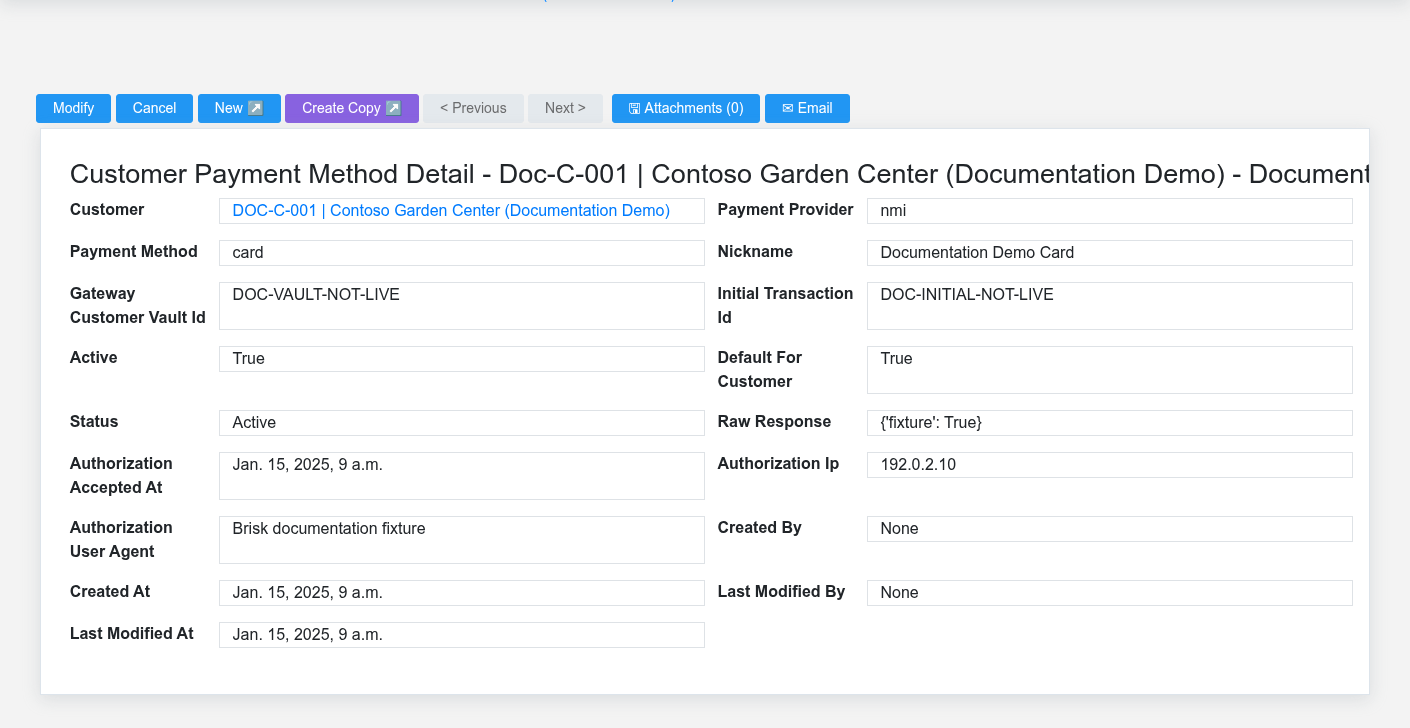
The Customer Payment Methods detail screen in the Brisk documentation demo.
Use the detail page as the shared record of what this Customer Payment Method currently means. Verify **Payment Provider**, **Payment Method**, **Active**, and **Status** before relying on it for a decision.
Follow **Customer** to determine whether the issue is on this Customer Payment Method or on one of those linked records.
Next check: Use the tokenized method only for the authorized customer and purpose, then verify its default/active state without exposing processor credentials.
Edit an existing Customer Payment Method
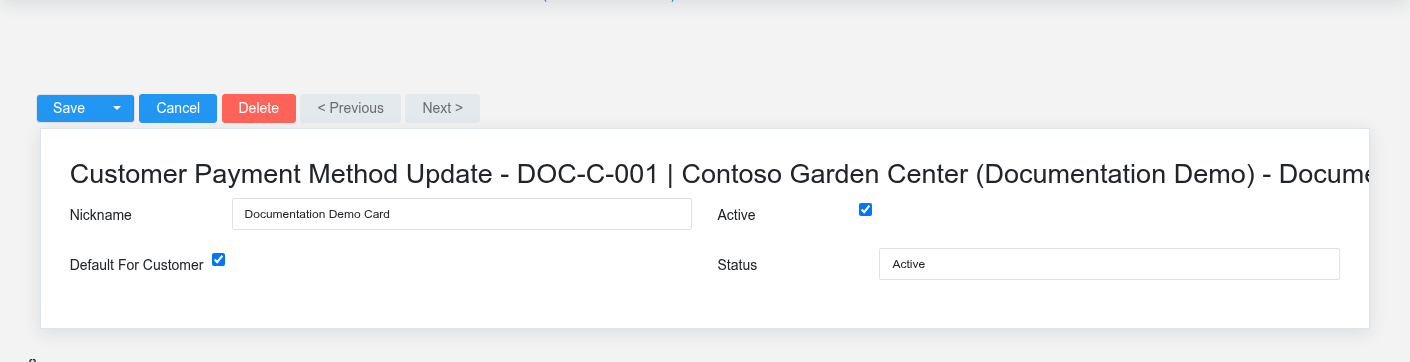
The Customer Payment Methods update screen in the Brisk documentation demo.
The edit screen intentionally limits staff to **Nickname**, **Active**, **Default For Customer**, and **Status**. Use it to rename a method, stop future charges, or change the customer's preferred method. It does not change the card, bank account, customer, or provider token.
Deactivate a revoked, expired, or no-longer-authorized method before selecting a replacement. If the underlying payment credential changed, run the secure setup flow again and then make the new method the default. After saving, verify that scheduled receivable plans point to the intended active method.
Find and review customer payment methods
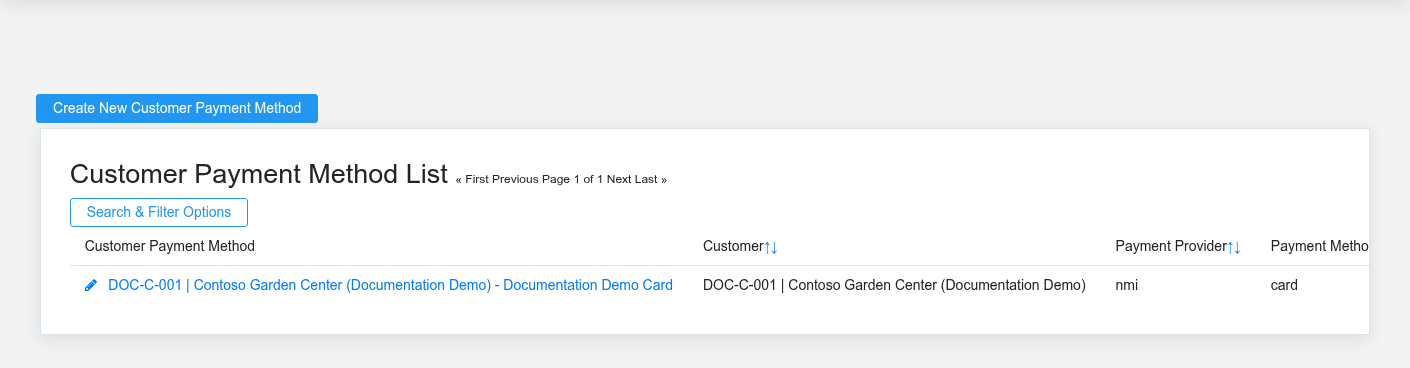
The Customer Payment Methods list screen in the Brisk documentation demo.
Use the Customer Payment Methods list to find the correct record before opening or changing it. Compare **Nickname**, and **Status**. Confirm its context with **Customer**.
Open the Customer Payment Method whose **Nickname**, and **Status** match the task. If it is missing, clear the list filters and recheck **Payment Provider**, **Payment Method**, **Active**, and **Status** rather than creating a replacement immediately.
## Fields and business rules
Brisk stores 13 user-relevant fields for this Customer Payment Method, including 1 linked-record selection and 2 controlled-choice fields. Create and edit screens may hide calculated or workflow-managed values from this full reference.
| Field | Required | What it controls |
|---|---:|---|
| **Customer** | Yes | Links this Customer Payment Method to the selected Customer; verify the relationship before saving. |
| **Payment Provider** | No | The payment provider recorded for this customer payment method. Available values: NMI, eBizCharge. |
| **Payment Method** | No | The payment method recorded for this customer payment method. Available values: Credit/Debit Card, eCheck/ACH. |
| **Nickname** | No | The nickname recorded for this customer payment method. |
| **Gateway Customer Vault Id** | Yes | Tokenized customer-vault reference at the payment provider. |
| **Initial Transaction Id** | No | Initial storage/validation transaction used for stored credential follow-up charges. |
| **Active** | No | Whether this customer payment method is active and available for use. |
| **Default For Customer** | No | Whether the default for customer option applies to this customer payment method. |
| **Status** | No | Current status of this customer payment method. |
| **Raw Response** | No | Structured raw response data stored for this customer payment method. |
| **Authorization Accepted At** | No | Date and time recorded for authorization accepted at on this customer payment method. |
| **Authorization Ip** | No | The authorization ip recorded for this customer payment method. |
| **Authorization User Agent** | No | The authorization user agent recorded for this customer payment method. |
## What happens next
Use the tokenized method only for the authorized customer and purpose, then verify its default/active state without exposing processor credentials.
## Common mistakes and troubleshooting
- **The record will not save:** Recheck **Customer**, and **Gateway Customer Vault Id** and any message beside the field. A required related record may also be inactive or unavailable to your role.
- **The record saved but is not available where expected:** Recheck **Payment Provider**, **Payment Method**, **Active**, and **Status**, then clear the filters on the destination list. Those controls determine payment authorization, collection timing, customer balances, and settlement review even when the other fields saved successfully.
- **The values look right but the result is wrong:** Open **Customer** from the detail page. Correct the specific relationship that is wrong instead of forcing a total or status to compensate for it.