Create and monitor a signed online payment request for a customer or sale, including allowed tenders, amount, and remote status.
## At a glance
- **Identify it by:** **Status**.
- **Check its business context:** **Customer**, and **Customer Credit**.
- **Why care:** Customer, source document, amount, authorization, processor status, and settlement are separate controls. Verify all of them before retrying or treating a payment as complete.
- **Why care:** Status communicates workflow progress to other staff. Change it only when the underlying work, approval, payment, or handoff has actually occurred.
## Before you begin
You need the Brisk permission for the action you are taking on email payments. If a Create, Edit, or Delete control is absent, do not work around it with another user’s account; ask an administrator to review your role.
Confirm the customer record has the correct email address, decide the exact amount and reason for collection, and verify which provider and tender types the business accepts. Saving a new request contacts the configured provider to generate the payment URL.
Create an Email Payment
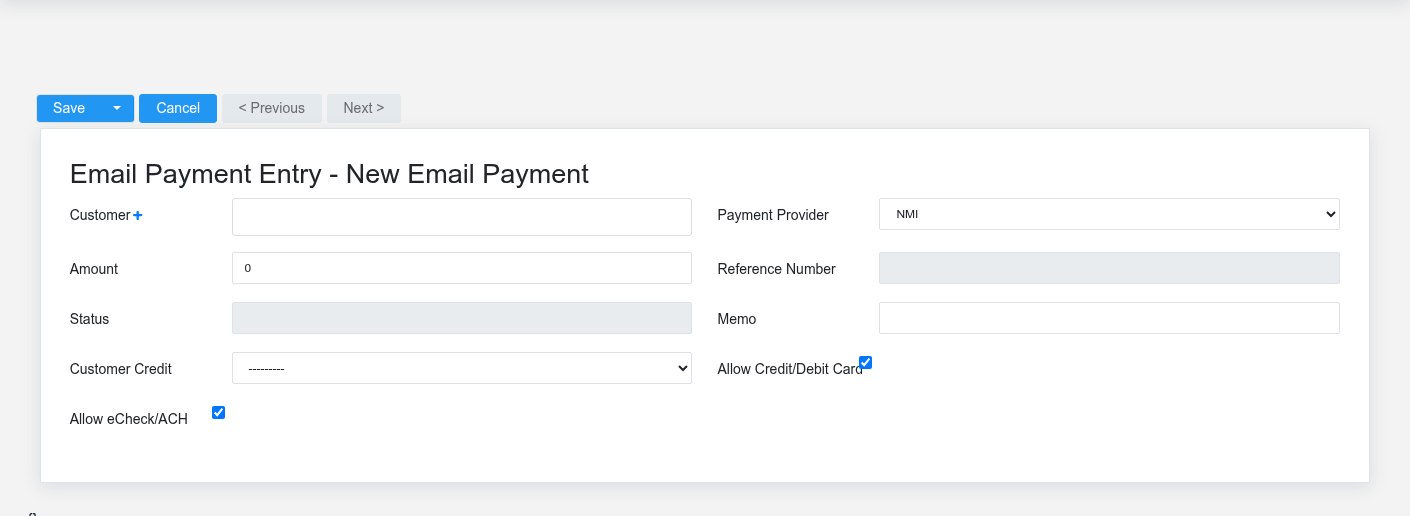
The Email Payments create screen in the Brisk documentation demo.
1. Select **Customer** and verify the recipient's email on the customer record.
2. Enter **Amount** and a short **Memo** the customer will recognize. Do not put confidential account or card data in the memo.
3. Choose the configured **Payment Provider** and allow card, ACH, or both according to company policy and provider support.
4. Leave **Payment URL**, **Reference Number**, **Status**, and **Customer Credit** to the workflow. Those values document what the provider generated and what Brisk recorded after payment.
5. Save once. Confirm that a payment URL and generated status appear before sending the link.
If the save stalls or the URL is missing, check provider configuration and status before saving or creating another request. A repeated submission can create multiple live collection opportunities.
Delete an Email Payment
Delete this Email Payment only when it was entered by mistake and no downstream history depends on it. Preserve the gateway request and result; void, refund, cancel, or replace it through the supported processor-aware workflow.
On the confirmation page, verify **Status**. After confirmation, return to the Email Payments list and make sure only the intended Email Payment was removed.
Review Email Payment details
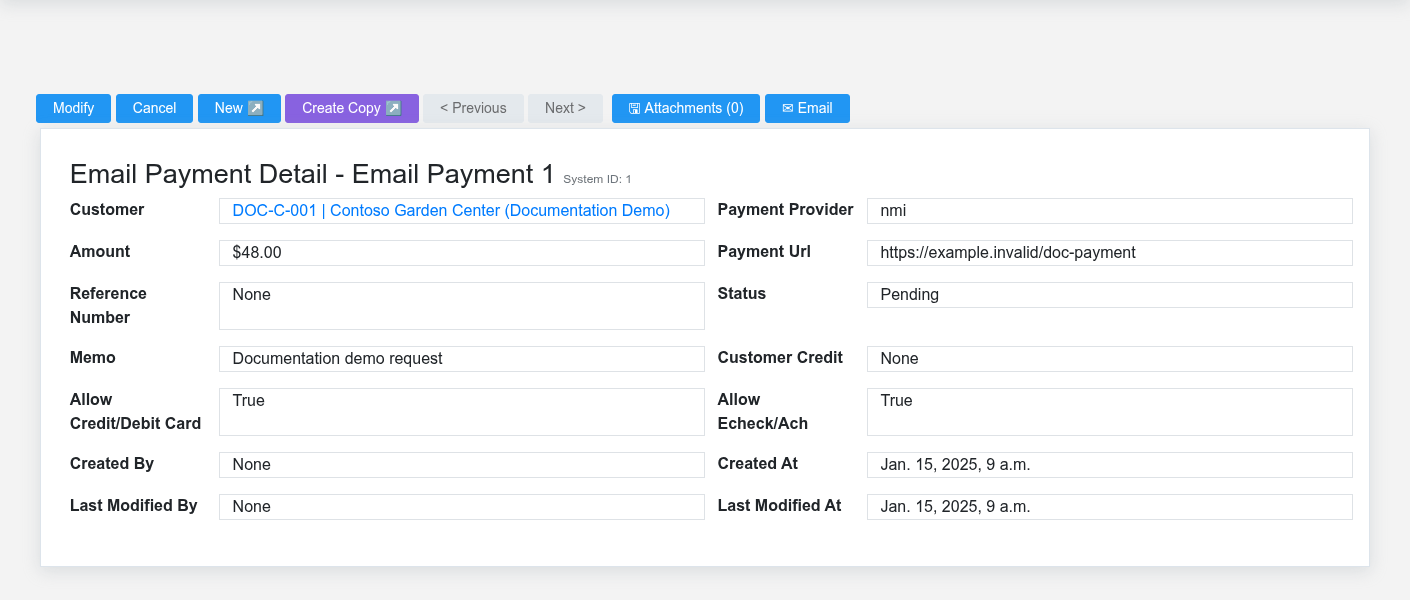
The Email Payments detail screen in the Brisk documentation demo.
Use the detail page as the shared record of what this Email Payment currently means. Verify **Payment Provider**, **Amount**, and **Status** before relying on it for a decision.
Follow **Customer**, and **Customer Credit** to determine whether the issue is on this Email Payment or on one of those linked records.
Next check: Send the signed payment link through the approved channel, then check processor status before recreating, canceling, or treating the request as paid.
Edit an existing Email Payment
Do not change customer, amount, or allowed tender after sending the link; the recipient may still be viewing the provider's original request. If the business request changed, first establish whether the existing link can still settle, then cancel or retire it through the supported provider workflow and issue a replacement.
Treat **Reference Number**, **Status**, and **Customer Credit** as workflow results. A completed customer credit is the Brisk accounting evidence; an authorization or browser confirmation alone is not. Preserve the original record when troubleshooting so support can match the Brisk ID, payment URL, provider reference, and customer credit.
Find and review email payments
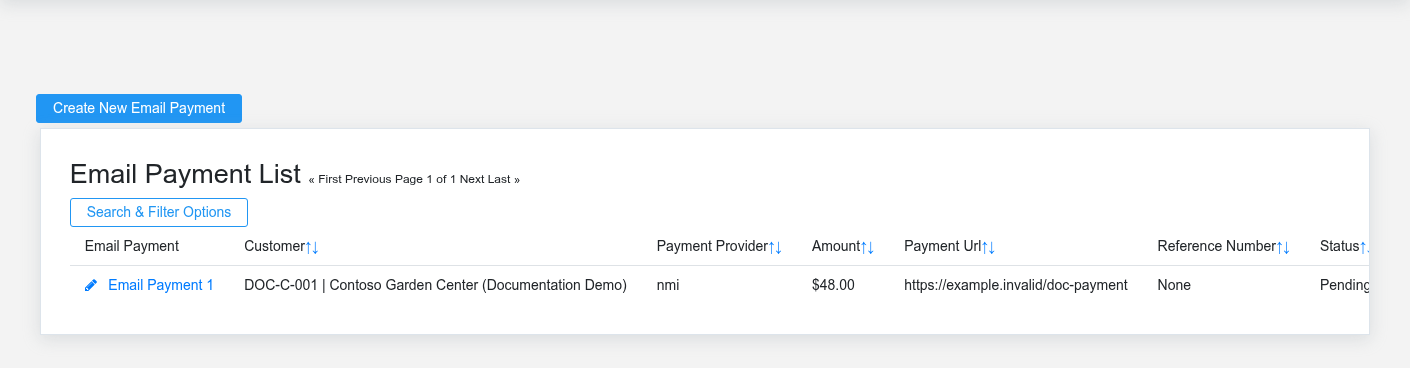
The Email Payments list screen in the Brisk documentation demo.
Use the Email Payments list to find the correct record before opening or changing it. Compare **Status**. Confirm its context with **Customer**, and **Customer Credit**.
Open the Email Payment whose **Status** matches the task. If it is missing, clear the list filters and recheck **Payment Provider**, and **Status** rather than creating a replacement immediately.
## Fields and business rules
Brisk stores 9 user-relevant fields for this Email Payment, including 2 linked-record selections and 1 controlled-choice field. Create and edit screens may hide calculated or workflow-managed values from this full reference.
| Field | Required | What it controls |
|---|---:|---|
| **Customer** | Yes | Records the customer that the transaction was emailed to. |
| **Payment Provider** | No | Payment provider used for this payment request. Available values: NMI, eBizCharge. |
| **Amount** | No | The dollar amount to request from the customer. |
| **Reference Number** | No | Records the reference number for a successful payment, used when voiding a transaction. |
| **Status** | No | Notes the current status of this email pay link. |
| **Memo** | No | If provided, this short description will be shown to the customer on the payment form. |
| **Customer Credit** | No | Records the customer credit used to apply a successful payment in the system. |
| **Allow Credit/Debit Card** | No | Allow card payment on this request. |
| **Allow Echeck/Ach** | No | Allow eCheck/ACH payment on this request when supported by the provider. |
## What happens next
Send the signed payment link through the approved channel, then check processor status before recreating, canceling, or treating the request as paid.
## Common mistakes and troubleshooting
- **The record will not save:** Recheck **Customer** and any message beside the field. A required related record may also be inactive or unavailable to your role.
- **The record saved but is not available where expected:** Recheck **Payment Provider**, and **Status**, then clear the filters on the destination list. Those controls determine payment authorization, collection timing, customer balances, and settlement review even when the other fields saved successfully.
- **The values look right but the result is wrong:** Open **Customer**, and **Customer Credit** from the detail page. Correct the specific relationship that is wrong instead of forcing a total or status to compensate for it.