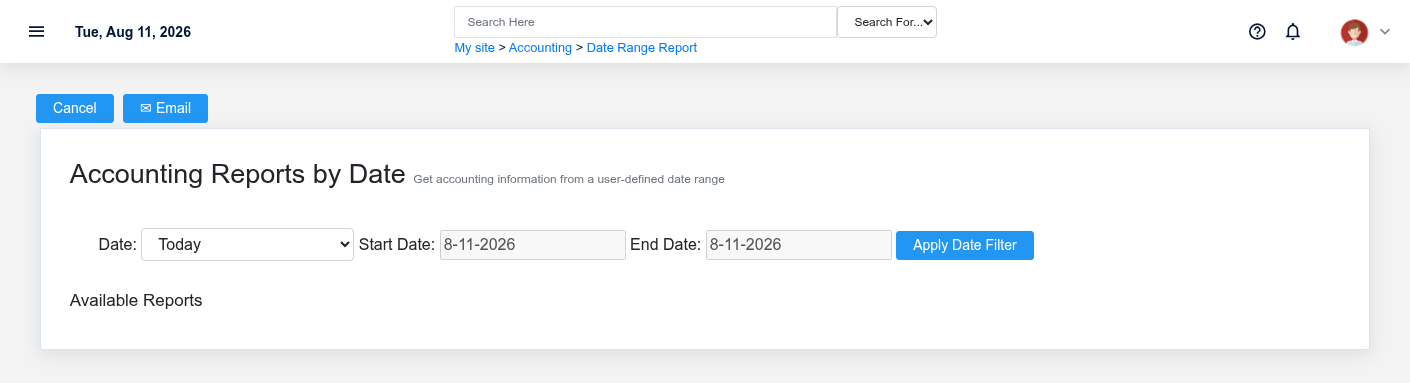
Work Period Reports provides accounting and operating reports for a user-defined date range. Use it for close review, management analysis, and supporting detail when the built-in period buttons do not match the business question. It reads saved transactions; it does not close a period or correct the source data.
Run a work-period report
The Work Period Reports report screen in the Brisk documentation demo.
1. Set the beginning and ending dates/times that define the intended business cutoff.
2. Select **Apply Date Filter** before choosing from **Available Reports** so each report receives the same scope.
3. Open the report that matches the question rather than selecting one because its total “looks right.” Date-range output can include sales/tender activity, customer credits, payouts, item rows, and other operating records depending on the selected report.
4. Confirm the displayed range, warehouse or division context, transaction states, and whether voided, returned, unpaid, or unposted activity is included.
5. Print, export, or email only after reconciling material totals to the corresponding list or register.
Choose a defensible cutoff
Use local business time and respect the exact close boundary, especially around midnight, overnight operations, and backdated corrections. A calendar date range is not automatically the same as one or more [Work Periods](https://help.brisksystems.us/link/2595#bkmrk-overview). If the report supports a close decision, compare the chosen range with the open/close timestamps on those periods.
Sharing reports
The email action sends business data outside the immediate screen. Verify recipient, subject, attachment/output, and authorization before sending. Treat customer, employee, sales, and payment information according to company policy.
When totals do not agree
Check range boundaries, warehouse/division, status and tender filters, later voids/returns, backdated entries, and whether the comparison report uses posting date or transaction date. Correct the source transaction or rerun with the proper scope; do not edit a period simply to force two unlike reports to match.