Maintain the named registers or tills used to assign and reconcile point-of-sale cash activity.
## At a glance
- **Identify it by:** **Name**.
- **Why care:** Customer, warehouse, quantities, prices, tax, payment, and fulfillment represent different parts of the transaction. Review each before treating the sale as complete.
## Before you begin
You need the Brisk permission for the action you are taking on cash drawers. If a Create, Edit, or Delete control is absent, do not work around it with another user’s account; ask an administrator to review your role.
Create a cash drawer
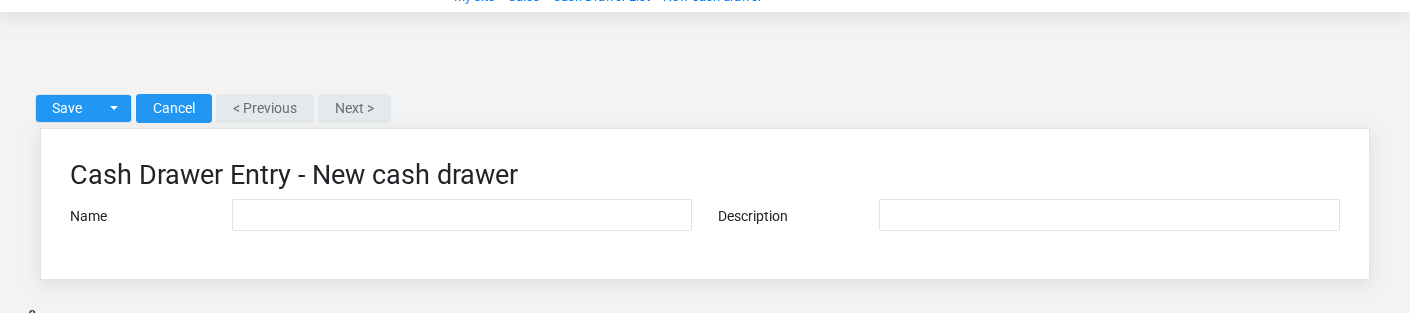
The Cash Drawers create screen in the Brisk documentation demo.
Create a cash drawer after searching for the person, organization, item, location, or resource under alternate names and identifiers. Merge or correct an existing master record instead of creating a duplicate.
1. Select the business context first.
2. Enter the required identifying and operational values: **Name**.
3. Review **Description** against the source document or approved setup decision.
4. Save the cash drawer, then confirm **Name** on its detail page before continuing.
After saving: Verify this cash drawer in **Customer Credits**, **Payouts**, **Returns**, and **Sales**, plus the remaining screen fields before staff build new activity on it; correct ownership, classification, and active state now rather than after transactions accumulate.
Delete a cash drawer
Delete this cash drawer only if it is an unused duplicate or setup mistake. Once other records refer to it, preserve that history and make the value inactive when the screen provides that option.
Before confirming, check for related **Customer Credits**, **Payouts**, **Returns**, **Sales**, and **Sheriff Bank Deposits**, plus the remaining screen fields. Brisk may refuse deletion when another record depends on this one; resolve the duplicate or use the supported correction workflow instead of breaking the trail.
On the confirmation page, verify **Name**. After confirmation, return to the Cash Drawers list and make sure only the intended cash drawer was removed.
Review cash drawer details
Use the detail page as the shared record of what this cash drawer currently means. Verify **Name**, and **Description** before relying on it for a decision.
Compare the cash drawer with its source document or approved setup request before deciding that it needs correction.
Next check: Verify this cash drawer in **Customer Credits**, **Payouts**, **Returns**, and **Sales**, plus the remaining screen fields before staff build new activity on it; correct ownership, classification, and active state now rather than after transactions accumulate.
Edit an existing cash drawer
Edit this cash drawer to keep the same real-world party, item, location, or resource accurate. Do not repurpose it for a different entity after activity is attached.
1. Open the detail page. Compare **Name** with the supporting document or approved request.
2. Recheck the identifying information shown on the screen. These values are most likely to change customer totals, tax, payment, fulfillment, and receivables.
3. Save the change, return to the list, and confirm that the cash drawer now appears under the expected **Name**.
After the change: Verify this cash drawer in **Customer Credits**, **Payouts**, **Returns**, and **Sales**, plus the remaining screen fields before staff build new activity on it; correct ownership, classification, and active state now rather than after transactions accumulate.
Find and review cash drawers
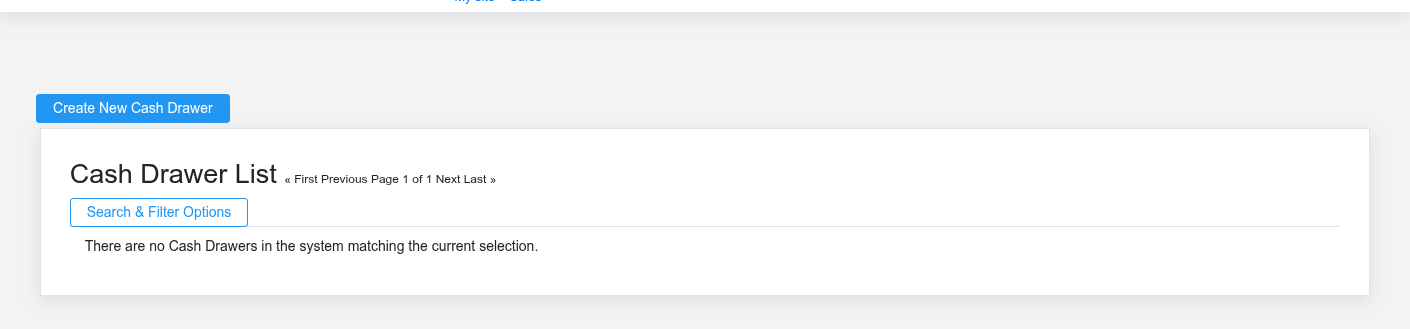
The Cash Drawers list screen in the Brisk documentation demo.
Use the Cash Drawers list to find the correct record before opening or changing it. Compare **Name**. Compare the full identifier rather than relying on a similar name.
- The initial order emphasizes **Name**. Select a column heading when you need a different comparison.
Open the cash drawer whose **Name** match the task. If it is missing, clear the list filters and recheck the identifying information shown on the screen rather than creating a replacement immediately.
## Fields and business rules
Brisk stores 2 user-relevant fields for this cash drawer, including 0 linked-record selections and 0 controlled-choice fields. Create and edit screens may hide calculated or workflow-managed values from this full reference.
| Field | Required | What it controls |
|---|---:|---|
| **Name** | Yes | Human-readable name for this cash drawer. |
| **Description** | No | Description of this cash drawer. |
## What happens next
Verify this cash drawer in **Customer Credits**, **Payouts**, **Returns**, and **Sales**, plus the remaining screen fields before staff build new activity on it; correct ownership, classification, and active state now rather than after transactions accumulate.
## Common mistakes and troubleshooting
- **The record will not save:** Recheck **Name** and any message beside the field. A required related record may also be inactive or unavailable to your role.
- **The values look right but the result is wrong:** Compare this cash drawer with the source document or approved setup decision, then check the downstream screen where it is used.
# Discount Periods
# Discount Periods
Purpose and when to use this record
Schedule a date-bounded percentage promotion and disable it without erasing its history.
## At a glance
- **Identify it by:** **Begin Date**, and **End Date**.
- **Why care:** Customer, warehouse, quantities, prices, tax, payment, and fulfillment represent different parts of the transaction. Review each before treating the sale as complete.
- **Why care:** Availability and publication flags affect future use without erasing history. Prefer disabling an obsolete setup record when existing transactions still refer to it.
## Before you begin
You need the Brisk permission for the action you are taking on discount periods. If a Create, Edit, or Delete control is absent, do not work around it with another user’s account; ask an administrator to review your role.
Create a discount period
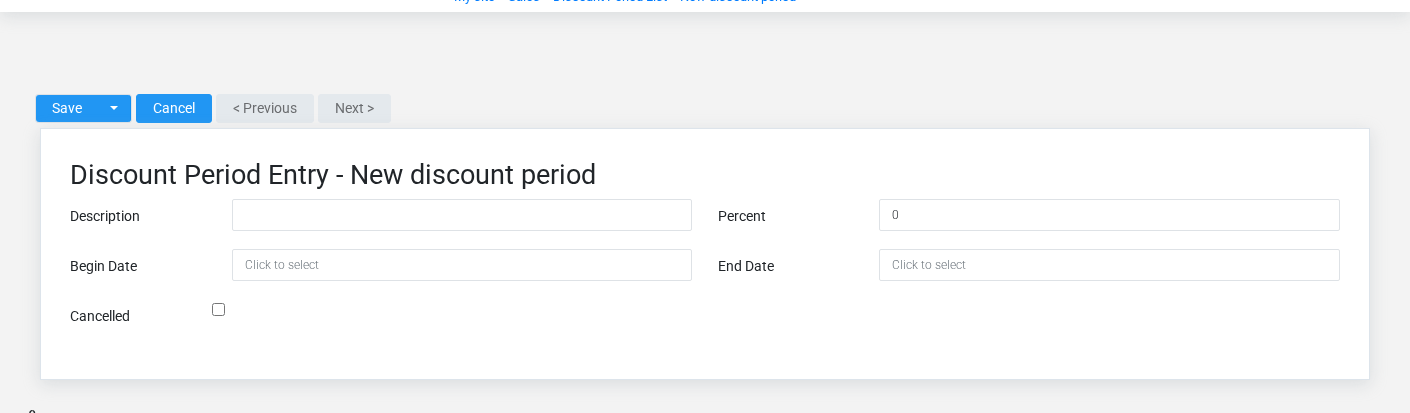
The Discount Periods create screen in the Brisk documentation demo.
Create a discount period after searching for the person, organization, item, location, or resource under alternate names and identifiers. Merge or correct an existing master record instead of creating a duplicate.
1. Select the business context first.
2. Enter the required identifying and operational values: **Description**, **Begin Date**, and **End Date**.
3. Review **Cancelled** deliberately; these choices control availability or workflow rather than merely describing the record.
4. Save the discount period, then confirm **Begin Date**, and **End Date** on its detail page before continuing.
After saving: Verify this discount period in the next transaction or assignment screen before staff build new activity on it; correct ownership, classification, and active state now rather than after transactions accumulate.
Delete a discount period
Delete this discount period only if it is an unused duplicate or setup mistake. Once other records refer to it, preserve that history and make the value inactive when the screen provides that option.
If the record is merely obsolete, use **Cancelled** to remove it from future use while preserving existing references.
On the confirmation page, verify **Begin Date**, and **End Date**. After confirmation, return to the Discount Periods list and make sure only the intended discount period was removed.
Review discount period details
Use the detail page as the shared record of what this discount period currently means. Verify **Begin Date**, and **End Date** before relying on it for a decision.
Compare the discount period with its source document or approved setup request before deciding that it needs correction.
Next check: Verify this discount period in the next transaction or assignment screen before staff build new activity on it; correct ownership, classification, and active state now rather than after transactions accumulate.
Edit an existing discount period
Edit this discount period to keep the same real-world party, item, location, or resource accurate. Do not repurpose it for a different entity after activity is attached.
1. Open the detail page. Compare **Begin Date**, and **End Date** with the supporting document or approved request.
2. Recheck **Begin Date**, and **End Date**. These values are most likely to change customer totals, tax, payment, fulfillment, and receivables.
3. Save the change, return to the list, and confirm that the discount period now appears under the expected **Cancelled**.
After the change: Verify this discount period in the next transaction or assignment screen before staff build new activity on it; correct ownership, classification, and active state now rather than after transactions accumulate.
Find and review discount periods
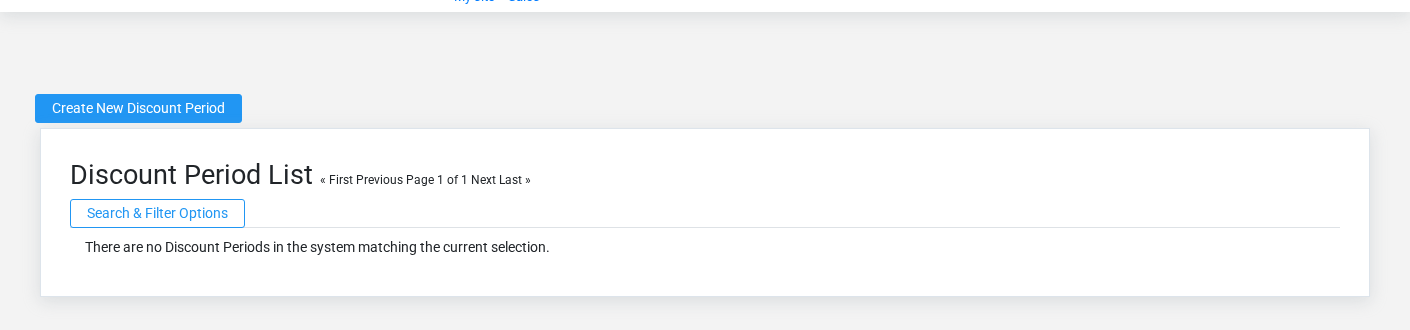
The Discount Periods list screen in the Brisk documentation demo.
Use the Discount Periods list to find the correct record before opening or changing it. Compare **Begin Date**, and **End Date**. Compare the full identifier rather than relying on a similar name.
Open the discount period whose **Begin Date**, and **End Date** match the task. If it is missing, clear the list filters and recheck **Cancelled** rather than creating a replacement immediately.
## Fields and business rules
Brisk stores 5 user-relevant fields for this discount period, including 0 linked-record selections and 0 controlled-choice fields. Create and edit screens may hide calculated or workflow-managed values from this full reference.
| Field | Required | What it controls |
|---|---:|---|
| **Description** | Yes | Give a memo or reason for this discount. |
| **Percent** | No | Set the percentage that all items will be discounted for the period of promotion. |
| **Begin Date** | Yes | Set the beginning of the discount period. |
| **End Date** | Yes | Set the ending of the discount period. |
| **Cancelled** | No | Use this field to quickly disable a Discount without changing its dates or deleting it. |
## What happens next
Verify this discount period in the next transaction or assignment screen before staff build new activity on it; correct ownership, classification, and active state now rather than after transactions accumulate.
## Common mistakes and troubleshooting
- **The record will not save:** Recheck **Description**, **Begin Date**, and **End Date** and any message beside the field. A required related record may also be inactive or unavailable to your role.
- **The values look right but the result is wrong:** Compare this discount period with the source document or approved setup decision, then check the downstream screen where it is used.
# Foodservice Tables
# Foodservice Tables
Purpose and when to use this record
Maintain dining tables, seating capacity, display order, availability, and current server assignment.
## At a glance
- **Identify it by:** **Table Name**.
- **Check its business context:** **Current Server**.
- **Why care:** Customer, warehouse, quantities, prices, tax, payment, and fulfillment represent different parts of the transaction. Review each before treating the sale as complete.
- **Why care:** Availability and publication flags affect future use without erasing history. Prefer disabling an obsolete setup record when existing transactions still refer to it.
## Before you begin
You need the Brisk permission for the action you are taking on foodservice tables. If a Create, Edit, or Delete control is absent, do not work around it with another user’s account; ask an administrator to review your role.
Create a Foodservice Table
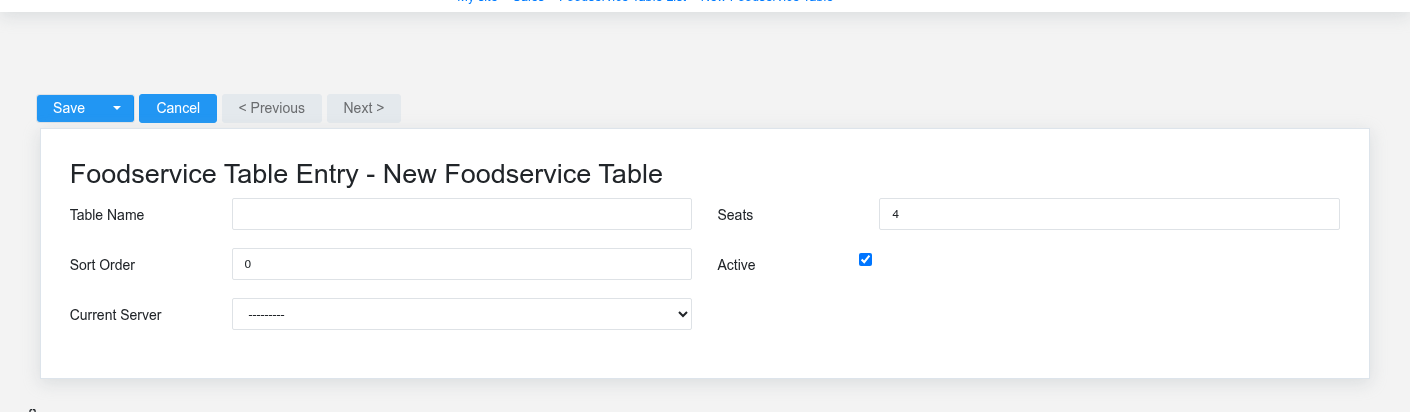
The Foodservice Tables create screen in the Brisk documentation demo.
Create a Foodservice Table after searching for the person, organization, item, location, or resource under alternate names and identifiers. Merge or correct an existing master record instead of creating a duplicate.
1. Select the business context first: **Current Server**.
2. Enter the required identifying and operational values: **Table Name**.
3. Review **Active** deliberately; these choices control availability or workflow rather than merely describing the record.
4. Save the Foodservice Table, then confirm **Table Name** on its detail page before continuing.
After saving: Verify this Foodservice Table in **Sales**, and **Suspended Sales** before staff build new activity on it; correct ownership, classification, and active state now rather than after transactions accumulate.
Delete a Foodservice Table
Delete this Foodservice Table only if it is an unused duplicate or setup mistake. Once other records refer to it, preserve that history and make the value inactive when the screen provides that option.
If the record is merely obsolete, use **Active** to remove it from future use while preserving existing references.
Before confirming, check for related **Sales**, and **Suspended Sales**. Brisk may refuse deletion when another record depends on this one; resolve the duplicate or use the supported correction workflow instead of breaking the trail.
On the confirmation page, verify **Table Name**. After confirmation, return to the Foodservice Tables list and make sure only the intended Foodservice Table was removed.
Review Foodservice Table details
Use the detail page as the shared record of what this Foodservice Table currently means. Verify **Active** before relying on it for a decision.
Follow **Current Server** to determine whether the issue is on this Foodservice Table or on one of those linked records.
Next check: Verify this Foodservice Table in **Sales**, and **Suspended Sales** before staff build new activity on it; correct ownership, classification, and active state now rather than after transactions accumulate.
Edit an existing Foodservice Table
Edit this Foodservice Table to keep the same real-world party, item, location, or resource accurate. Do not repurpose it for a different entity after activity is attached.
1. Open the detail page. Compare **Current Server** with the supporting document or approved request.
2. Recheck **Active**. These values are most likely to change customer totals, tax, payment, fulfillment, and receivables.
3. Save the change, return to the list, and confirm that the Foodservice Table now appears under the expected **Active**.
After the change: Verify this Foodservice Table in **Sales**, and **Suspended Sales** before staff build new activity on it; correct ownership, classification, and active state now rather than after transactions accumulate.
Find and review foodservice tables
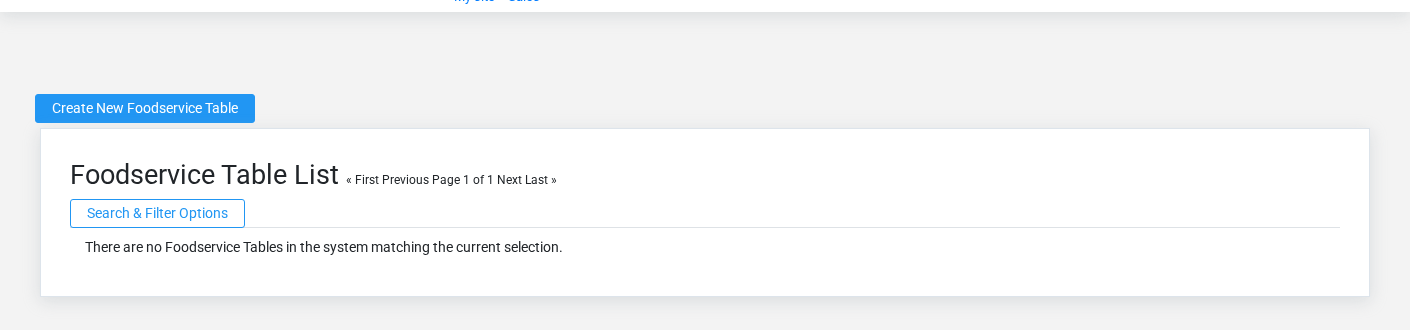
The Foodservice Tables list screen in the Brisk documentation demo.
Use the Foodservice Tables list to find the correct record before opening or changing it. Compare **Table Name**. Records with similar names or numbers can still belong to different **Current Server**.
- The initial order emphasizes **Sort Order**, and **Table Name**. Select a column heading when you need a different comparison.
Open the Foodservice Table whose **Table Name** match the task. If it is missing, clear the list filters and recheck **Active** rather than creating a replacement immediately.
## Fields and business rules
Brisk stores 5 user-relevant fields for this Foodservice Table, including 1 linked-record selection and 0 controlled-choice fields. Create and edit screens may hide calculated or workflow-managed values from this full reference.
| Field | Required | What it controls |
|---|---:|---|
| **Table Name** | Yes | Human-readable name for this food service table. |
| **Seats** | No | The seats value recorded for this food service table. |
| **Sort Order** | No | The sort order value recorded for this food service table. |
| **Active** | No | Whether this food service table is active and available for use. |
| **Current Server** | No | The current server associated with this food service table. |
## What happens next
Verify this Foodservice Table in **Sales**, and **Suspended Sales** before staff build new activity on it; correct ownership, classification, and active state now rather than after transactions accumulate.
## Common mistakes and troubleshooting
- **The record will not save:** Recheck **Table Name** and any message beside the field. A required related record may also be inactive or unavailable to your role.
- **The record saved but is not available where expected:** Recheck **Active**, then clear the filters on the destination list. A saved record can still be inactive, unpublished, locked, unapproved, or in the wrong workflow state.
- **The values look right but the result is wrong:** Open **Current Server** from the detail page. Correct the specific relationship that is wrong instead of forcing a total or status to compensate for it.
# Item Rows
# Item Rows
Purpose and when to use this record
Review the item, quantity, unit, price, tax, options, and fulfillment state of individual sales lines.
## At a glance
- **Identify it by:** **Item**, **Quantity**, **Uom**, and **Cost**.
- **Check its business context:** **Item**, **Uom**, **Tax Category**, **Sale Link**, and **Contract #**.
- **Why care:** Customer, warehouse, quantities, prices, tax, payment, and fulfillment represent different parts of the transaction. Review each before treating the sale as complete.
- **Why care:** Treat posted, processed, paid, reversed, and edit-locked states as controls—not ordinary descriptive fields. Confirm the source transaction before changing any state that the screen permits you to change.
## Before you begin
You need the Brisk permission for the action you are taking on item rows. If a Create, Edit, or Delete control is absent, do not work around it with another user’s account; ask an administrator to review your role.
Have valid **Tax Category** records ready first. Those selections determine where this item row belongs and which later screens can find it.
Find and review item rows
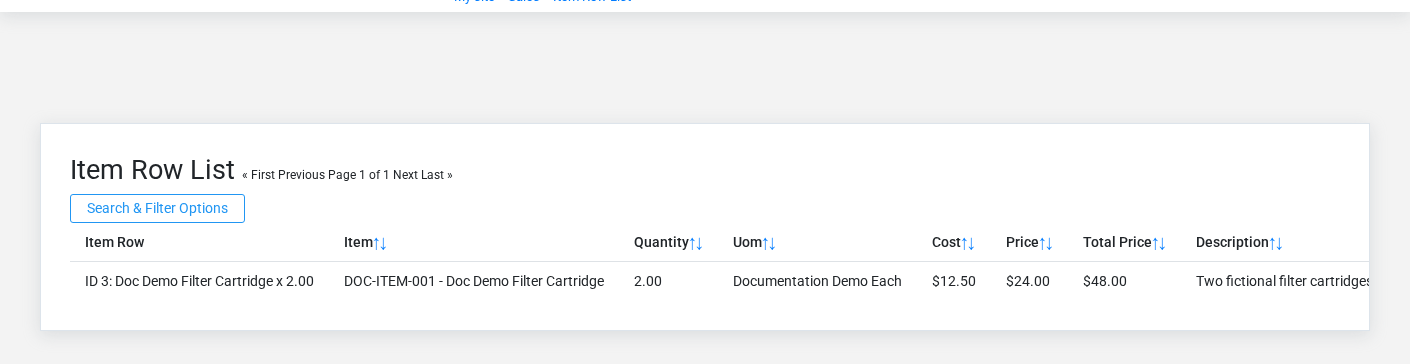
The Item Rows list screen in the Brisk documentation demo.
Use the Item Rows list to find the correct record before opening or changing it. Compare **Item**, **Quantity**, **Uom**, and **Cost**. Records with similar names or numbers can still belong to different **Item**, **Uom**, **Tax Category**, **Sale Link**, and **Contract #**.
- Narrow the list with **Sale Link**, **Item**, and **Contract #** filters.
- The date filter uses **Date Created**; choose a range that matches the business event you are reconciling.
Open the item row whose **Item**, **Quantity**, **Uom**, and **Cost** match the task. If it is missing, clear the list filters and recheck **Sale Link**, **Item**, **Contract #**, **Date Created**, and **Consumed** rather than creating a replacement immediately.
## Fields and business rules
Brisk stores 15 user-relevant fields for this item row, including 5 linked-record selections and 0 controlled-choice fields. Create and edit screens may hide calculated or workflow-managed values from this full reference.
| Field | Required | What it controls |
|---|---:|---|
| **Item** | No | Links this item row to the selected Item; verify the relationship before saving. |
| **Quantity** | Yes | The quantity value recorded for this item row. |
| **Uom** | No | Links this item row to the selected Unit of Measure; verify the relationship before saving. |
| **Cost** | Yes | The cost value recorded for this item row. |
| **Price** | Yes | The price value recorded for this item row. |
| **Total Price** | Yes | The total price value recorded for this item row. |
| **Description** | Yes | Enter the item description here. |
| **Tax Category** | Yes | The tax category associated with this item row. |
| **Tax Amount** | No | The tax amount value recorded for this item row. |
| **Sale Link** | No | Parent item row in the hierarchy. |
| **Consumed** | No | Whether the consumed option applies to this item row. |
| **Contract #** | No | Records the item contract associated with this line item. |
| **Foodservice Seat** | No | The foodservice seat value recorded for this item row. |
| **Foodservice Options** | No | The foodservice options recorded for this item row. |
| **Kitchen Instruction** | No | The kitchen instruction recorded for this item row. |
## What happens next
Use **Item**, **Uom**, **Tax Category**, **Sale Link**, and **Contract #** to interpret this item row. If it records a failure or exception, correct the source process and create a new successful event rather than rewriting the audit trail.
## Common mistakes and troubleshooting
- **The record will not save:** Recheck **Quantity**, **Cost**, **Price**, **Total Price**, **Description**, and **Tax Category** and any message beside the field. A required related record may also be inactive or unavailable to your role.
- **The record saved but is not available where expected:** Recheck **Consumed**, then clear the filters on the destination list. A saved record can still be inactive, unpublished, locked, unapproved, or in the wrong workflow state.
- **The values look right but the result is wrong:** Open **Item**, **Uom**, **Tax Category**, **Sale Link**, and **Contract #** from the detail page. Correct the specific relationship that is wrong instead of forcing a total or status to compensate for it.
# Payouts
# Payouts
Purpose and when to use this record
Record cash intentionally removed from a register for a business purpose and identify the employee responsible.
## At a glance
- **Identify it by:** **Amount**, **Employee**, **Memo**, and **Processed**.
- **Check its business context:** **Employee**.
- **Why care:** Customer, warehouse, quantities, prices, tax, payment, and fulfillment represent different parts of the transaction. Review each before treating the sale as complete.
- **Why care:** Treat posted, processed, paid, reversed, and edit-locked states as controls—not ordinary descriptive fields. Confirm the source transaction before changing any state that the screen permits you to change.
## Before you begin
You need the Brisk permission for the action you are taking on payouts. If a Create, Edit, or Delete control is absent, do not work around it with another user’s account; ask an administrator to review your role.
Have valid **Employee** records ready first. Those selections determine where this Payout belongs and which later screens can find it.
Create a Payout
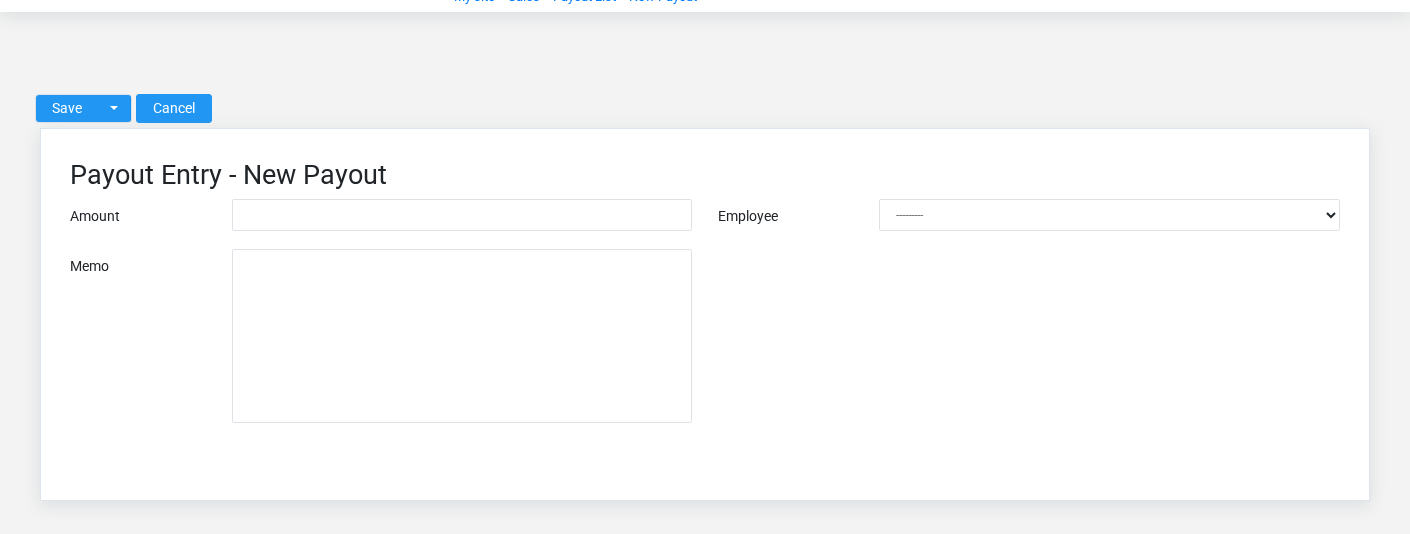
The Payouts create screen in the Brisk documentation demo.
Create a Payout only after confirming that the source document or operational event has not already been entered.
1. Select the business context first: **Employee**.
2. Enter the required identifying and operational values: **Amount**, **Employee**, and **Memo**.
3. Review **Processed** deliberately; these choices control availability or workflow rather than merely describing the record.
4. Save the Payout, then confirm **Amount**, **Employee**, and **Memo** on its detail page before continuing.
After saving: Verify **Processed**, and **Employee** on the detail page, then continue the sales workflow only when those values agree with the source document and actual work performed.
Delete a Payout
Delete this Payout only when it was entered by mistake and no downstream history depends on it. Use a reversal, void, credit, counter-adjustment, or status correction for a real event that later changed.
Before confirming, check for related **Transactions**. Brisk may refuse deletion when another record depends on this one; resolve the duplicate or use the supported correction workflow instead of breaking the trail.
On the confirmation page, verify **Amount**, **Employee**, **Memo**, and **Processed**. After confirmation, return to the Payouts list and make sure only the intended Payout was removed.
Review Payout details
Use the detail page as the shared record of what this Payout currently means. Verify **Amount**, and **Processed** before relying on it for a decision.
Follow **Employee** to determine whether the issue is on this Payout or on one of those linked records.
Next check: Verify **Processed**, and **Employee** on the detail page, then continue the sales workflow only when those values agree with the source document and actual work performed.
Edit an existing Payout
Edit this Payout to correct or complete the same source document or operational event; use the supported reversal or follow-up workflow when the business event itself changed.
1. Open the detail page. Compare **Employee** with the supporting document or approved request.
2. Recheck **Amount**. These values are most likely to change customer totals, tax, payment, fulfillment, and receivables.
3. Save the change, return to the list, and confirm that the Payout now appears under the expected **Processed**.
After the change: Verify **Processed**, and **Employee** on the detail page, then continue the sales workflow only when those values agree with the source document and actual work performed.
Find and review payouts
The Payouts list screen in the Brisk documentation demo.
Use the Payouts list to find the correct record before opening or changing it. Compare **Amount**, **Employee**, **Memo**, and **Processed**. Records with similar names or numbers can still belong to different **Employee**.
- The initial order emphasizes **Id**. Select a column heading when you need a different comparison.
Open the Payout whose **Amount**, **Employee**, **Memo**, and **Processed** match the task. If it is missing, clear the list filters and recheck **Processed** rather than creating a replacement immediately.
## Fields and business rules
Brisk stores 4 user-relevant fields for this Payout, including 1 linked-record selection and 0 controlled-choice fields. Create and edit screens may hide calculated or workflow-managed values from this full reference.
| Field | Required | What it controls |
|---|---:|---|
| **Amount** | Yes | The amount value recorded for this payout. |
| **Employee** | Yes | The employee that performed this payout. |
| **Memo** | Yes | Reason/information as to why this money was taken from the register. |
| **Processed** | No | Whether the processed option applies to this payout. |
## What happens next
Verify **Processed**, and **Employee** on the detail page, then continue the sales workflow only when those values agree with the source document and actual work performed.
## Common mistakes and troubleshooting
- **The record will not save:** Recheck **Amount**, **Employee**, and **Memo** and any message beside the field. A required related record may also be inactive or unavailable to your role.
- **The record saved but is not available where expected:** Recheck **Processed**, then clear the filters on the destination list. A saved record can still be inactive, unpublished, locked, unapproved, or in the wrong workflow state.
- **The values look right but the result is wrong:** Open **Employee** from the detail page. Correct the specific relationship that is wrong instead of forcing a total or status to compensate for it.
# Quotes
# Quotes
Purpose and when to use this record
Prepare a customer estimate, track its approval status, and convert accepted lines and totals into a sale.
## At a glance
- **Identify it by:** **Quote #**, and **Status**.
- **Check its business context:** **Customer**, **Salesperson**, and **Warehouse**.
- **Why care:** Customer, warehouse, quantities, prices, tax, payment, and fulfillment represent different parts of the transaction. Review each before treating the sale as complete.
- **Why care:** Status communicates workflow progress to other staff. Change it only when the underlying work, approval, payment, or handoff has actually occurred.
## Before you begin
You need the Brisk permission for the action you are taking on quotes. If a Create, Edit, or Delete control is absent, do not work around it with another user’s account; ask an administrator to review your role.
Have valid **Customer** records ready first. Those selections determine where this quote belongs and which later screens can find it.
Create a quote
Create a quote only after confirming that the source document or operational event has not already been entered.
1. Select the business context first: **Customer**, **Salesperson**, and **Warehouse**.
2. Enter the required identifying and operational values: **Quote #**, and **Customer**.
3. Review **Status**, and **Converted** deliberately; these choices control availability or workflow rather than merely describing the record.
4. Save the quote, then confirm **Quote #**, and **Status** on its detail page before continuing.
After saving: Send the estimate for approval and convert it only once; after conversion, use the resulting sale as the operational record.
Delete a quote
Delete this quote only when it was entered by mistake and no downstream history depends on it. Use a reversal, void, credit, counter-adjustment, or status correction for a real event that later changed.
Before confirming, check for related **Quote Rows**, **Quoted Sales**, **Service Leads**, and **Service Orders**. Brisk may refuse deletion when another record depends on this one; resolve the duplicate or use the supported correction workflow instead of breaking the trail.
On the confirmation page, verify **Quote #**, and **Status**. After confirmation, return to the Quotes list and make sure only the intended quote was removed.
Review quote details
Use the detail page as the shared record of what this quote currently means. Verify **Status**, **Subtotal**, **Tax Total**, and **Total** before relying on it for a decision.
Follow **Customer**, **Salesperson**, and **Warehouse** to determine whether the issue is on this quote or on one of those linked records.
Next check: Send the estimate for approval and convert it only once; after conversion, use the resulting sale as the operational record.
Edit an existing quote
Edit this quote to correct or complete the same source document or operational event; use the supported reversal or follow-up workflow when the business event itself changed.
1. Open the detail page. Compare **Customer**, **Salesperson**, and **Warehouse** with the supporting document or approved request.
2. Recheck **Customer**, **Warehouse**, **Status**, **Customer Po #**, **Subtotal**, and **Tax Total**, plus the remaining screen fields. These values are most likely to change customer totals, tax, payment, fulfillment, and receivables.
3. Save the change, return to the list, and confirm that the quote now appears under the expected **Status**.
After the change: Send the estimate for approval and convert it only once; after conversion, use the resulting sale as the operational record.
Find and review quotes
The Quotes list screen in the Brisk documentation demo.
Use the Quotes list to find the correct record before opening or changing it. Compare **Quote #**, and **Status**. Records with similar names or numbers can still belong to different **Customer**, **Salesperson**, and **Warehouse**.
Open the quote whose **Quote #**, and **Status** match the task. If it is missing, clear the list filters and recheck **Status** rather than creating a replacement immediately.
## Fields and business rules
Brisk stores 11 user-relevant fields for this quote, including 3 linked-record selections and 1 controlled-choice field. Create and edit screens may hide calculated or workflow-managed values from this full reference.
| Field | Required | What it controls |
|---|---:|---|
| **Quote #** | Yes | A quote's friendly name, used to identify the transaction in lists, reports, and searches. |
| **Customer** | Yes | The customer that will be receiving this quote. |
| **Salesperson** | No | The salesperson assigned to this quote. |
| **Warehouse** | No | The physical location from which inventory items for this quote would be sourced. |
| **Status** | No | Current status of this quote. Available values: Draft, Out to Customer, Approved, Rejected. |
| **Memo** | No | An optional field to record notes and other information about this quote. |
| **Customer Po #** | No | An optional field to make note of the customer's purchase order number. |
| **Subtotal** | No | The total sales price of all line items before sales tax. |
| **Tax Total** | No | The total sales tax due for this sale. |
| **Total** | No | The total value recorded for this quote. |
| **Converted** | No | Marks this quote as conerted to an invoice and completed. |
## What happens next
Send the estimate for approval and convert it only once; after conversion, use the resulting sale as the operational record.
## Common mistakes and troubleshooting
- **The record will not save:** Recheck **Quote #**, and **Customer** and any message beside the field. A required related record may also be inactive or unavailable to your role.
- **The record saved but is not available where expected:** Recheck **Status**, then clear the filters on the destination list. A saved record can still be inactive, unpublished, locked, unapproved, or in the wrong workflow state.
- **The values look right but the result is wrong:** Open **Customer**, **Salesperson**, and **Warehouse** from the detail page. Correct the specific relationship that is wrong instead of forcing a total or status to compensate for it.
# Returns
# Returns
Purpose and when to use this record
Reverse eligible sale quantities and taxes, calculate fees, and track how much of the refund has been completed.
## At a glance
- **Identify it by:** **Date Created**, and **Refund Status**.
- **Check its business context:** **Sale**, **Customer**, and **Warehouse**.
- **Why care:** Customer, warehouse, quantities, prices, tax, payment, and fulfillment represent different parts of the transaction. Review each before treating the sale as complete.
- **Why care:** Treat posted, processed, paid, reversed, and edit-locked states as controls—not ordinary descriptive fields. Confirm the source transaction before changing any state that the screen permits you to change.
## Before you begin
You need the Brisk permission for the action you are taking on returns. If a Create, Edit, or Delete control is absent, do not work around it with another user’s account; ask an administrator to review your role.
Create a return
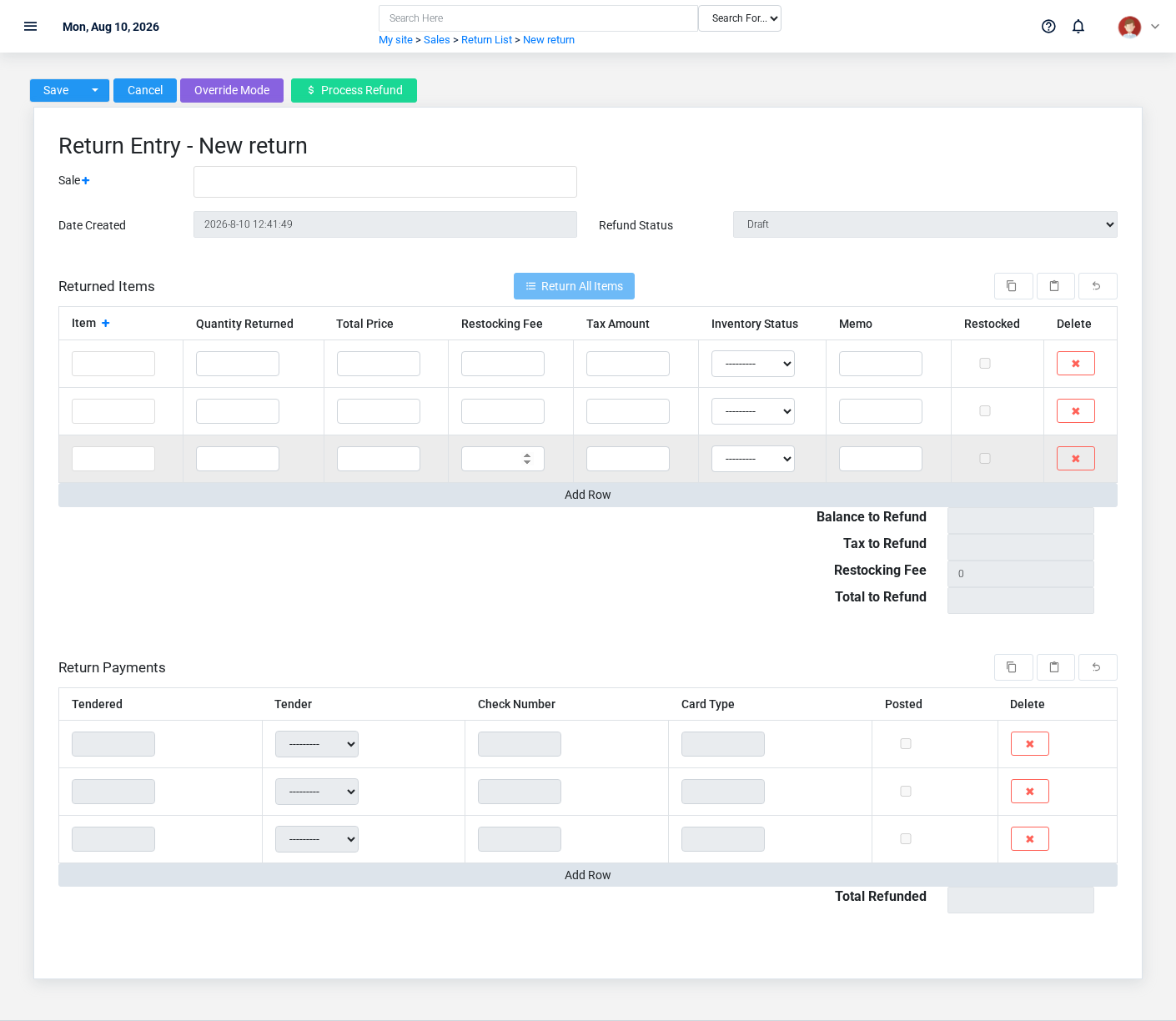
The Returns create screen in the Brisk documentation demo.
Create a return only after confirming that the source document or operational event has not already been entered.
1. Select the business context first: **Sale**, **Customer**, and **Warehouse**.
2. Enter the required identifying and operational values: **Date Created**, **Balance To Refund**, and **Tax To Refund**.
3. Review **Refund Status**, and **Edit Locked** deliberately; these choices control availability or workflow rather than merely describing the record.
4. Save the return, then confirm **Date Created**, and **Refund Status** on its detail page before continuing.
After saving: Confirm returned quantities, taxes, fees, tender, and Total Refunded before marking the refund complete.
Delete a return
Delete this return only when it was entered by mistake and no downstream history depends on it. Use a reversal, void, credit, counter-adjustment, or status correction for a real event that later changed.
Before confirming, check for related **Inventory Records**, **Return Invoice Applications**, **Return Payments**, **Returned Items**, and **Transactions**. Brisk may refuse deletion when another record depends on this one; resolve the duplicate or use the supported correction workflow instead of breaking the trail.
On the confirmation page, verify **Date Created**, and **Refund Status**. After confirmation, return to the Returns list and make sure only the intended return was removed.
Review return details
Use the detail page as the shared record of what this return currently means. Verify **Date Created**, **Total To Refund**, **Refund Status**, **Total Refunded**, and **Edit Locked** before relying on it for a decision.
Follow **Sale**, **Customer**, and **Warehouse** to determine whether the issue is on this return or on one of those linked records.
Next check: Confirm returned quantities, taxes, fees, tender, and Total Refunded before marking the refund complete.
Edit an existing return
Edit this return to correct or complete the same source document or operational event; use the supported reversal or follow-up workflow when the business event itself changed.
1. Open the detail page. Compare **Sale**, **Customer**, and **Warehouse** with the supporting document or approved request.
2. Recheck **Customer**, **Date Created**, **Total To Refund**, **Refund Status**, **Total Refunded**, and **Edit Locked**, plus the remaining screen fields. These values are most likely to change customer totals, tax, payment, fulfillment, and receivables.
3. Save the change, return to the list, and confirm that the return now appears under the expected **Refund Status**, and **Edit Locked**.
After the change: Confirm returned quantities, taxes, fees, tender, and Total Refunded before marking the refund complete.
Find and review returns
The Returns list screen in the Brisk documentation demo.
Use the Returns list to find the correct record before opening or changing it. Compare **Date Created**, and **Refund Status**. Records with similar names or numbers can still belong to different **Sale**, **Customer**, and **Warehouse**.
- The initial order emphasizes **Id**. Select a column heading when you need a different comparison.
Open the return whose **Date Created**, and **Refund Status** match the task. If it is missing, clear the list filters and recheck **Refund Status**, and **Edit Locked** rather than creating a replacement immediately.
## Fields and business rules
Brisk stores 11 user-relevant fields for this return, including 3 linked-record selections and 1 controlled-choice field. Create and edit screens may hide calculated or workflow-managed values from this full reference.
| Field | Required | What it controls |
|---|---:|---|
| **Sale** | No | Links this return to the selected sale; verify the relationship before saving. |
| **Customer** | No | Optional customer for ad-hoc returns. |
| **Date Created** | Yes | Date and time recorded for date created on this return. |
| **Balance To Refund** | Yes | The balance to refund value recorded for this return. |
| **Tax To Refund** | Yes | The tax to refund value recorded for this return. |
| **Restocking Fee** | No | The restocking fee value recorded for this return. |
| **Total To Refund** | No | The total to refund value recorded for this return. |
| **Refund Status** | No | The refund status recorded for this return. Available values: Complete, Pending, Draft. |
| **Total Refunded** | No | The total refunded value recorded for this return. |
| **Edit Locked** | No | Whether the edit locked option applies to this return. |
| **Warehouse** | No | Used for returns that are not linked to a sale. |
## What happens next
Confirm returned quantities, taxes, fees, tender, and Total Refunded before marking the refund complete.
## Common mistakes and troubleshooting
- **The record will not save:** Recheck **Date Created**, **Balance To Refund**, and **Tax To Refund** and any message beside the field. A required related record may also be inactive or unavailable to your role.
- **The record saved but is not available where expected:** Recheck **Refund Status**, and **Edit Locked**, then clear the filters on the destination list. A saved record can still be inactive, unpublished, locked, unapproved, or in the wrong workflow state.
- **The values look right but the result is wrong:** Open **Sale**, **Customer**, and **Warehouse** from the detail page. Correct the specific relationship that is wrong instead of forcing a total or status to compensate for it.
# Sales
# Sales
Purpose and when to use this record
Review the commercial transaction from item entry through tax, payment, fulfillment, receivables, and completion.
## At a glance
- **Identify it by:** **Sale #**, **Date Created**, **Fulfillment Status**, **Payment Status**, and **Foodservice Ticket Number**.
- **Check its business context:** **Customer**, **Salesperson**, **Warehouse**, **Cash Drawer**, and **Foodservice Table**.
- **Why care:** Customer, warehouse, quantities, prices, tax, payment, and fulfillment represent different parts of the transaction. Review each before treating the sale as complete.
- **Why care:** Treat posted, processed, paid, reversed, and edit-locked states as controls—not ordinary descriptive fields. Confirm the source transaction before changing any state that the screen permits you to change.
## Before you begin
You need the Brisk permission for the action you are taking on sales. If a Create, Edit, or Delete control is absent, do not work around it with another user’s account; ask an administrator to review your role.
Have valid **Customer** records ready first. Those selections determine where this sale belongs and which later screens can find it.
Find and review sales
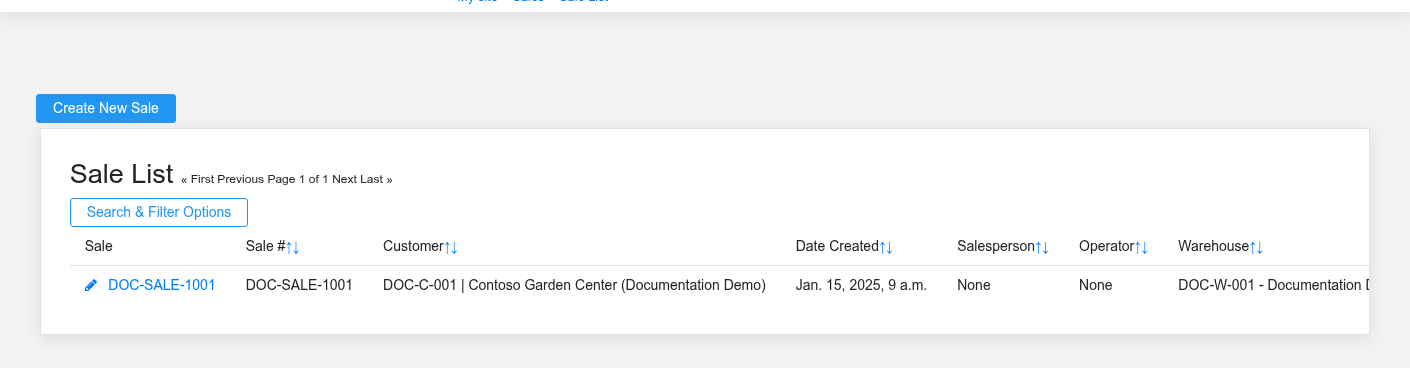
The Sales list screen in the Brisk documentation demo.
Use the Sales list to find the correct record before opening or changing it. Compare **Sale #**, **Date Created**, **Fulfillment Status**, **Payment Status**, and **Foodservice Ticket Number**. Records with similar names or numbers can still belong to different **Customer**, **Salesperson**, **Warehouse**, **Cash Drawer**, **Foodservice Table**, and **Foodservice Server**.
- Keyword search checks **Memo**, **Customer Po #**, **Name**, **Item Code**, **Check Number**, and **Card Type**, plus the remaining screen fields.
- Narrow the list with **Customer** filters.
- The date filter uses **Date Created**; choose a range that matches the business event you are reconciling.
Open the sale whose **Sale #**, **Date Created**, **Fulfillment Status**, **Payment Status**, and **Foodservice Ticket Number** match the task. If it is missing, clear the list filters and recheck **Customer**, **Date Created**, **Fulfillment Status**, **Payment Status**, **Amount Paid**, and **Edit Locked** rather than creating a replacement immediately.
Create a sale
Create a sale only after confirming that the source document or operational event has not already been entered.
1. Select the business context first: **Customer**, **Salesperson**, **Warehouse**, **Cash Drawer**, **Foodservice Table**, and **Foodservice Server**.
2. Enter the required identifying and operational values: **Sale #**, **Customer**, and **Date Created**.
3. Review **Fulfillment Status**, **Fulfillment Required**, **Payment Status**, and **Edit Locked** deliberately; these choices control availability or workflow rather than merely describing the record.
4. Save the sale, then confirm **Sale #**, **Date Created**, **Fulfillment Status**, **Payment Status**, and **Foodservice Ticket Number** on its detail page before continuing.
After saving: Use Payment Status and Fulfillment Status separately: collecting money does not prove delivery, and fulfilling an order does not prove payment.
Delete a sale
Delete this sale only when it was entered by mistake and no downstream history depends on it. Use a reversal, void, credit, counter-adjustment, or status correction for a real event that later changed.
Before confirming, check for related **Commodity Sales**, **Customer Credits**, **Customer Payoff Records**, **Emv Refunds**, and **Inventory Records**, plus the remaining screen fields. Brisk may refuse deletion when another record depends on this one; resolve the duplicate or use the supported correction workflow instead of breaking the trail.
On the confirmation page, verify **Sale #**, **Date Created**, **Fulfillment Status**, **Payment Status**, and **Foodservice Ticket Number**. After confirmation, return to the Sales list and make sure only the intended sale was removed.
Review sale details
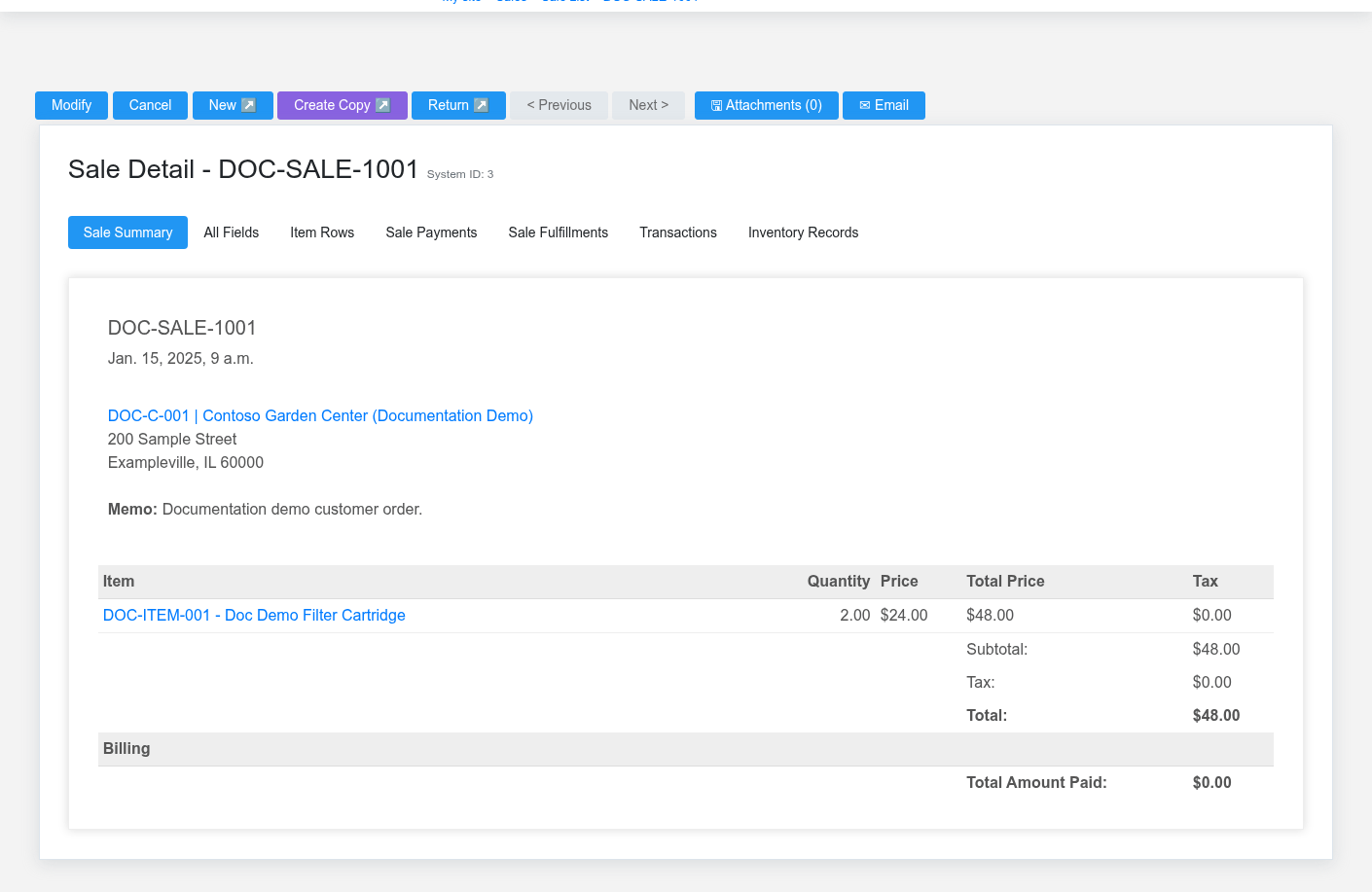
A draft fictional customer sale with two filter cartridges and an unpaid balance.
Use the detail page as the shared record of what this sale currently means. Verify **Date Created**, **Fulfillment Status**, **Payment Status**, **Non-Discount Subtotal**, **Subtotal**, and **Tax Total**, plus the remaining screen fields before relying on it for a decision.
Follow **Customer**, **Salesperson**, **Warehouse**, **Cash Drawer**, **Foodservice Table**, and **Foodservice Server** to determine whether the issue is on this sale or on one of those linked records.
Next check: Use Payment Status and Fulfillment Status separately: collecting money does not prove delivery, and fulfilling an order does not prove payment.
Edit an existing sale
Edit this sale to correct or complete the same source document or operational event; use the supported reversal or follow-up workflow when the business event itself changed.
1. Open the detail page. Compare **Customer**, **Salesperson**, **Warehouse**, **Cash Drawer**, **Foodservice Table**, and **Foodservice Server** with the supporting document or approved request.
2. Recheck **Customer**, **Date Created**, **Warehouse**, **Fulfillment Status**, **Payment Status**, and **Customer Po #**, plus the remaining screen fields. These values are most likely to change customer totals, tax, payment, fulfillment, and receivables.
3. Save the change, return to the list, and confirm that the sale now appears under the expected **Fulfillment Status**, **Payment Status**, **Amount Paid**, and **Edit Locked**.
After the change: Use Payment Status and Fulfillment Status separately: collecting money does not prove delivery, and fulfilling an order does not prove payment.
## Fields and business rules
Brisk stores 28 user-relevant fields for this sale, including 6 linked-record selections and 2 controlled-choice fields. Create and edit screens may hide calculated or workflow-managed values from this full reference.
| Field | Required | What it controls |
|---|---:|---|
| **Sale #** | Yes | A sale's friendly name, used to identify the transaction in receipts, reports, and searches. |
| **Customer** | Yes | The customer that made this purchase. |
| **Date Created** | Yes | The date and time that this transaction was started. |
| **Salesperson** | No | The salesperson assigned to this sale. |
| **Warehouse** | No | The physical location from which inventory items for this sale are sourced. |
| **Fulfillment Status** | No | Status information for pending deliveries or shipments for this sale. Available values: Draft, Submitted, Fulfilled, Contested, Complete, Cancelled. |
| **Fulfillment Required** | No | Marked as false for direct retail sales and service items, marked as true when shipments or deliveries are necessary. |
| **Payment Status** | No | Status information for pending payments and/or accounts receivable. Available values: Draft, Unbilled, Receivable, Paid, Refunded, Cancelled. |
| **Memo** | No | An open text field for employees to make notes about this transaction. |
| **Customer Po #** | No | An optional field to make note of the customer's purchase order number. |
| **Non-Discount Subtotal** | No | If a cash discount is applied to the ticket, this field represents the original, undiscounted subtotal. |
| **Subtotal** | No | The total sales price of all line items before sales tax. |
| **Tax Total** | No | The total sales tax due for this sale. |
| **Non-Discount Total** | No | If a cash discount is applied to the ticket, this field represents the original, undiscounted total. |
| **Payment Terms Discount** | No | Discount granted when eligible payment terms are paid immediately by cash, check, or card. |
| **Total** | No | The total value recorded for this sale. |
| **Amount Paid** | No | The amount paid value recorded for this sale. |
| **Balance** | No | The balance value recorded for this sale. |
| **Edit Locked** | No | Whether the edit locked option applies to this sale. |
| **Cash Drawer** | No | Links this sale to the cash drawer that it was rung up at. |
| **Pos Client Request Id** | No | Idempotency key supplied by the Point of Sale client for online and offline ticket submissions. |
| **Foodservice Mode** | No | The foodservice mode recorded for this sale. |
| **Foodservice Order Type** | No | The foodservice order type recorded for this sale. |
| **Foodservice Ticket Number** | No | The foodservice ticket number recorded for this sale. |
| **Foodservice Notes** | No | The foodservice notes recorded for this sale. |
| **Guest Count** | No | The guest count value recorded for this sale. |
| **Foodservice Table** | No | The foodservice table associated with this sale. |
| **Foodservice Server** | No | The foodservice server associated with this sale. |
## What happens next
Use Payment Status and Fulfillment Status separately: collecting money does not prove delivery, and fulfilling an order does not prove payment.
## Common mistakes and troubleshooting
- **The record will not save:** Recheck **Sale #**, **Customer**, and **Date Created** and any message beside the field. A required related record may also be inactive or unavailable to your role.
- **The record saved but is not available where expected:** Recheck **Fulfillment Status**, **Payment Status**, **Amount Paid**, and **Edit Locked**, then clear the filters on the destination list. A saved record can still be inactive, unpublished, locked, unapproved, or in the wrong workflow state.
- **The values look right but the result is wrong:** Open **Customer**, **Salesperson**, **Warehouse**, **Cash Drawer**, **Foodservice Table**, and **Foodservice Server** from the detail page. Correct the specific relationship that is wrong instead of forcing a total or status to compensate for it.
# Subscriptions
# Subscriptions
Purpose and when to use this record
Define a repeating customer sale, billing frequency, line items, and whether payment is direct or posted to receivables.
## At a glance
- **Identify it by:** **Label**.
- **Check its business context:** **Customer**, and **Payment Method**.
- **Why care:** Customer, warehouse, quantities, prices, tax, payment, and fulfillment represent different parts of the transaction. Review each before treating the sale as complete.
## Before you begin
You need the Brisk permission for the action you are taking on subscriptions. If a Create, Edit, or Delete control is absent, do not work around it with another user’s account; ask an administrator to review your role.
Have valid **Customer** records ready first. Those selections determine where this subscription belongs and which later screens can find it.
Create a subscription
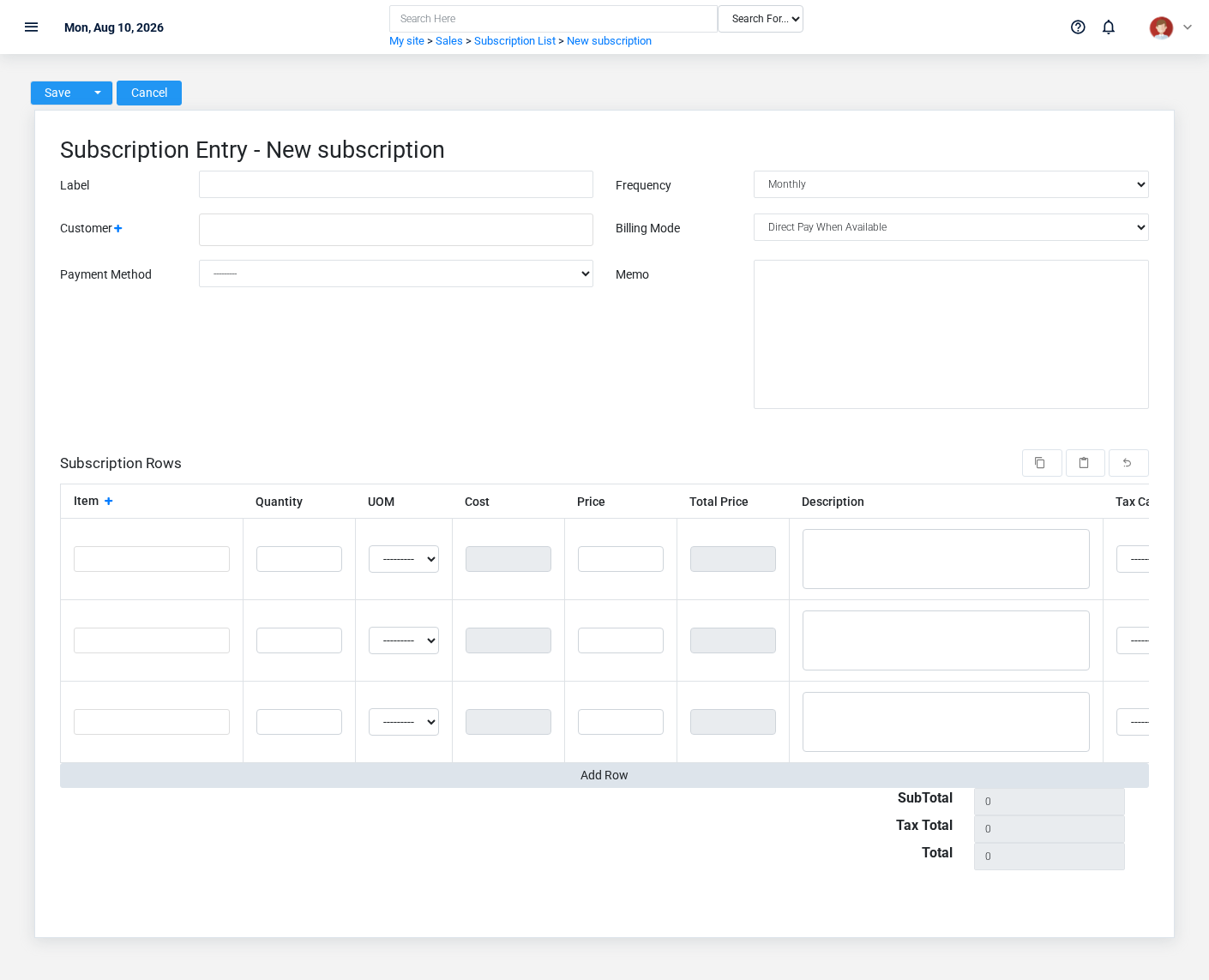
The Subscriptions create screen in the Brisk documentation demo.
Create a subscription after searching for the person, organization, item, location, or resource under alternate names and identifiers. Merge or correct an existing master record instead of creating a duplicate.
1. Select the business context first: **Customer**, and **Payment Method**.
2. Enter the required identifying and operational values: **Label**, and **Customer**.
3. Review **Frequency**, and **Billing Mode** deliberately; these choices control availability or workflow rather than merely describing the record.
4. Save the subscription, then confirm **Label** on its detail page before continuing.
After saving: Monitor each generated billing cycle and resolve failed direct payments or receivable balances without creating duplicate subscriptions.
Delete a subscription
Delete this subscription only if it is an unused duplicate or setup mistake. Once other records refer to it, preserve that history and make the value inactive when the screen provides that option.
Before confirming, check for related **Recurring Sales**, and **Subscription Rows**. Brisk may refuse deletion when another record depends on this one; resolve the duplicate or use the supported correction workflow instead of breaking the trail.
On the confirmation page, verify **Label**. After confirmation, return to the Subscriptions list and make sure only the intended subscription was removed.
Review subscription details
Use the detail page as the shared record of what this subscription currently means. Verify **Frequency**, **Billing Mode**, **Subtotal**, **Tax Total**, and **Total** before relying on it for a decision.
Follow **Customer**, and **Payment Method** to determine whether the issue is on this subscription or on one of those linked records.
Next check: Monitor each generated billing cycle and resolve failed direct payments or receivable balances without creating duplicate subscriptions.
Edit an existing subscription
Edit this subscription to keep the same real-world party, item, location, or resource accurate. Do not repurpose it for a different entity after activity is attached.
1. Open the detail page. Compare **Customer**, and **Payment Method** with the supporting document or approved request.
2. Recheck **Frequency**, **Customer**, **Billing Mode**, **Subtotal**, **Tax Total**, and **Total**. These values are most likely to change customer totals, tax, payment, fulfillment, and receivables.
3. Save the change, return to the list, and confirm that the subscription now appears under the expected **Frequency**, and **Billing Mode**.
After the change: Monitor each generated billing cycle and resolve failed direct payments or receivable balances without creating duplicate subscriptions.
Find and review subscriptions
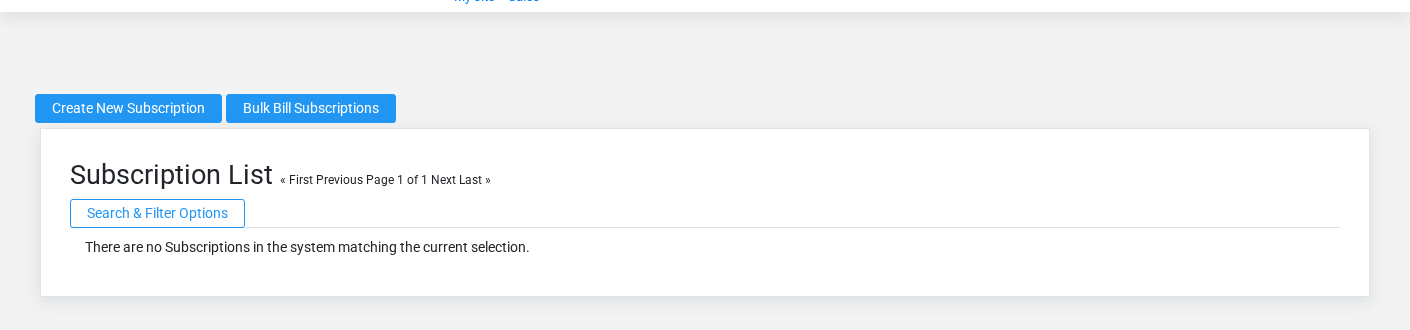
The Subscriptions list screen in the Brisk documentation demo.
Use the Subscriptions list to find the correct record before opening or changing it. Compare **Label**, **Frequency**, **Customer**, and **Billing Mode**. Records with similar names or numbers can still belong to different **Customer**, and **Payment Method**.
- Keyword search checks **Memo**, and **Label**.
- Narrow the list with **Customer** filters.
- The date filter uses **Datecreated**; choose a range that matches the business event you are reconciling.
Open the subscription whose **Label**, **Frequency**, **Customer**, and **Billing Mode** match the task. If it is missing, clear the list filters and recheck **Customer**, **Datecreated**, **Frequency**, and **Billing Mode** rather than creating a replacement immediately.
## Fields and business rules
Brisk stores 9 user-relevant fields for this subscription, including 2 linked-record selections and 2 controlled-choice fields. Create and edit screens may hide calculated or workflow-managed values from this full reference.
| Field | Required | What it controls |
|---|---:|---|
| **Label** | Yes | A label to identify this subscription in the business. |
| **Frequency** | No | Determines the frequency with which a subscription should occur. Available values: Daily, Weekly, Bimonthly, Monthly, Quarterly, Biannually, Annually. |
| **Customer** | Yes | The customer that made this purchase. |
| **Billing Mode** | No | Controls whether subscription billing charges a stored payment method or posts to receivables. Available values: Charge Customer Account, Direct Pay When Available, Direct Pay Required. |
| **Payment Method** | No | Stored card or ACH method used when this subscription is direct billed. |
| **Memo** | No | An open text field for employees to make notes about this transaction. |
| **Subtotal** | No | The total sales price of all line items before sales tax. |
| **Tax Total** | No | The total sales tax due for this sale. |
| **Total** | No | The total value recorded for this subscription. |
## What happens next
Monitor each generated billing cycle and resolve failed direct payments or receivable balances without creating duplicate subscriptions.
## Common mistakes and troubleshooting
- **The record will not save:** Recheck **Label**, and **Customer** and any message beside the field. A required related record may also be inactive or unavailable to your role.
- **The values look right but the result is wrong:** Open **Customer**, and **Payment Method** from the detail page. Correct the specific relationship that is wrong instead of forcing a total or status to compensate for it.
# Suspended Sales
# Suspended Sales
Purpose and when to use this record
Preserve an unfinished point-of-sale ticket so it can be resumed without finalizing payment or inventory effects.
## At a glance
- **Identify it by:** **Foodservice Ticket Number**.
- **Check its business context:** **Customer**, **Salesperson**, **Warehouse**, **Cashdrawer**, and **Foodservice Table**.
- **Why care:** Customer, warehouse, quantities, prices, tax, payment, and fulfillment represent different parts of the transaction. Review each before treating the sale as complete.
- **Why care:** Treat posted, processed, paid, reversed, and edit-locked states as controls—not ordinary descriptive fields. Confirm the source transaction before changing any state that the screen permits you to change.
## Before you begin
You need the Brisk permission for the action you are taking on suspended sales. If a Create, Edit, or Delete control is absent, do not work around it with another user’s account; ask an administrator to review your role.
Have valid **Customer** records ready first. Those selections determine where this Suspended Sale belongs and which later screens can find it.
Delete a Suspended Sale
Delete this Suspended Sale only when it was entered by mistake and no downstream history depends on it. Use a reversal, void, credit, counter-adjustment, or status correction for a real event that later changed.
Before confirming, check for related **Suspended Sale Items**, and **Suspended Sale Payments**. Brisk may refuse deletion when another record depends on this one; resolve the duplicate or use the supported correction workflow instead of breaking the trail.
On the confirmation page, verify **Foodservice Ticket Number**. After confirmation, return to the Suspended Sales list and make sure only the intended Suspended Sale was removed.
Find and review suspended sales
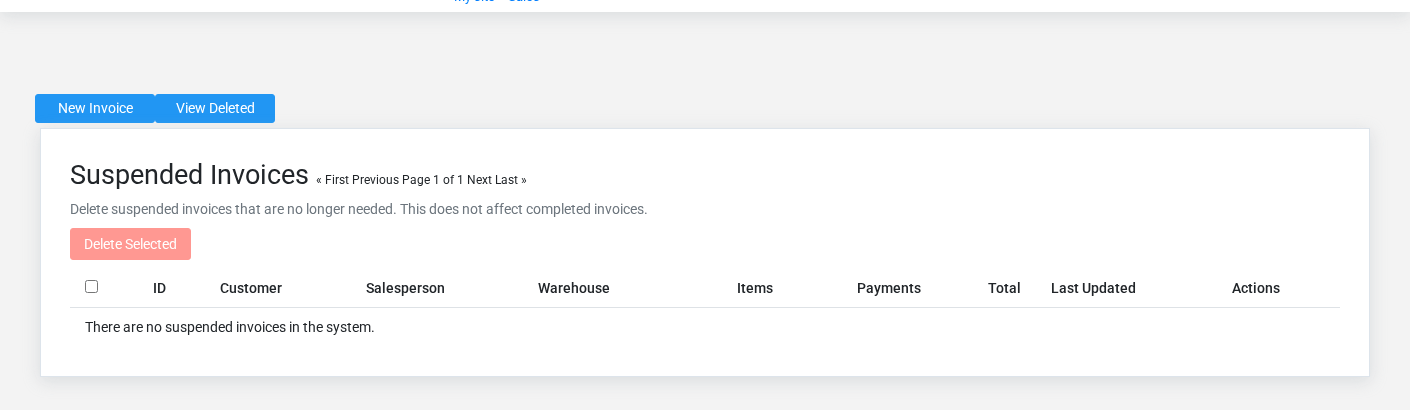
The Suspended Sales list screen in the Brisk documentation demo.
Use the Suspended Sales list to find the correct record before opening or changing it. Compare **Foodservice Ticket Number**. Records with similar names or numbers can still belong to different **Customer**, **Salesperson**, **Warehouse**, **Cashdrawer**, **Foodservice Table**, and **Foodservice Server**.
- Keyword search checks **Id**, **Display Name**, **First Name**, and **Last Name**.
- Narrow the list with **Customer**, **Salesperson**, and **Warehouse** filters.
- The date filter uses **Last Modified At**; choose a range that matches the business event you are reconciling.
Open the Suspended Sale whose **Foodservice Ticket Number** match the task. If it is missing, clear the list filters and recheck **Customer**, **Salesperson**, **Warehouse**, **Last Modified At**, and **Paid** rather than creating a replacement immediately.
## Fields and business rules
Brisk stores 16 user-relevant fields for this Suspended Sale, including 6 linked-record selections and 0 controlled-choice fields. Create and edit screens may hide calculated or workflow-managed values from this full reference.
| Field | Required | What it controls |
|---|---:|---|
| **Customer** | Yes | The customer associated with this suspended sale. |
| **Salesperson** | No | The salesperson associated with this suspended sale. |
| **Warehouse** | No | The warehouse associated with this suspended sale. |
| **Cashdrawer** | No | The cash drawer associated with this suspended sale. |
| **Subtotal** | No | The sub total value recorded for this suspended sale. |
| **Taxtotal** | No | The tax total value recorded for this suspended sale. |
| **Total** | No | The total value recorded for this suspended sale. |
| **Paid** | No | The paid value recorded for this suspended sale. |
| **Balance** | No | The balance value recorded for this suspended sale. |
| **Foodservice Mode** | No | The foodservice mode recorded for this suspended sale. |
| **Foodservice Order Type** | No | The foodservice order type recorded for this suspended sale. |
| **Foodservice Ticket Number** | No | The foodservice ticket number recorded for this suspended sale. |
| **Foodservice Notes** | No | The foodservice notes recorded for this suspended sale. |
| **Guest Count** | No | The guest count value recorded for this suspended sale. |
| **Foodservice Table** | No | The foodservice table associated with this suspended sale. |
| **Foodservice Server** | No | The foodservice server associated with this suspended sale. |
## What happens next
Resume the saved ticket from Point of Sale and finalize it once; remove stale tickets only after confirming they were not completed elsewhere.
## Common mistakes and troubleshooting
- **The record will not save:** Recheck **Customer** and any message beside the field. A required related record may also be inactive or unavailable to your role.
- **The values look right but the result is wrong:** Open **Customer**, **Salesperson**, **Warehouse**, **Cashdrawer**, **Foodservice Table**, and **Foodservice Server** from the detail page. Correct the specific relationship that is wrong instead of forcing a total or status to compensate for it.
# Start Here
# Sales
# Sales
Sales overview
The Sales workspace related to this reference article.
Sales carries a customer transaction from an estimate or point-of-sale ticket through pricing, tax, tender, fulfillment, inventory movement, and receivables. Use the source sale and its item rows when answering what the customer bought, how the price was calculated, what was paid, and whether the order has been completed.
Start with the customer event
- Prepare a [Quote](https://help.brisksystems.us/link/2742#bkmrk-overview) when scope or price needs approval before becoming a sale.
- Use [Point of Sale](https://help.brisksystems.us/link/2953#bkmrk-overview) for cashier entry, item scanning, customer selection, tender, foodservice tickets, and account payments.
- Review the completed [Sale](https://help.brisksystems.us/link/2746#bkmrk-overview) for customer, totals, tax, payment, fulfillment, and accounting state.
- Use [Suspended Sales](https://help.brisksystems.us/link/2748#bkmrk-overview) to preserve an unfinished ticket without finalizing payment or inventory effects.
- Use [Returns](https://help.brisksystems.us/link/2745#bkmrk-overview) to reverse eligible quantities and taxes while preserving the relationship to the original sale.
- Use [Subscriptions](https://help.brisksystems.us/link/2747#bkmrk-overview) for repeating customer sales with a defined billing cadence and line items.
How totals and status move
Each item row supplies quantity, unit, price, discount, tax, options, and fulfillment context. The sale header supplies customer and transaction-level decisions. Tender can settle the transaction immediately or leave an accounts-receivable balance. Finalization can affect inventory, cash drawers, deposits, revenue, tax liabilities, and customer history, so correct the cart before completing it rather than relying on a later accounting adjustment.
Cashier and recovery controls
Confirm the customer, warehouse, drawer, salesperson, items, quantities, prices, discounts, taxes, and payment before finalizing. When connectivity is interrupted, use the [Offline POS Queue](https://help.brisksystems.us/link/2952#bkmrk-overview) and verify that the transaction does not already exist before retrying it. For refunds, confirm the original tender and the quantity still eligible to return. Escalate price, tax, or supervisor overrides instead of sharing another user’s credentials.