# Service
Brisk managed documentation
# Core Records
# Bookings
# Bookings
Purpose and when to use this record
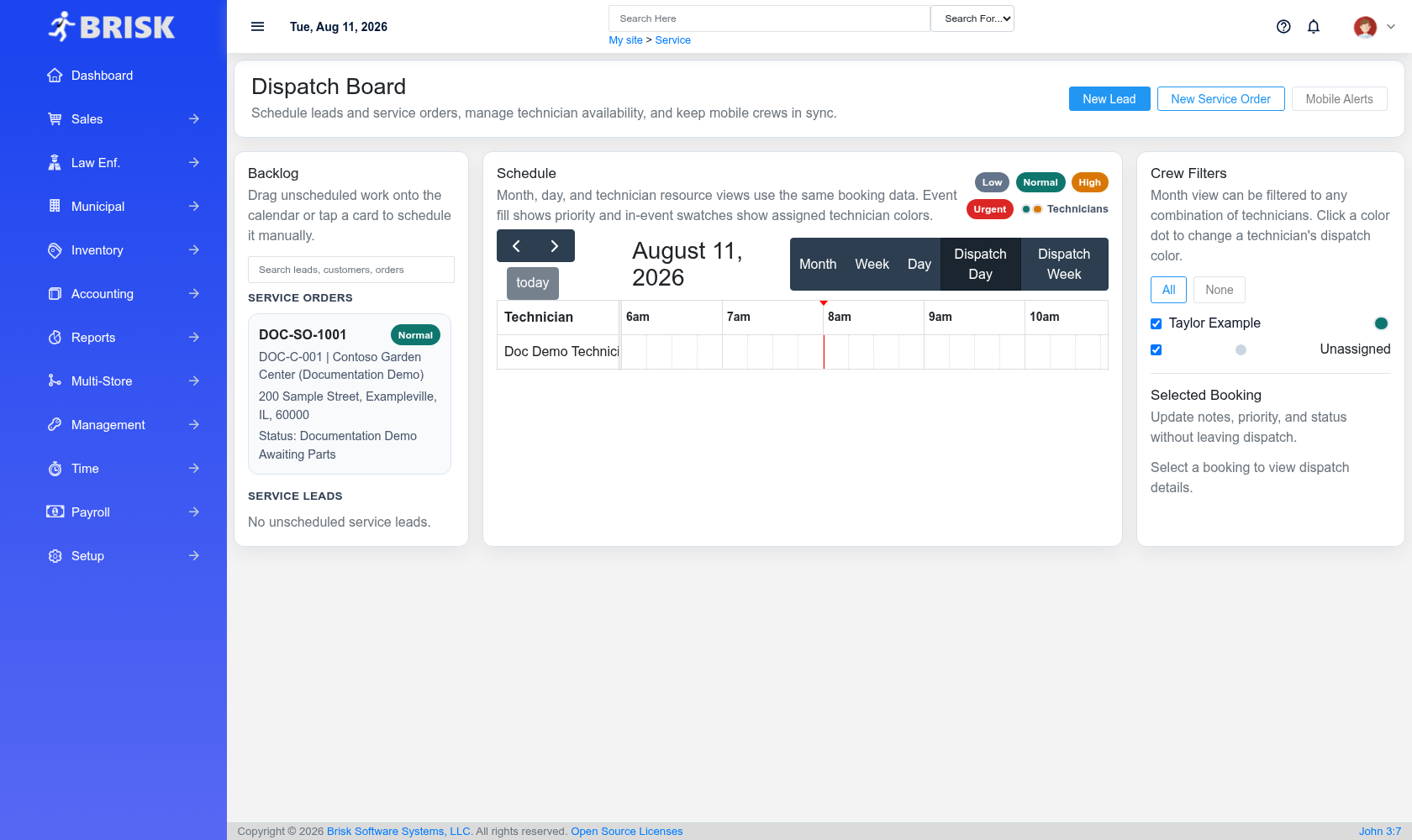
The Bookings overview screen in the Brisk documentation demo.
Reserve service time for a customer, piece of equipment, technician, and planned work window before or alongside the service order.
## At a glance
- **Identify it by:** **Booking Date**, and **Status**.
- **Check its business context:** **Customer**, **Service Order**, and **Service Lead**.
- **Why care:** Customer, equipment, scope, priority, technician availability, parts, labor, and status must stay aligned from intake through billing.
- **Why care:** Status communicates workflow progress to other staff. Change it only when the underlying work, approval, payment, or handoff has actually occurred.
## Before you begin
You need the Brisk permission for the action you are taking on bookings. If a Create, Edit, or Delete control is absent, do not work around it with another user’s account; ask an administrator to review your role.
## Fields and business rules
Brisk stores 16 user-relevant fields for this Booking, including 3 linked-record selections and 2 controlled-choice fields. Create and edit screens may hide calculated or workflow-managed values from this full reference.
| Field | Required | What it controls |
|---|---:|---|
| **Booking Date** | Yes | Records the date and time of this booking. |
| **Booking End** | No | End time of this scheduled job. |
| **Title** | No | Short title shown on the dispatch board. |
| **Customer** | No | The customer for this booking. |
| **Service Order** | No | Connects this booking to a service order. |
| **Service Lead** | No | Connects this booking to a lead before it becomes a service order. |
| **Status** | No | Current status of this booking. Available values: Unscheduled, Scheduled, Dispatched, In Progress, Completed, Canceled. |
| **Priority** | No | The priority recorded for this booking. Available values: Low, Normal, High, Urgent. |
| **Dispatch Notes** | No | The dispatch notes recorded for this booking. |
| **Unscheduled** | No | Marks jobs that should stay in the backlog until explicitly placed on the calendar. |
| **Routesequence** | No | Optional route ordering for the day. |
| **Address Line 1** | No | Enter the address of this booking. |
| **Address Line 2** | No | The address line 2 recorded for this booking. |
| **City** | No | The city recorded for this booking. |
| **State** | No | The state recorded for this booking. |
| **Zip Code** | No | The zip code recorded for this booking. |
## What happens next
Use **Customer**, **Service Order**, and **Service Lead** to interpret this Booking. If it records a failure or exception, correct the source process and create a new successful event rather than rewriting the audit trail.
## Common mistakes and troubleshooting
- **The record will not save:** Recheck **Booking Date** and any message beside the field. A required related record may also be inactive or unavailable to your role.
- **The record saved but is not available where expected:** Recheck **Status**, and **Priority**, then clear the filters on the destination list. A saved record can still be inactive, unpublished, locked, unapproved, or in the wrong workflow state.
- **The values look right but the result is wrong:** Open **Customer**, **Service Order**, and **Service Lead** from the detail page. Correct the specific relationship that is wrong instead of forcing a total or status to compensate for it.
# Equipment Categories
# Equipment Categories
Purpose and when to use this record
Maintain broad equipment groupings used for intake, filtering, and service reporting.
## At a glance
- **Identify it by:** **Name**.
- **Why care:** Customer, equipment, scope, priority, technician availability, parts, labor, and status must stay aligned from intake through billing.
## Before you begin
You need the Brisk permission for the action you are taking on equipment categories. If a Create, Edit, or Delete control is absent, do not work around it with another user’s account; ask an administrator to review your role.
Find and review equipment categories
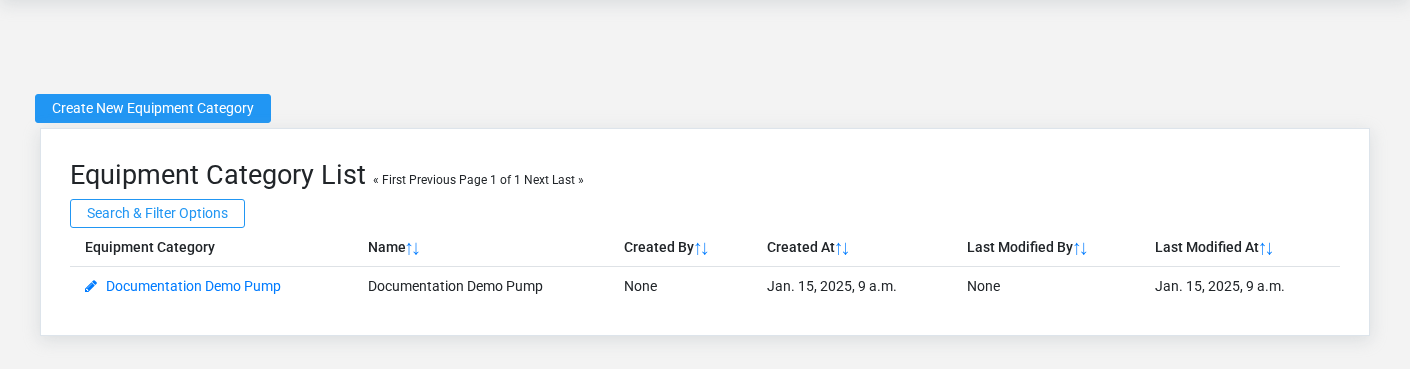
The Equipment Categories list screen in the Brisk documentation demo.
Use the Equipment Categories list to find the correct record before opening or changing it. Compare **Name**. Compare the full identifier rather than relying on a similar name.
Open the equipment category whose **Name** match the task. If it is missing, clear the list filters and recheck the identifying information shown on the screen rather than creating a replacement immediately.
Create an equipment category
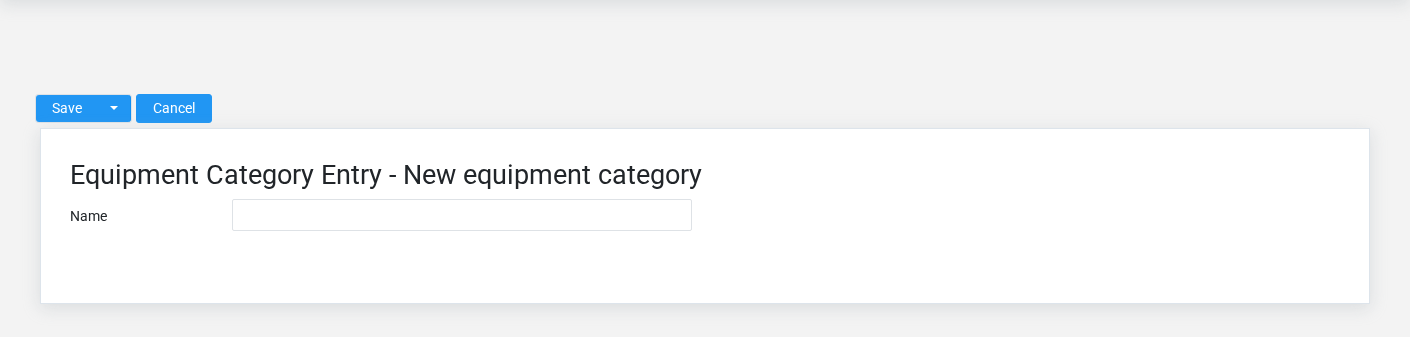
The Equipment Categories create screen in the Brisk documentation demo.
Create an equipment category only when the existing choices do not represent the policy or classification you need. Near-duplicate setup values split reporting and make later selection harder.
1. Select the business context first.
2. Enter the required identifying and operational values: **Name**.
3. Review the identifying information shown on the screen against the source document or approved setup decision.
4. Save the equipment category, then confirm **Name** on its detail page before continuing.
After saving: Open **Equipment** and confirm the equipment category appears with the intended label and availability. Keep the old value for historical records when changing it would split or relabel prior reporting.
Delete an equipment category
Delete this equipment category only if it is an unused duplicate or setup mistake. Once other records refer to it, preserve that history and make the value inactive when the screen provides that option.
Before confirming, check for related **Equipment**. Brisk may refuse deletion when another record depends on this one; resolve the duplicate or use the supported correction workflow instead of breaking the trail.
On the confirmation page, verify **Name**. After confirmation, return to the Equipment Categories list and make sure only the intended equipment category was removed.
Review equipment category details
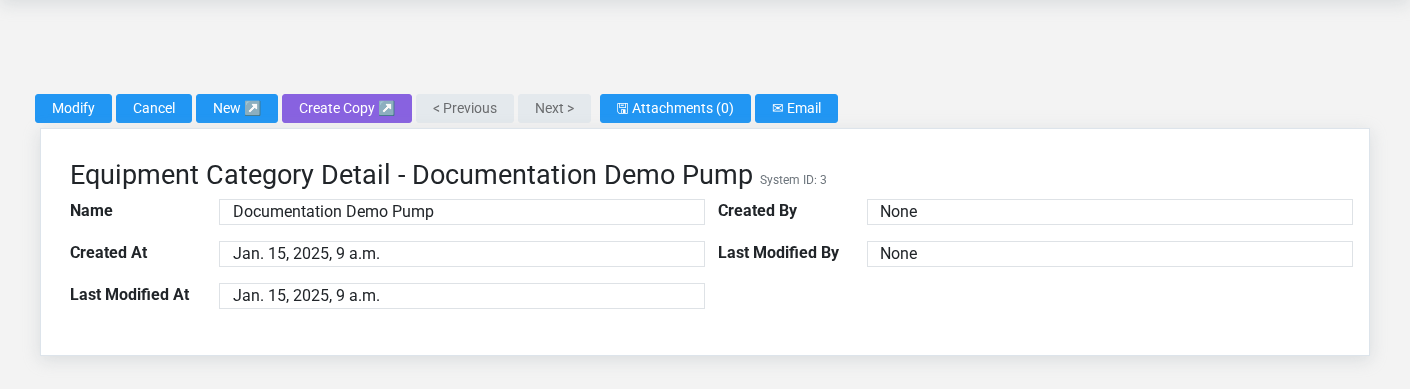
The Equipment Categories detail screen in the Brisk documentation demo.
Use the detail page as the shared record of what this equipment category currently means. Verify **Name** before relying on it for a decision.
Compare the equipment category with its source document or approved setup request before deciding that it needs correction.
Next check: Open **Equipment** and confirm the equipment category appears with the intended label and availability. Keep the old value for historical records when changing it would split or relabel prior reporting.
Edit an existing equipment category
Edit this equipment category when the underlying policy or classification changed. First determine whether historical transactions should retain the old value; if so, deactivate the old choice and create a new one.
1. Open the detail page. Compare **Name** with the supporting document or approved request.
2. Recheck the identifying information shown on the screen. These values are most likely to change intake, estimating, dispatch, parts, labor, completion, and billing.
3. Save the change, return to the list, and confirm that the equipment category now appears under the expected **Name**.
After the change: Open **Equipment** and confirm the equipment category appears with the intended label and availability. Keep the old value for historical records when changing it would split or relabel prior reporting.
## Fields and business rules
Brisk stores 1 user-relevant fields for this equipment category, including 0 linked-record selections and 0 controlled-choice fields. Create and edit screens may hide calculated or workflow-managed values from this full reference.
| Field | Required | What it controls |
|---|---:|---|
| **Name** | Yes | Human-readable name for this equipment category. |
## What happens next
Open **Equipment** and confirm the equipment category appears with the intended label and availability. Keep the old value for historical records when changing it would split or relabel prior reporting.
## Common mistakes and troubleshooting
- **The record will not save:** Recheck **Name** and any message beside the field. A required related record may also be inactive or unavailable to your role.
- **The values look right but the result is wrong:** Compare this equipment category with the source document or approved setup decision, then check the downstream screen where it is used.
# Equipment Makes
# Equipment Makes
Purpose and when to use this record
Maintain standardized equipment manufacturers for consistent search and reporting.
## At a glance
- **Identify it by:** **Name**.
- **Why care:** Customer, equipment, scope, priority, technician availability, parts, labor, and status must stay aligned from intake through billing.
## Before you begin
You need the Brisk permission for the action you are taking on equipment makes. If a Create, Edit, or Delete control is absent, do not work around it with another user’s account; ask an administrator to review your role.
Create an equipment make
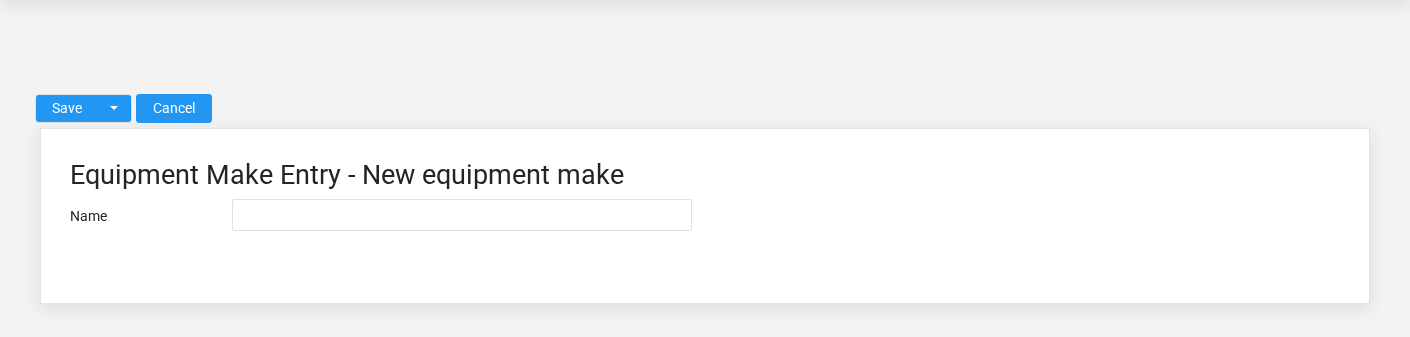
The Equipment Makes create screen in the Brisk documentation demo.
Create an equipment make only when the existing choices do not represent the policy or classification you need. Near-duplicate setup values split reporting and make later selection harder.
1. Select the business context first.
2. Enter the required identifying and operational values: **Name**.
3. Review the identifying information shown on the screen against the source document or approved setup decision.
4. Save the equipment make, then confirm **Name** on its detail page before continuing.
After saving: Open **Equipment** and confirm the equipment make appears with the intended label and availability. Keep the old value for historical records when changing it would split or relabel prior reporting.
Delete an equipment make
Delete this equipment make only if it is an unused duplicate or setup mistake. Once other records refer to it, preserve that history and make the value inactive when the screen provides that option.
Before confirming, check for related **Equipment**. Brisk may refuse deletion when another record depends on this one; resolve the duplicate or use the supported correction workflow instead of breaking the trail.
On the confirmation page, verify **Name**. After confirmation, return to the Equipment Makes list and make sure only the intended equipment make was removed.
Review equipment make details
Use the detail page as the shared record of what this equipment make currently means. Verify **Name** before relying on it for a decision.
Compare the equipment make with its source document or approved setup request before deciding that it needs correction.
Next check: Open **Equipment** and confirm the equipment make appears with the intended label and availability. Keep the old value for historical records when changing it would split or relabel prior reporting.
Edit an existing equipment make
Edit this equipment make when the underlying policy or classification changed. First determine whether historical transactions should retain the old value; if so, deactivate the old choice and create a new one.
1. Open the detail page. Compare **Name** with the supporting document or approved request.
2. Recheck the identifying information shown on the screen. These values are most likely to change intake, estimating, dispatch, parts, labor, completion, and billing.
3. Save the change, return to the list, and confirm that the equipment make now appears under the expected **Name**.
After the change: Open **Equipment** and confirm the equipment make appears with the intended label and availability. Keep the old value for historical records when changing it would split or relabel prior reporting.
Find and review equipment makes
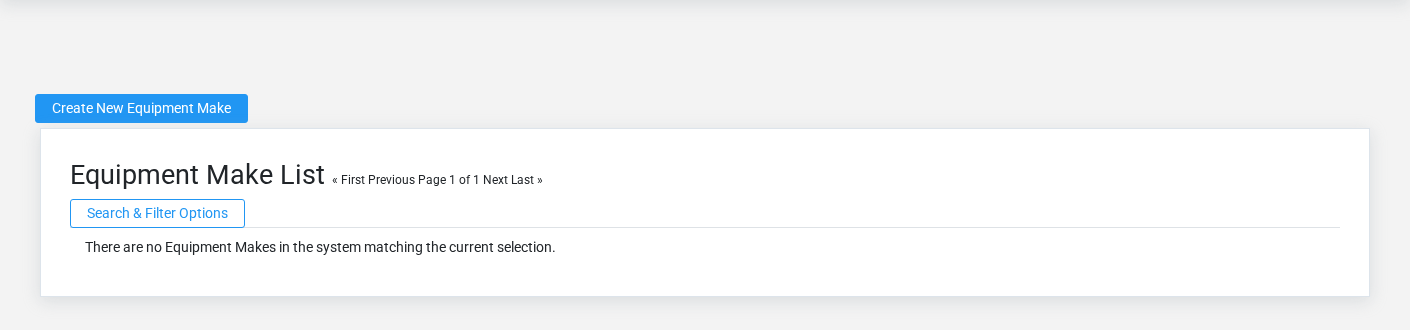
The Equipment Makes list screen in the Brisk documentation demo.
Use the Equipment Makes list to find the correct record before opening or changing it. Compare **Name**. Compare the full identifier rather than relying on a similar name.
Open the equipment make whose **Name** match the task. If it is missing, clear the list filters and recheck the identifying information shown on the screen rather than creating a replacement immediately.
## Fields and business rules
Brisk stores 1 user-relevant fields for this equipment make, including 0 linked-record selections and 0 controlled-choice fields. Create and edit screens may hide calculated or workflow-managed values from this full reference.
| Field | Required | What it controls |
|---|---:|---|
| **Name** | Yes | Human-readable name for this equipment make. |
## What happens next
Open **Equipment** and confirm the equipment make appears with the intended label and availability. Keep the old value for historical records when changing it would split or relabel prior reporting.
## Common mistakes and troubleshooting
- **The record will not save:** Recheck **Name** and any message beside the field. A required related record may also be inactive or unavailable to your role.
- **The values look right but the result is wrong:** Compare this equipment make with the source document or approved setup decision, then check the downstream screen where it is used.
# Equipment Statuses
# Equipment Statuses
Purpose and when to use this record
Maintain the condition or availability states assigned to customer equipment.
## At a glance
- **Identify it by:** **Name**.
- **Why care:** Customer, equipment, scope, priority, technician availability, parts, labor, and status must stay aligned from intake through billing.
## Before you begin
You need the Brisk permission for the action you are taking on equipment statuses. If a Create, Edit, or Delete control is absent, do not work around it with another user’s account; ask an administrator to review your role.
Create an equipment status
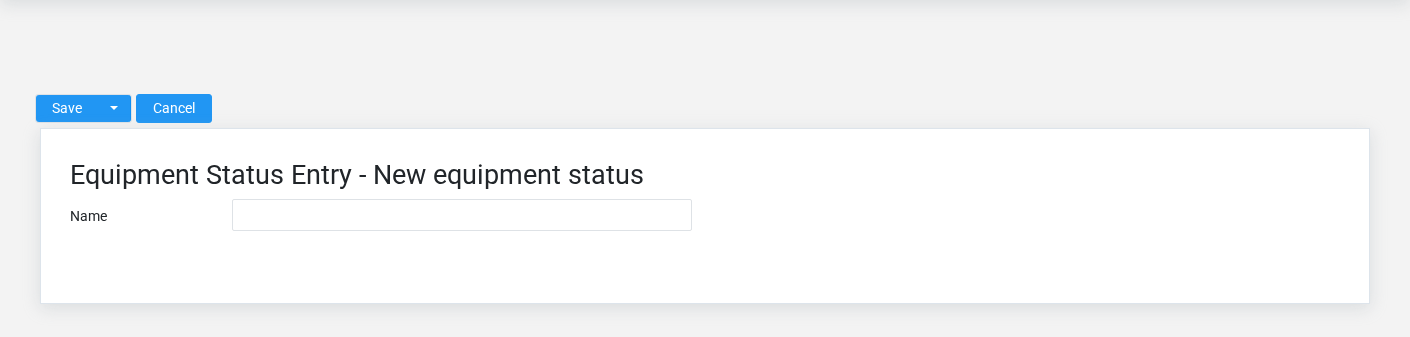
The Equipment Statuses create screen in the Brisk documentation demo.
Create an equipment status only when the existing choices do not represent the policy or classification you need. Near-duplicate setup values split reporting and make later selection harder.
1. Select the business context first.
2. Enter the required identifying and operational values: **Name**.
3. Review the identifying information shown on the screen against the source document or approved setup decision.
4. Save the equipment status, then confirm **Name** on its detail page before continuing.
After saving: Open **Equipment** and confirm the equipment status appears with the intended label and availability. Keep the old value for historical records when changing it would split or relabel prior reporting.
Delete an equipment status
Delete this equipment status only if it is an unused duplicate or setup mistake. Once other records refer to it, preserve that history and make the value inactive when the screen provides that option.
Before confirming, check for related **Equipment**. Brisk may refuse deletion when another record depends on this one; resolve the duplicate or use the supported correction workflow instead of breaking the trail.
On the confirmation page, verify **Name**. After confirmation, return to the Equipment Statuses list and make sure only the intended equipment status was removed.
Review equipment status details
Use the detail page as the shared record of what this equipment status currently means. Verify **Name** before relying on it for a decision.
Compare the equipment status with its source document or approved setup request before deciding that it needs correction.
Next check: Open **Equipment** and confirm the equipment status appears with the intended label and availability. Keep the old value for historical records when changing it would split or relabel prior reporting.
Edit an existing equipment status
Edit this equipment status when the underlying policy or classification changed. First determine whether historical transactions should retain the old value; if so, deactivate the old choice and create a new one.
1. Open the detail page. Compare **Name** with the supporting document or approved request.
2. Recheck the identifying information shown on the screen. These values are most likely to change intake, estimating, dispatch, parts, labor, completion, and billing.
3. Save the change, return to the list, and confirm that the equipment status now appears under the expected **Name**.
After the change: Open **Equipment** and confirm the equipment status appears with the intended label and availability. Keep the old value for historical records when changing it would split or relabel prior reporting.
Find and review equipment statuses
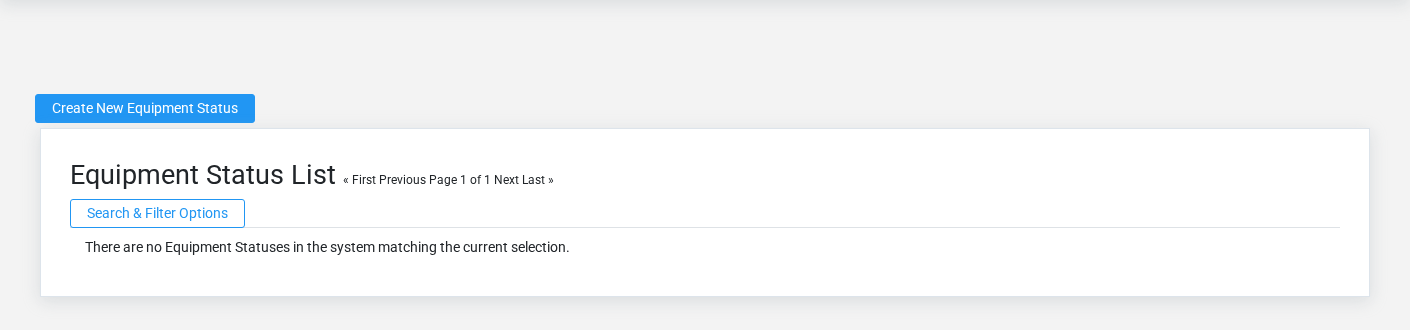
The Equipment Statuses list screen in the Brisk documentation demo.
Use the Equipment Statuses list to find the correct record before opening or changing it. Compare **Name**. Compare the full identifier rather than relying on a similar name.
Open the equipment status whose **Name** match the task. If it is missing, clear the list filters and recheck the identifying information shown on the screen rather than creating a replacement immediately.
## Fields and business rules
Brisk stores 1 user-relevant fields for this equipment status, including 0 linked-record selections and 0 controlled-choice fields. Create and edit screens may hide calculated or workflow-managed values from this full reference.
| Field | Required | What it controls |
|---|---:|---|
| **Name** | Yes | Human-readable name for this equipment status. |
## What happens next
Open **Equipment** and confirm the equipment status appears with the intended label and availability. Keep the old value for historical records when changing it would split or relabel prior reporting.
## Common mistakes and troubleshooting
- **The record will not save:** Recheck **Name** and any message beside the field. A required related record may also be inactive or unavailable to your role.
- **The values look right but the result is wrong:** Compare this equipment status with the source document or approved setup decision, then check the downstream screen where it is used.
# Equipment
# Equipment
Purpose and when to use this record
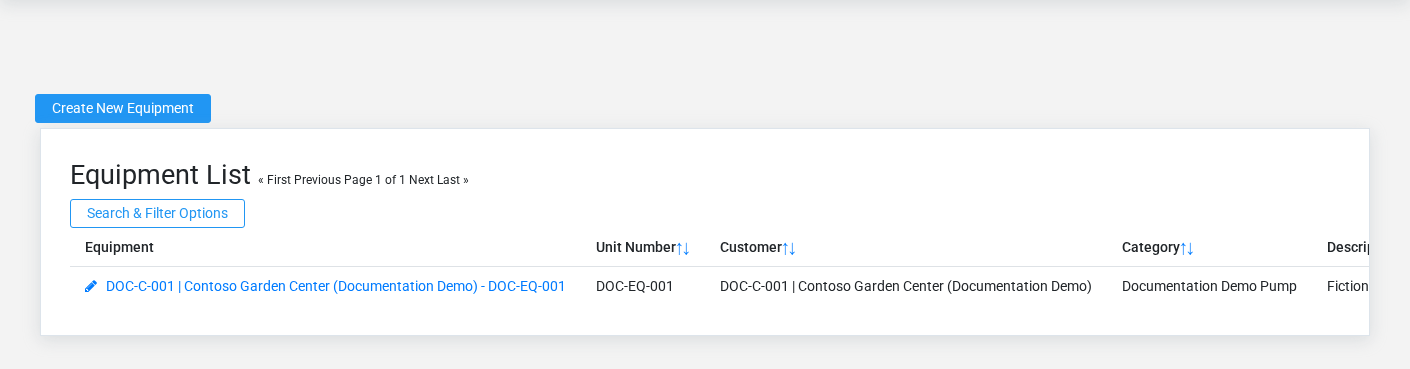
The Equipment overview screen in the Brisk documentation demo.
Maintain the customer-owned unit being serviced, including identity, make/model, serial number, meter, condition, and notes.
## At a glance
- **Identify it by:** **Unit Number**, and **Status**.
- **Check its business context:** **Customer**, **Category**, **Status**, and **Make**.
- **Why care:** Customer, equipment, scope, priority, technician availability, parts, labor, and status must stay aligned from intake through billing.
- **Why care:** Status communicates workflow progress to other staff. Change it only when the underlying work, approval, payment, or handoff has actually occurred.
## Before you begin
You need the Brisk permission for the action you are taking on equipment. If a Create, Edit, or Delete control is absent, do not work around it with another user’s account; ask an administrator to review your role.
Have valid **Customer** records ready first. Those selections determine where this Equipment belongs and which later screens can find it.
Create an Equipment
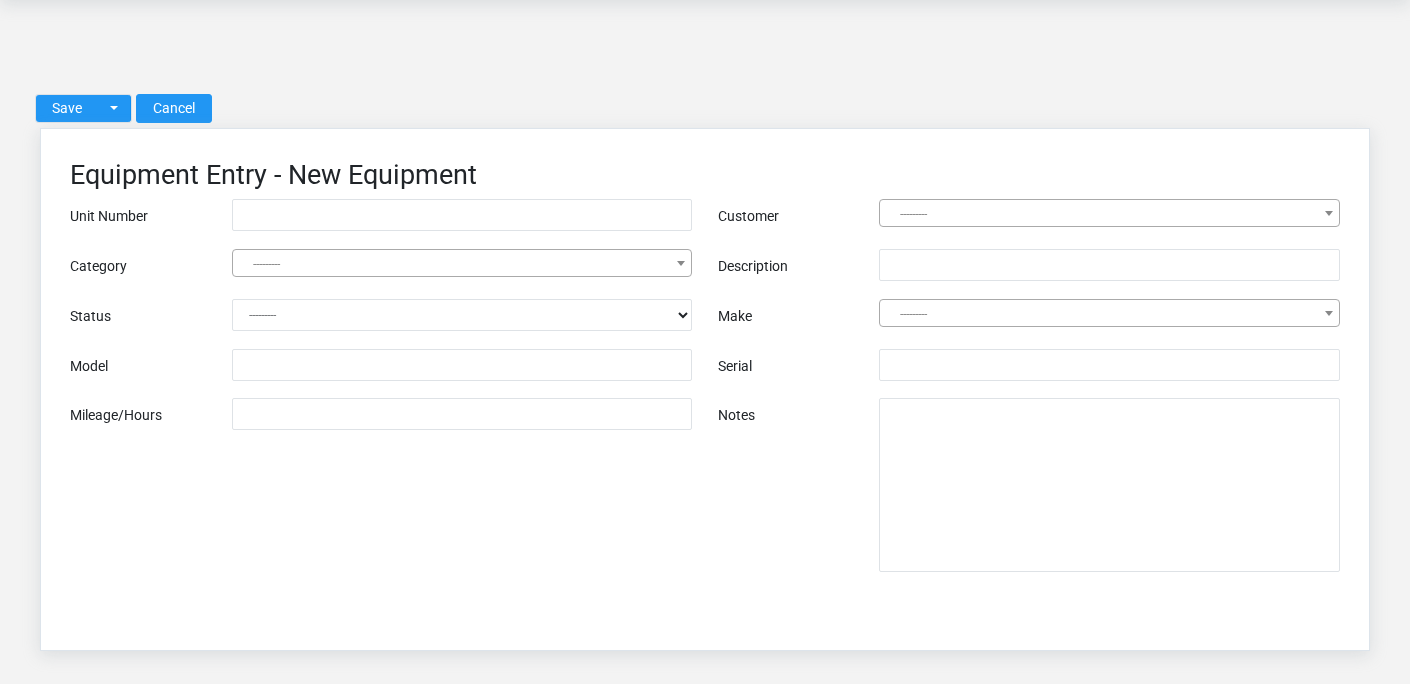
The Equipment create screen in the Brisk documentation demo.
Create an Equipment after searching for the person, organization, item, location, or resource under alternate names and identifiers. Merge or correct an existing master record instead of creating a duplicate.
1. Select the business context first: **Customer**, **Category**, **Status**, and **Make**.
2. Enter the required identifying and operational values: **Customer**.
3. Review **Unit Number**, **Description**, **Model**, **Serial**, **Mileage/Hours**, and **Notes** against the source document or approved setup decision.
4. Save the Equipment, then confirm **Unit Number**, and **Status** on its detail page before continuing.
After saving: Verify this Equipment in **Service Leads**, **Service Orders**, and **Service Quotes** before staff build new activity on it; correct ownership, classification, and active state now rather than after transactions accumulate.
Delete an Equipment
Delete this Equipment only if it is an unused duplicate or setup mistake. Once other records refer to it, preserve that history and make the value inactive when the screen provides that option.
Before confirming, check for related **Service Leads**, **Service Orders**, and **Service Quotes**. Brisk may refuse deletion when another record depends on this one; resolve the duplicate or use the supported correction workflow instead of breaking the trail.
On the confirmation page, verify **Unit Number**, and **Status**. After confirmation, return to the Equipment list and make sure only the intended Equipment was removed.
Review Equipment details
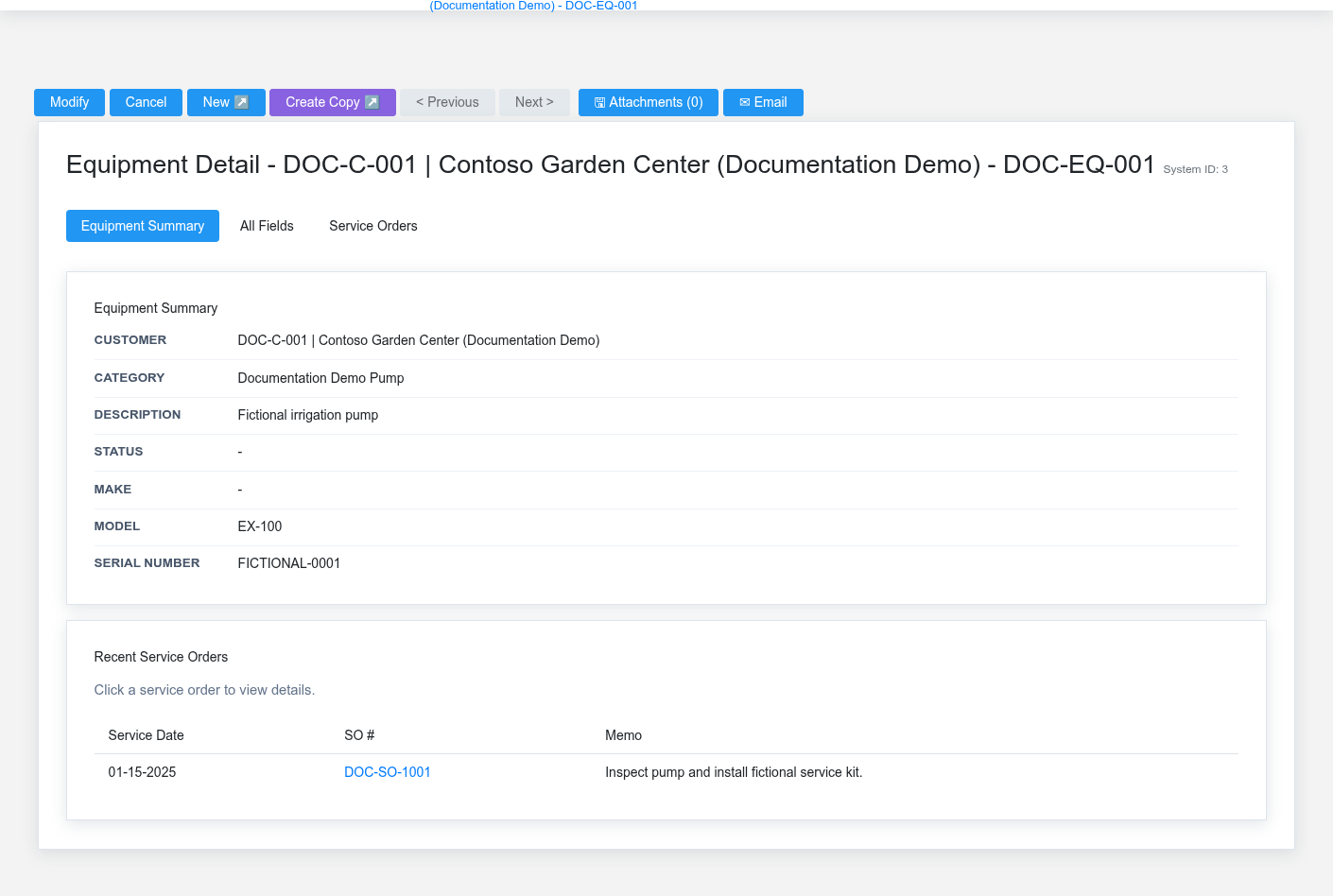
The Equipment detail screen in the Brisk documentation demo.
Use the detail page as the shared record of what this Equipment currently means. Verify **Status** before relying on it for a decision.
Follow **Customer**, **Category**, **Status**, and **Make** to determine whether the issue is on this Equipment or on one of those linked records.
Next check: Verify this Equipment in **Service Leads**, **Service Orders**, and **Service Quotes** before staff build new activity on it; correct ownership, classification, and active state now rather than after transactions accumulate.
Edit an existing Equipment
Edit this Equipment to keep the same real-world party, item, location, or resource accurate. Do not repurpose it for a different entity after activity is attached.
1. Open the detail page. Compare **Customer**, **Category**, **Status**, and **Make** with the supporting document or approved request.
2. Recheck **Customer**, and **Status**. These values are most likely to change intake, estimating, dispatch, parts, labor, completion, and billing.
3. Save the change, return to the list, and confirm that the Equipment now appears under the expected **Status**.
After the change: Verify this Equipment in **Service Leads**, **Service Orders**, and **Service Quotes** before staff build new activity on it; correct ownership, classification, and active state now rather than after transactions accumulate.
## Fields and business rules
Brisk stores 10 user-relevant fields for this Equipment, including 4 linked-record selections and 0 controlled-choice fields. Create and edit screens may hide calculated or workflow-managed values from this full reference.
| Field | Required | What it controls |
|---|---:|---|
| **Unit Number** | No | Enter the number or name used internally by your business to identify this equipment. |
| **Customer** | Yes | The customer associated with this equipment. |
| **Category** | No | Sets the class or category of this equipment. |
| **Description** | No | A short description or name of the equipment. |
| **Status** | No | Use this field to track the status of a piece of equipment. |
| **Make** | No | Use this field to record the make of the euqipment. |
| **Model** | No | Use this field to record the model or model number of this equipment. |
| **Serial** | No | Enter the equipment serial number for ease of finding it in the future. |
| **Mileage/Hours** | No | Record the equipment mileage, hours, or other time tracking metric. |
| **Notes** | No | Use this field to store internal notes about this equipment. |
## What happens next
Verify this Equipment in **Service Leads**, **Service Orders**, and **Service Quotes** before staff build new activity on it; correct ownership, classification, and active state now rather than after transactions accumulate.
## Common mistakes and troubleshooting
- **The record will not save:** Recheck **Customer** and any message beside the field. A required related record may also be inactive or unavailable to your role.
- **The record saved but is not available where expected:** Recheck **Status**, then clear the filters on the destination list. A saved record can still be inactive, unpublished, locked, unapproved, or in the wrong workflow state.
- **The values look right but the result is wrong:** Open **Customer**, **Category**, **Status**, and **Make** from the detail page. Correct the specific relationship that is wrong instead of forcing a total or status to compensate for it.
# Service Categories
# Service Categories
Purpose and when to use this record
Maintain the types of service work used for intake, quoting, assignment, and reporting.
## At a glance
- **Identify it by:** **Name**.
- **Why care:** Customer, equipment, scope, priority, technician availability, parts, labor, and status must stay aligned from intake through billing.
## Before you begin
You need the Brisk permission for the action you are taking on service categories. If a Create, Edit, or Delete control is absent, do not work around it with another user’s account; ask an administrator to review your role.
Find and review service categories
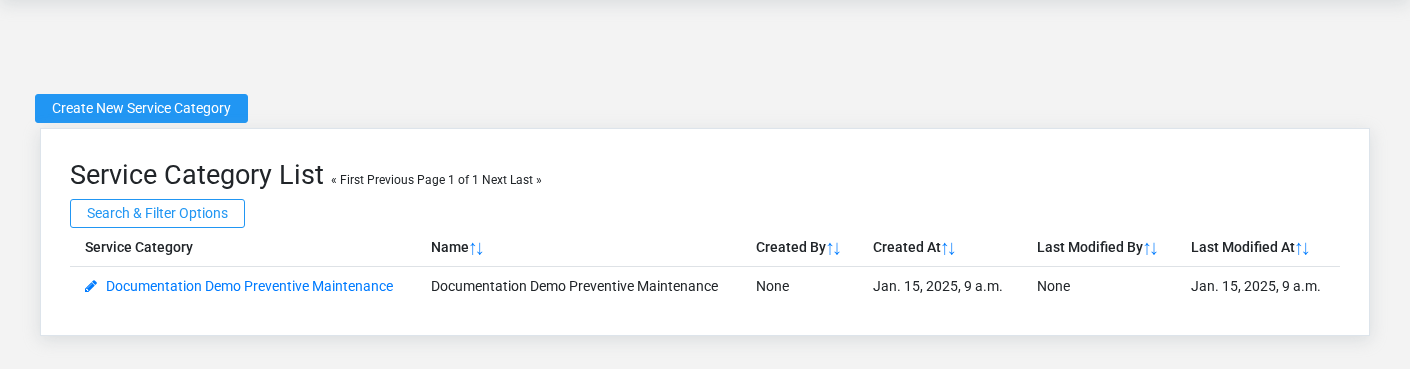
The Service Categories list screen in the Brisk documentation demo.
Use the Service Categories list to find the correct record before opening or changing it. Compare **Name**. Compare the full identifier rather than relying on a similar name.
Open the service category whose **Name** match the task. If it is missing, clear the list filters and recheck the identifying information shown on the screen rather than creating a replacement immediately.
Create a service category
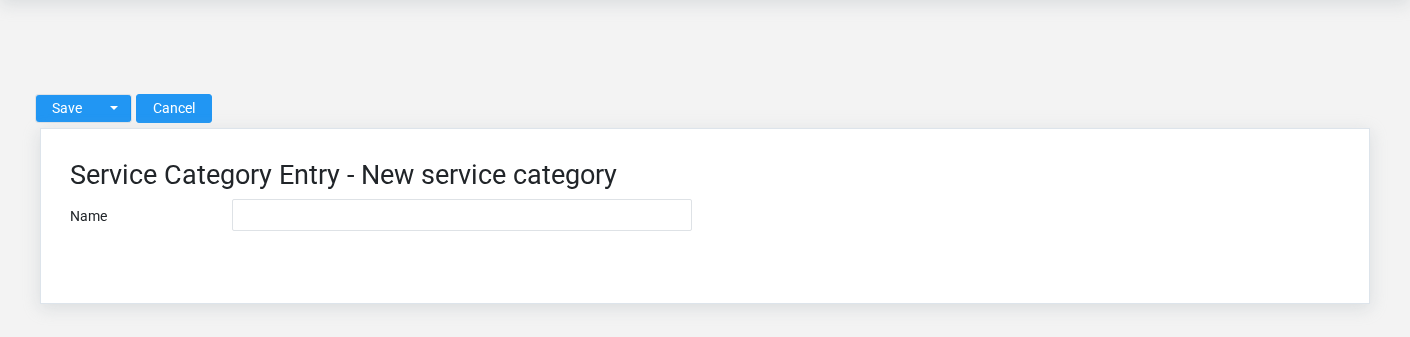
The Service Categories create screen in the Brisk documentation demo.
Create a service category only when the existing choices do not represent the policy or classification you need. Near-duplicate setup values split reporting and make later selection harder.
1. Select the business context first.
2. Enter the required identifying and operational values: **Name**.
3. Review the identifying information shown on the screen against the source document or approved setup decision.
4. Save the service category, then confirm **Name** on its detail page before continuing.
After saving: Open **Service Orders**, and **Service Quotes** and confirm the service category appears with the intended label and availability. Keep the old value for historical records when changing it would split or relabel prior reporting.
Delete a service category
Delete this service category only if it is an unused duplicate or setup mistake. Once other records refer to it, preserve that history and make the value inactive when the screen provides that option.
Before confirming, check for related **Service Orders**, and **Service Quotes**. Brisk may refuse deletion when another record depends on this one; resolve the duplicate or use the supported correction workflow instead of breaking the trail.
On the confirmation page, verify **Name**. After confirmation, return to the Service Categories list and make sure only the intended service category was removed.
Review service category details
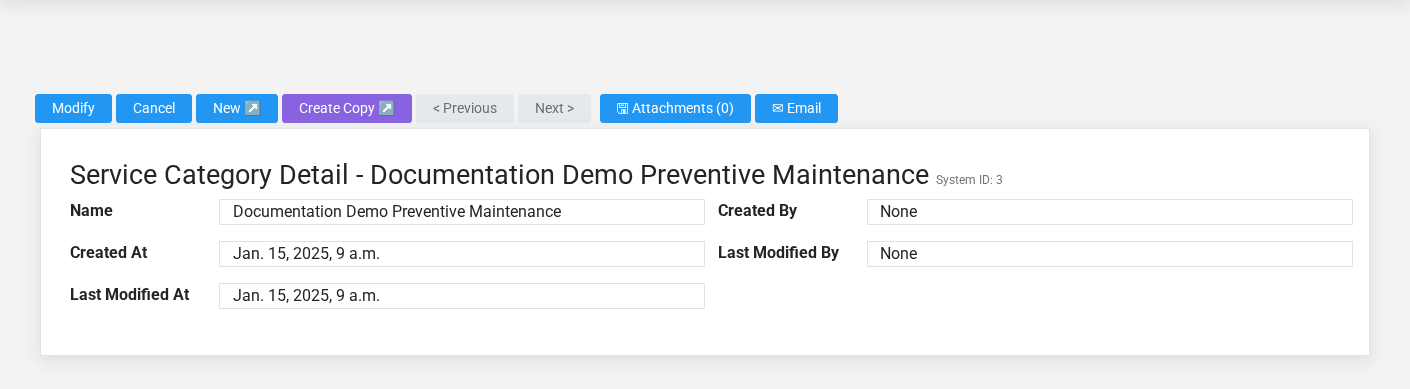
The Service Categories detail screen in the Brisk documentation demo.
Use the detail page as the shared record of what this service category currently means. Verify **Name** before relying on it for a decision.
Compare the service category with its source document or approved setup request before deciding that it needs correction.
Next check: Open **Service Orders**, and **Service Quotes** and confirm the service category appears with the intended label and availability. Keep the old value for historical records when changing it would split or relabel prior reporting.
Edit an existing service category
Edit this service category when the underlying policy or classification changed. First determine whether historical transactions should retain the old value; if so, deactivate the old choice and create a new one.
1. Open the detail page. Compare **Name** with the supporting document or approved request.
2. Recheck the identifying information shown on the screen. These values are most likely to change intake, estimating, dispatch, parts, labor, completion, and billing.
3. Save the change, return to the list, and confirm that the service category now appears under the expected **Name**.
After the change: Open **Service Orders**, and **Service Quotes** and confirm the service category appears with the intended label and availability. Keep the old value for historical records when changing it would split or relabel prior reporting.
## Fields and business rules
Brisk stores 1 user-relevant fields for this service category, including 0 linked-record selections and 0 controlled-choice fields. Create and edit screens may hide calculated or workflow-managed values from this full reference.
| Field | Required | What it controls |
|---|---:|---|
| **Name** | Yes | Human-readable name for this service category. |
## What happens next
Open **Service Orders**, and **Service Quotes** and confirm the service category appears with the intended label and availability. Keep the old value for historical records when changing it would split or relabel prior reporting.
## Common mistakes and troubleshooting
- **The record will not save:** Recheck **Name** and any message beside the field. A required related record may also be inactive or unavailable to your role.
- **The values look right but the result is wrong:** Compare this service category with the source document or approved setup decision, then check the downstream screen where it is used.
# Service Leads
# Service Leads
Purpose and when to use this record
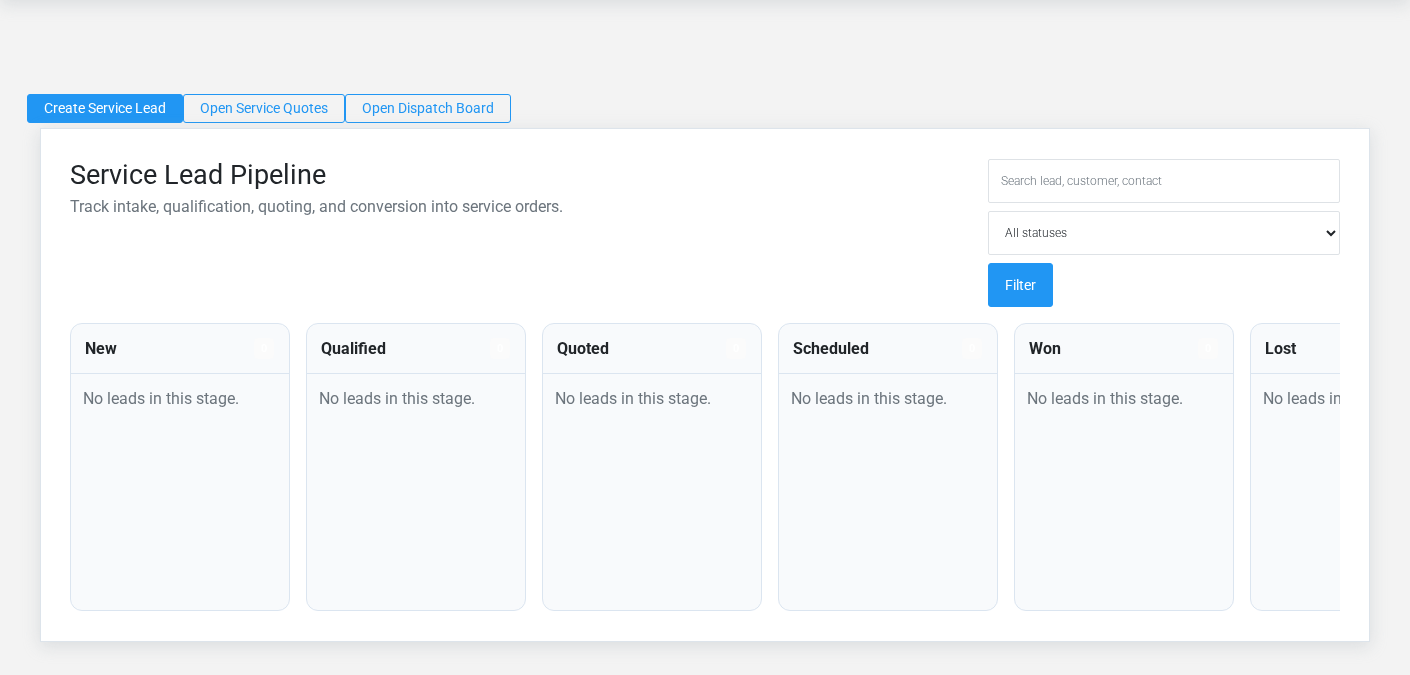
Capture a prospective service job and advance it from initial contact through qualification, quoting, scheduling, and conversion.
## At a glance
- **Identify it by:** **Lead #**, **Status**, and **Contact Name**.
- **Check its business context:** **Customer**, **Equipment**, and **Quote**.
- **Why care:** Customer, equipment, scope, priority, technician availability, parts, labor, and status must stay aligned from intake through billing.
- **Why care:** Status communicates workflow progress to other staff. Change it only when the underlying work, approval, payment, or handoff has actually occurred.
## Before you begin
You need the Brisk permission for the action you are taking on service leads. If a Create, Edit, or Delete control is absent, do not work around it with another user’s account; ask an administrator to review your role.
Create a Service Lead
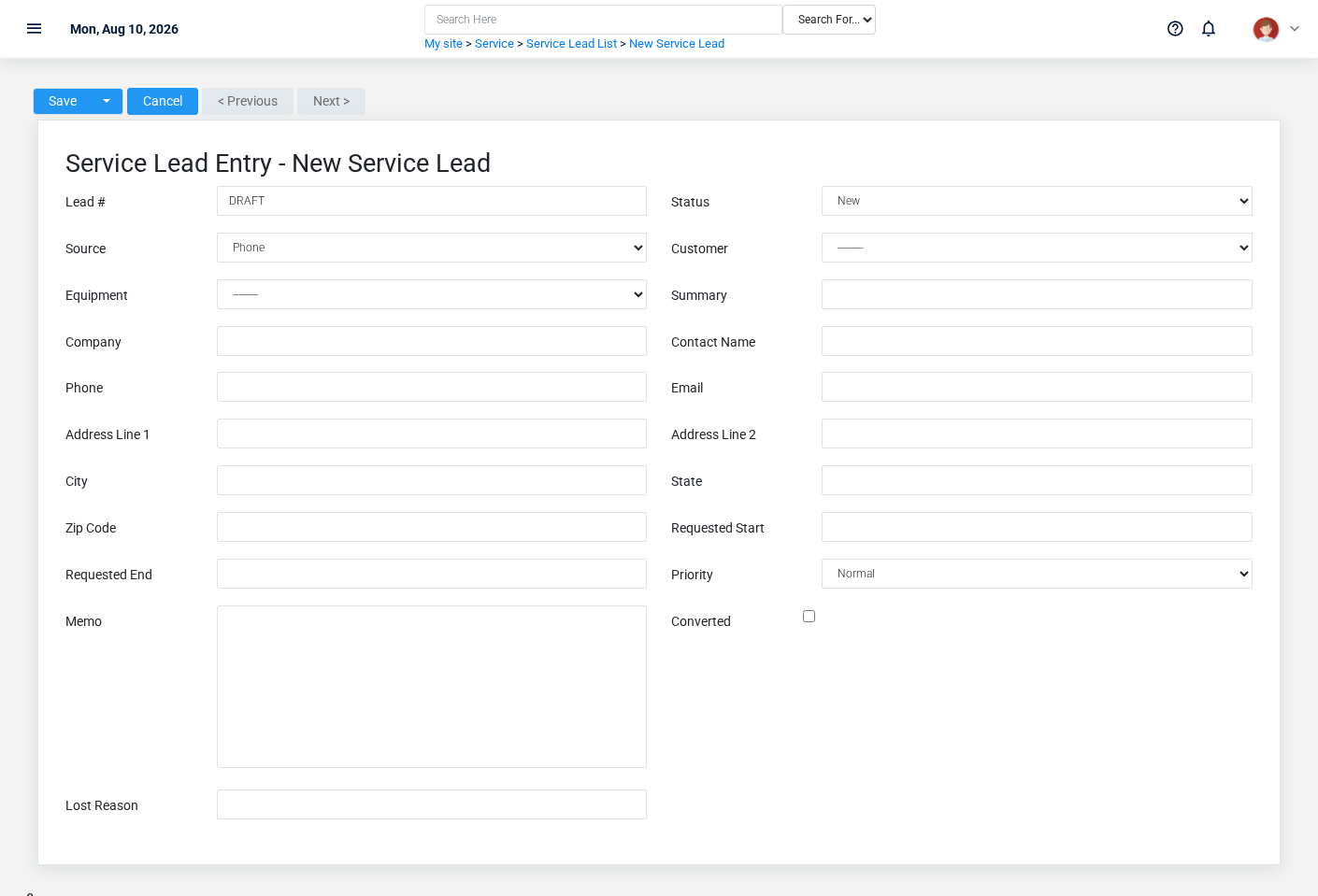
The Service Leads create screen in the Brisk documentation demo.
Create a Service Lead after searching for the person, organization, item, location, or resource under alternate names and identifiers. Merge or correct an existing master record instead of creating a duplicate.
1. Select the business context first: **Customer**, **Equipment**, and **Quote**.
2. Enter the required identifying and operational values: **Lead #**.
3. Review **Status**, **Source**, **Priority**, and **Converted** deliberately; these choices control availability or workflow rather than merely describing the record.
4. Save the Service Lead, then confirm **Lead #**, **Status**, and **Contact Name** on its detail page before continuing.
After saving: Qualify the request, prepare a service quote when pricing is needed, and convert won work without duplicating the customer or equipment.
Delete a Service Lead
Delete this Service Lead only if it is an unused duplicate or setup mistake. Once other records refer to it, preserve that history and make the value inactive when the screen provides that option.
Before confirming, check for related **Bookings**, **Service Orders**, and **Service Quotes**. Brisk may refuse deletion when another record depends on this one; resolve the duplicate or use the supported correction workflow instead of breaking the trail.
On the confirmation page, verify **Lead #**, **Status**, and **Contact Name**. After confirmation, return to the Service Leads list and make sure only the intended Service Lead was removed.
Review Service Lead details
Use the detail page as the shared record of what this Service Lead currently means. Verify **Status**, **Source**, and **Priority** before relying on it for a decision.
Follow **Customer**, **Equipment**, and **Quote** to determine whether the issue is on this Service Lead or on one of those linked records.
Next check: Qualify the request, prepare a service quote when pricing is needed, and convert won work without duplicating the customer or equipment.
Edit an existing Service Lead
Edit this Service Lead to keep the same real-world party, item, location, or resource accurate. Do not repurpose it for a different entity after activity is attached.
1. Open the detail page. Compare **Customer**, **Equipment**, and **Quote** with the supporting document or approved request.
2. Recheck **Status**, **Source**, **Customer**, and **Priority**. These values are most likely to change intake, estimating, dispatch, parts, labor, completion, and billing.
3. Save the change, return to the list, and confirm that the Service Lead now appears under the expected **Status**, **Source**, and **Priority**.
After the change: Qualify the request, prepare a service quote when pricing is needed, and convert won work without duplicating the customer or equipment.
Find and review service leads
The Service Leads list screen in the Brisk documentation demo.
Use the Service Leads list to find the correct record before opening or changing it. Compare **Lead #**, **Status**, and **Contact Name**. Records with similar names or numbers can still belong to different **Customer**, **Equipment**, and **Quote**.
Open the Service Lead whose **Lead #**, **Status**, and **Contact Name** match the task. If it is missing, clear the list filters and recheck **Status**, **Source**, and **Priority** rather than creating a replacement immediately.
## Fields and business rules
Brisk stores 22 user-relevant fields for this Service Lead, including 3 linked-record selections and 3 controlled-choice fields. Create and edit screens may hide calculated or workflow-managed values from this full reference.
| Field | Required | What it controls |
|---|---:|---|
| **Lead #** | Yes | Friendly number shown in the service lead pipeline and search results. |
| **Status** | No | Current status of this service lead. Available values: New, Qualified, Quoted, Scheduled, Won, Lost. |
| **Source** | No | The source recorded for this service lead. Available values: Phone, Email, Web, Referral, Repeat Customer, Walk-In, Other. |
| **Customer** | No | Optional existing customer linked to this lead. |
| **Equipment** | No | Optional equipment connected to this lead. |
| **Quote** | No | Legacy sales quote linked to this opportunity. |
| **Summary** | No | Short description of the requested work. |
| **Company** | No | Prospect company name when no customer record exists yet. |
| **Contact Name** | No | The contact name recorded for this service lead. |
| **Phone** | No | The phone recorded for this service lead. |
| **Email** | No | The email recorded for this service lead. |
| **Address Line 1** | No | The address line 1 recorded for this service lead. |
| **Address Line 2** | No | The address line 2 recorded for this service lead. |
| **City** | No | The city recorded for this service lead. |
| **State** | No | The state recorded for this service lead. |
| **Zip Code** | No | The zip code recorded for this service lead. |
| **Requested Start** | No | Date and time recorded for requested start on this service lead. |
| **Requested End** | No | Date and time recorded for requested end on this service lead. |
| **Priority** | No | The priority recorded for this service lead. Available values: Low, Normal, High, Urgent. |
| **Memo** | No | The memo recorded for this service lead. |
| **Converted** | No | Whether the converted option applies to this service lead. |
| **Lost Reason** | No | The lost reason recorded for this service lead. |
## What happens next
Qualify the request, prepare a service quote when pricing is needed, and convert won work without duplicating the customer or equipment.
## Common mistakes and troubleshooting
- **The record will not save:** Recheck **Lead #** and any message beside the field. A required related record may also be inactive or unavailable to your role.
- **The record saved but is not available where expected:** Recheck **Status**, **Source**, and **Priority**, then clear the filters on the destination list. A saved record can still be inactive, unpublished, locked, unapproved, or in the wrong workflow state.
- **The values look right but the result is wrong:** Open **Customer**, **Equipment**, and **Quote** from the detail page. Correct the specific relationship that is wrong instead of forcing a total or status to compensate for it.
# Service Leave
# Service Leave
Purpose and when to use this record
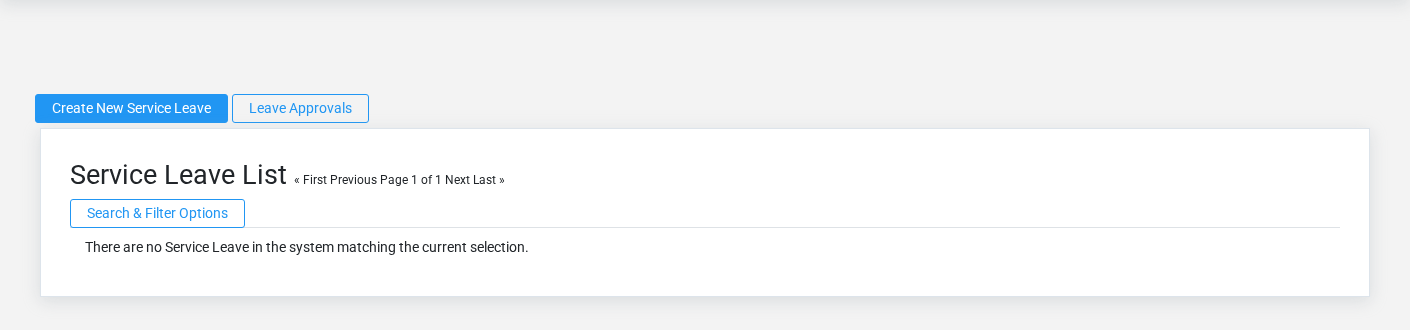
The Service Leave overview screen in the Brisk documentation demo.
Block a technician’s dispatch availability for PTO, illness, training, meetings, or another approved absence.
## At a glance
- **Identify it by:** **Technician**, **Leave Type**, **Start**, and **End**.
- **Check its business context:** **Technician**.
- **Why care:** Customer, equipment, scope, priority, technician availability, parts, labor, and status must stay aligned from intake through billing.
## Before you begin
You need the Brisk permission for the action you are taking on service leave. If a Create, Edit, or Delete control is absent, do not work around it with another user’s account; ask an administrator to review your role.
Have valid **Technician** records ready first. Those selections determine where this Service Leave belongs and which later screens can find it.
Create a Service Leave
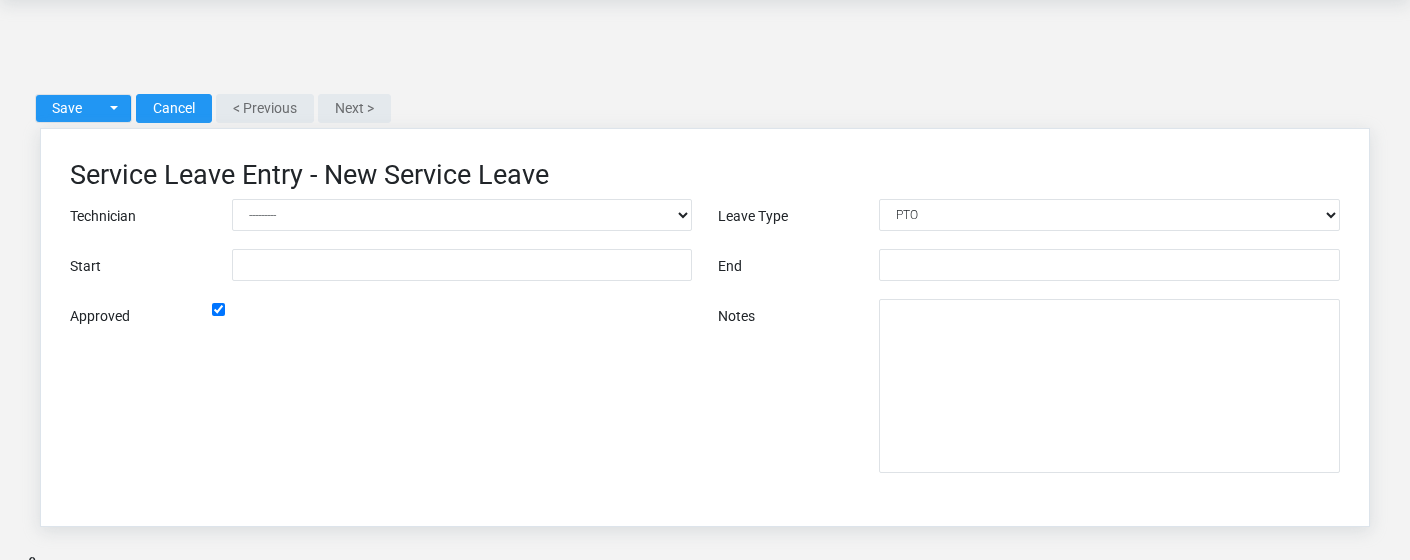
The Service Leave create screen in the Brisk documentation demo.
Create a Service Leave after searching for the person, organization, item, location, or resource under alternate names and identifiers. Merge or correct an existing master record instead of creating a duplicate.
1. Select the business context first: **Technician**.
2. Enter the required identifying and operational values: **Technician**, **Start**, and **End**.
3. Review **Leave Type**, and **Approved** deliberately; these choices control availability or workflow rather than merely describing the record.
4. Save the Service Leave, then confirm **Technician**, **Leave Type**, **Start**, **End**, **Approved**, and **Notes** on its detail page before continuing.
After saving: Verify this Service Leave in the next transaction or assignment screen before staff build new activity on it; correct ownership, classification, and active state now rather than after transactions accumulate.
Delete a Service Leave
Delete this Service Leave only if it is an unused duplicate or setup mistake. Once other records refer to it, preserve that history and make the value inactive when the screen provides that option.
On the confirmation page, verify **Technician**, **Leave Type**, **Start**, and **End**. After confirmation, return to the Service Leave list and make sure only the intended Service Leave was removed.
Review Service Leave details
Use the detail page as the shared record of what this Service Leave currently means. Verify **Leave Type** before relying on it for a decision.
Follow **Technician** to determine whether the issue is on this Service Leave or on one of those linked records.
Next check: Verify this Service Leave in the next transaction or assignment screen before staff build new activity on it; correct ownership, classification, and active state now rather than after transactions accumulate.
Edit an existing Service Leave
Edit this Service Leave to keep the same real-world party, item, location, or resource accurate. Do not repurpose it for a different entity after activity is attached.
1. Open the detail page. Compare **Technician** with the supporting document or approved request.
2. Recheck **Leave Type**. These values are most likely to change intake, estimating, dispatch, parts, labor, completion, and billing.
3. Save the change, return to the list, and confirm that the Service Leave now appears under the expected **Leave Type**, and **Approved**.
After the change: Verify this Service Leave in the next transaction or assignment screen before staff build new activity on it; correct ownership, classification, and active state now rather than after transactions accumulate.
## Fields and business rules
Brisk stores 6 user-relevant fields for this Service Leave, including 1 linked-record selection and 1 controlled-choice field. Create and edit screens may hide calculated or workflow-managed values from this full reference.
| Field | Required | What it controls |
|---|---:|---|
| **Technician** | Yes | The technician associated with this service leave. |
| **Leave Type** | No | The leave type recorded for this service leave. Available values: PTO, Sick, Training, Meeting, Other. |
| **Start** | Yes | Date and time recorded for start on this service leave. |
| **End** | Yes | Date and time recorded for end on this service leave. |
| **Approved** | No | Whether the approved option applies to this service leave. |
| **Notes** | No | Additional internal notes about this service leave. |
## What happens next
Verify this Service Leave in the next transaction or assignment screen before staff build new activity on it; correct ownership, classification, and active state now rather than after transactions accumulate.
## Common mistakes and troubleshooting
- **The record will not save:** Recheck **Technician**, **Start**, and **End** and any message beside the field. A required related record may also be inactive or unavailable to your role.
- **The values look right but the result is wrong:** Open **Technician** from the detail page. Correct the specific relationship that is wrong instead of forcing a total or status to compensate for it.
# Service Orders
# Service Orders
Purpose and when to use this record
Coordinate approved service work, including customer equipment, priority, warehouse, technician activity, parts, labor, and status.
## At a glance
- **Identify it by:** **Service Order #**, **Status**, and **Service Date**.
- **Check its business context:** **Customer**, **Equipment**, **Status**, **Type**, and **Warehouse**.
- **Why care:** Customer, equipment, scope, priority, technician availability, parts, labor, and status must stay aligned from intake through billing.
- **Why care:** Treat posted, processed, paid, reversed, and edit-locked states as controls—not ordinary descriptive fields. Confirm the source transaction before changing any state that the screen permits you to change.
- **Why care:** Status communicates workflow progress to other staff. Change it only when the underlying work, approval, payment, or handoff has actually occurred.
## Before you begin
You need the Brisk permission for the action you are taking on service orders. If a Create, Edit, or Delete control is absent, do not work around it with another user’s account; ask an administrator to review your role.
Create a service order
Create a service order only after confirming that the source document or operational event has not already been entered.
1. Select the business context first: **Customer**, **Equipment**, **Status**, **Type**, **Warehouse**, and **Service Quote**, plus the remaining screen fields.
2. Enter the required identifying and operational values: **Service Order #**.
3. Review **Priority**, **Edit Locked**, and **Converted** deliberately; these choices control availability or workflow rather than merely describing the record.
4. Save the service order, then confirm **Service Order #**, **Status**, and **Service Date** on its detail page before continuing.
After saving: Keep technician time, parts, notes, and status current; when work is complete, review the customer billing and payment handoff.
Delete a service order
Delete this service order only when it was entered by mistake and no downstream history depends on it. Use a reversal, void, credit, counter-adjustment, or status correction for a real event that later changed.
Before confirming, check for related **Bookings**, **Inventory Records**, **Service Invoices**, **Service Labor**, and **Service Parts**, plus the remaining screen fields. Brisk may refuse deletion when another record depends on this one; resolve the duplicate or use the supported correction workflow instead of breaking the trail.
On the confirmation page, verify **Service Order #**, **Status**, and **Service Date**. After confirmation, return to the Service Orders list and make sure only the intended service order was removed.
Review service order details
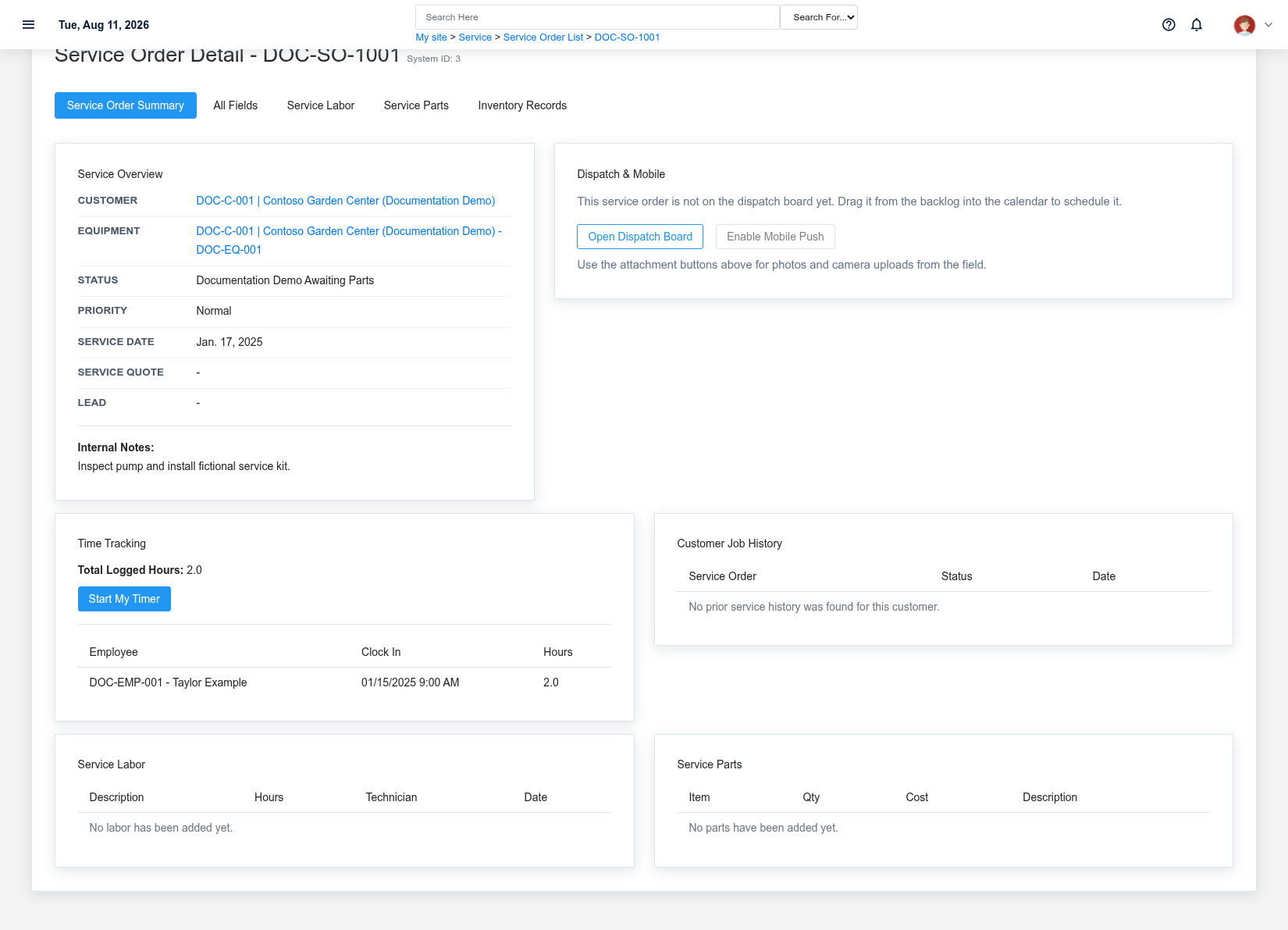
A fictional service order awaiting parts for a customer-owned irrigation pump.
Use the detail page as the shared record of what this service order currently means. Verify **Status**, **Priority**, **Service Date**, and **Edit Locked** before relying on it for a decision.
Follow **Customer**, **Equipment**, **Status**, **Type**, **Warehouse**, and **Service Quote**, plus the remaining screen fields to determine whether the issue is on this service order or on one of those linked records.
Next check: Keep technician time, parts, notes, and status current; when work is complete, review the customer billing and payment handoff.
Edit an existing service order
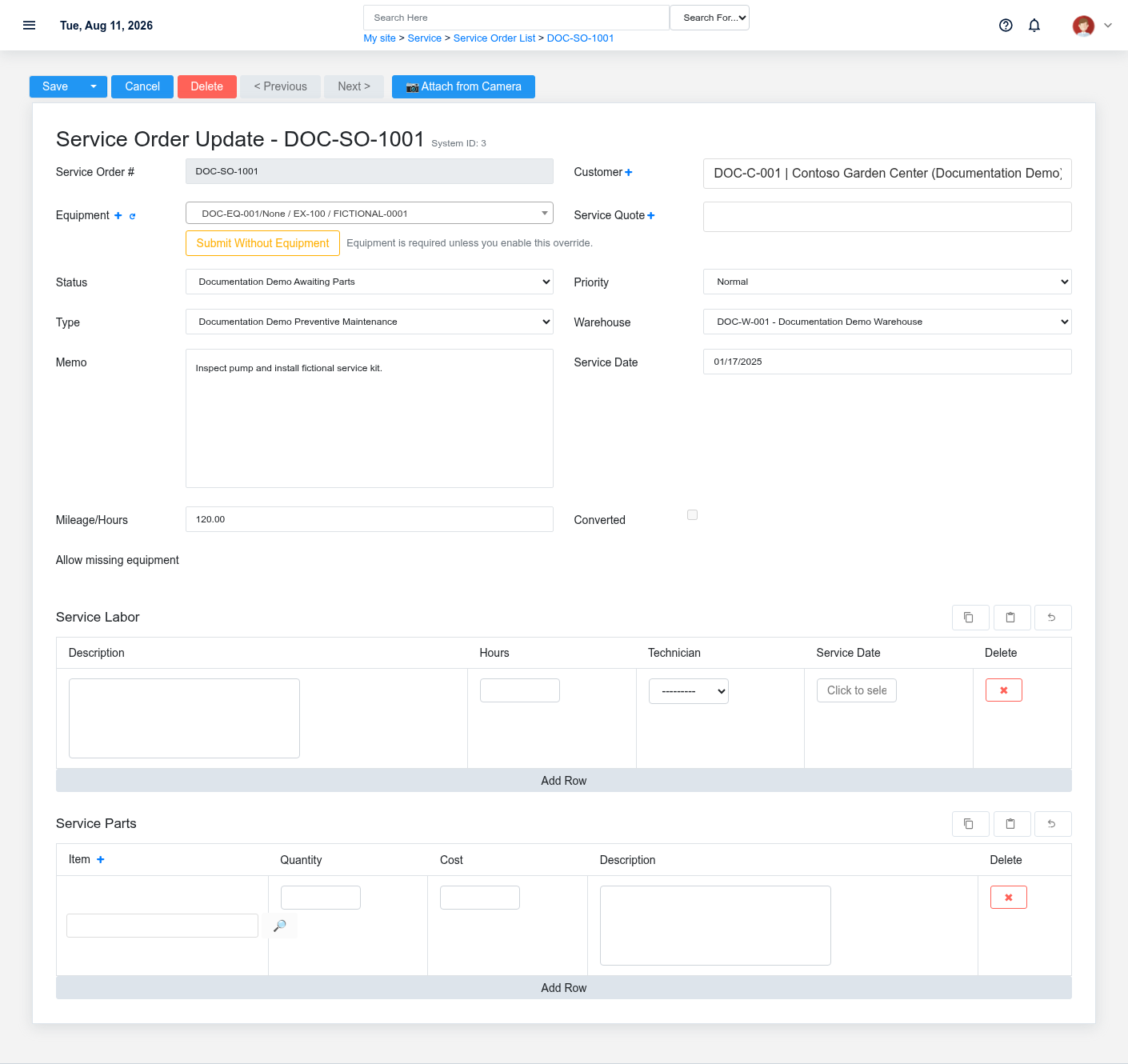
The Service Orders update screen in the Brisk documentation demo.
Edit this service order to correct or complete the same source document or operational event; use the supported reversal or follow-up workflow when the business event itself changed.
1. Open the detail page. Compare **Customer**, **Equipment**, **Status**, **Type**, **Warehouse**, and **Service Quote**, plus the remaining screen fields with the supporting document or approved request.
2. Recheck **Customer**, **Status**, **Warehouse**, **Priority**, **Service Date**, and **Edit Locked**. These values are most likely to change intake, estimating, dispatch, parts, labor, completion, and billing.
3. Save the change, return to the list, and confirm that the service order now appears under the expected **Status**, **Priority**, and **Edit Locked**.
After the change: Keep technician time, parts, notes, and status current; when work is complete, review the customer billing and payment handoff.
Find and review service orders
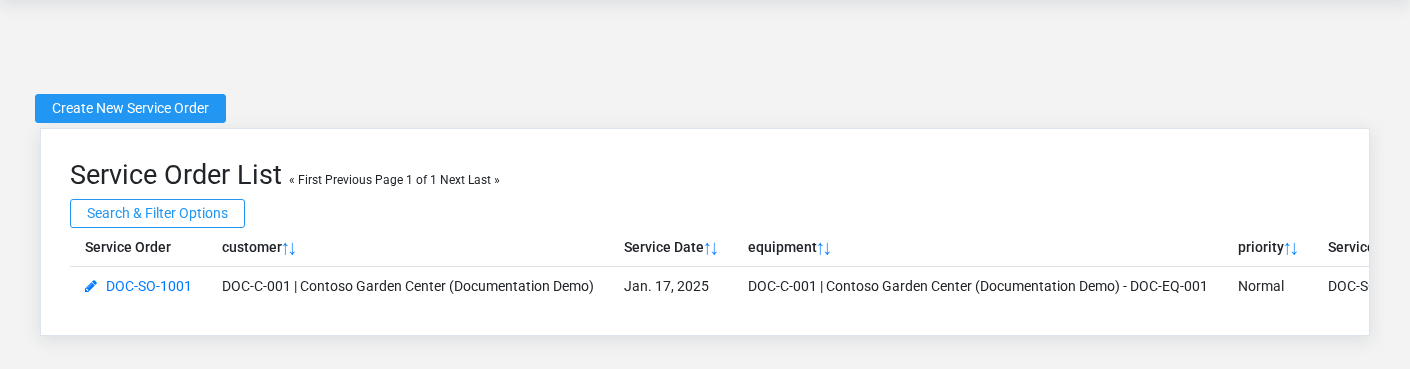
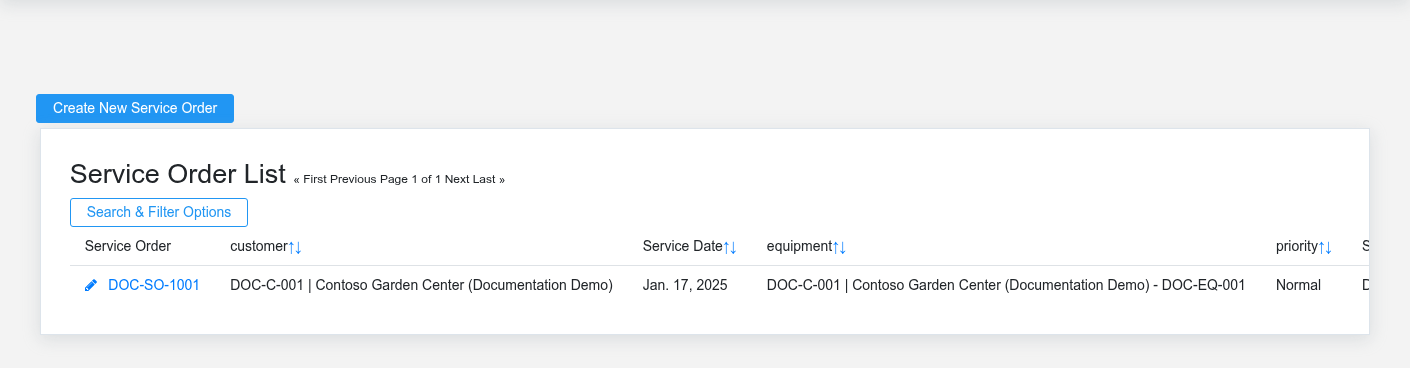
The Service Orders list screen in the Brisk documentation demo.
Use the Service Orders list to find the correct record before opening or changing it. Compare **Service Order #**, **Status**, and **Service Date**. Records with similar names or numbers can still belong to different **Customer**, **Equipment**, **Status**, **Type**, **Warehouse**, and **Service Quote**, plus the remaining screen fields.
- Keyword search checks **Service Order #**, **Memo**, **Display Name**, **Unit Number**, **Description**, and **Name**, plus the remaining screen fields.
- Narrow the list with **Customer**, **Equipment**, and **Status** filters.
- The date filter uses **Service Date**; choose a range that matches the business event you are reconciling.
- The initial order emphasizes **Id**. Select a column heading when you need a different comparison.
Open the service order whose **Service Order #**, **Status**, and **Service Date** match the task. If it is missing, clear the list filters and recheck **Customer**, **Equipment**, **Status**, **Service Date**, **Priority**, and **Edit Locked** rather than creating a replacement immediately.
## Fields and business rules
Brisk stores 15 user-relevant fields for this service order, including 8 linked-record selections and 1 controlled-choice field. Create and edit screens may hide calculated or workflow-managed values from this full reference.
| Field | Required | What it controls |
|---|---:|---|
| **Service Order #** | Yes | A serivce order's friendly name, used to identify the transaction in receipts, reports, and searches. |
| **Customer** | No | Links this service order to the selected Customer; verify the relationship before saving. |
| **Equipment** | No | Links this service order to the selected Equipment; verify the relationship before saving. |
| **Status** | No | Links this service order to the selected service status; verify the relationship before saving. |
| **Type** | No | If your service department tracks work by category, use this field to record it. |
| **Warehouse** | No | The physical location from which inventory items for this service order are sourced. |
| **Service Quote** | No | Optional originating service quote linked to this service order. |
| **Quote** | No | Optional originating quote for this service order. |
| **Lead** | No | Optional originating service lead. |
| **Priority** | No | Controls dispatch urgency and backlog ordering. Available values: Low, Normal, High, Urgent. |
| **Memo** | No | Use this field to store internal notes about this service order. |
| **Service Date** | No | The date and time that this service order was started. |
| **Mileage/Hours** | No | Record the equipment mileage, hours, or other time tracking metric. |
| **Edit Locked** | No | Whether the edit locked option applies to this service order. |
| **Converted** | No | Marks this service order as conerted to an invoice and completed. |
## What happens next
Keep technician time, parts, notes, and status current; when work is complete, review the customer billing and payment handoff.
## Common mistakes and troubleshooting
- **The record will not save:** Recheck **Service Order #** and any message beside the field. A required related record may also be inactive or unavailable to your role.
- **The record saved but is not available where expected:** Recheck **Status**, **Priority**, and **Edit Locked**, then clear the filters on the destination list. A saved record can still be inactive, unpublished, locked, unapproved, or in the wrong workflow state.
- **The values look right but the result is wrong:** Open **Customer**, **Equipment**, **Status**, **Type**, **Warehouse**, and **Service Quote**, plus the remaining screen fields from the detail page. Correct the specific relationship that is wrong instead of forcing a total or status to compensate for it.
# Service Quotes
# Service Quotes
Purpose and when to use this record
Estimate service scope, parts, labor, tax, and total before customer approval and conversion to a service order.
## At a glance
- **Identify it by:** **Service Quote #**, and **Status**.
- **Check its business context:** **Customer**, **Equipment**, **Lead**, **Type**, and **Warehouse**.
- **Why care:** Customer, equipment, scope, priority, technician availability, parts, labor, and status must stay aligned from intake through billing.
- **Why care:** Status communicates workflow progress to other staff. Change it only when the underlying work, approval, payment, or handoff has actually occurred.
## Before you begin
You need the Brisk permission for the action you are taking on service quotes. If a Create, Edit, or Delete control is absent, do not work around it with another user’s account; ask an administrator to review your role.
Create a Service Quote
Create a Service Quote only after confirming that the source document or operational event has not already been entered.
1. Select the business context first: **Customer**, **Equipment**, **Lead**, **Type**, and **Warehouse**.
2. Enter the required identifying and operational values: **Service Quote #**.
3. Review **Status**, **Priority**, and **Converted** deliberately; these choices control availability or workflow rather than merely describing the record.
4. Save the Service Quote, then confirm **Service Quote #**, and **Status** on its detail page before continuing.
After saving: Obtain customer approval before conversion, then manage parts, labor, dispatch, and completion on the resulting service order.
Delete a Service Quote
Delete this Service Quote only when it was entered by mistake and no downstream history depends on it. Use a reversal, void, credit, counter-adjustment, or status correction for a real event that later changed.
Before confirming, check for related **Service Orders**, and **Service Quote Rows**. Brisk may refuse deletion when another record depends on this one; resolve the duplicate or use the supported correction workflow instead of breaking the trail.
On the confirmation page, verify **Service Quote #**, and **Status**. After confirmation, return to the Service Quotes list and make sure only the intended Service Quote was removed.
Review Service Quote details
Use the detail page as the shared record of what this Service Quote currently means. Verify **Status**, **Priority**, **Subtotal**, **Tax Total**, and **Total** before relying on it for a decision.
Follow **Customer**, **Equipment**, **Lead**, **Type**, and **Warehouse** to determine whether the issue is on this Service Quote or on one of those linked records.
Next check: Obtain customer approval before conversion, then manage parts, labor, dispatch, and completion on the resulting service order.
Edit an existing Service Quote
Edit this Service Quote to correct or complete the same source document or operational event; use the supported reversal or follow-up workflow when the business event itself changed.
1. Open the detail page. Compare **Customer**, **Equipment**, **Lead**, **Type**, and **Warehouse** with the supporting document or approved request.
2. Recheck **Customer**, **Status**, **Priority**, **Warehouse**, **Subtotal**, and **Tax Total**, plus the remaining screen fields. These values are most likely to change intake, estimating, dispatch, parts, labor, completion, and billing.
3. Save the change, return to the list, and confirm that the Service Quote now appears under the expected **Status**, and **Priority**.
After the change: Obtain customer approval before conversion, then manage parts, labor, dispatch, and completion on the resulting service order.
Find and review service quotes
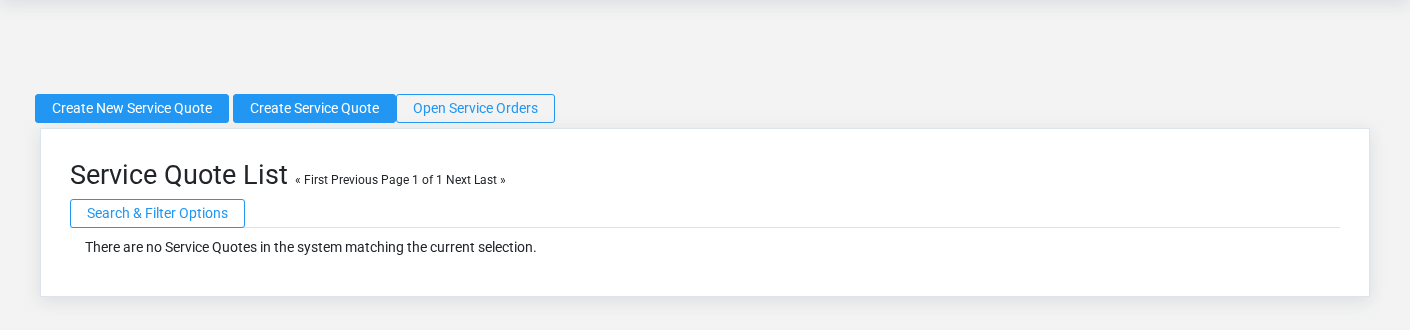
The Service Quotes list screen in the Brisk documentation demo.
Use the Service Quotes list to find the correct record before opening or changing it. Compare **Service Quote #**, and **Status**. Records with similar names or numbers can still belong to different **Customer**, **Equipment**, **Lead**, **Type**, and **Warehouse**.
- Keyword search checks **Service Quote #**, **Summary**, **Memo**, **Display Name**, **Lead #**, and **Service Order #**.
- Narrow the list with **Customer**, **Equipment**, **Lead**, and **Type** filters.
- The initial order emphasizes **Created At**. Select a column heading when you need a different comparison.
Open the Service Quote whose **Service Quote #**, and **Status** match the task. If it is missing, clear the list filters and recheck **Customer**, **Equipment**, **Lead**, **Type**, **Status**, and **Priority** rather than creating a replacement immediately.
## Fields and business rules
Brisk stores 14 user-relevant fields for this Service Quote, including 5 linked-record selections and 2 controlled-choice fields. Create and edit screens may hide calculated or workflow-managed values from this full reference.
| Field | Required | What it controls |
|---|---:|---|
| **Service Quote #** | Yes | Friendly number shown on service estimates and approvals. |
| **Customer** | No | Links this Service Quote to the selected Customer; verify the relationship before saving. |
| **Equipment** | No | Links this Service Quote to the selected Equipment; verify the relationship before saving. |
| **Lead** | No | Optional source lead for this service quote. |
| **Status** | No | Current status of this service quote. Available values: Draft, Out to Customer, Approved, Rejected. |
| **Priority** | No | The priority recorded for this service quote. Available values: Low, Normal, High, Urgent. |
| **Type** | No | Optional service category for this quote. |
| **Warehouse** | No | Warehouse used when the quote is converted into service work. |
| **Summary** | No | Short customer-facing scope summary. |
| **Memo** | No | Notes and scope details for this service quote. |
| **Subtotal** | No | The sub total value recorded for this service quote. |
| **Tax Total** | No | The tax total value recorded for this service quote. |
| **Total** | No | The total value recorded for this service quote. |
| **Converted** | No | Marks this service quote as converted to a service order. |
## What happens next
Obtain customer approval before conversion, then manage parts, labor, dispatch, and completion on the resulting service order.
## Common mistakes and troubleshooting
- **The record will not save:** Recheck **Service Quote #** and any message beside the field. A required related record may also be inactive or unavailable to your role.
- **The record saved but is not available where expected:** Recheck **Status**, and **Priority**, then clear the filters on the destination list. A saved record can still be inactive, unpublished, locked, unapproved, or in the wrong workflow state.
- **The values look right but the result is wrong:** Open **Customer**, **Equipment**, **Lead**, **Type**, and **Warehouse** from the detail page. Correct the specific relationship that is wrong instead of forcing a total or status to compensate for it.
# Service Snippets
# Service Snippets
Purpose and when to use this record
Maintain reusable service-note language so technicians and office staff record common work consistently.
## At a glance
- **Identify it by:** **Text**.
- **Why care:** Customer, equipment, scope, priority, technician availability, parts, labor, and status must stay aligned from intake through billing.
## Before you begin
You need the Brisk permission for the action you are taking on service snippets. If a Create, Edit, or Delete control is absent, do not work around it with another user’s account; ask an administrator to review your role.
Create a Service Snippet
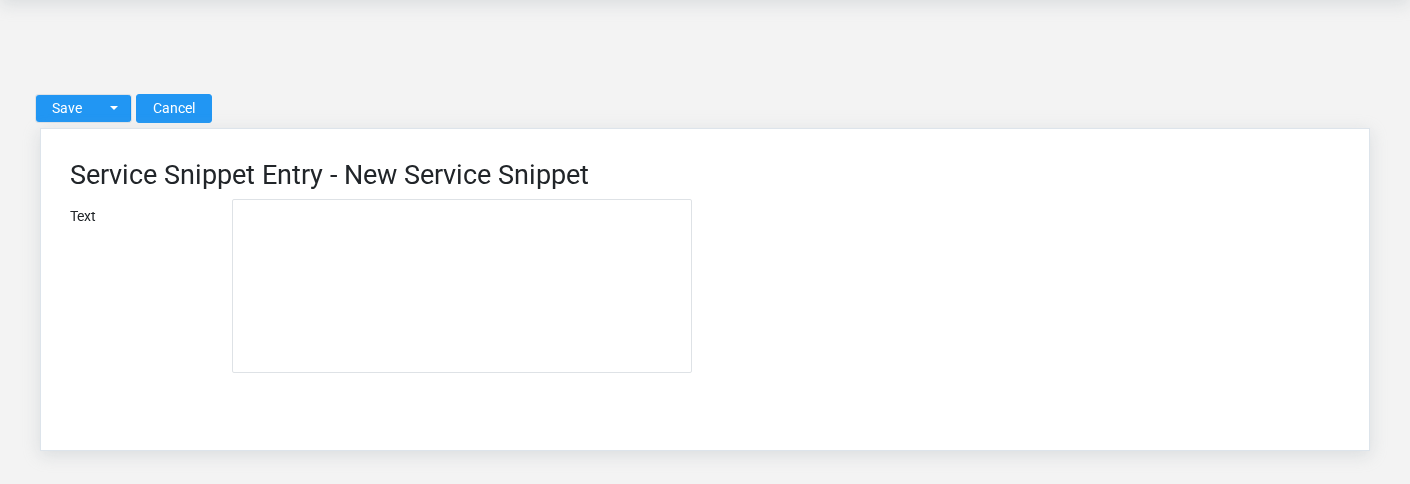
The Service Snippets create screen in the Brisk documentation demo.
Create a Service Snippet after searching for the person, organization, item, location, or resource under alternate names and identifiers. Merge or correct an existing master record instead of creating a duplicate.
1. Select the business context first.
2. Enter the required identifying and operational values: **Text**.
3. Review the identifying information shown on the screen against the source document or approved setup decision.
4. Save the Service Snippet, then confirm **Text** on its detail page before continuing.
After saving: Verify this Service Snippet in the next transaction or assignment screen before staff build new activity on it; correct ownership, classification, and active state now rather than after transactions accumulate.
Delete a Service Snippet
Delete this Service Snippet only if it is an unused duplicate or setup mistake. Once other records refer to it, preserve that history and make the value inactive when the screen provides that option.
On the confirmation page, verify **Text**. After confirmation, return to the Service Snippets list and make sure only the intended Service Snippet was removed.
Review Service Snippet details
Use the detail page as the shared record of what this Service Snippet currently means. Verify **Text** before relying on it for a decision.
Compare the Service Snippet with its source document or approved setup request before deciding that it needs correction.
Next check: Verify this Service Snippet in the next transaction or assignment screen before staff build new activity on it; correct ownership, classification, and active state now rather than after transactions accumulate.
Edit an existing Service Snippet
Edit this Service Snippet to keep the same real-world party, item, location, or resource accurate. Do not repurpose it for a different entity after activity is attached.
1. Open the detail page. Compare the identifying information shown on the screen with the supporting document or approved request.
2. Recheck the identifying information shown on the screen. These values are most likely to change intake, estimating, dispatch, parts, labor, completion, and billing.
3. Save the change, return to the list, and confirm that the Service Snippet now appears under the expected the identifying information shown on the screen.
After the change: Verify this Service Snippet in the next transaction or assignment screen before staff build new activity on it; correct ownership, classification, and active state now rather than after transactions accumulate.
Find and review service snippets
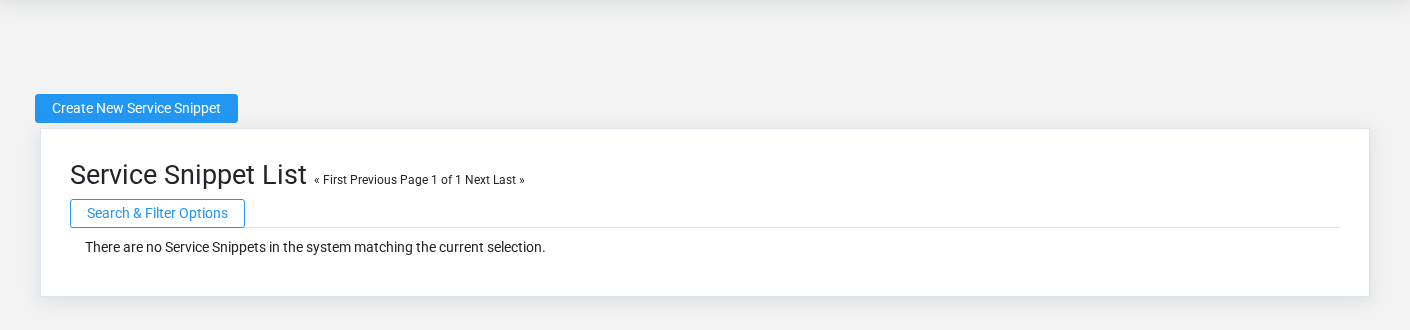
The Service Snippets list screen in the Brisk documentation demo.
Use the Service Snippets list to find the correct record before opening or changing it. Compare **Text**. Compare the full identifier rather than relying on a similar name.
Open the Service Snippet whose **Text** match the task. If it is missing, clear the list filters and recheck the identifying information shown on the screen rather than creating a replacement immediately.
## Fields and business rules
Brisk stores 1 user-relevant fields for this Service Snippet, including 0 linked-record selections and 0 controlled-choice fields. Create and edit screens may hide calculated or workflow-managed values from this full reference.
| Field | Required | What it controls |
|---|---:|---|
| **Text** | Yes | Enter the text to reuse here. |
## What happens next
Verify this Service Snippet in the next transaction or assignment screen before staff build new activity on it; correct ownership, classification, and active state now rather than after transactions accumulate.
## Common mistakes and troubleshooting
- **The record will not save:** Recheck **Text** and any message beside the field. A required related record may also be inactive or unavailable to your role.
- **The values look right but the result is wrong:** Compare this Service Snippet with the source document or approved setup decision, then check the downstream screen where it is used.
# Service Statuses
# Service Statuses
Purpose and when to use this record
Define the controlled service-order states and the workflow group in which each state can be selected.
## At a glance
- **Identify it by:** **Name**.
- **Why care:** Customer, equipment, scope, priority, technician availability, parts, labor, and status must stay aligned from intake through billing.
## Before you begin
You need the Brisk permission for the action you are taking on service statuses. If a Create, Edit, or Delete control is absent, do not work around it with another user’s account; ask an administrator to review your role.
Create a service status
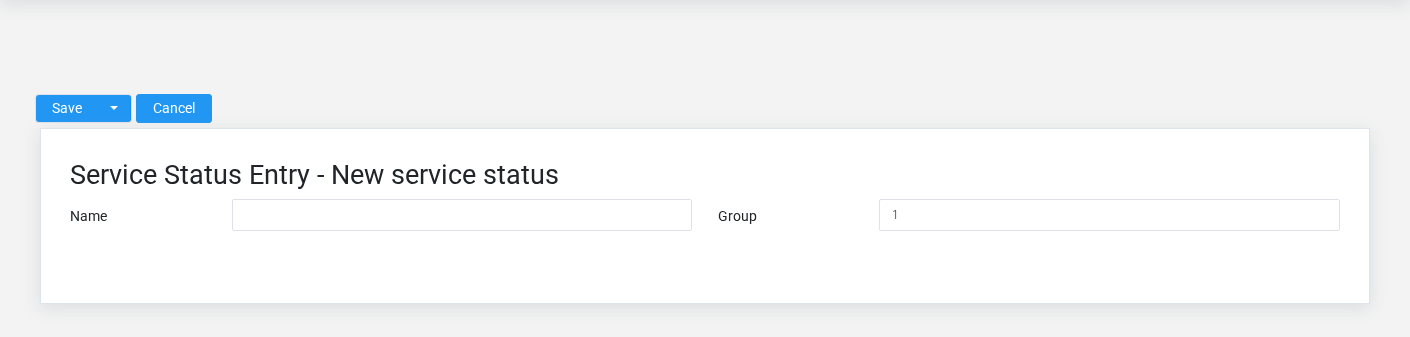
The Service Statuses create screen in the Brisk documentation demo.
Create a service status only when the existing choices do not represent the policy or classification you need. Near-duplicate setup values split reporting and make later selection harder.
1. Select the business context first.
2. Enter the required identifying and operational values: **Name**.
3. Review **Group** against the source document or approved setup decision.
4. Save the service status, then confirm **Name** on its detail page before continuing.
After saving: Open **Service Orders** and confirm the service status appears with the intended label and availability. Keep the old value for historical records when changing it would split or relabel prior reporting.
Delete a service status
Delete this service status only if it is an unused duplicate or setup mistake. Once other records refer to it, preserve that history and make the value inactive when the screen provides that option.
Before confirming, check for related **Service Orders**. Brisk may refuse deletion when another record depends on this one; resolve the duplicate or use the supported correction workflow instead of breaking the trail.
On the confirmation page, verify **Name**. After confirmation, return to the Service Statuses list and make sure only the intended service status was removed.
Review service status details
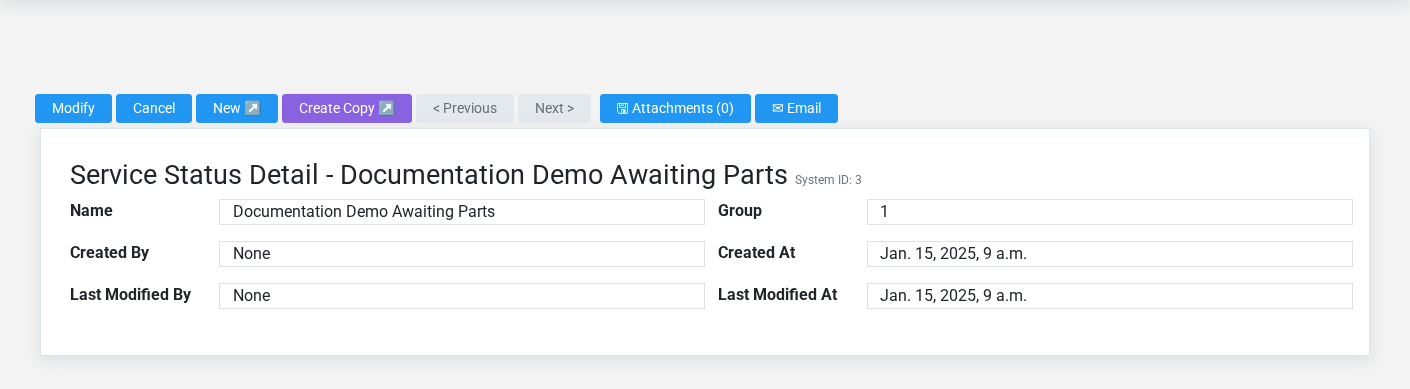
The Service Statuses detail screen in the Brisk documentation demo.
Use the detail page as the shared record of what this service status currently means. Verify **Name**, and **Group** before relying on it for a decision.
Compare the service status with its source document or approved setup request before deciding that it needs correction.
Next check: Open **Service Orders** and confirm the service status appears with the intended label and availability. Keep the old value for historical records when changing it would split or relabel prior reporting.
Edit an existing service status
Edit this service status when the underlying policy or classification changed. First determine whether historical transactions should retain the old value; if so, deactivate the old choice and create a new one.
1. Open the detail page. Compare **Name** with the supporting document or approved request.
2. Recheck the identifying information shown on the screen. These values are most likely to change intake, estimating, dispatch, parts, labor, completion, and billing.
3. Save the change, return to the list, and confirm that the service status now appears under the expected **Name**.
After the change: Open **Service Orders** and confirm the service status appears with the intended label and availability. Keep the old value for historical records when changing it would split or relabel prior reporting.
Find and review service statuses
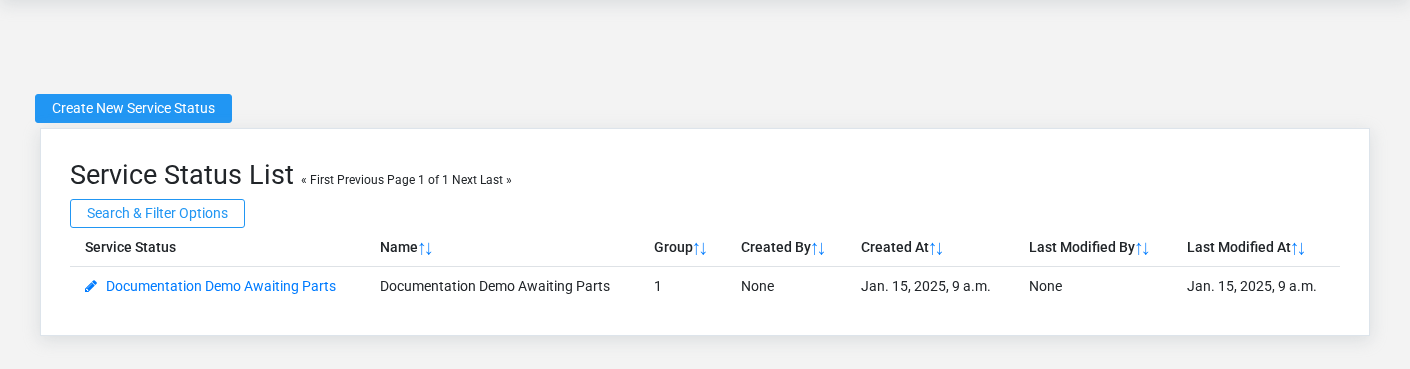
The Service Statuses list screen in the Brisk documentation demo.
Use the Service Statuses list to find the correct record before opening or changing it. Compare **Name**. Compare the full identifier rather than relying on a similar name.
Open the service status whose **Name** match the task. If it is missing, clear the list filters and recheck the identifying information shown on the screen rather than creating a replacement immediately.
## Fields and business rules
Brisk stores 2 user-relevant fields for this service status, including 0 linked-record selections and 0 controlled-choice fields. Create and edit screens may hide calculated or workflow-managed values from this full reference.
| Field | Required | What it controls |
|---|---:|---|
| **Name** | Yes | Human-readable name for this service status. |
| **Group** | No | Status group numbers determine when they are available for selection. Group 1 statuses are always visible, but Group 2 will only present on a ticket that has a Group 1 status, Group 3 will only present on Group 2, etc. |
## What happens next
Open **Service Orders** and confirm the service status appears with the intended label and availability. Keep the old value for historical records when changing it would split or relabel prior reporting.
## Common mistakes and troubleshooting
- **The record will not save:** Recheck **Name** and any message beside the field. A required related record may also be inactive or unavailable to your role.
- **The values look right but the result is wrong:** Compare this service status with the source document or approved setup decision, then check the downstream screen where it is used.
# Service Working Hours
# Service Working Hours
Purpose and when to use this record
Define a technician’s normal weekday availability window for scheduling and dispatch.
## At a glance
- **Identify it by:** **Technician**, **Weekday**, **Start Time**, and **End Time**.
- **Check its business context:** **Technician**.
- **Why care:** Customer, equipment, scope, priority, technician availability, parts, labor, and status must stay aligned from intake through billing.
- **Why care:** Availability and publication flags affect future use without erasing history. Prefer disabling an obsolete setup record when existing transactions still refer to it.
## Before you begin
You need the Brisk permission for the action you are taking on service working hours. If a Create, Edit, or Delete control is absent, do not work around it with another user’s account; ask an administrator to review your role.
Have valid **Technician** records ready first. Those selections determine where this Service Working Hours belongs and which later screens can find it.
Find and review service working hours
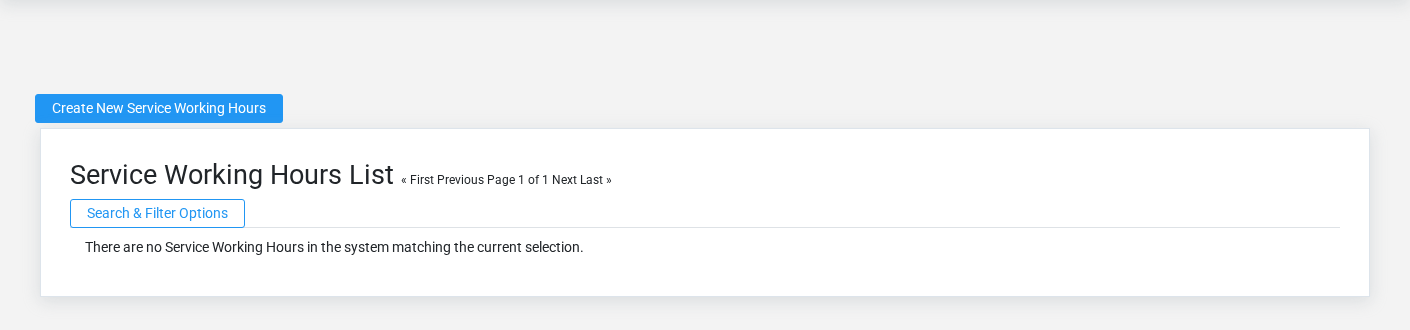
The Service Working Hours list screen in the Brisk documentation demo.
Use the Service Working Hours list to find the correct record before opening or changing it. Compare **Technician**, **Weekday**, **Start Time**, and **End Time**. Records with similar names or numbers can still belong to different **Technician**.
- Narrow the list with **Technician** filters.
Open the Service Working Hours whose **Technician**, **Weekday**, **Start Time**, and **End Time** match the task. If it is missing, clear the list filters and recheck **Technician**, **Weekday**, and **Available** rather than creating a replacement immediately.
Create a Service Working Hours
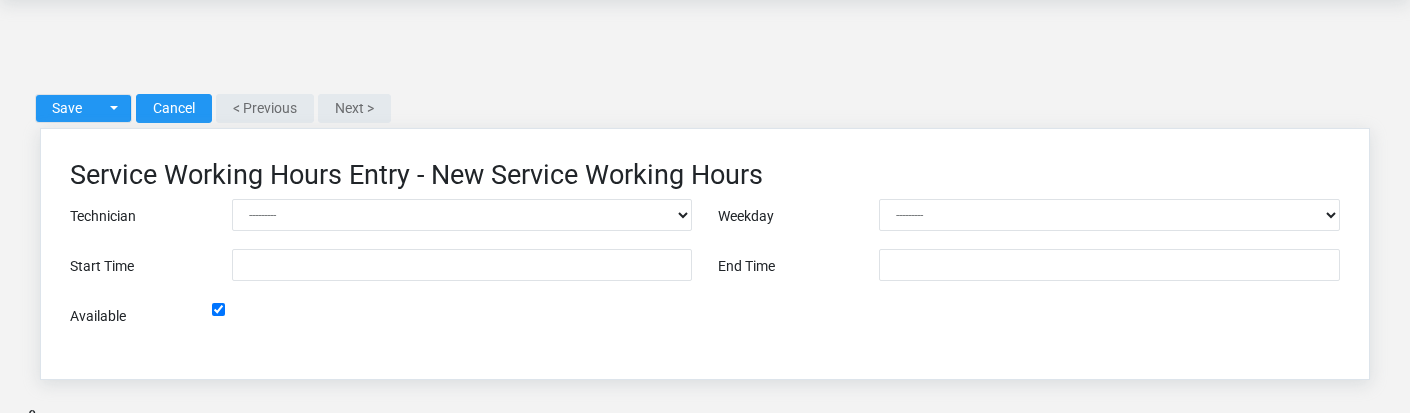
The Service Working Hours create screen in the Brisk documentation demo.
Create a Service Working Hours after searching for the person, organization, item, location, or resource under alternate names and identifiers. Merge or correct an existing master record instead of creating a duplicate.
1. Select the business context first: **Technician**.
2. Enter the required identifying and operational values: **Technician**, **Weekday**, **Start Time**, and **End Time**.
3. Review **Weekday**, and **Available** deliberately; these choices control availability or workflow rather than merely describing the record.
4. Save the Service Working Hours, then confirm **Technician**, **Weekday**, **Start Time**, **End Time**, and **Available** on its detail page before continuing.
After saving: Verify this Service Working Hours in the next transaction or assignment screen before staff build new activity on it; correct ownership, classification, and active state now rather than after transactions accumulate.
Delete a Service Working Hours
Delete this Service Working Hours only if it is an unused duplicate or setup mistake. Once other records refer to it, preserve that history and make the value inactive when the screen provides that option.
If the record is merely obsolete, use **Available** to remove it from future use while preserving existing references.
On the confirmation page, verify **Technician**, **Weekday**, **Start Time**, and **End Time**. After confirmation, return to the Service Working Hours list and make sure only the intended Service Working Hours was removed.
Review Service Working Hours details
Use the detail page as the shared record of what this Service Working Hours currently means. Verify **Weekday** before relying on it for a decision.
Follow **Technician** to determine whether the issue is on this Service Working Hours or on one of those linked records.
Next check: Verify this Service Working Hours in the next transaction or assignment screen before staff build new activity on it; correct ownership, classification, and active state now rather than after transactions accumulate.
Edit an existing Service Working Hours
Edit this Service Working Hours to keep the same real-world party, item, location, or resource accurate. Do not repurpose it for a different entity after activity is attached.
1. Open the detail page. Compare **Technician** with the supporting document or approved request.
2. Recheck **Weekday**. These values are most likely to change intake, estimating, dispatch, parts, labor, completion, and billing.
3. Save the change, return to the list, and confirm that the Service Working Hours now appears under the expected **Weekday**, and **Available**.
After the change: Verify this Service Working Hours in the next transaction or assignment screen before staff build new activity on it; correct ownership, classification, and active state now rather than after transactions accumulate.
## Fields and business rules
Brisk stores 5 user-relevant fields for this Service Working Hours, including 1 linked-record selection and 1 controlled-choice field. Create and edit screens may hide calculated or workflow-managed values from this full reference.
| Field | Required | What it controls |
|---|---:|---|
| **Technician** | Yes | The technician associated with this service working hours. |
| **Weekday** | Yes | The weekday value recorded for this service working hours. Available values: Monday, Tuesday, Wednesday, Thursday, Friday, Saturday, Sunday. |
| **Start Time** | Yes | Time recorded for start time on this service working hours. |
| **End Time** | Yes | Time recorded for end time on this service working hours. |
| **Available** | No | Turn off to block the entire day without deleting the record. |
## What happens next
Verify this Service Working Hours in the next transaction or assignment screen before staff build new activity on it; correct ownership, classification, and active state now rather than after transactions accumulate.
## Common mistakes and troubleshooting
- **The record will not save:** Recheck **Technician**, **Weekday**, **Start Time**, and **End Time** and any message beside the field. A required related record may also be inactive or unavailable to your role.
- **The record saved but is not available where expected:** Recheck **Weekday**, and **Available**, then clear the filters on the destination list. A saved record can still be inactive, unpublished, locked, unapproved, or in the wrong workflow state.
- **The values look right but the result is wrong:** Open **Technician** from the detail page. Correct the specific relationship that is wrong instead of forcing a total or status to compensate for it.
# Technicians
# Technicians
Purpose and when to use this record
Maintain the dispatch identity, linked employee, active state, display color, and mobile label for a service technician.
## At a glance
- **Identify it by:** **First Name**, **Last Name**, and **Mobile Label**.
- **Check its business context:** **Employee**.
- **Why care:** Customer, equipment, scope, priority, technician availability, parts, labor, and status must stay aligned from intake through billing.
- **Why care:** Availability and publication flags affect future use without erasing history. Prefer disabling an obsolete setup record when existing transactions still refer to it.
## Before you begin
You need the Brisk permission for the action you are taking on technicians. If a Create, Edit, or Delete control is absent, do not work around it with another user’s account; ask an administrator to review your role.
Create a technician
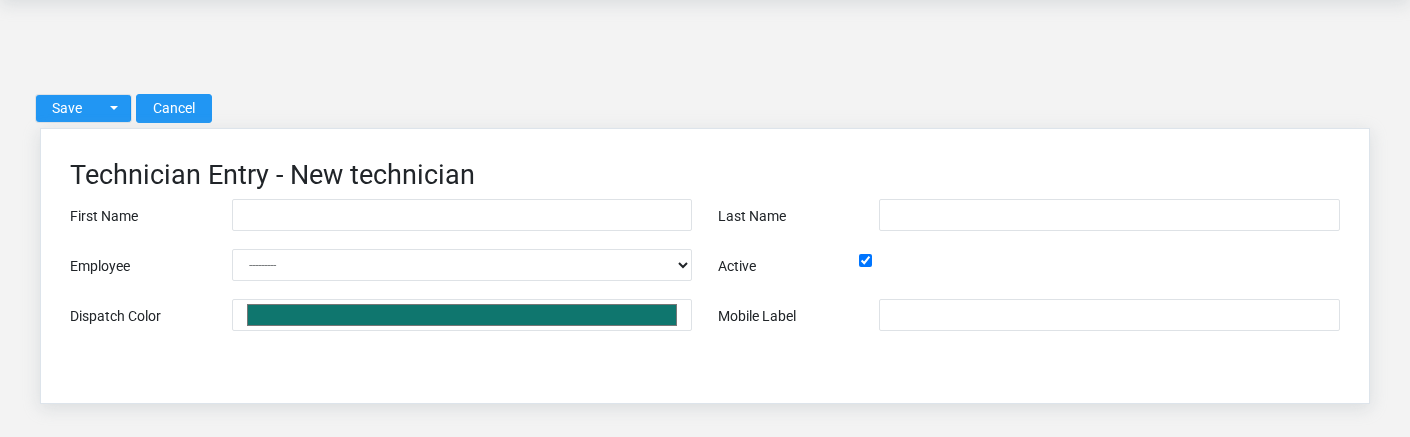
The Technicians create screen in the Brisk documentation demo.
Create a technician after searching for the person, organization, item, location, or resource under alternate names and identifiers. Merge or correct an existing master record instead of creating a duplicate.
1. Select the business context first: **Employee**.
2. Enter the required identifying and operational values: **First Name**, and **Last Name**.
3. Review **Active** deliberately; these choices control availability or workflow rather than merely describing the record.
4. Save the technician, then confirm **First Name**, **Last Name**, and **Mobile Label** on its detail page before continuing.
After saving: Verify this technician in **Bookings**, **Service Labor**, **Service Leave**, and **Service Parts**, plus the remaining screen fields before staff build new activity on it; correct ownership, classification, and active state now rather than after transactions accumulate.
Delete a technician
Delete this technician only if it is an unused duplicate or setup mistake. Once other records refer to it, preserve that history and make the value inactive when the screen provides that option.
If the record is merely obsolete, use **Active** to remove it from future use while preserving existing references.
Before confirming, check for related **Bookings**, **Service Labor**, **Service Leave**, **Service Parts**, and **Service Working Hours**. Brisk may refuse deletion when another record depends on this one; resolve the duplicate or use the supported correction workflow instead of breaking the trail.
On the confirmation page, verify **First Name**, **Last Name**, and **Mobile Label**. After confirmation, return to the Technicians list and make sure only the intended technician was removed.
Review technician details
Use the detail page as the shared record of what this technician currently means. Verify **Active** before relying on it for a decision.
Follow **Employee** to determine whether the issue is on this technician or on one of those linked records.
Next check: Verify this technician in **Bookings**, **Service Labor**, **Service Leave**, and **Service Parts**, plus the remaining screen fields before staff build new activity on it; correct ownership, classification, and active state now rather than after transactions accumulate.
Edit an existing technician
Edit this technician to keep the same real-world party, item, location, or resource accurate. Do not repurpose it for a different entity after activity is attached.
1. Open the detail page. Compare **Employee** with the supporting document or approved request.
2. Recheck **Active**. These values are most likely to change intake, estimating, dispatch, parts, labor, completion, and billing.
3. Save the change, return to the list, and confirm that the technician now appears under the expected **Active**.
After the change: Verify this technician in **Bookings**, **Service Labor**, **Service Leave**, and **Service Parts**, plus the remaining screen fields before staff build new activity on it; correct ownership, classification, and active state now rather than after transactions accumulate.
Find and review technicians
The Technicians list screen in the Brisk documentation demo.
Use the Technicians list to find the correct record before opening or changing it. Compare **First Name**, and **Last Name**. Records with similar names or numbers can still belong to different **Employee**.
Open the technician whose **First Name**, and **Last Name** match the task. If it is missing, clear the list filters and recheck **Active** rather than creating a replacement immediately.
## Fields and business rules
Brisk stores 6 user-relevant fields for this technician, including 1 linked-record selection and 0 controlled-choice fields. Create and edit screens may hide calculated or workflow-managed values from this full reference.
| Field | Required | What it controls |
|---|---:|---|
| **First Name** | Yes | The first name recorded for this technician. |
| **Last Name** | Yes | The last name recorded for this technician. |
| **Employee** | No | Optional employee record used for linked user accounts, time tracking, and notifications. |
| **Active** | No | Inactive technicians are hidden from dispatch by default. |
| **Dispatch Color** | No | The dispatch color recorded for this technician. |
| **Mobile Label** | No | Optional short label for mobile dispatch cards. |
## What happens next
Verify this technician in **Bookings**, **Service Labor**, **Service Leave**, and **Service Parts**, plus the remaining screen fields before staff build new activity on it; correct ownership, classification, and active state now rather than after transactions accumulate.
## Common mistakes and troubleshooting
- **The record will not save:** Recheck **First Name**, and **Last Name** and any message beside the field. A required related record may also be inactive or unavailable to your role.
- **The record saved but is not available where expected:** Recheck **Active**, then clear the filters on the destination list. A saved record can still be inactive, unpublished, locked, unapproved, or in the wrong workflow state.
- **The values look right but the result is wrong:** Open **Employee** from the detail page. Correct the specific relationship that is wrong instead of forcing a total or status to compensate for it.
# Start Here
# Service
# Service
Service overview
The Service workspace related to this reference article.
Service coordinates customer equipment, promised work, technician availability, parts, labor, schedule, and status. Use it to keep the office, dispatcher, technician, and customer working from the same description of the job rather than maintaining separate informal schedules.
Follow the service lifecycle
1. Capture prospective work as a [Service Lead](https://help.brisksystems.us/link/2757#bkmrk-overview) when the job is not yet qualified or approved.
2. Maintain the customer-owned [Equipment](https://help.brisksystems.us/link/2753#bkmrk-overview) so the correct unit, serial number, meter, and condition follow the work.
3. Prepare a [Service Quote](https://help.brisksystems.us/link/2760#bkmrk-overview) when parts, labor, tax, and scope require customer approval.
4. Reserve time with a [Booking](https://help.brisksystems.us/link/2749#bkmrk-overview), then coordinate approved work through a [Service Order](https://help.brisksystems.us/link/2759#bkmrk-overview).
5. Assign the appropriate [Technician](https://help.brisksystems.us/link/2764#bkmrk-overview), account for normal working hours and approved leave, and use the technician workspace for daily execution.
6. Update status, notes, parts, labor, and completion information as the work actually progresses.
Operational screens
The [Technician Workspace](https://help.brisksystems.us/link/2956#bkmrk-overview) focuses the signed-in technician on assigned work and next actions. [Mobile Alerts](https://help.brisksystems.us/link/2955#bkmrk-overview) call attention to changed work; they do not replace the service order as the source of truth. Supervisors use [Technician Leave Approvals](https://help.brisksystems.us/link/2954#bkmrk-overview) to protect schedule capacity before accepting or moving bookings.
Dispatch and completion controls
Confirm equipment identity, customer, location, priority, promised window, technician, and current status before dispatching. Record parts and labor against the service order that consumed them. Do not mark work complete merely to remove it from a queue; completion should mean the operational work, customer communication, and required billing handoff are actually finished.