Define the controlled service-order states and the workflow group in which each state can be selected.
## At a glance
- **Identify it by:** **Name**.
- **Why care:** Customer, equipment, scope, priority, technician availability, parts, labor, and status must stay aligned from intake through billing.
## Before you begin
You need the Brisk permission for the action you are taking on service statuses. If a Create, Edit, or Delete control is absent, do not work around it with another user’s account; ask an administrator to review your role.
Create a service status
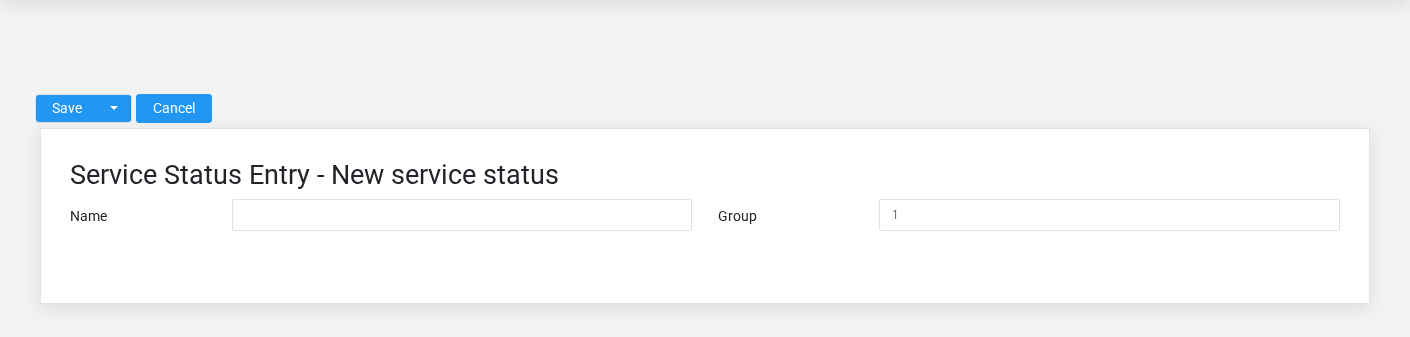
The Service Statuses create screen in the Brisk documentation demo.
Create a service status only when the existing choices do not represent the policy or classification you need. Near-duplicate setup values split reporting and make later selection harder.
1. Select the business context first.
2. Enter the required identifying and operational values: **Name**.
3. Review **Group** against the source document or approved setup decision.
4. Save the service status, then confirm **Name** on its detail page before continuing.
After saving: Open **Service Orders** and confirm the service status appears with the intended label and availability. Keep the old value for historical records when changing it would split or relabel prior reporting.
Delete a service status
Delete this service status only if it is an unused duplicate or setup mistake. Once other records refer to it, preserve that history and make the value inactive when the screen provides that option.
Before confirming, check for related **Service Orders**. Brisk may refuse deletion when another record depends on this one; resolve the duplicate or use the supported correction workflow instead of breaking the trail.
On the confirmation page, verify **Name**. After confirmation, return to the Service Statuses list and make sure only the intended service status was removed.
Review service status details
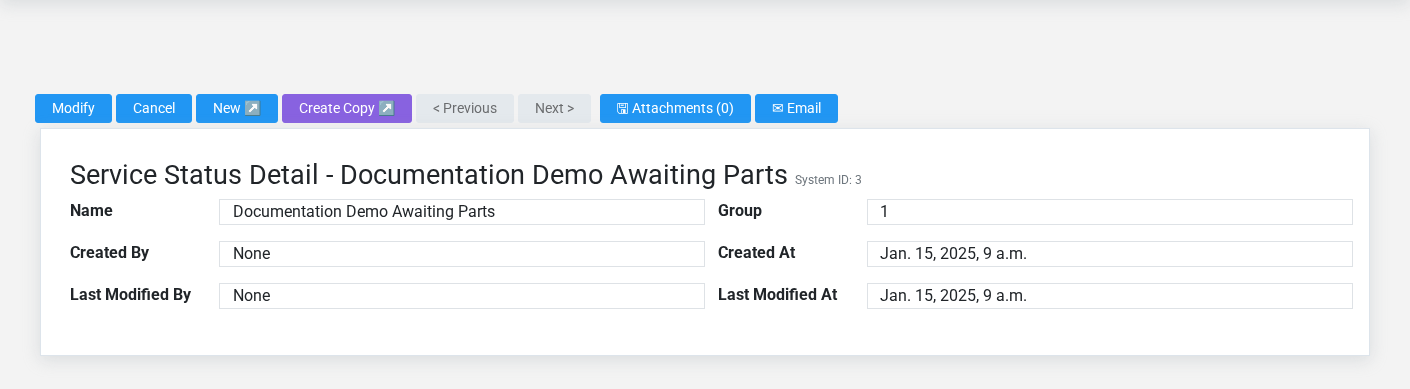
The Service Statuses detail screen in the Brisk documentation demo.
Use the detail page as the shared record of what this service status currently means. Verify **Name**, and **Group** before relying on it for a decision.
Compare the service status with its source document or approved setup request before deciding that it needs correction.
Next check: Open **Service Orders** and confirm the service status appears with the intended label and availability. Keep the old value for historical records when changing it would split or relabel prior reporting.
Edit an existing service status
Edit this service status when the underlying policy or classification changed. First determine whether historical transactions should retain the old value; if so, deactivate the old choice and create a new one.
1. Open the detail page. Compare **Name** with the supporting document or approved request.
2. Recheck the identifying information shown on the screen. These values are most likely to change intake, estimating, dispatch, parts, labor, completion, and billing.
3. Save the change, return to the list, and confirm that the service status now appears under the expected **Name**.
After the change: Open **Service Orders** and confirm the service status appears with the intended label and availability. Keep the old value for historical records when changing it would split or relabel prior reporting.
Find and review service statuses
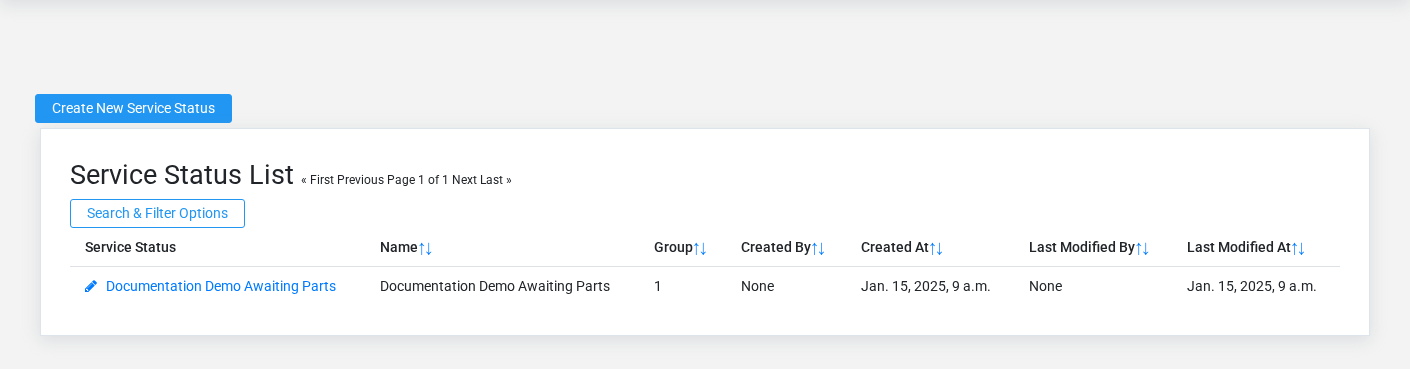
The Service Statuses list screen in the Brisk documentation demo.
Use the Service Statuses list to find the correct record before opening or changing it. Compare **Name**. Compare the full identifier rather than relying on a similar name.
Open the service status whose **Name** match the task. If it is missing, clear the list filters and recheck the identifying information shown on the screen rather than creating a replacement immediately.
## Fields and business rules
Brisk stores 2 user-relevant fields for this service status, including 0 linked-record selections and 0 controlled-choice fields. Create and edit screens may hide calculated or workflow-managed values from this full reference.
| Field | Required | What it controls |
|---|---:|---|
| **Name** | Yes | Human-readable name for this service status. |
| **Group** | No | Status group numbers determine when they are available for selection. Group 1 statuses are always visible, but Group 2 will only present on a ticket that has a Group 1 status, Group 3 will only present on Group 2, etc. |
## What happens next
Open **Service Orders** and confirm the service status appears with the intended label and availability. Keep the old value for historical records when changing it would split or relabel prior reporting.
## Common mistakes and troubleshooting
- **The record will not save:** Recheck **Name** and any message beside the field. A required related record may also be inactive or unavailable to your role.
- **The values look right but the result is wrong:** Compare this service status with the source document or approved setup decision, then check the downstream screen where it is used.