# Settings and Preferences
# User Preferences Reference
# User Preferences Reference
How these settings apply
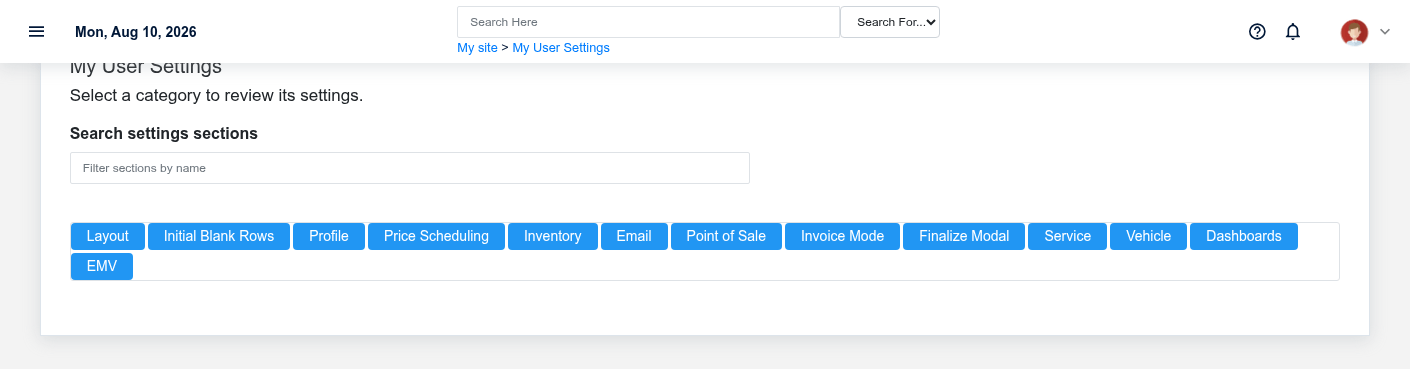
The User Preferences Reference overview screen in the Brisk documentation demo.
Configure the signed-in user's layout, workflow defaults, profile, and other personal behavior by screen section.
User preferences apply to one account. Use **My Settings** for your own account or the managed user-preferences screen when authorized to configure another user. Organization-wide behavior belongs in System Settings instead.
Layout
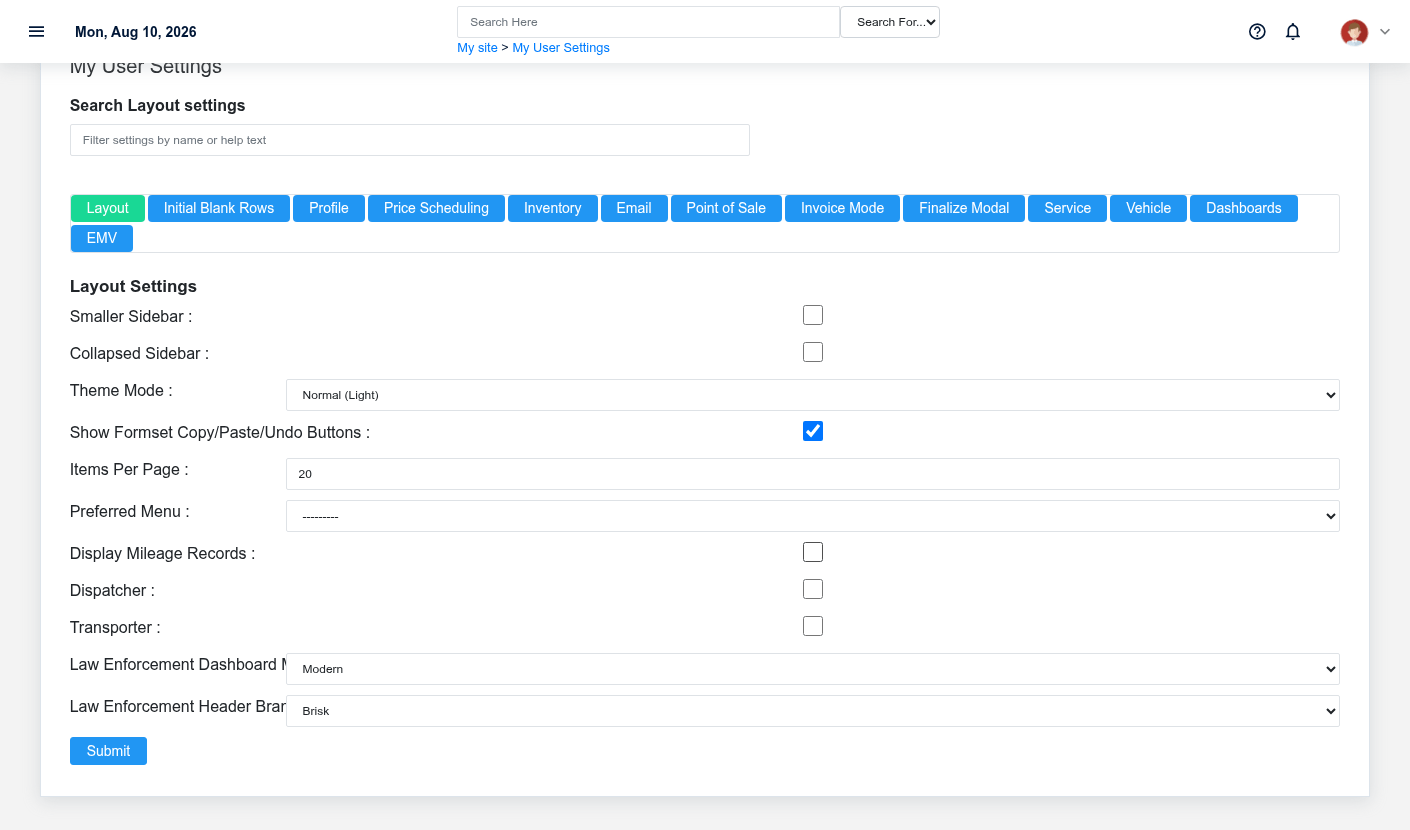
The Layout section of Brisk user settings.
| Setting | What it does | Value type |
| --- | --- | --- |
| Smaller Sidebar | If enabled, this setting reduces the space taken by the left-hand navigation menu. | smaller side bar |
| Collapsed Sidebar | If enabled, this setting collapses the left-hand navigation menu into its smallest form factor. If both this and Smaller Sidebar are enabled, this setting takes precedence. | collapse side bar |
| Theme Mode | Choose between normal light mode, dark mode, or automatic time-aware switching. | theme mode |
| Show Formset Copy/Paste/Undo Buttons | If enabled, formset copy, paste, and undo buttons are shown on form screens. | show formset clipboard buttons |
| Items Per Page | This setting determines how many items will be shown per page on all lists (but not on reports). | items per page |
| Preferred Menu | This setting needs to be depreciated. | preferred menu |
| Display Mileage Records | If this setting is enabled, a button will be available for mileage records. | mileage record |
| Dispatcher | If this setting is enabled, this user will be considered a dispatcher. | dispatcher |
| Transporter | If this setting is enabled, this user will be considered a transporter. | transporter |
| Law Enforcement Dashboard Mode | Choose whether to show the modern dashboard or the legacy ReadyLog dashboard by default. | law enforcement dashboard mode |
| Law Enforcement Header Branding | When Law Enforcement is enabled, choose whether the top-left header logo remains Brisk or switches to ReadyLog. | law enforcement branding mode |
Initial Blank Rows
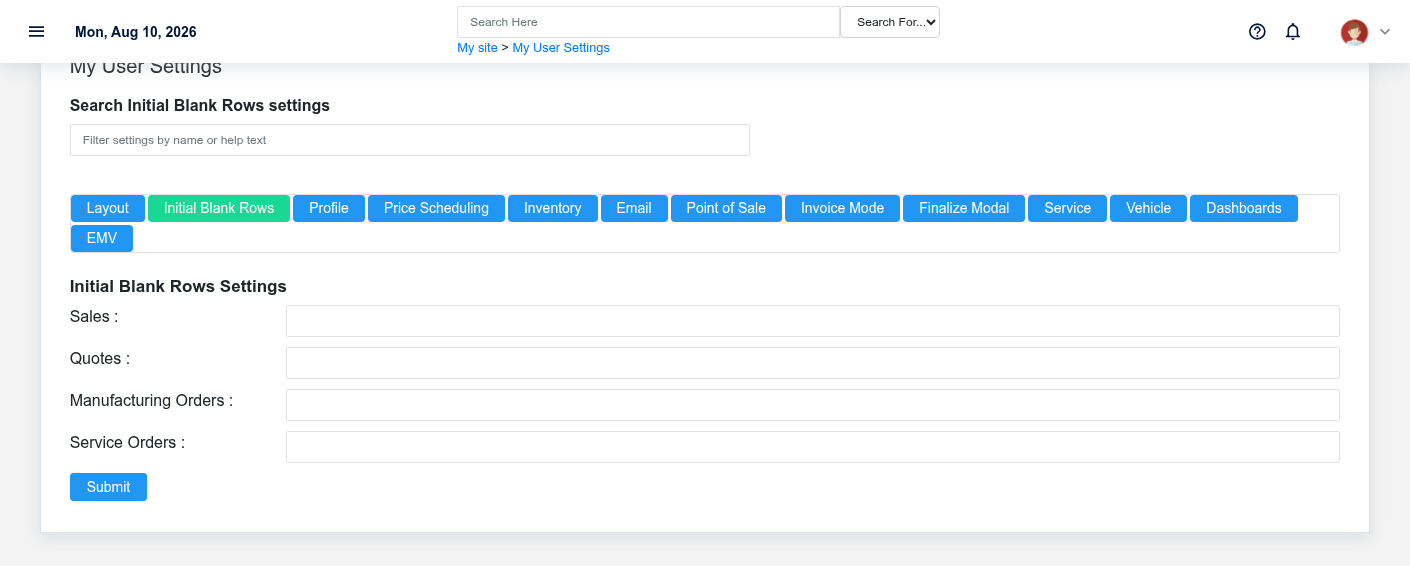
The Initial Blank Rows section of Brisk user settings.
| Setting | What it does | Value type |
| --- | --- | --- |
| Sales | Number of initial blank item rows on sales screens. | sales initial blank rows |
| Quotes | Number of initial blank item rows on quote screens. | quotes initial blank rows |
| Manufacturing Orders | Number of initial blank item rows on manufacturing order screens. | manufacturing orders initial blank rows |
| Service Orders | Number of initial blank rows on service order screens. | service orders initial blank rows |
Profile
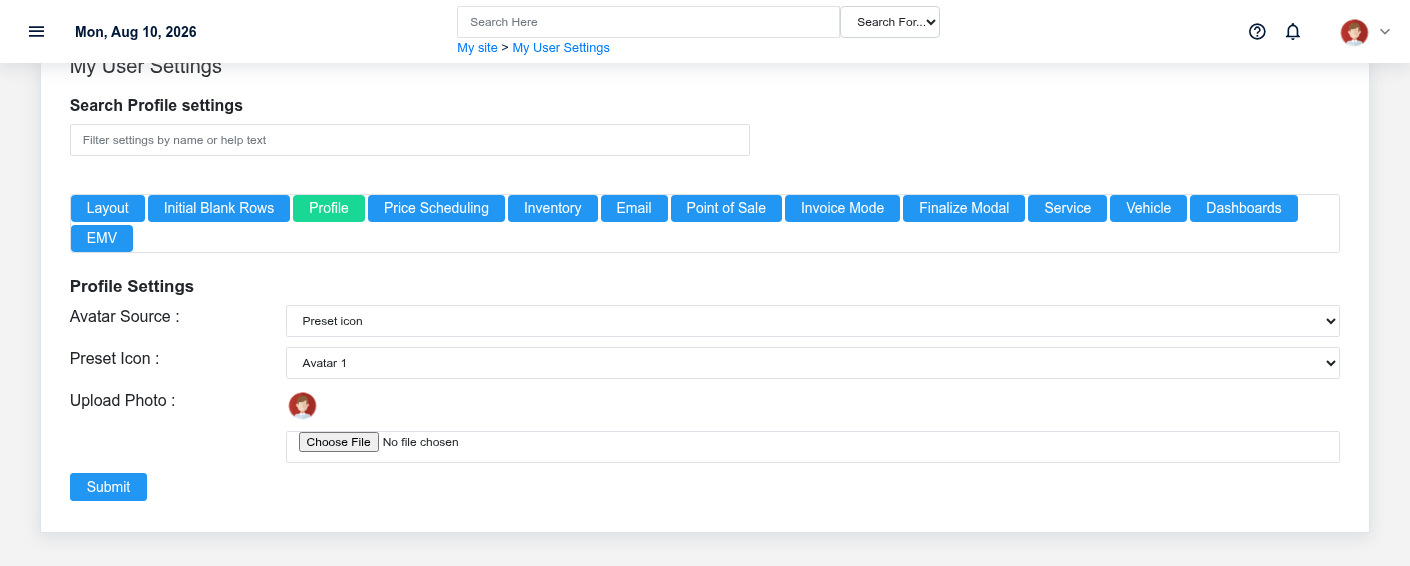
The Profile section of Brisk user settings.
| Setting | What it does | Value type |
| --- | --- | --- |
| Avatar Source | Choose whether to use a preset icon or an uploaded photo. | avatar source |
| Preset Icon | Select a preset icon for your profile photo. | avatar preset |
| Upload Photo | Upload a JPG/PNG/WebP under 2 MB. | avatar upload |
Price Scheduling
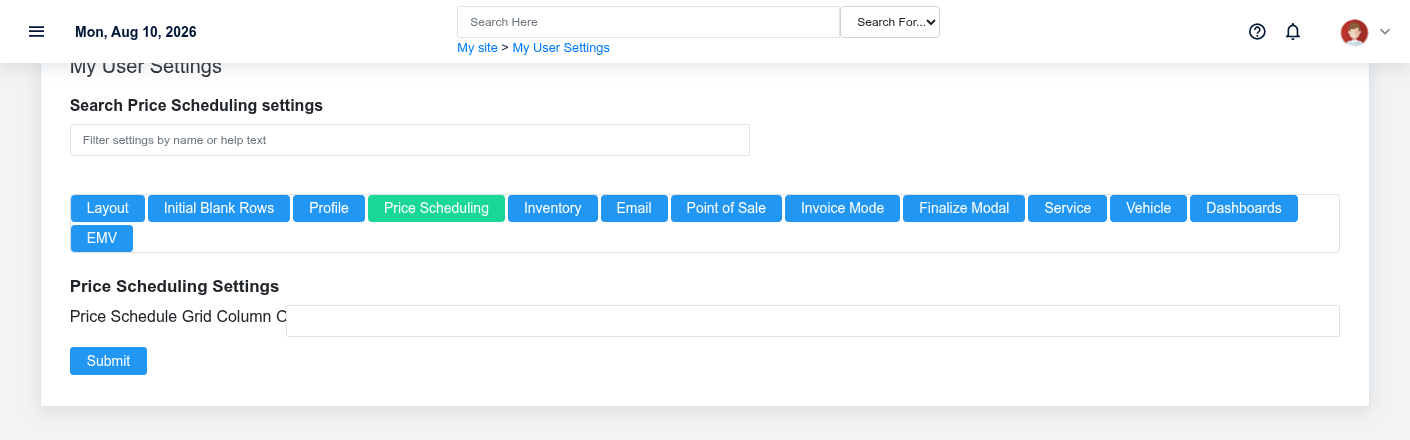
The Price Scheduling section of Brisk user settings.
| Setting | What it does | Value type |
| --- | --- | --- |
| Price Schedule Grid Column Order | JSON list of column keys used as your personal override for the price schedule grid. | user price schedule grid column order |
Inventory
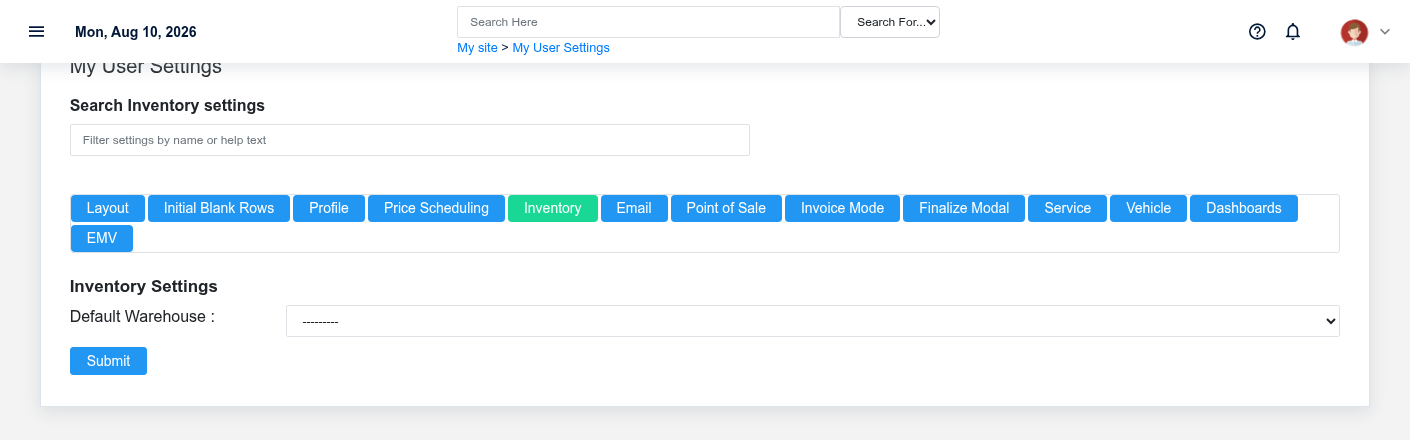
The Inventory section of Brisk user settings.
| Setting | What it does | Value type |
| --- | --- | --- |
| Default Warehouse | Automatically sets the inventory warehouse on sales transactions | default warehouse |
Email
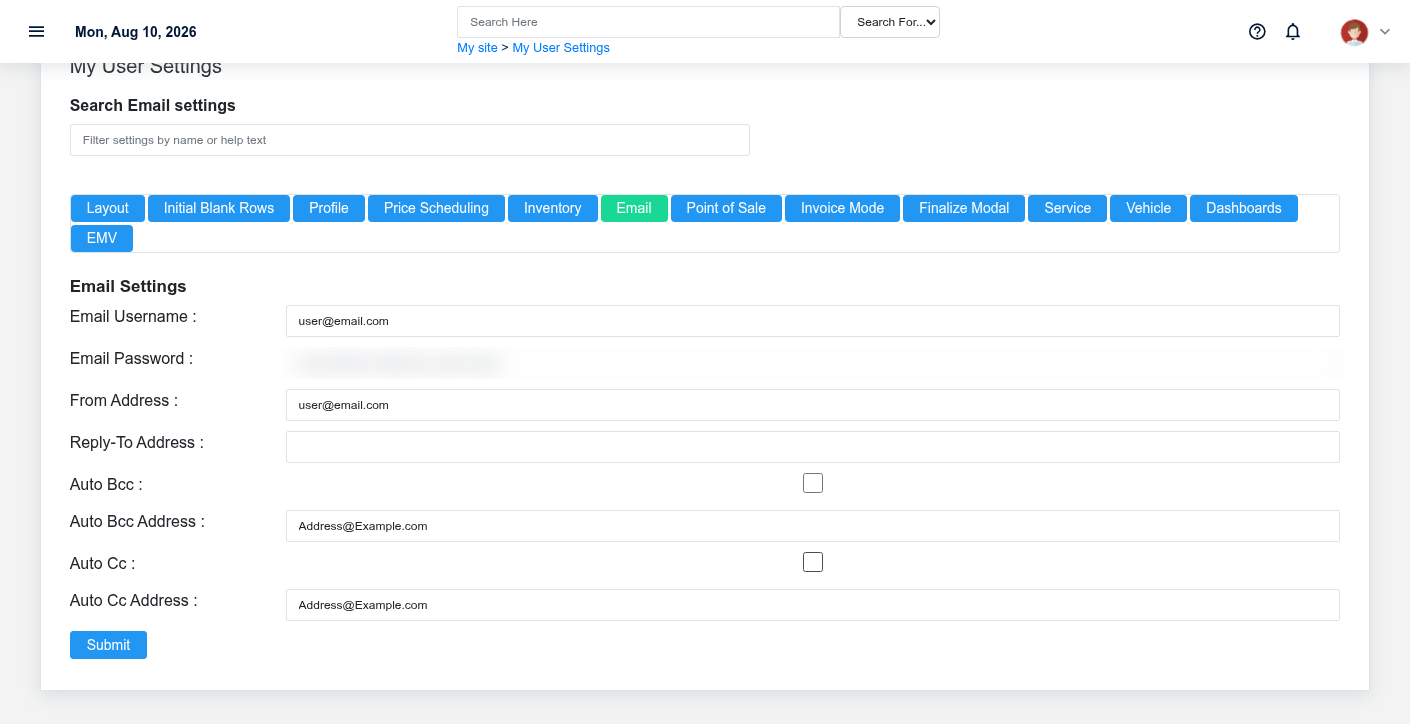
The Email section of Brisk user settings.
| Setting | What it does | Value type |
| --- | --- | --- |
| Email Username | Username for your email provider, typically the entire email address. | smtp user name |
| Email Password | Password used to log in with your email provider | smtp password |
| From Address | Email address in the "From" field of the email, typically the same as the user name. | smtp from |
| Reply-To Address | Email address in the "Reply-To" field of the email, useful when sending from a no-reply or 3rd party service, allows the email recipient to correspond with the end-user responsible for the email. | smtp reply to |
| Auto BCC | If enabled, sets a BCC on your outgoing emails | enable auto bcc |
| Auto BCC Address | Sets the recipient email address for Auto BCC | auto bcc |
| Auto CC | If enabled, sets a CC on your outgoing emails | enable auto cc |
| Auto CC Address | Sets the recipient email address for Auto CC | auto cc |
Point of Sale
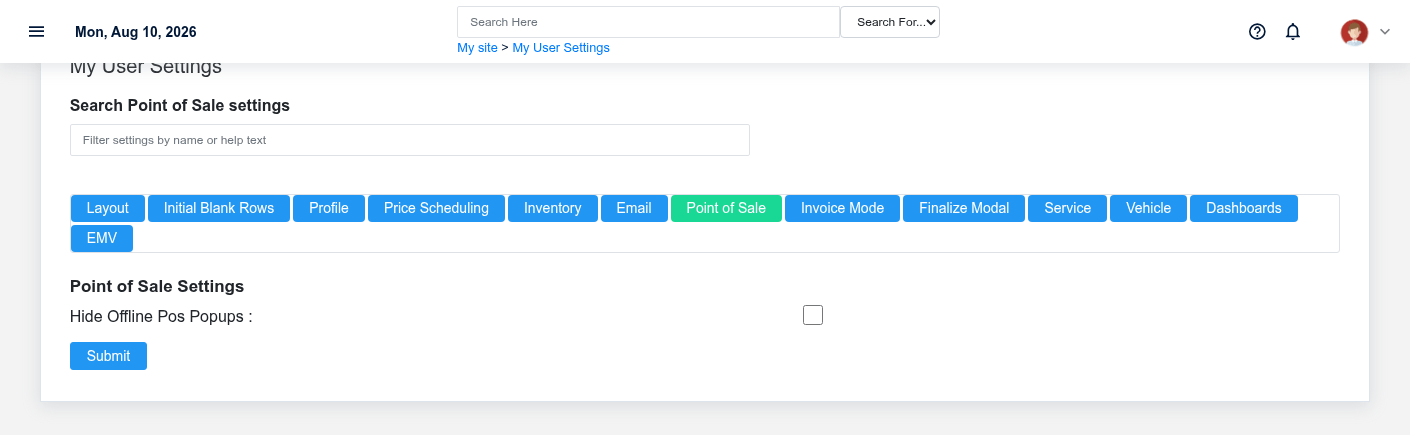
The Point of Sale section of Brisk user settings.
| Setting | What it does | Value type |
| --- | --- | --- |
| Hide Offline POS Popups | Hide transient offline POS notifications and offline data update popups for this user without disabling offline POS queueing or sync. | hide offline pos popups |
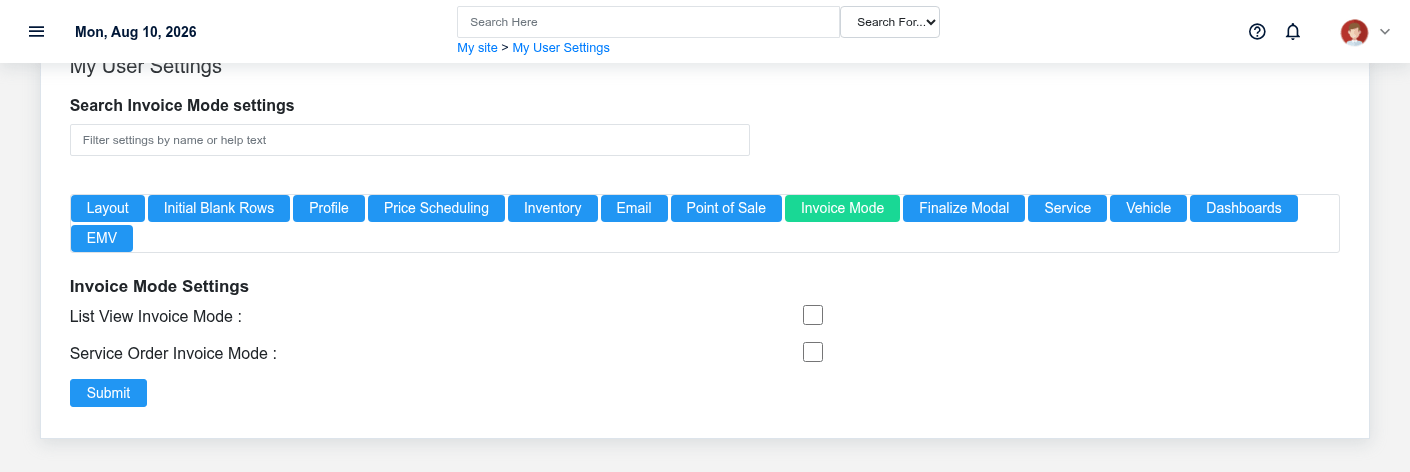
Invoice Mode
The Invoice Mode section of Brisk user settings.
| Setting | What it does | Value type |
| --- | --- | --- |
| List View Invoice Mode | If enabled, you will enter invoice mode from the Sale List screen | invoice mode list |
| Service Order Invoice Mode | If enabled, serivce order conversion will be in invoice mode | invoice mode service |
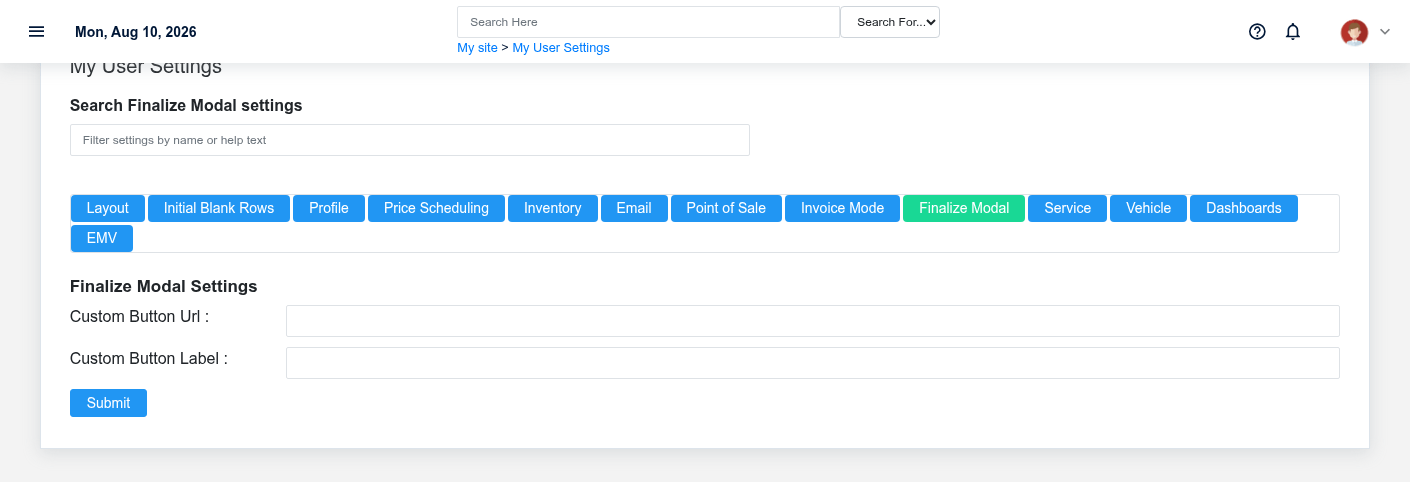
Finalize Modal
The Finalize Modal section of Brisk user settings.
| Setting | What it does | Value type |
| --- | --- | --- |
| Custom Button URL | URL for the custom button on the Finalize Modal | finalize modal custom link |
| Custom Button Label | Text to show on the custom button on the Finalize Modal | finalize modal custom label |
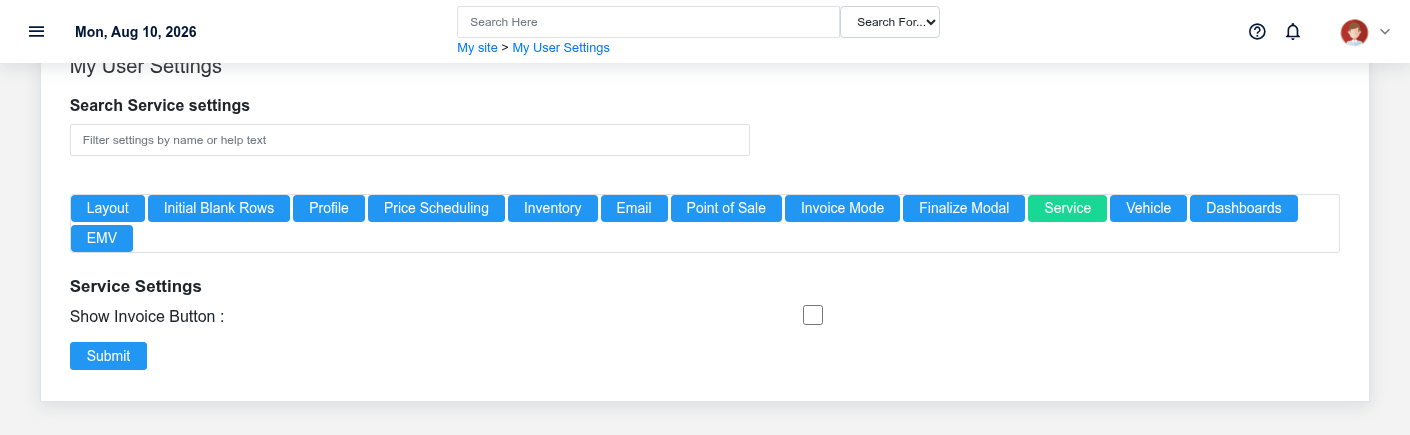
Service
The Service section of Brisk user settings.
| Setting | What it does | Value type |
| --- | --- | --- |
| Show Invoice Button | Determines whether to display invoice conversion button on service orders | show invoice button |
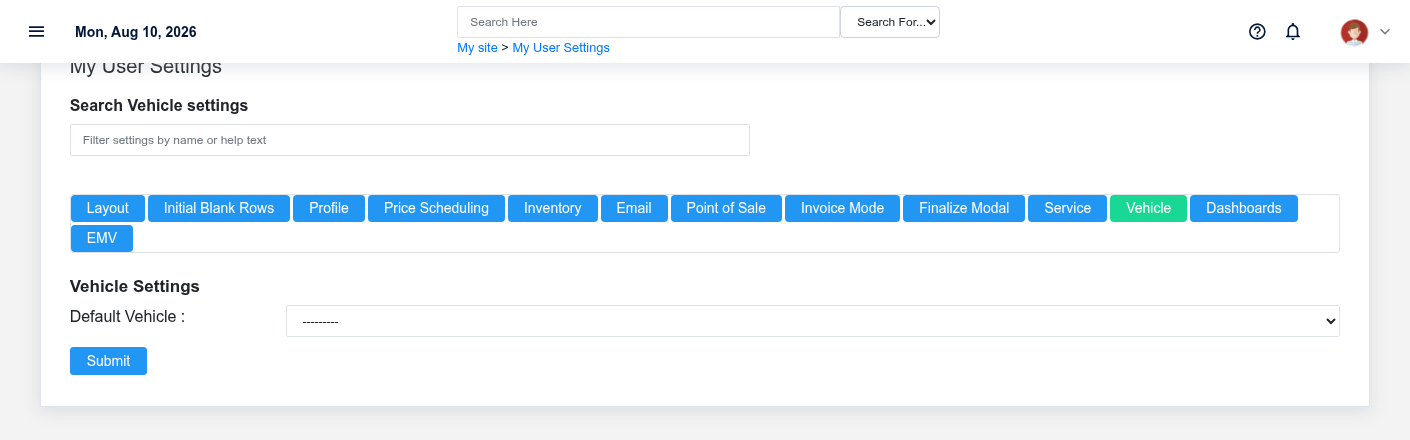
Vehicle
The Vehicle section of Brisk user settings.
| Setting | What it does | Value type |
| --- | --- | --- |
| Default Vehicle | Automatically sets the vehicle for your daily logs | preferred vehicle |
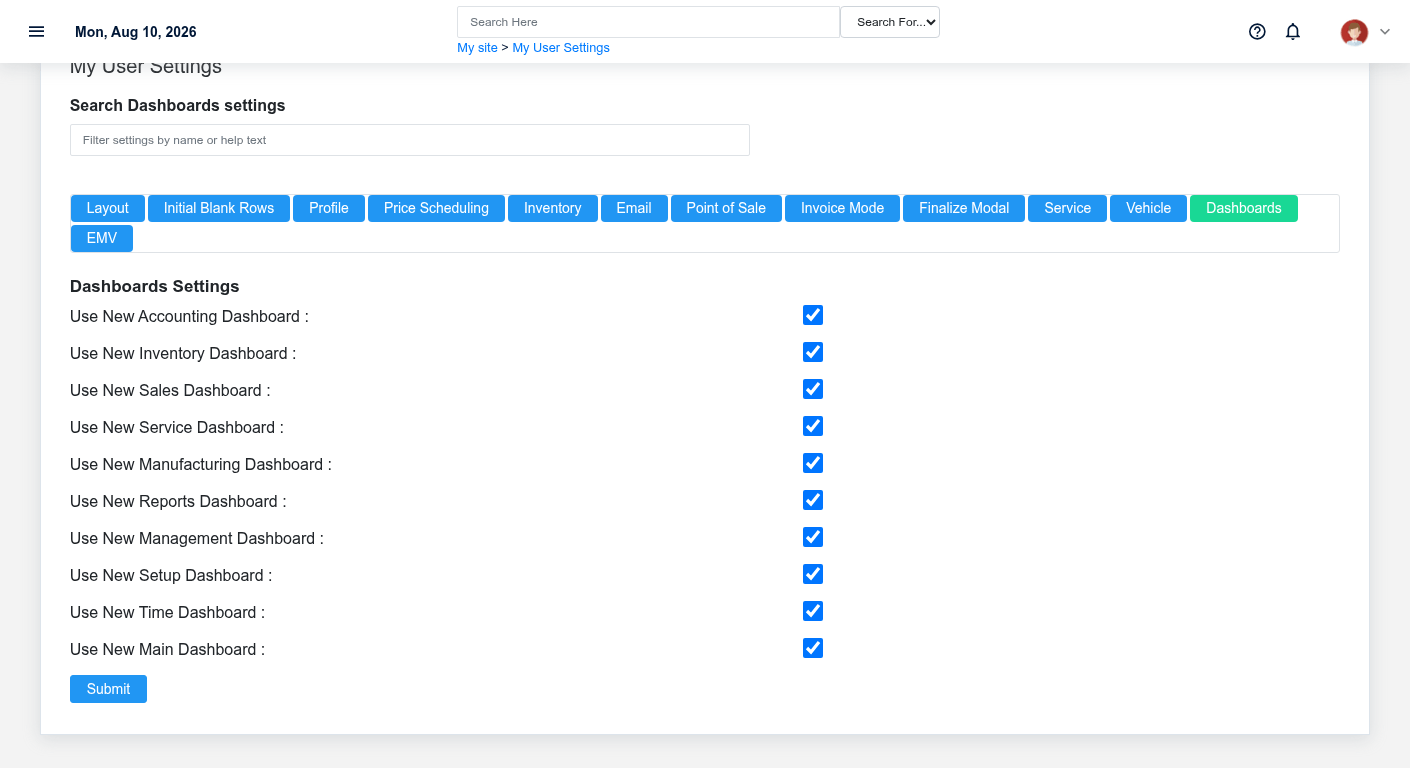
Dashboards
The Dashboards section of Brisk user settings.
| Setting | What it does | Value type |
| --- | --- | --- |
| Use New Accounting Dashboard | Toggle between the new Accounting dashboard and the classic customizable dashboard. | accounting dashboard new |
| Use New Inventory Dashboard | Toggle between the new Inventory dashboard and the classic customizable dashboard. | inventory dashboard new |
| Use New Sales Dashboard | Toggle between the new Sales dashboard and the classic customizable dashboard. | sales dashboard new |
| Use New Service Dashboard | Toggle between the new Service dashboard and the classic customizable dashboard. | service dashboard new |
| Use New Manufacturing Dashboard | Toggle between the new Manufacturing dashboard and the classic customizable dashboard. | manufacturing dashboard new |
| Use New Reports Dashboard | Toggle between the new Reports dashboard and the classic customizable dashboard. | reports dashboard new |
| Use New Management Dashboard | Toggle between the new Management dashboard and the classic customizable dashboard. | management dashboard new |
| Use New Setup Dashboard | Toggle between the new Setup dashboard and the classic customizable dashboard. | setup dashboard new |
| Use New Time Dashboard | Toggle between the new Time dashboard and the classic customizable dashboard. | time dashboard new |
| Use New Main Dashboard | Toggle between the new Main dashboard and the classic customizable dashboard. | main dashboard new |
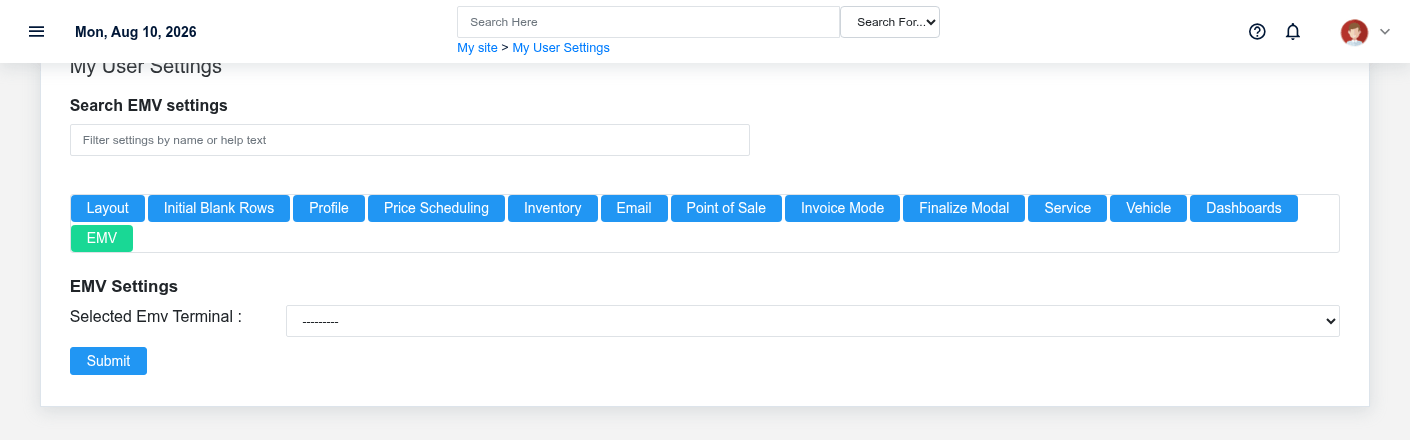
EMV
The EMV section of Brisk user settings.
| Setting | What it does | Value type |
| --- | --- | --- |
| Selected EMV Terminal | Sets the default navigation menu for users that do not have one specified | user emv terminal |