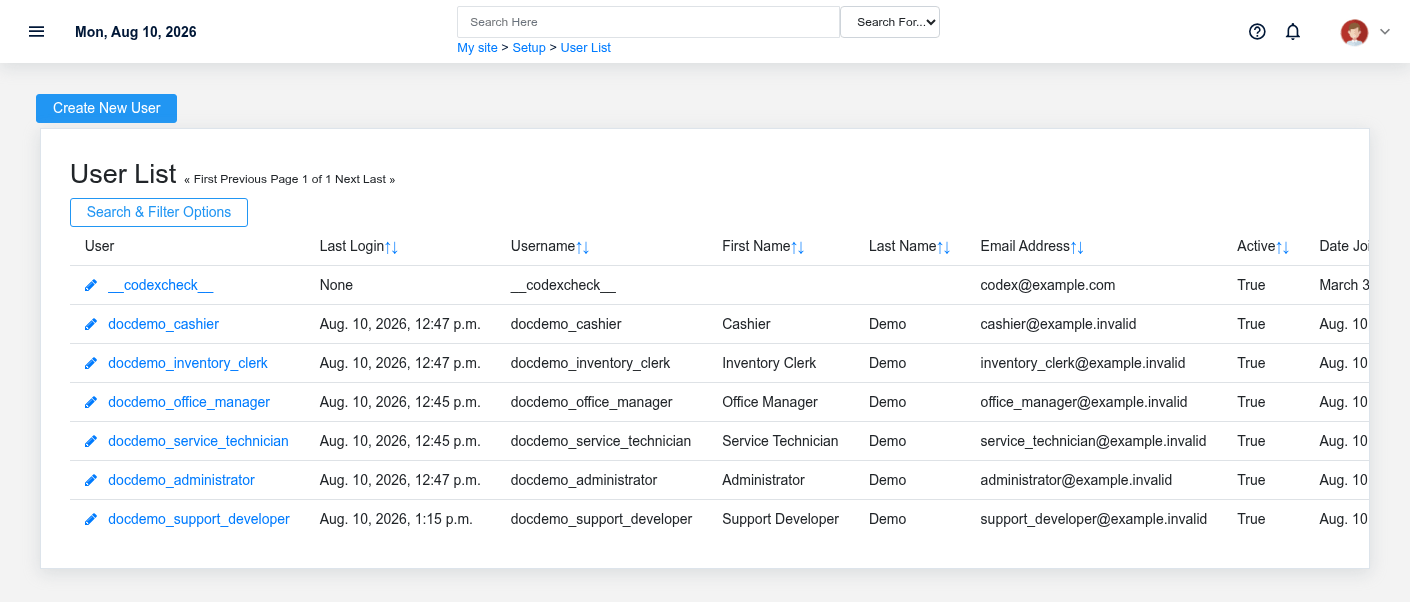
The Setup workspace related to this reference article.
Setup controls how Brisk behaves across the organization, for an individual user, and on a specific workstation. It also contains user and supervisor access, notification setup, data migration, configuration transfer, backup, and restricted support tools. Confirm which scope owns a change before making it.
Choose the correct scope
- Use System Settings for organization-wide modules, accounting behavior, inventory and sales policy, integrations, printing, email, and other shared defaults. Its documentation is restricted to authorized BookStack users because the reference includes Brisk-support-only sections.
- Use [User Preferences](https://help.brisksystems.us/link/2964#bkmrk-overview) for the signed-in person’s layout, workflow defaults, profile, and personal behavior.
- Use [Local Workstation Setup](https://help.brisksystems.us/link/2959#bkmrk-overview) for browser/device behavior such as the register assigned to the current workstation.
- Use [Users and Access](https://help.brisksystems.us/link/2772#bkmrk-overview) and [Supervisors](https://help.brisksystems.us/link/2771#bkmrk-overview) for identity, permissions, and protected override authority.
- Use [Custom Fields](https://help.brisksystems.us/link/2958#bkmrk-overview) only when the business needs information that is not already represented by a supported Brisk field.
Data import
Use [Data Import](https://help.brisksystems.us/link/2966#bkmrk-overview) for supported master-data and historical-data migrations. Inspect columns, identifiers, dates, relationships, and run counts before applying changes. Use bundle export/import for controlled transfer of selected configuration between Brisk instances; a setup bundle is not a complete disaster-recovery backup.
Backup and support operations
Authorized administrators can use Data Backup to download Brisk’s database and media as separate artifacts, then store them outside the application server and test recovery. Its instructions and the additional restricted maintenance tools are available only to BookStack users who have been granted staff-documentation access. Those tools can change system-wide behavior and belong in a documented maintenance window.
Change controls
Record the reason, prior value, new value, owner, and validation step for material system changes. Test integrations, printing, payment, email, hardware, and accounting behavior after changing their settings. Never place passwords, API secrets, encryption keys, or private credentials in screenshots, documentation, or source control.
# Core Records
# Navigation Menus
# Navigation Menus
Purpose and when to use this record
Configure which Brisk module groups and favorites appear in a named navigation menu.
## At a glance
- **Identify it by:** **Name**.
- **Why care:** Setup changes can alter navigation, alerts, and authorization for many users. Test the effect with the intended role or device before broad use.
## Before you begin
You need the Brisk permission for the action you are taking on navigation menus. If a Create, Edit, or Delete control is absent, do not work around it with another user’s account; ask an administrator to review your role.
Create a Navigation Menu
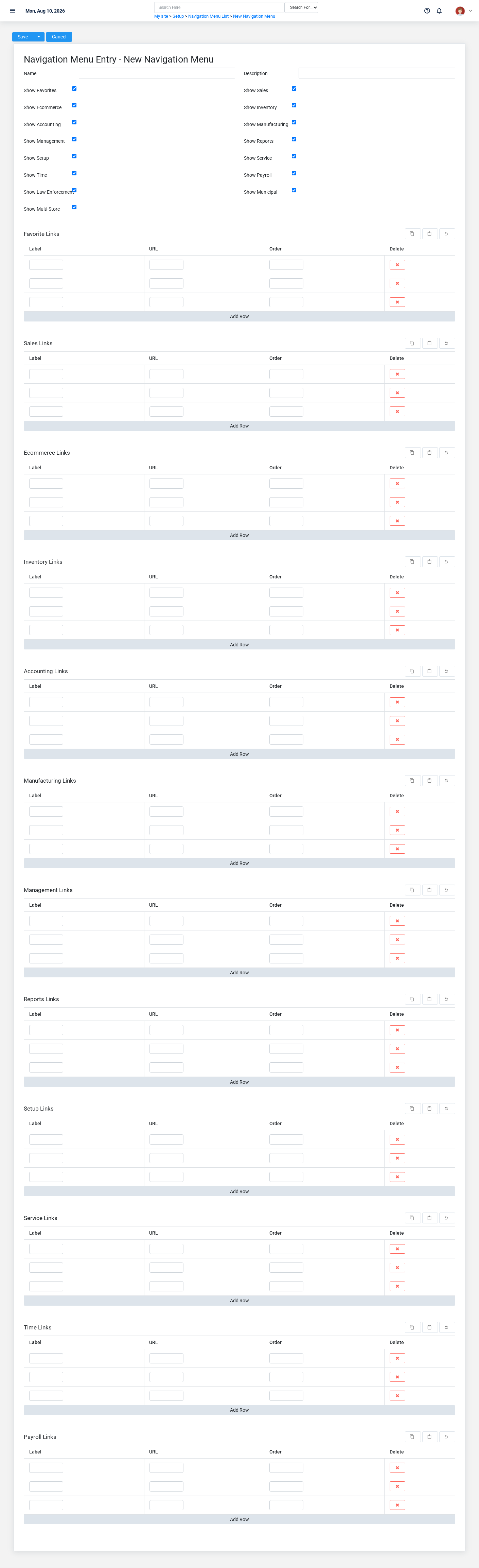
The Navigation Menus create screen in the Brisk documentation demo.
Create a Navigation Menu only when the existing choices do not represent the policy or classification you need. Near-duplicate setup values split reporting and make later selection harder.
1. Select the business context first.
2. Enter the required identifying and operational values: **Name**.
3. Review **Show Favorites**, **Show Sales**, **Show Ecommerce**, **Show Inventory**, **Show Accounting**, and **Show Manufacturing**, plus the remaining screen fields deliberately; these choices control availability or workflow rather than merely describing the record.
4. Save the Navigation Menu, then confirm **Name** on its detail page before continuing.
After saving: Open **Menu Links** and confirm the Navigation Menu appears with the intended label and availability. Keep the old value for historical records when changing it would split or relabel prior reporting.
Delete a Navigation Menu
Delete this Navigation Menu only if it is an unused duplicate or setup mistake. Once other records refer to it, preserve that history and make the value inactive when the screen provides that option.
Before confirming, check for related **Menu Links**. Brisk may refuse deletion when another record depends on this one; resolve the duplicate or use the supported correction workflow instead of breaking the trail.
On the confirmation page, verify **Name**. After confirmation, return to the Navigation Menus list and make sure only the intended Navigation Menu was removed.
Review Navigation Menu details
Use the detail page as the shared record of what this Navigation Menu currently means. Verify **Name**, **Description**, **Show Favorites**, and **Show Sales** before relying on it for a decision.
Compare the Navigation Menu with its source document or approved setup request before deciding that it needs correction.
Next check: Open **Menu Links** and confirm the Navigation Menu appears with the intended label and availability. Keep the old value for historical records when changing it would split or relabel prior reporting.
Edit an existing Navigation Menu
Edit this Navigation Menu when the underlying policy or classification changed. First determine whether historical transactions should retain the old value; if so, deactivate the old choice and create a new one.
1. Open the detail page. Compare **Name** with the supporting document or approved request.
2. Recheck **Show Accounting**. These values are most likely to change navigation, notifications, access, and other users’ behavior.
3. Save the change, return to the list, and confirm that the Navigation Menu now appears under the expected **Name**.
After the change: Open **Menu Links** and confirm the Navigation Menu appears with the intended label and availability. Keep the old value for historical records when changing it would split or relabel prior reporting.
Find and review navigation menus
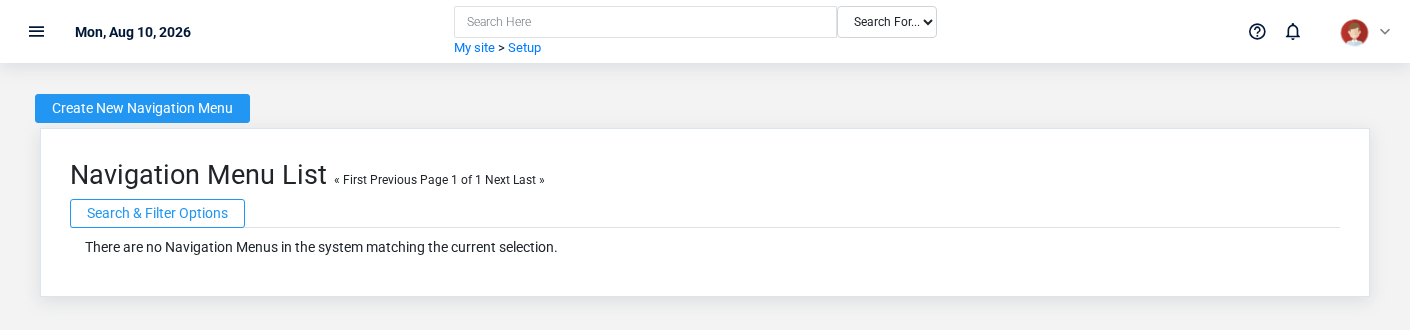
The Navigation Menus list screen in the Brisk documentation demo.
Use the Navigation Menus list to find the correct record before opening or changing it. Compare **Name**. Compare the full identifier rather than relying on a similar name.
- The initial order emphasizes **Id**. Select a column heading when you need a different comparison.
Open the Navigation Menu whose **Name** match the task. If it is missing, clear the list filters and recheck the identifying information shown on the screen rather than creating a replacement immediately.
## Fields and business rules
Brisk stores 17 user-relevant fields for this Navigation Menu, including 0 linked-record selections and 0 controlled-choice fields. Create and edit screens may hide calculated or workflow-managed values from this full reference.
| Field | Required | What it controls |
|---|---:|---|
| **Name** | Yes | Human-readable name for this navigation menu. |
| **Description** | No | Leave any notes about this menu here. |
| **Show Favorites** | No | Show or hide the favorites submenu. |
| **Show Sales** | No | Show or hide the sales submenu. |
| **Show Ecommerce** | No | Show or hide the ecommerce submenu. |
| **Show Inventory** | No | Show or hide the inventory submenu. |
| **Show Accounting** | No | Show or hide the accounting submenu. |
| **Show Manufacturing** | No | Show or hide the manufacturing submenu. |
| **Show Management** | No | Show or hide the management submenu. |
| **Show Reports** | No | Show or hide the reports submenu. |
| **Show Setup** | No | Show or hide the setup submenu. |
| **Show Service** | No | Show or hide the service submenu. |
| **Show Time** | No | Show or hide the time submenu. |
| **Show Payroll** | No | Show or hide the payroll submenu. |
| **Show Law Enforcement** | No | Show or hide the law enforcement submenu. |
| **Show Municipal** | No | Show or hide the municipal submenu. |
| **Show Multi-Store** | No | Show or hide the multi-store submenu. |
## What happens next
Open **Menu Links** and confirm the Navigation Menu appears with the intended label and availability. Keep the old value for historical records when changing it would split or relabel prior reporting.
## Common mistakes and troubleshooting
- **The record will not save:** Recheck **Name** and any message beside the field. A required related record may also be inactive or unavailable to your role.
- **The values look right but the result is wrong:** Compare this Navigation Menu with the source document or approved setup decision, then check the downstream screen where it is used.
# Notifications
# Notifications
Purpose and when to use this record
Review an individual user alert, its urgency, destination, delivery content, and dismissed state.
## At a glance
- **Identify it by:** **User**, **Label**, **Body**, and **Notification Link**.
- **Check its business context:** **User**.
- **Why care:** Setup changes can alter navigation, alerts, and authorization for many users. Test the effect with the intended role or device before broad use.
## Before you begin
You need the Brisk permission for the action you are taking on notifications. If a Create, Edit, or Delete control is absent, do not work around it with another user’s account; ask an administrator to review your role.
Have valid **User** records ready first. Those selections determine where this notification belongs and which later screens can find it.
Create a notification
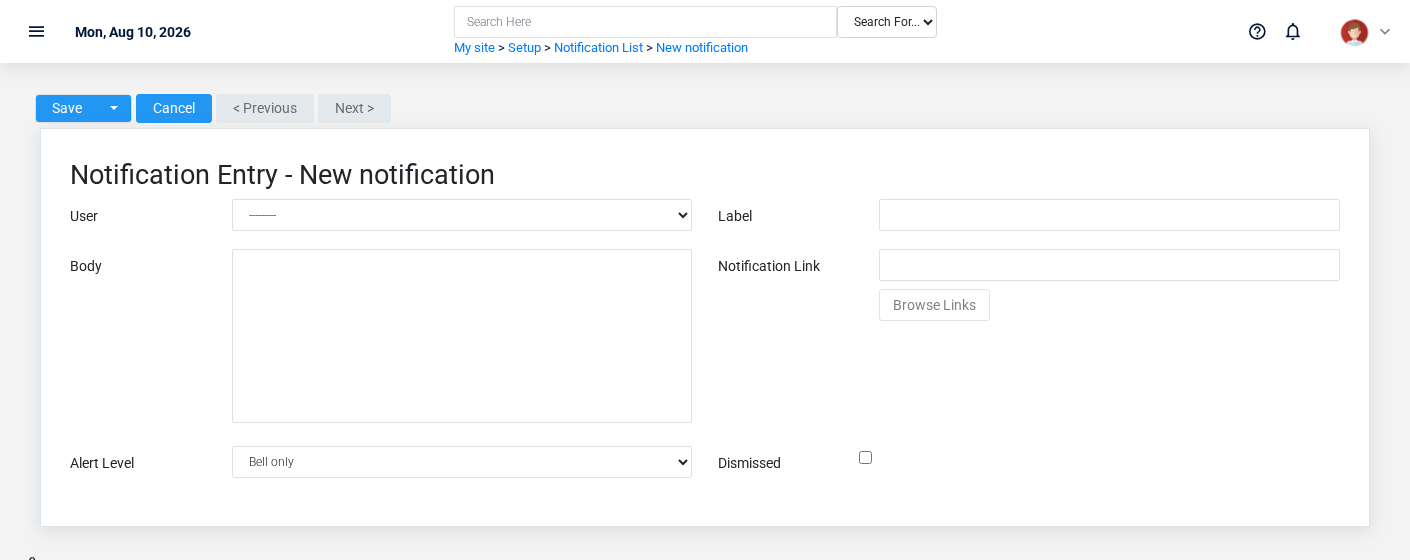
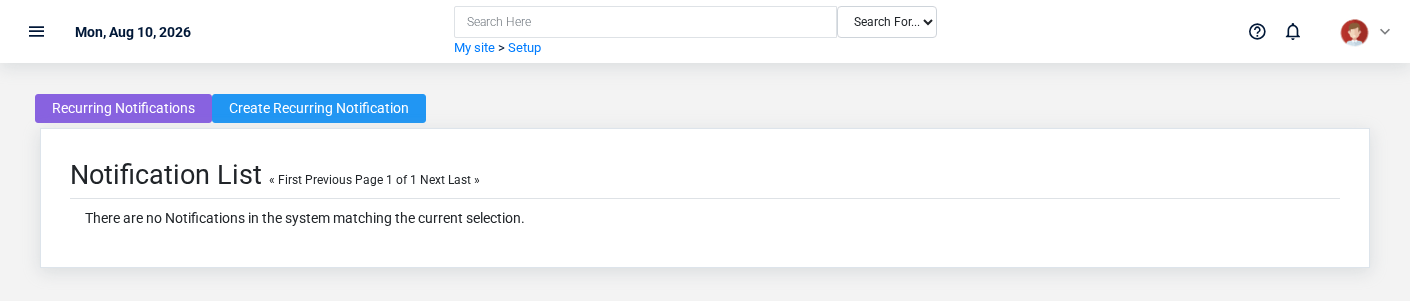
The Notifications create screen in the Brisk documentation demo.
Create a notification after searching for the person, organization, item, location, or resource under alternate names and identifiers. Merge or correct an existing master record instead of creating a duplicate.
1. Select the business context first: **User**.
2. Enter the required identifying and operational values: **User**, **Label**, and **Body**.
3. Review **Alert Level**, and **Dismissed** deliberately; these choices control availability or workflow rather than merely describing the record.
4. Save the notification, then confirm **User**, **Label**, **Body**, **Notification Link**, **Alert Level**, and **Dismissed** on its detail page before continuing.
After saving: Verify this notification in the next transaction or assignment screen before staff build new activity on it; correct ownership, classification, and active state now rather than after transactions accumulate.
Delete a notification
Delete this notification only if it is an unused duplicate or setup mistake. Once other records refer to it, preserve that history and make the value inactive when the screen provides that option.
On the confirmation page, verify **User**, **Label**, **Body**, and **Notification Link**. After confirmation, return to the Notifications list and make sure only the intended notification was removed.
Review notification details
Use the detail page as the shared record of what this notification currently means. Verify **Alert Level** before relying on it for a decision.
Follow **User** to determine whether the issue is on this notification or on one of those linked records.
Next check: Verify this notification in the next transaction or assignment screen before staff build new activity on it; correct ownership, classification, and active state now rather than after transactions accumulate.
Edit an existing notification
Edit this notification to keep the same real-world party, item, location, or resource accurate. Do not repurpose it for a different entity after activity is attached.
1. Open the detail page. Compare **User** with the supporting document or approved request.
2. Recheck **Alert Level**. These values are most likely to change navigation, notifications, access, and other users’ behavior.
3. Save the change, return to the list, and confirm that the notification now appears under the expected **Alert Level**.
After the change: Verify this notification in the next transaction or assignment screen before staff build new activity on it; correct ownership, classification, and active state now rather than after transactions accumulate.
Find and review notifications
The Notifications list screen in the Brisk documentation demo.
Use the Notifications list to find the correct record before opening or changing it. Compare **User**, **Label**, **Body**, and **Notification Link**. Records with similar names or numbers can still belong to different **User**.
Open the notification whose **User**, **Label**, **Body**, and **Notification Link** match the task. If it is missing, clear the list filters and recheck **Alert Level** rather than creating a replacement immediately.
## Fields and business rules
Brisk stores 6 user-relevant fields for this notification, including 1 linked-record selection and 1 controlled-choice field. Create and edit screens may hide calculated or workflow-managed values from this full reference.
| Field | Required | What it controls |
|---|---:|---|
| **User** | Yes | The user that this notification is for. |
| **Label** | Yes | The title or description of this notification. |
| **Body** | Yes | The message delivered by this notification. |
| **Notification Link** | No | The destination that this notification will direct to. |
| **Alert Level** | No | Controls the notification delivery intensity. Available values: Bell only, Blocking popup, Popup and email. |
| **Dismissed** | No | Once dismissed, this notification will be marked as read and will not be highlighted or contribute to the list of unread notifications. |
## What happens next
Verify this notification in the next transaction or assignment screen before staff build new activity on it; correct ownership, classification, and active state now rather than after transactions accumulate.
## Common mistakes and troubleshooting
- **The record will not save:** Recheck **User**, **Label**, and **Body** and any message beside the field. A required related record may also be inactive or unavailable to your role.
- **The values look right but the result is wrong:** Open **User** from the detail page. Correct the specific relationship that is wrong instead of forcing a total or status to compensate for it.
# Push Subscriptions
# Push Subscriptions
Purpose and when to use this record
Review and manage the browser or device endpoint used to deliver push notifications to a user.
## At a glance
- **Identify it by:** **Device Label**.
- **Check its business context:** **User**.
- **Why care:** Availability and publication flags affect future use without erasing history. Prefer disabling an obsolete setup record when existing transactions still refer to it.
## Before you begin
You need the Brisk permission for the action you are taking on push subscriptions. If a Create, Edit, or Delete control is absent, do not work around it with another user’s account; ask an administrator to review your role.
Have valid **User** records ready first. Those selections determine where this Push Subscription belongs and which later screens can find it.
Find and review push subscriptions
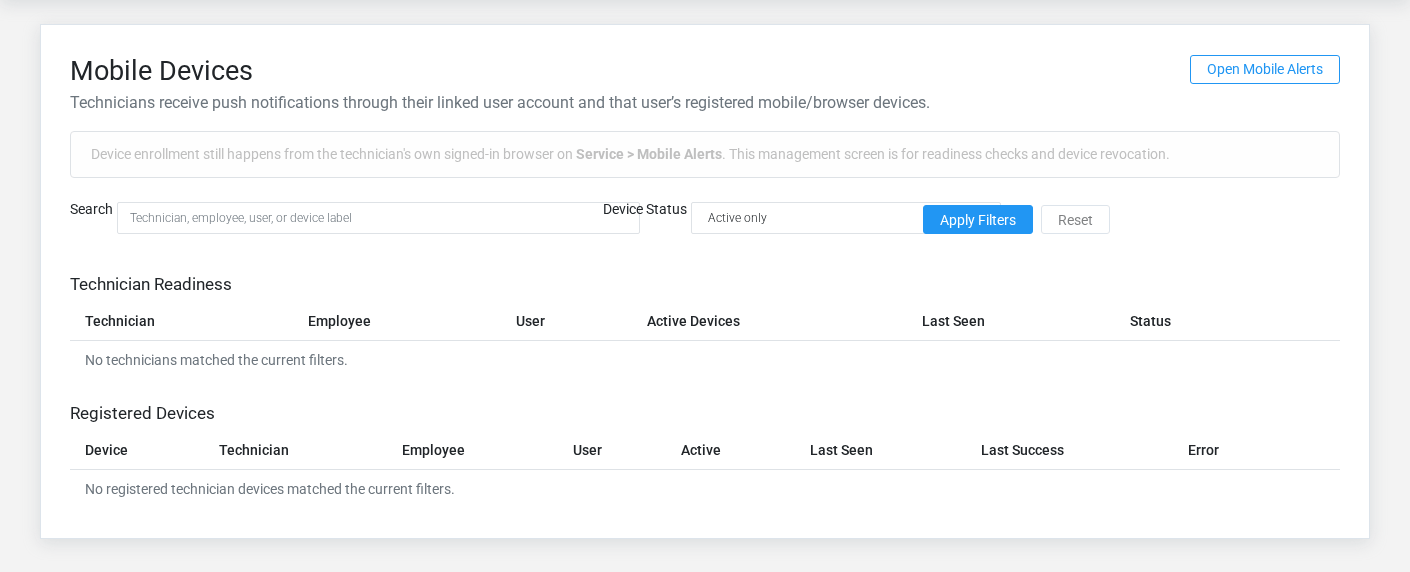
The Push Subscriptions list screen in the Brisk documentation demo.
Use the Push Subscriptions list to find the correct record before opening or changing it. Compare **User**, **Endpoint**, **P256Dh Key**, and **Auth Key**. Records with similar names or numbers can still belong to different **User**.
Open the Push Subscription whose **User**, **Endpoint**, **P256Dh Key**, and **Auth Key** match the task. If it is missing, clear the list filters and recheck **Active** rather than creating a replacement immediately.
## Fields and business rules
Brisk stores 9 user-relevant fields for this Push Subscription, including 1 linked-record selection and 0 controlled-choice fields. Create and edit screens may hide calculated or workflow-managed values from this full reference.
| Field | Required | What it controls |
|---|---:|---|
| **User** | Yes | The user associated with this push subscription. |
| **Endpoint** | Yes | The endpoint recorded for this push subscription. |
| **P256Dh Key** | Yes | The p256dh key recorded for this push subscription. |
| **Auth Key** | Yes | The auth key recorded for this push subscription. |
| **Device Label** | No | The device label recorded for this push subscription. |
| **User Agent** | No | The user agent recorded for this push subscription. |
| **Active** | No | Whether this push subscription is active and available for use. |
| **Last Success At** | No | Date and time recorded for last success at on this push subscription. |
| **Last Error** | No | The last error recorded for this push subscription. |
## What happens next
Test the Push Subscription from its intended client and allowed network with only the granted capabilities, then document its owner and rotation date in the organization’s secure credential inventory.
## Common mistakes and troubleshooting
- **The record will not save:** Recheck **User**, **Endpoint**, **P256Dh Key**, and **Auth Key** and any message beside the field. A required related record may also be inactive or unavailable to your role.
- **The record saved but is not available where expected:** Recheck **Active**, then clear the filters on the destination list. A saved record can still be inactive, unpublished, locked, unapproved, or in the wrong workflow state.
- **The values look right but the result is wrong:** Open **User** from the detail page. Correct the specific relationship that is wrong instead of forcing a total or status to compensate for it.
# Recurring Notifications
# Recurring Notifications
Purpose and when to use this record
Schedule a repeated alert for selected recipients with a weekly, monthly, quarterly, or annual cadence.
## At a glance
- **Identify it by:** **Label**, **Body**, **Notification Link**, and **Alert Level**.
- **Check its business context:** **Owner**.
- **Why care:** Setup changes can alter navigation, alerts, and authorization for many users. Test the effect with the intended role or device before broad use.
- **Why care:** Availability and publication flags affect future use without erasing history. Prefer disabling an obsolete setup record when existing transactions still refer to it.
## Before you begin
You need the Brisk permission for the action you are taking on recurring notifications. If a Create, Edit, or Delete control is absent, do not work around it with another user’s account; ask an administrator to review your role.
Create a recurring notification
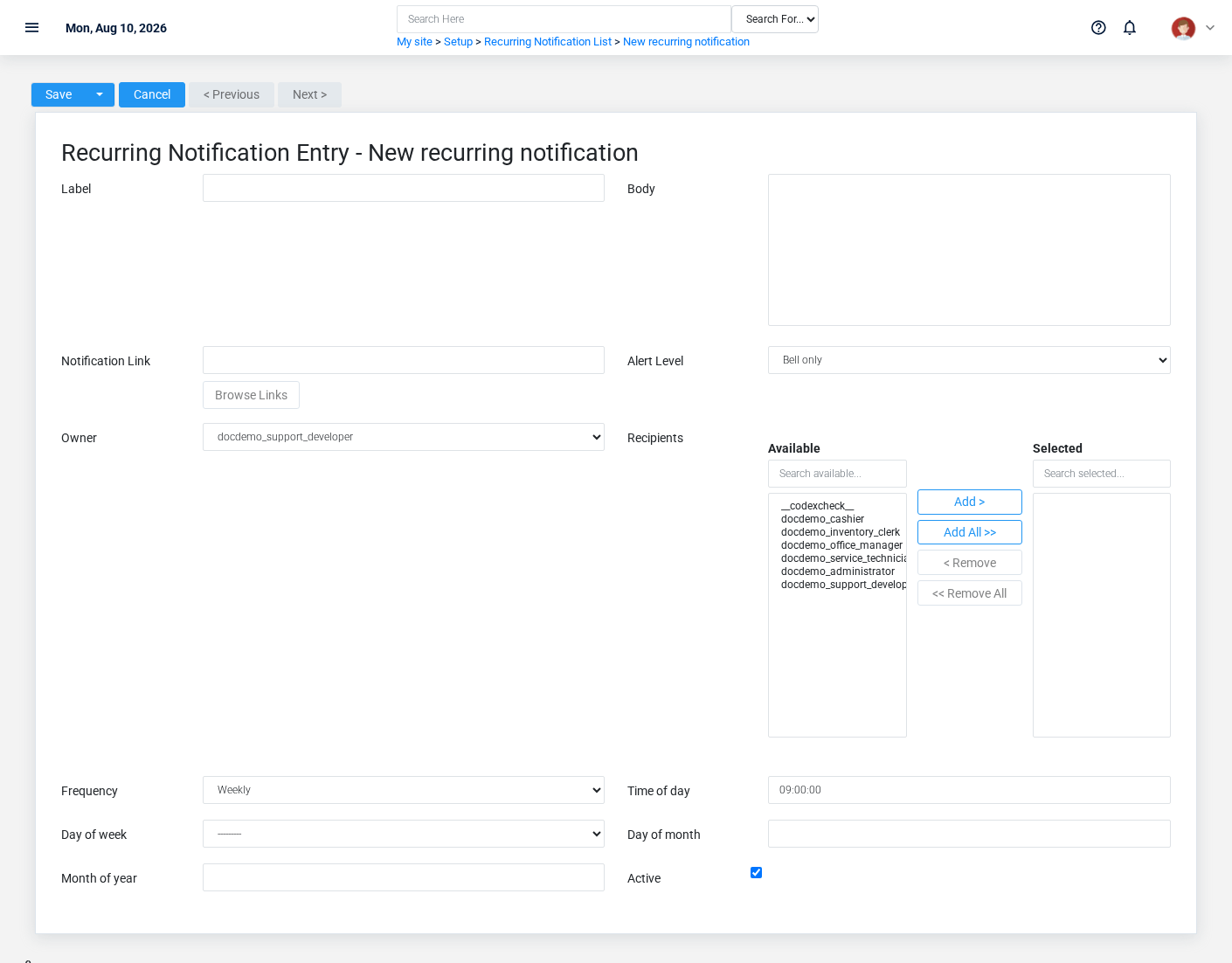
The Recurring Notifications create screen in the Brisk documentation demo.
Create a recurring notification after searching for the person, organization, item, location, or resource under alternate names and identifiers. Merge or correct an existing master record instead of creating a duplicate.
1. Select the business context first: **Owner**.
2. Enter the required identifying and operational values: **Label**, and **Body**.
3. Review **Alert Level**, **Frequency**, **Day Of Week**, and **Active** deliberately; these choices control availability or workflow rather than merely describing the record.
4. Save the recurring notification, then confirm **Label**, **Body**, **Notification Link**, **Alert Level**, **Owner**, and **Recipients**, plus the remaining screen fields on its detail page before continuing.
After saving: Verify this recurring notification in the next transaction or assignment screen before staff build new activity on it; correct ownership, classification, and active state now rather than after transactions accumulate.
Delete a recurring notification
Delete this recurring notification only if it is an unused duplicate or setup mistake. Once other records refer to it, preserve that history and make the value inactive when the screen provides that option.
If the record is merely obsolete, use **Active** to remove it from future use while preserving existing references.
On the confirmation page, verify **Label**, **Body**, **Notification Link**, and **Alert Level**. After confirmation, return to the Recurring Notifications list and make sure only the intended recurring notification was removed.
Review recurring notification details
Use the detail page as the shared record of what this recurring notification currently means. Verify **Alert Level**, **Frequency**, **Day Of Week**, and **Active** before relying on it for a decision.
Follow **Owner** to determine whether the issue is on this recurring notification or on one of those linked records.
Next check: Verify this recurring notification in the next transaction or assignment screen before staff build new activity on it; correct ownership, classification, and active state now rather than after transactions accumulate.
Edit an existing recurring notification
Edit this recurring notification to keep the same real-world party, item, location, or resource accurate. Do not repurpose it for a different entity after activity is attached.
1. Open the detail page. Compare **Owner** with the supporting document or approved request.
2. Recheck **Alert Level**, **Frequency**, **Day Of Week**, and **Active**. These values are most likely to change navigation, notifications, access, and other users’ behavior.
3. Save the change, return to the list, and confirm that the recurring notification now appears under the expected **Alert Level**, **Frequency**, **Day Of Week**, and **Active**.
After the change: Verify this recurring notification in the next transaction or assignment screen before staff build new activity on it; correct ownership, classification, and active state now rather than after transactions accumulate.
Find and review recurring notifications
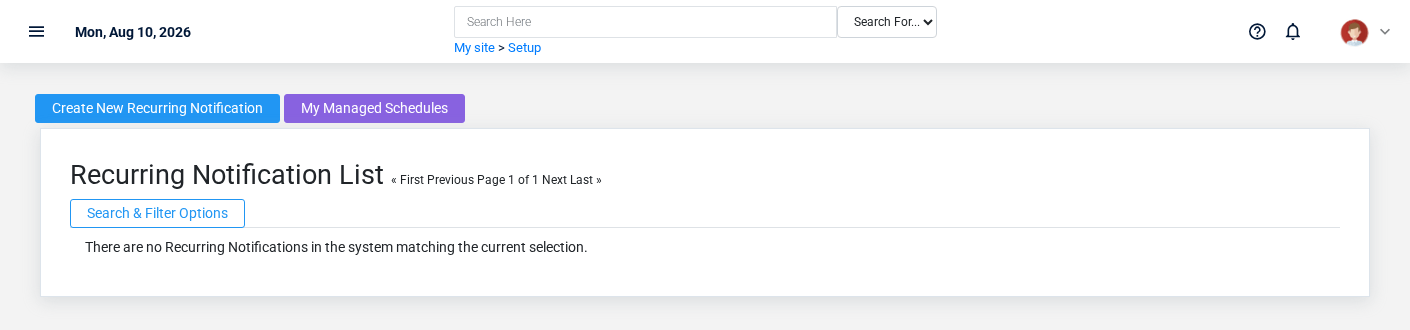
The Recurring Notifications list screen in the Brisk documentation demo.
Use the Recurring Notifications list to find the correct record before opening or changing it. Compare **Label**, **Body**, **Notification Link**, and **Alert Level**. Records with similar names or numbers can still belong to different **Owner**.
Open the recurring notification whose **Label**, **Body**, **Notification Link**, and **Alert Level** match the task. If it is missing, clear the list filters and recheck **Alert Level**, **Frequency**, **Day Of Week**, and **Active** rather than creating a replacement immediately.
## Fields and business rules
Brisk stores 13 user-relevant fields for this recurring notification, including 1 linked-record selection and 3 controlled-choice fields. Create and edit screens may hide calculated or workflow-managed values from this full reference.
| Field | Required | What it controls |
|---|---:|---|
| **Label** | Yes | The title or description of this notification. |
| **Body** | Yes | The message delivered by this notification. |
| **Notification Link** | No | The destination that this notification will direct to. |
| **Alert Level** | No | Controls the notification delivery intensity. Available values: Bell only, Blocking popup, Popup and email. |
| **Owner** | No | User who manages this recurring notification. |
| **Frequency** | No | How often this notification repeats. Available values: Weekly, Monthly, Quarterly, Annually. |
| **Time Of Day** | No | Time of day to deliver the notification. |
| **Day Of Week** | No | Required for weekly schedules. Available values: Monday, Tuesday, Wednesday, Thursday, Friday, Saturday, Sunday. |
| **Day Of Month** | No | Required for monthly, quarterly, and annual schedules. |
| **Month Of Year** | No | Starting month for quarterly schedules (runs every 3 months from this month) or the month for annual schedules. |
| **Next Run At** | No | Next scheduled delivery time. |
| **Last Sent At** | No | Last time this notification was delivered. |
| **Active** | No | Disable to pause this recurring notification. |
## What happens next
Verify this recurring notification in the next transaction or assignment screen before staff build new activity on it; correct ownership, classification, and active state now rather than after transactions accumulate.
## Common mistakes and troubleshooting
- **The record will not save:** Recheck **Label**, and **Body** and any message beside the field. A required related record may also be inactive or unavailable to your role.
- **The record saved but is not available where expected:** Recheck **Alert Level**, **Frequency**, **Day Of Week**, and **Active**, then clear the filters on the destination list. A saved record can still be inactive, unpublished, locked, unapproved, or in the wrong workflow state.
- **The values look right but the result is wrong:** Open **Owner** from the detail page. Correct the specific relationship that is wrong instead of forcing a total or status to compensate for it.
# Supervisor Logs
# Supervisor Logs
Purpose and when to use this record
Audit a supervisor-override attempt, including the user, screen, object, override type, and authorization result.
## At a glance
- **Identify it by:** **Supervisor**, **User**, **Initials Entered**, and **Screen**.
- **Check its business context:** **Supervisor**, **User**, and **Content Type**.
- **Why care:** Setup changes can alter navigation, alerts, and authorization for many users. Test the effect with the intended role or device before broad use.
## Before you begin
You need the Brisk permission for the action you are taking on supervisor logs. If a Create, Edit, or Delete control is absent, do not work around it with another user’s account; ask an administrator to review your role.
Find and review supervisor logs
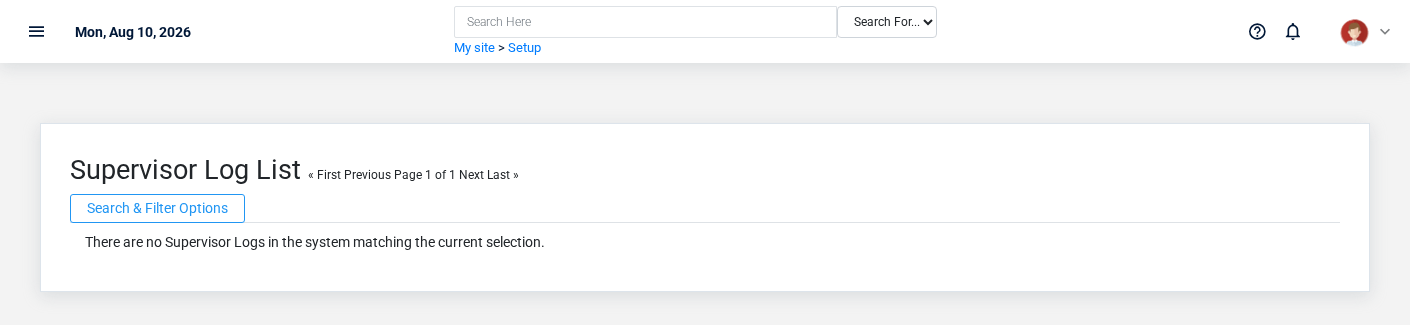
The Supervisor Logs list screen in the Brisk documentation demo.
Use the Supervisor Logs list to find the correct record before opening or changing it. Compare **Supervisor**, **User**, **Initials Entered**, and **Screen**. Records with similar names or numbers can still belong to different **Supervisor**, **User**, and **Content Type**.
- The initial order emphasizes **Id**. Select a column heading when you need a different comparison.
Open the supervisor log whose **Supervisor**, **User**, **Initials Entered**, and **Screen** match the task. If it is missing, clear the list filters and recheck the identifying information shown on the screen rather than creating a replacement immediately.
## Fields and business rules
Brisk stores 9 user-relevant fields for this supervisor log, including 3 linked-record selections and 0 controlled-choice fields. Create and edit screens may hide calculated or workflow-managed values from this full reference.
| Field | Required | What it controls |
|---|---:|---|
| **Supervisor** | No | The supervisor associated with this supervisor log. |
| **User** | No | The user associated with this supervisor log. |
| **Initials Entered** | No | The initials entered recorded for this supervisor log. |
| **Screen** | Yes | The screen recorded for this supervisor log. |
| **Content Type** | No | The content type associated with this supervisor log. |
| **Object Id** | No | The object ID value recorded for this supervisor log. |
| **Authorized** | No | Whether the authorized option applies to this supervisor log. |
| **Override Type** | No | The override type recorded for this supervisor log. |
| **Memo** | No | The memo recorded for this supervisor log. |
## What happens next
Use **Supervisor**, **User**, and **Content Type** to interpret this supervisor log. If it records a failure or exception, correct the source process and create a new successful event rather than rewriting the audit trail.
## Common mistakes and troubleshooting
- **The record will not save:** Recheck **Screen** and any message beside the field. A required related record may also be inactive or unavailable to your role.
- **The values look right but the result is wrong:** Open **Supervisor**, **User**, and **Content Type** from the detail page. Correct the specific relationship that is wrong instead of forcing a total or status to compensate for it.
# Supervisors
# Supervisors
Purpose and when to use this record
Grant a supervisor only the override categories they are allowed to authorize with their protected credentials.
## At a glance
- **Identify it by:** **Name**.
- **Why care:** Setup changes can alter navigation, alerts, and authorization for many users. Test the effect with the intended role or device before broad use.
## Before you begin
You need the Brisk permission for the action you are taking on supervisors. If a Create, Edit, or Delete control is absent, do not work around it with another user’s account; ask an administrator to review your role.
Create a supervisor
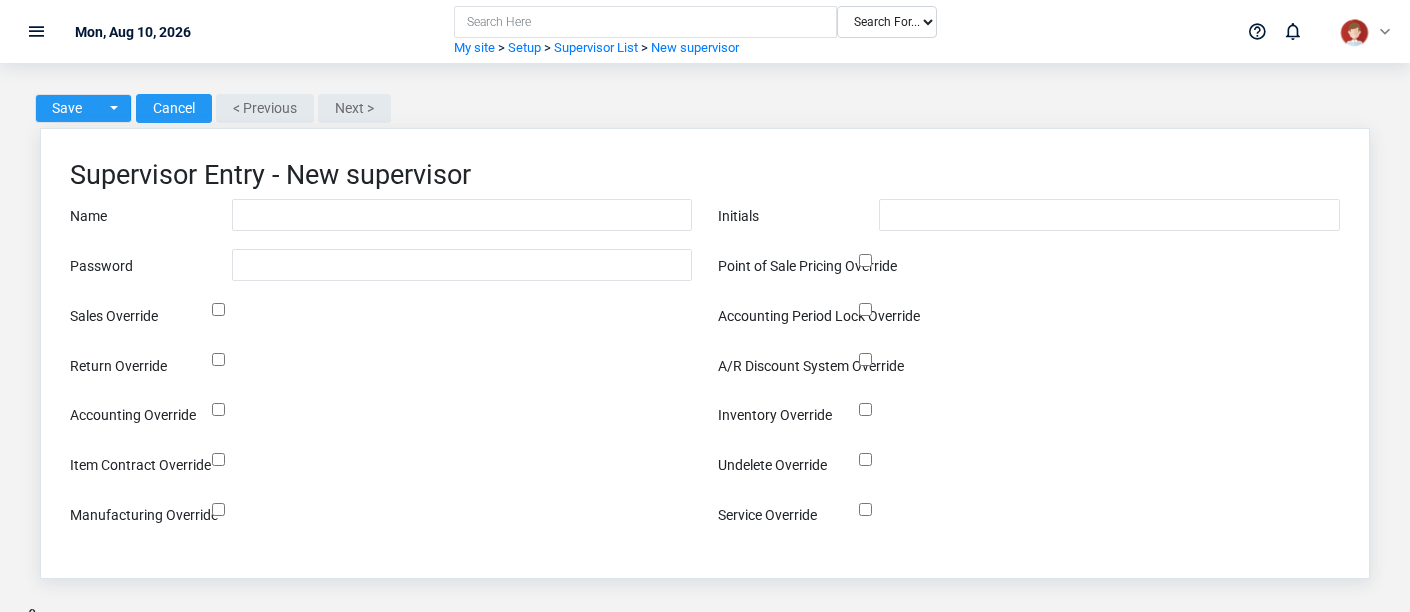
The Supervisors create screen in the Brisk documentation demo.
Create a supervisor after searching for the person, organization, item, location, or resource under alternate names and identifiers. Merge or correct an existing master record instead of creating a duplicate.
1. Select the business context first.
2. Enter the required identifying and operational values: **Name**, **Initials**, and **Password**.
3. Review **Point Of Sale Pricing Override**, **Sales Override**, **Return Override**, **Accounting Period Lock Override**, **A/R Discount System Override**, and **Accounting Override**, plus the remaining screen fields deliberately; these choices control availability or workflow rather than merely describing the record.
4. Save the supervisor, then confirm **Name** on its detail page before continuing.
After saving: Verify this supervisor in **Supervisor Logs** before staff build new activity on it; correct ownership, classification, and active state now rather than after transactions accumulate.
Review supervisor details
Use the detail page as the shared record of what this supervisor currently means. Verify **Name**, **Initials**, **Password**, and **Point Of Sale Pricing Override** before relying on it for a decision.
Compare the supervisor with its source document or approved setup request before deciding that it needs correction.
Next check: Verify this supervisor in **Supervisor Logs** before staff build new activity on it; correct ownership, classification, and active state now rather than after transactions accumulate.
Edit an existing supervisor
Edit this supervisor to keep the same real-world party, item, location, or resource accurate. Do not repurpose it for a different entity after activity is attached.
1. Open the detail page. Compare **Name** with the supporting document or approved request.
2. Recheck **Accounting Period Lock Override**, and **Accounting Override**. These values are most likely to change navigation, notifications, access, and other users’ behavior.
3. Save the change, return to the list, and confirm that the supervisor now appears under the expected **Name**.
After the change: Verify this supervisor in **Supervisor Logs** before staff build new activity on it; correct ownership, classification, and active state now rather than after transactions accumulate.
Find and review supervisors
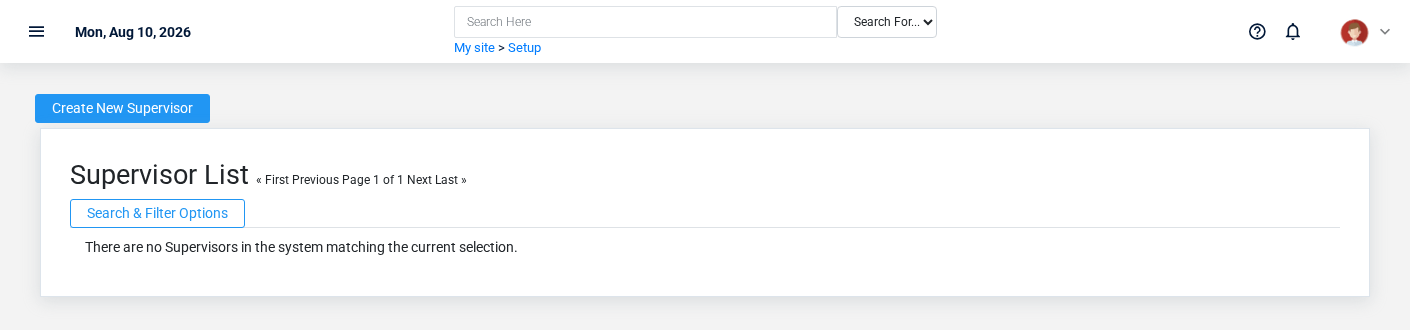
The Supervisors list screen in the Brisk documentation demo.
Use the Supervisors list to find the correct record before opening or changing it. Compare **Name**. Compare the full identifier rather than relying on a similar name.
- The initial order emphasizes **Id**. Select a column heading when you need a different comparison.
Open the supervisor whose **Name** match the task. If it is missing, clear the list filters and recheck the identifying information shown on the screen rather than creating a replacement immediately.
## Fields and business rules
Brisk stores 15 user-relevant fields for this supervisor, including 0 linked-record selections and 0 controlled-choice fields. Create and edit screens may hide calculated or workflow-managed values from this full reference.
| Field | Required | What it controls |
|---|---:|---|
| **Name** | Yes | Human-readable name for this supervisor. |
| **Initials** | Yes | The initials recorded for this supervisor. |
| **Password** | Yes | The password recorded for this supervisor. |
| **Point Of Sale Pricing Override** | No | Whether the point of sale pricing override option applies to this supervisor. |
| **Sales Override** | No | Whether the sales override option applies to this supervisor. |
| **Return Override** | No | Whether the return override option applies to this supervisor. |
| **Accounting Period Lock Override** | No | Whether the accounting period lock override option applies to this supervisor. |
| **A/R Discount System Override** | No | Whether the a/r discount system override option applies to this supervisor. |
| **Accounting Override** | No | Whether the accounting override option applies to this supervisor. |
| **Inventory Override** | No | Whether the inventory override option applies to this supervisor. |
| **Item Contract Override** | No | Whether the item contract override option applies to this supervisor. |
| **Undelete Override** | No | Whether the undelete override option applies to this supervisor. |
| **Manufacturing Override** | No | Whether the manufacturing override option applies to this supervisor. |
| **Service Override** | No | Whether the service override option applies to this supervisor. |
| **Time Override** | No | Whether the time override option applies to this supervisor. |
## What happens next
Verify this supervisor in **Supervisor Logs** before staff build new activity on it; correct ownership, classification, and active state now rather than after transactions accumulate.
## Common mistakes and troubleshooting
- **The record will not save:** Recheck **Name**, **Initials**, and **Password** and any message beside the field. A required related record may also be inactive or unavailable to your role.
- **The values look right but the result is wrong:** Compare this supervisor with the source document or approved setup decision, then check the downstream screen where it is used.