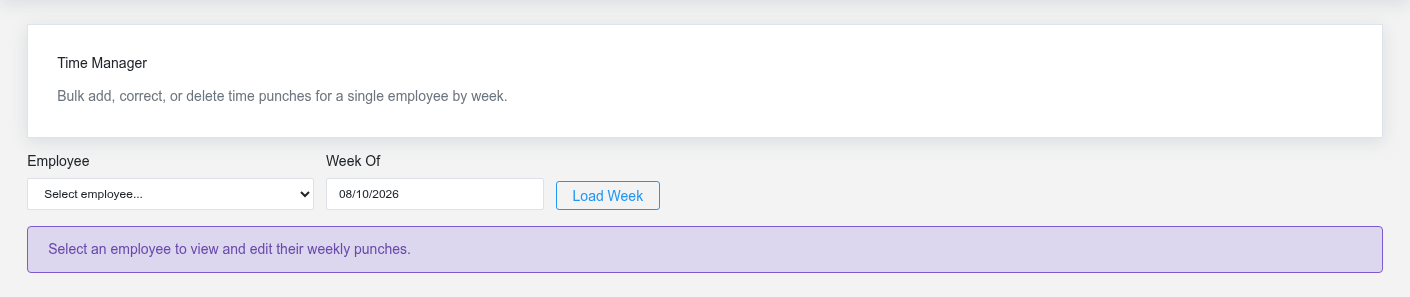
Time Manager gives department managers a weekly view of employee punches and a controlled way to correct missing, overlapping, or inaccurate time. Superusers can work across departments; other managers can select only employees in departments they manage.
Manage time activity
The Time Manager manager screen in the Brisk documentation demo.
1. Select the **Employee** and enter a **Week Of** date. Brisk normalizes the date to Monday through Sunday.
2. Use **Previous Week** or **Next Week** to move without changing the employee.
3. Review the daily totals and punch summaries before opening a day. Look for open entries, gaps, overlaps, unreasonable durations, missing breaks, and entries assigned to the wrong date.
4. Select **Edit Day** for the affected date. Use **Add Punch** only for work that was actually performed but not recorded.
5. When editing a punch, confirm **Clock In**, **Clock Out**, **Break Minutes**, **Pay Code**, **Status**, and **Notes**. Preserve enough explanation for another manager or payroll reviewer to understand the correction.
6. Save the punch, then save the day and recheck the weekly total.
Manager boundaries
Do not move time to another employee, pay code, or service job merely to make a total fit. Confirm overnight-shift behavior before changing the work date. Delete only a genuinely duplicate or invalid punch; an inconvenient duration should be corrected with an auditable reason.
Before payroll export
Finish exception review for the entire pay period, confirm all open entries are resolved, and reconcile expected employees and hours. Payroll export is limited to authorized department managers and superusers. Once payroll calculation begins, coordinate later time corrections with payroll staff so the same hours are not paid or posted twice.
If an employee is unavailable
Verify that your signed-in user is linked to an Employee record and that you manage the employee’s assigned department. An administrator should correct department or employee access; do not use another manager’s account.