
Time Clock
Time Clock
Purpose and when to use this screen
Use Time Clock for the signed-in employee’s ordinary start and stop actions. The page displays the current clock state and the ten most recent entries so the employee can catch an obvious missed punch before it reaches payroll.
Use the time clock
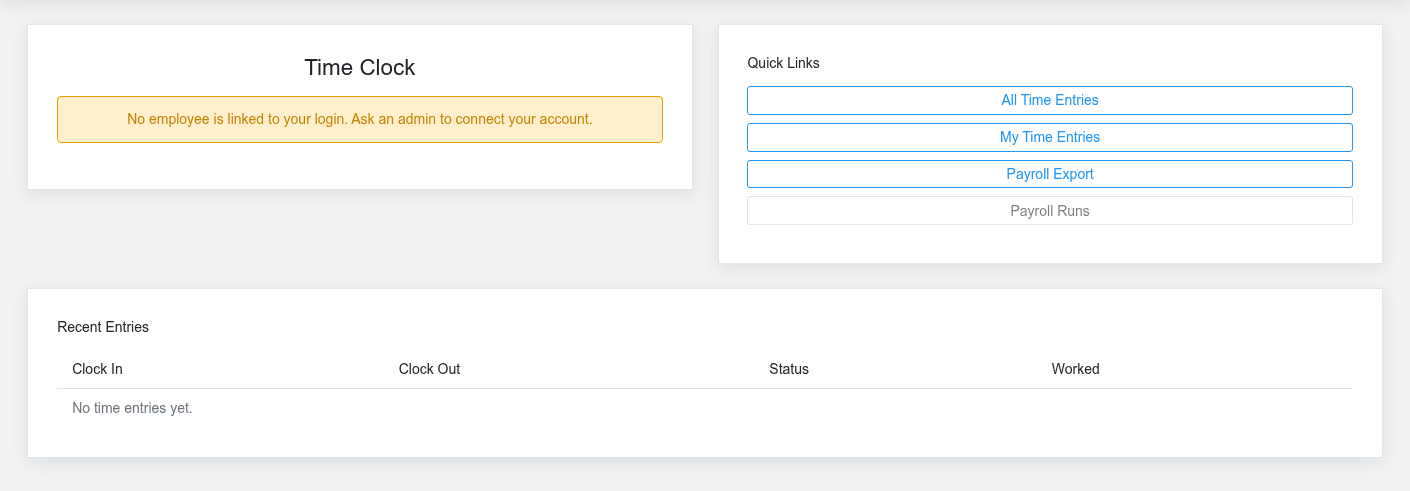
- Confirm that the employee name shown belongs to you and that the displayed local date/time is reasonable.
- If no entry is open, select Clock In once when work begins. Brisk records the time, signed-in user, web source, and an Open status.
- If an entry is open, review its start time and select Clock Out once when work ends. Brisk records the stop time and changes the entry to Closed.
- Read the confirmation message and recheck the current state before leaving the page.
Review recent entries
The Recent Entries table shows clock-in, clock-out, status, worked time, and pay code. Look for an open entry from an earlier shift, a missing clock-out, an unexpected duration, or the wrong pay code. The employee screen does not silently fix these exceptions.
Correct a missed or incorrect punch
If Brisk says you are already clocked in, do not create another entry. If no open entry exists when you expected one, do not clock out under someone else’s login. Contact an authorized manager to correct the saved Time Clock Entry through Time Manager, following company timekeeping policy.
Identity and access
Your Brisk user must be linked to an Employee record. If the page reports that no employee is linked, ask an administrator to repair that relationship. Managers may see additional entry/export links based on department responsibility; those links do not change whose time is recorded by the clock buttons.
No comments to display
No comments to display