
Customer Order to Cash
This workflow follows a named customer order from entry through fulfillment, payment or receivable status, inventory activity, and financial review. The original request, customer PO, item rows, and downstream records remain traceable, so the next employee can continue from saved work instead of rebuilding it.
Demonstration notice: All names, identifiers, amounts, contact information, and transactions shown here are fictional and exist only in the Brisk documentation environment. Payment examples use saved test states and do not contact a processor.
Workflow at a glance
| Outcome | A fulfilled sale with a supported payment or receivable state and reviewable downstream history |
| Starts with | A verified customer request |
| Ends with | Sale, fulfillment, inventory, payment or receivable, and reporting review |
| Primary roles | Salesperson, fulfillment clerk, cashier, accounts-receivable clerk |
| Brisk areas involved | Customers, Sales, Inventory, Accounting, Payments |
| Common businesses | Parts, equipment, feed-and-supply, wholesale, general business |
| Approximate handoffs | Three |
Why this workflow matters
A customer order carries more than a total. Staff need the requested items, customer PO, warehouse, price and tax decisions, delivery expectation, and payment terms. When those facts stay on the sale, fulfillment and accounting can work from the same source.
The statuses also prevent a common shortcut: treating an entered order as shipped or an initiated payment as collected. Brisk keeps fulfillment and payment status separately, allowing each team to verify its own part.
Before you begin
- Required: customer, active warehouse, saleable items and units, tax setup, and permission to create and update sales.
- Required for on-account work: valid payment terms and an authorized credit decision.
- Optional: price class, customer PO, fulfillment method, email receipt, or sandbox payment provider.
- Confirm stock separately. The draft documentation sale does not reserve or consume inventory.
End-to-end steps
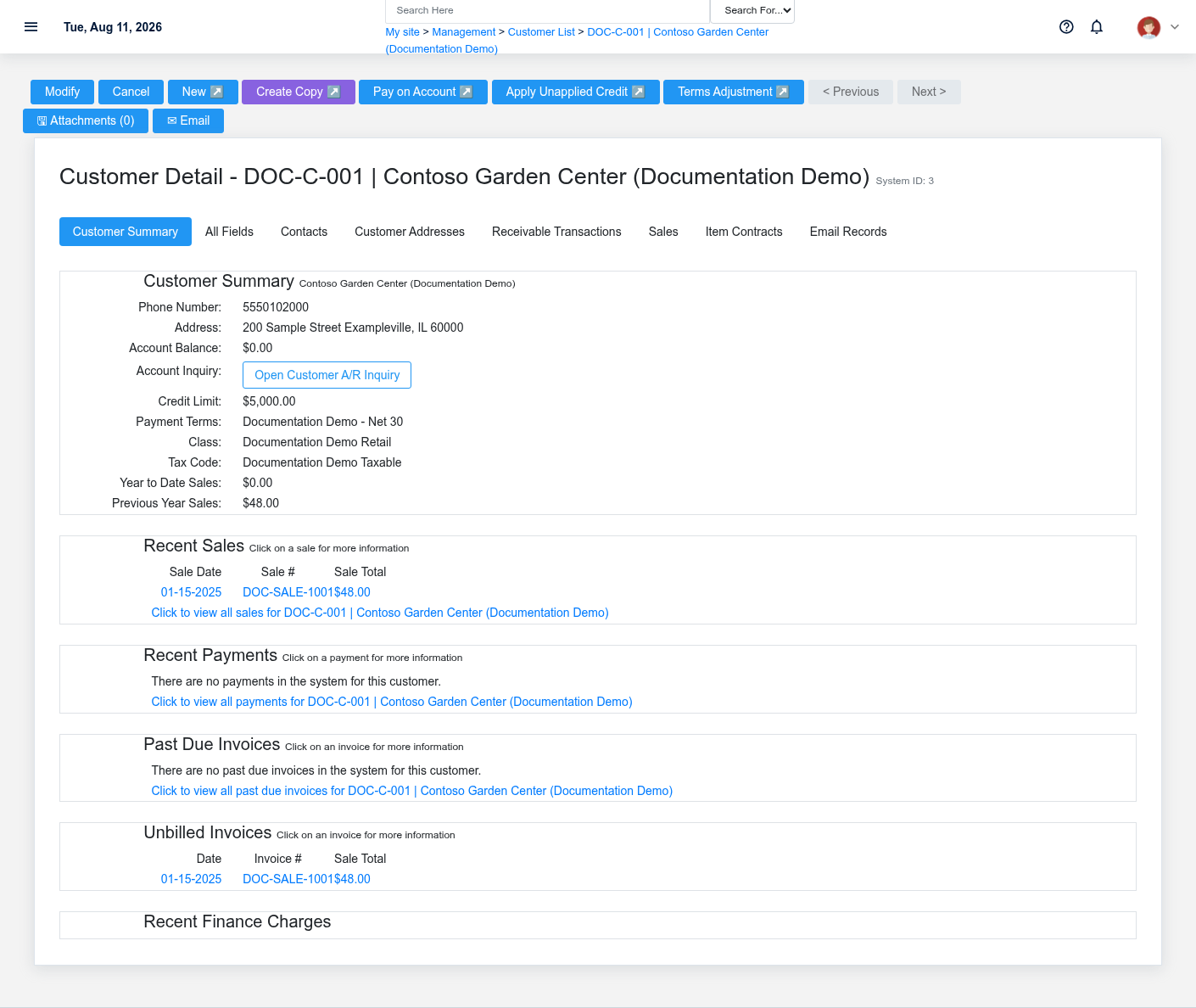
- Salesperson — verify the customer. Open Customers. Confirm identity, terms, tax code, price context, account status, credit context, and fulfillment defaults before entering lines.
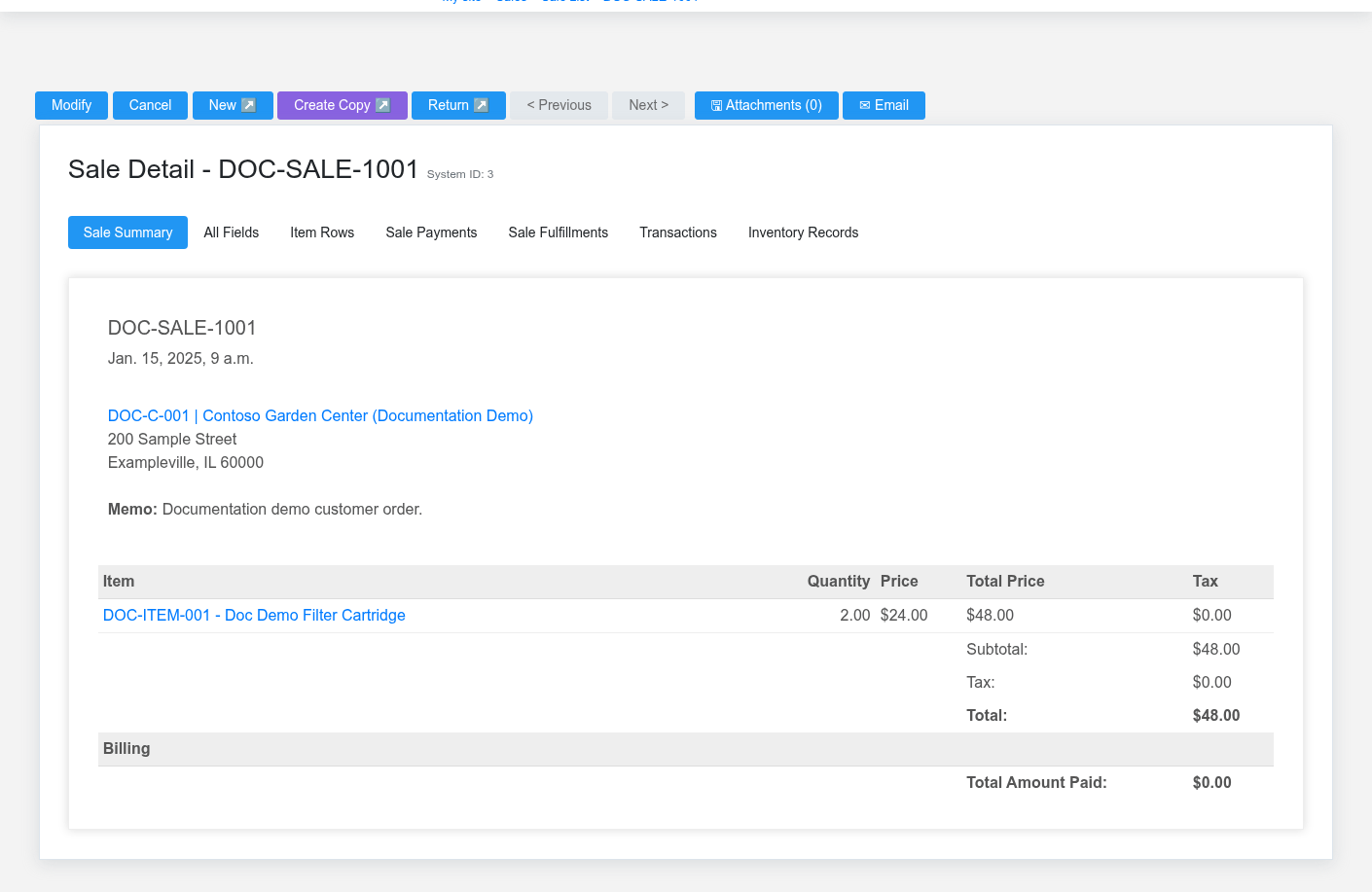
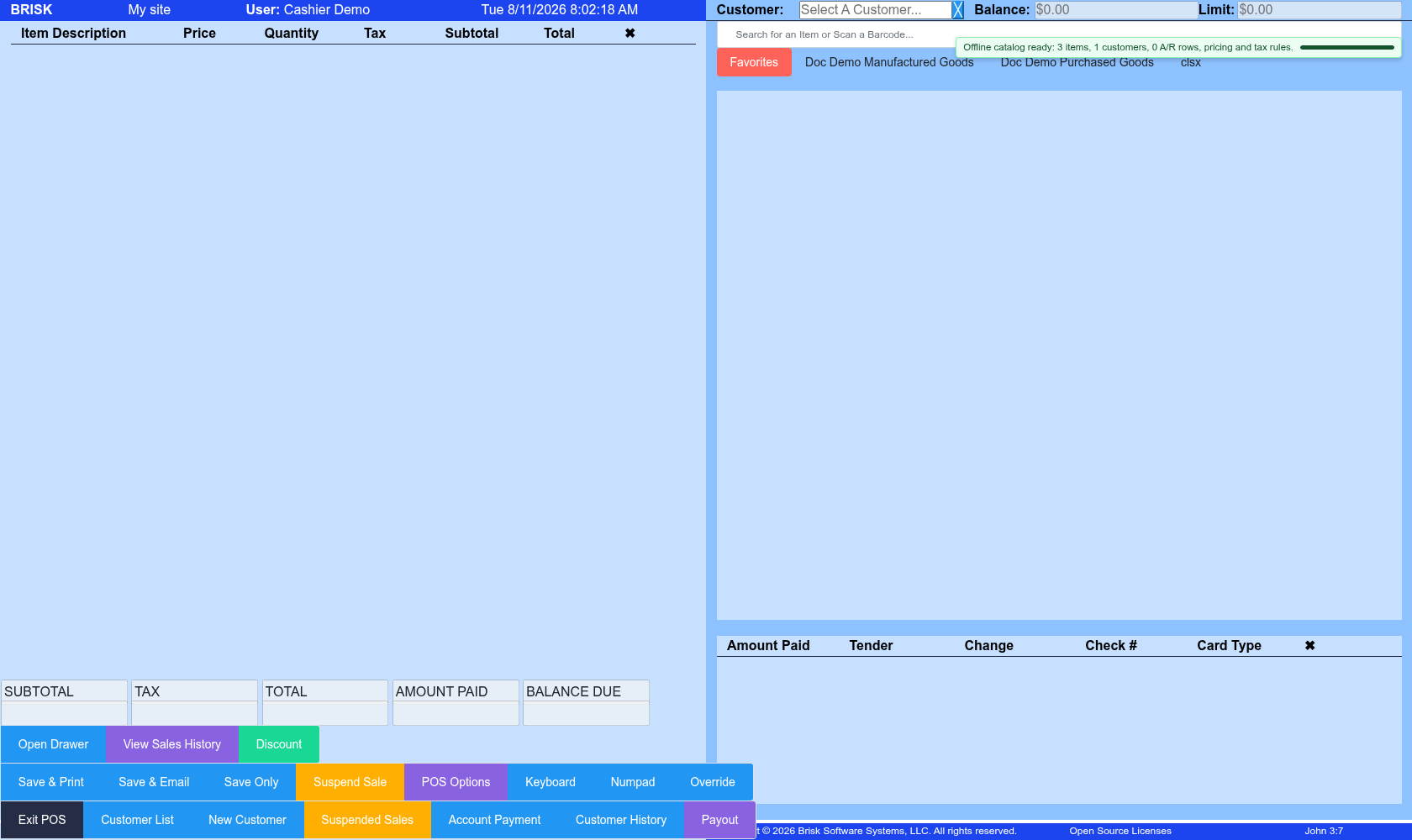
- Salesperson — build the order. In Point of Sale or the supported sale form, select the customer and warehouse. Add each item, quantity, unit, price, authorized discount, tax treatment, and customer PO. DOC-SALE-1001 contains two stocked cartridges and remains Draft.
- Salesperson — review the intended outcome. Confirm totals, fulfillment requirement, requested method, and payment path. Finalize once through the action appropriate to the tender or on-account sale. Do not call a Draft sale a quote; Brisk has a separate Quote record.
- Fulfillment clerk — act on the saved sale. Use the sale’s fulfillment records and status. Verify the picked quantity and delivery, shipping, or pickup evidence before marking work complete. Inventory is consumed by processed sale fulfillment for qualifying item rows, not by merely opening a cart.
- Cashier or receivables clerk — record value received. Record a supported tender or leave the finalized sale in Receivable status under authorized terms. A processor launch, URL, or authorization is not settlement.
- Manager — verify the chain. Review the completed Sale, fulfillment history, item history, customer history, payment application, and Receivable Transactions when the sale is on account.
What Brisk keeps connected

| Action | Result or downstream record | Where to verify it |
|---|---|---|
| Select customer and enter rows | Customer, PO reference, warehouse, items, pricing, tax, and totals remain on the sale | Sale detail |
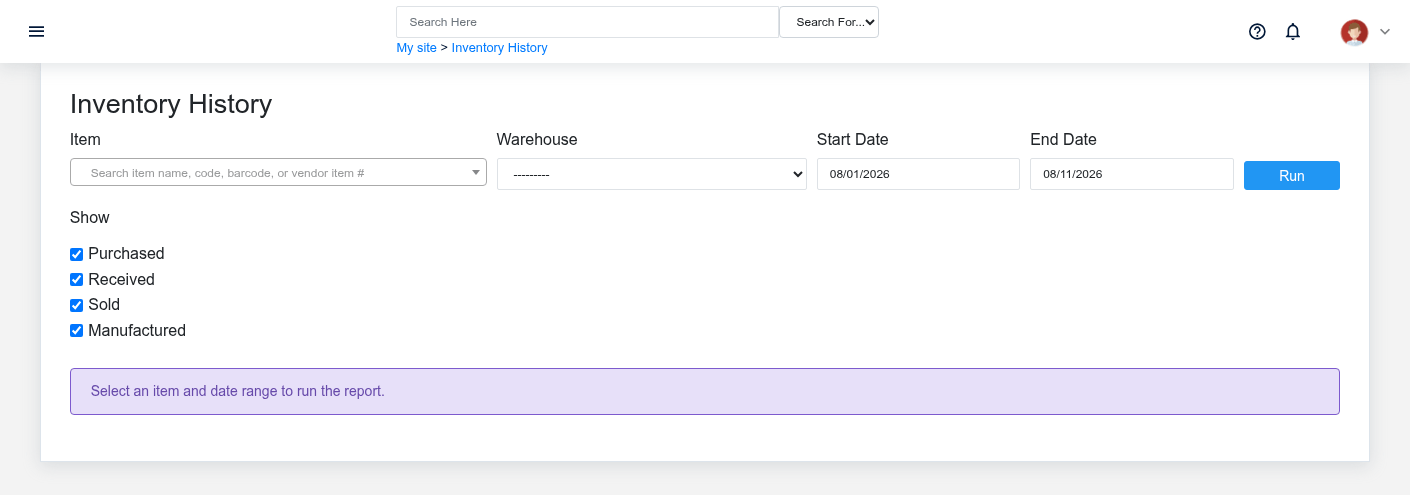
| Complete supported fulfillment | Fulfillment status and processed item movement | Sale fulfillment and item inventory history |
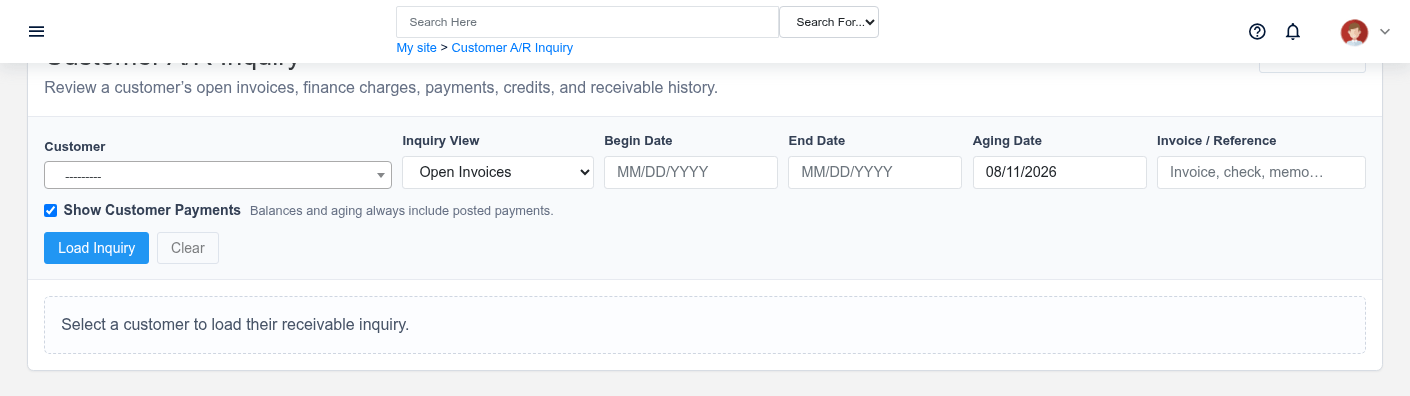
| Finalize as Receivable | Customer obligation and due-date context | Receivable inquiry and customer history |
| Record payment | Tender/application history; processor state remains separate when used | Sale payment history and provider record |
Handoffs and controls
Sales hands the saved sale to fulfillment; fulfillment hands verified completion to accounting or payment staff. Draft, Submitted, Complete, Paid, and Receivable are business controls, not decorative labels. The sale remains the source for customer and line detail, while its fulfillment and payment records are the evidence for those later events.
Exceptions and safe corrections
- Wrong customer or line on a draft: correct the same sale before finalization.
- Short stock or partial delivery: record only the quantity actually fulfilled and leave the remainder visibly outstanding when the configured path supports it.
- Uncertain payment response: check both the saved sale and provider history before retrying.
- Completed error: use the supported return, void, credit, or linked correction. Do not create an unrelated opposite sale.
- Missing permission or setup: stop at the current state and have the responsible administrator correct access or configuration.
No comments to display
No comments to display