
Finance Charge Groups
Finance Charge Groups
Purpose and when to use this record
Review the customer groupings used when finance charges are calculated and applied to receivables.
At a glance
-
Identify it by: the identifying information shown on the screen.
-
Why care: Dates, accounts, amounts, posting state, and period locks can change financial reports. Verify them against the source document before finalizing the record.
Before you begin
You need the Brisk storespermission for the action you are taking on finance charge groupsgroups. If a Create, Edit, or Delete control is absent, do not work around it with another user’s account; ask an administrator to review your role.
Review Finance Charge Group details
Use the detail page as partthe shared record of what this Finance Charge Group currently means. Verify the identifying information shown on the screen before relying on it for a decision.
Compare the Finance Charge Group with its source document or approved setup request before deciding that it needs correction.
Next check: Verify the identifying information shown on the screen on the detail page, then continue the accounting module.workflow Thisonly generatedwhen referencethose isvalues awaitingagree with the source document and actual work performed.
Edit an existing Finance Charge Group
Edit this Finance Charge Group to correct or complete the same source document or operational event; use the supported reversal or follow-up workflow review.
View record details
The evidence packet identifieswhen the viewbusiness event itself changed.
-
Open the detail page. Compare the identifying information shown on the screen with the supporting document or approved request.
-
Recheck the identifying information shown on the screen. These values are most likely to change the downstream business result.
-
Save the change, return to the list, and confirm that the Finance Charge Group now appears under the expected the identifying information shown on the screen.
After the change: Verify the identifying information shown on the screen on the detail page, then continue the accounting workflow only when those values agree with the source locationdocument forand thisactual action.work Confirm user-facing steps before approving this page.performed.
Find and review recordsfinance charge groups
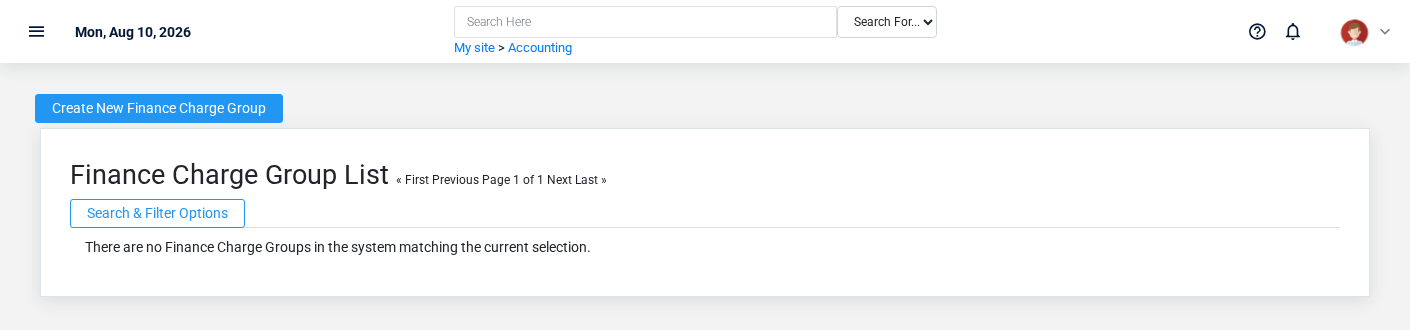
The evidence packet identifiesUse the viewFinance Charge Groups list to find the correct record before opening or changing it. Compare the identifying information shown on the screen. Compare the full identifier rather than relying on a similar name.
Open the Finance Charge Group whose the identifying information shown on the screen match the task. If it is missing, clear the list filters and sourcerecheck locationthe identifying information shown on the screen rather than creating a replacement immediately.
Fields and business rules
Brisk stores 0 user-relevant fields for this action.Finance ConfirmCharge user-facingGroup, stepsincluding before0 approvinglinked-record selections and 0 controlled-choice fields. Create and edit screens may hide calculated or workflow-managed values from this page.full reference.
| Field | Required | What it controls |
|---|
What happens next
Verify the identifying information shown on the screen on the detail page, then continue the accounting workflow only when those values agree with the source document and actual work performed.
EditCommon anmistakes existingand recordtroubleshooting
- The
evidencevaluespacketlookidentifiesright but theviewresultandis wrong: Compare this Finance Charge Group with the sourcelocationdocumentfororthisapprovedaction.setupConfirmdecision,user-facingthenstepscheckbeforetheapprovingdownstreamthisscreenpage.where it is used.