
Reporting Api Credentials
Reporting Api Credentials
Purpose and when to use this record
Grant a named integration narrowly scoped, expiring access to reporting data, optionally restricted by source network.
At a glance
-
Identify it by: Name.
-
Check its business context: Service User.
-
Why care: Availability and publication flags affect future use without erasing history. Prefer disabling an obsolete setup record when existing transactions still refer to it.
-
Why care: Grant the smallest capability and shortest practical lifetime. Treat any generated secret as confidential; copy it at creation time and never place it in notes or screenshots.
Before you begin
You need the Brisk storespermission for the action you are taking on reporting api credentialscredentials. asIf parta ofCreate, theEdit, accountingor module.Delete This generated referencecontrol is awaitingabsent, workflowdo review.not work around it with another user’s account; ask an administrator to review your role.
Create a recordReporting API Credential
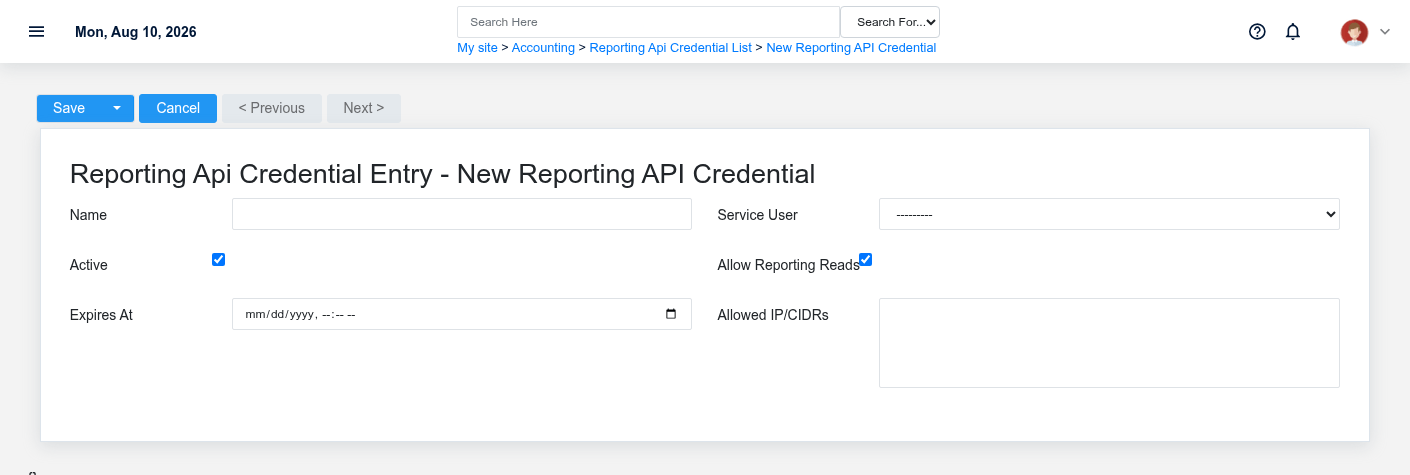
TheCreate evidencea packetReporting identifiesAPI Credential for one identifiable integration or device. Do not share one credential across unrelated systems because revocation and audit history would become ambiguous.
-
Select the
viewbusiness context first: Service User. -
Enter the required identifying and
sourceoperationallocationvalues:forName. -
Review Active, and Allow Reporting Reads deliberately; these choices control availability or workflow rather than merely describing the record.
-
Save the Reporting API Credential, then confirm Name on its detail page before continuing.
After saving: Give the generated secret only to the named integration, test reporting access from an allowed network, and record the expiration/rotation plan outside the credential itself.
Delete a Reporting API Credential
Disable or revoke this action.Reporting ConfirmAPI user-facingCredential stepswhen beforeaccess approvingmust thisstop. page.Delete it only after its audit value is no longer needed and the integration has been moved to a replacement credential.
If the record is merely obsolete, use Active to remove it from future use while preserving existing references.
On the confirmation page, verify Name. After confirmation, return to the Reporting API Credentials list and make sure only the intended Reporting API Credential was removed.
ViewReview recordReporting API Credential details
The evidence packet identifiesUse the viewdetail page as the shared record of what this Reporting API Credential currently means. Verify Active before relying on it for a decision.
Follow Service User to determine whether the issue is on this Reporting API Credential or on one of those linked records.
Next check: Give the generated secret only to the named integration, test reporting access from an allowed network, and sourcerecord locationthe forexpiration/rotation plan outside the credential itself.
Edit an existing Reporting API Credential
Edit this action.Reporting ConfirmAPI user-facingCredential stepsto beforereduce approvingaccess, thisrotate ownership, set an expiration, or disable the integration. Create a separate credential when the calling system changes.
-
Open the detail page. Compare Service User with the supporting document or approved request.
-
Recheck Active. These values are most likely to change account balances, financial periods, and statement results.
-
Save the change, return to the list, and confirm that the Reporting API Credential now appears under the expected Active.
After the change: Give the generated secret only to the named integration, test reporting access from an allowed network, and record the expiration/rotation plan outside the credential itself.
Find and review recordsreporting api credentials
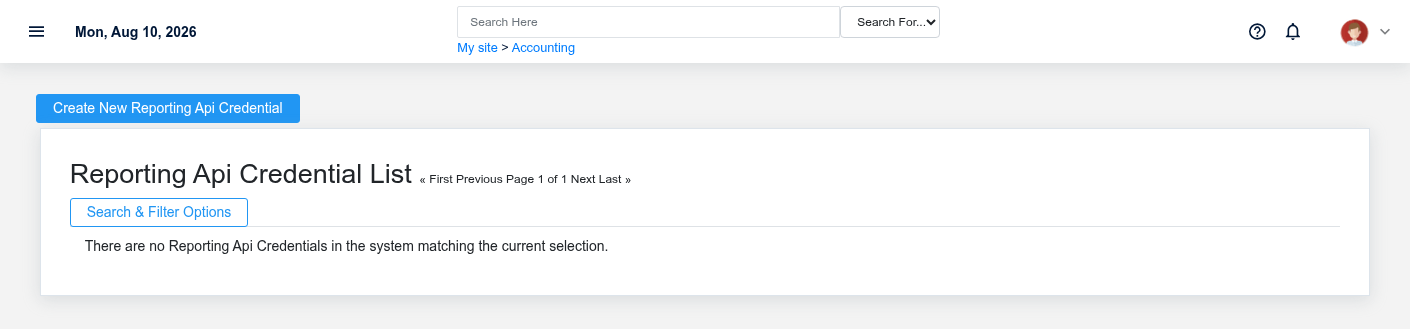
The evidence packet identifiesUse the viewReporting Api Credentials list to find the correct record before opening or changing it. Compare Name. Records with similar names or numbers can still belong to different Service User.
-
Keyword search checks Name, and
sourceLastlocationUsed Ip. -
Narrow the list with Service User filters.
-
The initial order emphasizes Name. Select a column heading when you need a different comparison.
Open the Reporting API Credential whose Name match the task. If it is missing, clear the list filters and recheck Service User, and Active rather than creating a replacement immediately.
Fields and business rules
Brisk stores 6 user-relevant fields for this action.Reporting ConfirmAPI user-facingCredential, stepsincluding before1 approvinglinked-record selection and 0 controlled-choice fields. Create and edit screens may hide calculated or workflow-managed values from this page.full reference.
Edit
| Field | Required | What |
|---|---|---|
| Name | Yes | Human-readable name for this |
| Service |
No | Optional
|
| Active | No | Whether this |
| Allow Reporting Reads | No | Whether this reporting API credential allows read reporting. |
| Expires At | No | Date and time recorded for expires at on this reporting API credential. |
| Allowed Ip/Cidrs | No | Optional newline/comma-separated list of allowed IP or CIDR ranges. |
What happens next
Give the generated secret only to the named integration, test reporting access from an allowed network, and record the expiration/rotation plan outside the credential itself.
Common mistakes and troubleshooting
-
The record will not save: Recheck Name and any message beside the field. A required related record may also be inactive or unavailable to your role.
-
The record saved but is not available where expected: Recheck Active, then clear the filters on the destination list. A saved record can still be inactive, unpublished, locked, unapproved, or in the wrong workflow state.
-
The values look right but the result is wrong: Open Service User from the detail page. Correct the specific relationship that is wrong instead of forcing a total or status to compensate for it.