
Transactions
Transactions
Purpose and when to use this record
Trace the individual general-ledger postings created by sales, purchases, payments, manufacturing, and journal entries.
At a glance
-
Identify it by: Date Created.
-
Check its business context: Account, Warehouse, Journal Entry, Parent Sale, and Parent Return.
-
Why care: Dates, accounts, amounts, posting state, and period locks can change financial reports. Verify them against the source document before finalizing the record.
Before you begin
You need the Brisk storespermission for the action you are taking on transactions. If a Create, Edit, or Delete control is absent, do not work around it with another user’s account; ask an administrator to review your role.
Have valid Account records ready first. Those selections determine where this Transaction belongs and which later screens can find it.
Edit an existing Transaction
Edit this Transaction to keep the same real-world party, item, location, or resource accurate. Do not repurpose it for a different entity after activity is attached.
-
Open the detail page. Compare Account, Warehouse, Journal Entry, Parent Sale, Parent Return, and Parent Purchase, plus the remaining screen fields with the supporting document or approved request.
-
Recheck Date Created, Account, Warehouse, Amount, and Parent Customer Credit. These values are most likely to change account balances, financial periods, and statement results.
-
Save the change, return to the list, and confirm that the Transaction now appears under the expected Date Created.
After the change: Verify this Transaction in Bank Information, Credit Card Transactions, Deposit Balancing Transactions, and Deposits, plus the remaining screen fields before staff build new activity on it; correct ownership, classification, and active state now rather than after transactions as part of the accounting module. This generated reference is awaiting workflow review.accumulate.
Create a recordTransaction
TheCreate evidencea packetTransaction identifiesafter searching for the viewperson, organization, item, location, or resource under alternate names and identifiers. Merge or correct an existing master record instead of creating a duplicate.
-
Select the business context first: Account, Warehouse, Journal Entry, Parent Sale, Parent Return, and Parent Purchase, plus the remaining screen fields.
-
Enter the required identifying and operational values: Account, and Amount.
-
Review Date Created, and Memo against the source
locationdocumentforor approved setup decision. -
Save the Transaction, then confirm Date Created on its detail page before continuing.
After saving: Verify this action.Transaction Confirmin user-facingBank stepsInformation, Credit Card Transactions, Deposit Balancing Transactions, and Deposits, plus the remaining screen fields before approvingstaff thisbuild page.new activity on it; correct ownership, classification, and active state now rather than after transactions accumulate.
ViewReview recordTransaction details
The evidence packet identifiesUse the viewdetail page as the shared record of what this Transaction currently means. Verify Date Created, and sourceAmount locationbefore relying on it for a decision.
Follow Account, Warehouse, Journal Entry, Parent Sale, Parent Return, and Parent Purchase, plus the remaining screen fields to determine whether the issue is on this action.Transaction Confirmor user-facingon stepsone of those linked records.
Next check: Verify this Transaction in Bank Information, Credit Card Transactions, Deposit Balancing Transactions, and Deposits, plus the remaining screen fields before approvingstaff thisbuild page.new activity on it; correct ownership, classification, and active state now rather than after transactions accumulate.
Find and review recordstransactions
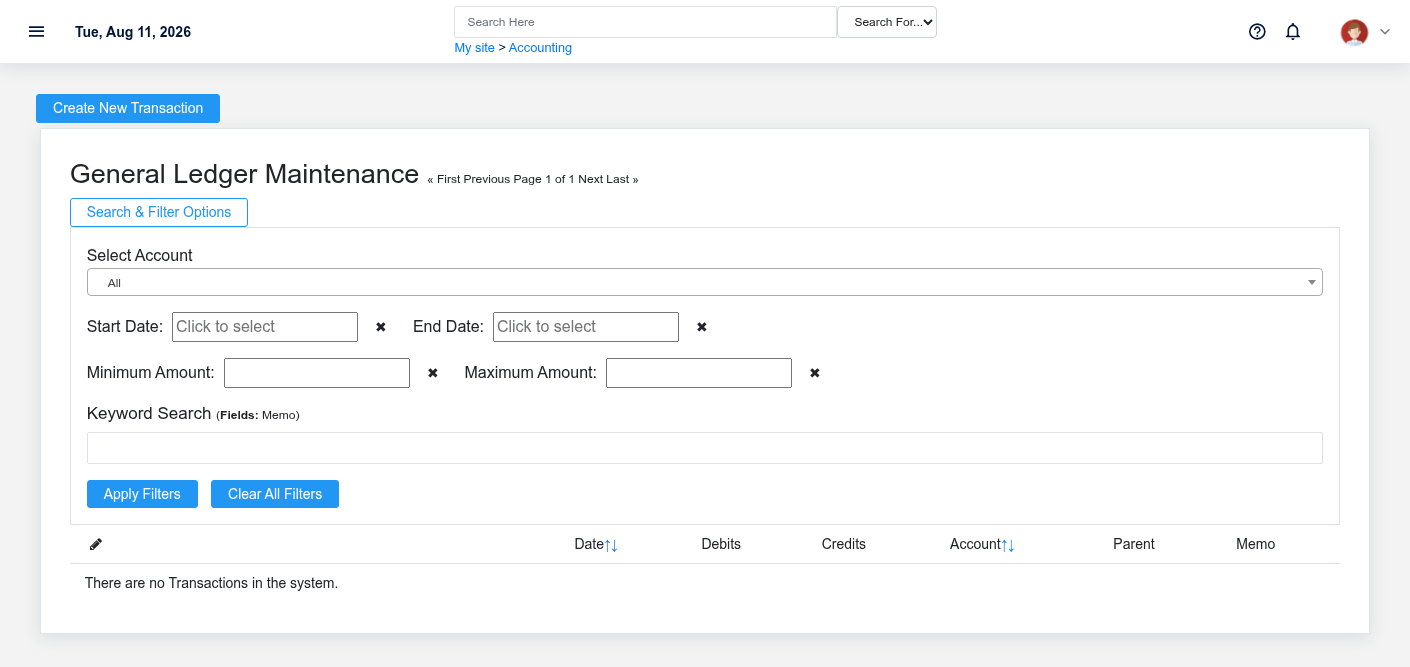
The evidence packet identifiesUse the viewTransactions list to find the correct record before opening or changing it. Compare Date Created. Records with similar names or numbers can still belong to different Account, Warehouse, Journal Entry, Parent Sale, Parent Return, and sourceParent locationPurchase, plus the remaining screen fields.
-
Keyword search checks Memo.
-
Narrow the list with Account filters.
-
The date filter uses Date Created; choose a range that matches the business event you are reconciling.
Open the Transaction whose Date Created match the task. If it is missing, clear the list filters and recheck Account, and Date Created rather than creating a replacement immediately.
Fields and business rules
Brisk stores 24 user-relevant fields for this action.Transaction, Confirmincluding user-facing21 stepslinked-record beforeselections approvingand 0 controlled-choice fields. Create and edit screens may hide calculated or workflow-managed values from this page.full reference.
Edit
| Field | Required | What |
|---|---|---|
| Date Created | No | Date and |
| Account | Yes | The account associated with this transaction. |
| Warehouse | No | Associates this transaction with a system warehouse. |
| Amount | Yes | The amount value recorded for this |
| Memo | No | The memo recorded for this transaction. |
| Journal Entry | No | The journal entry associated with this transaction. |
| Parent Sale | No | The parent sale associated with this transaction. |
| Parent Return | No | The parent return associated with this transaction. |
| Parent Purchase | No | The parent purchase associated with this transaction. |
| Parent Mfg Instance | No | The parent mfg instance associated with this transaction. |
| Parent Journal Entry | No | The parent journal entry associated with this transaction. |
| Parent Inv Adjustment | No | The parent inv adjustment associated with this transaction. |
| Parent Payment | No | The parent payment associated with this transaction. |
| Parent Commission Payment | No | The parent commission payment associated with this transaction. |
| Parent Invoice | No | The parent invoice associated with this transaction. |
| Parent Customer Credit | No | The parent customer credit associated with this transaction. |
| Parent Inventory Receipt | No | The parent inventory receipt associated with this transaction. |
| Parent Credit Memo | No | The parent credit memo associated with this transaction. |
| Parent Payout | No | The parent payout associated with this transaction. |
| Parent Credit Card Charge | No | The parent credit card charge associated with this transaction. |
| Parent Deposit | No | The parent deposit associated with this transaction. |
| Parent Reconciliation | No | The parent reconciliation associated with this transaction. |
| Parent Sheriff Receipt | No | The parent sheriff receipt associated with this transaction. |
| Parent Sheriff Refund | No | The parent sheriff refund associated with this transaction. |
What happens next
Verify this Transaction in Bank Information, Credit Card Transactions, Deposit Balancing Transactions, and Deposits, plus the remaining screen fields before approvingstaff thisbuild new activity on it; correct ownership, classification, and active state now rather than after transactions accumulate.
Common mistakes and troubleshooting
-
The record will not save: Recheck Account, and Amount and any message beside the field. A required related record may also be inactive or unavailable to your role.
-
The values look right but the result is wrong: Open Account, Warehouse, Journal Entry, Parent Sale, Parent Return, and Parent Purchase, plus the remaining screen fields from the detail page. Correct the specific relationship that is wrong instead of forcing a total or status to compensate for it.