
Vendor Invoices
Vendor Invoices
Purpose and when to use this record
PublicationUse a vendor invoice to record an amount your business owes a vendor. The record combines the vendor's header information with one or more expense or asset lines. It also tracks payments and vendor-credit applications so Brisk can calculate the remaining unpaid amount.
At a glance
- Vendor and invoice number identify the source bill.
- Invoice Date, Terms, and Due Date control payment timing. When terms are available, Brisk calculates the due date from the invoice date plus the terms length.
- Subtotal, Discount, and Amount represent the gross amount, prompt-payment discount, and resulting net amount.
- Paid, Posted, and Edit Locked are status indicators; do not treat them as ordinary descriptive fields.
- Expense/asset lines allocate the invoice amount to accounts and, when applicable, warehouses or receiving lines.
Find and review vendor invoices
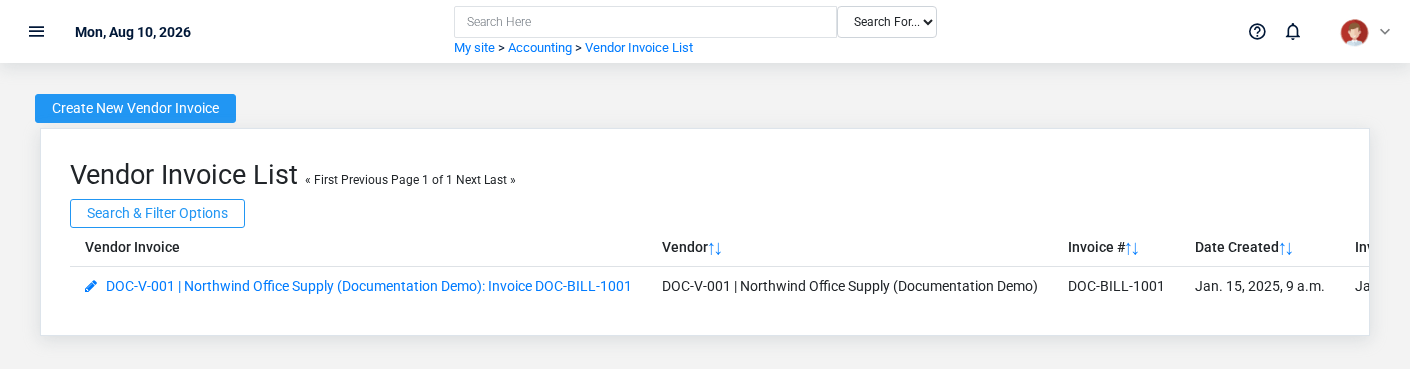
Open Accounting → Vendor Invoices. The list is paginated and supports filtering by vendor and searching memo text. Use Payables when your task is to review unpaid balances and decide what to pay.
Create a vendor invoice
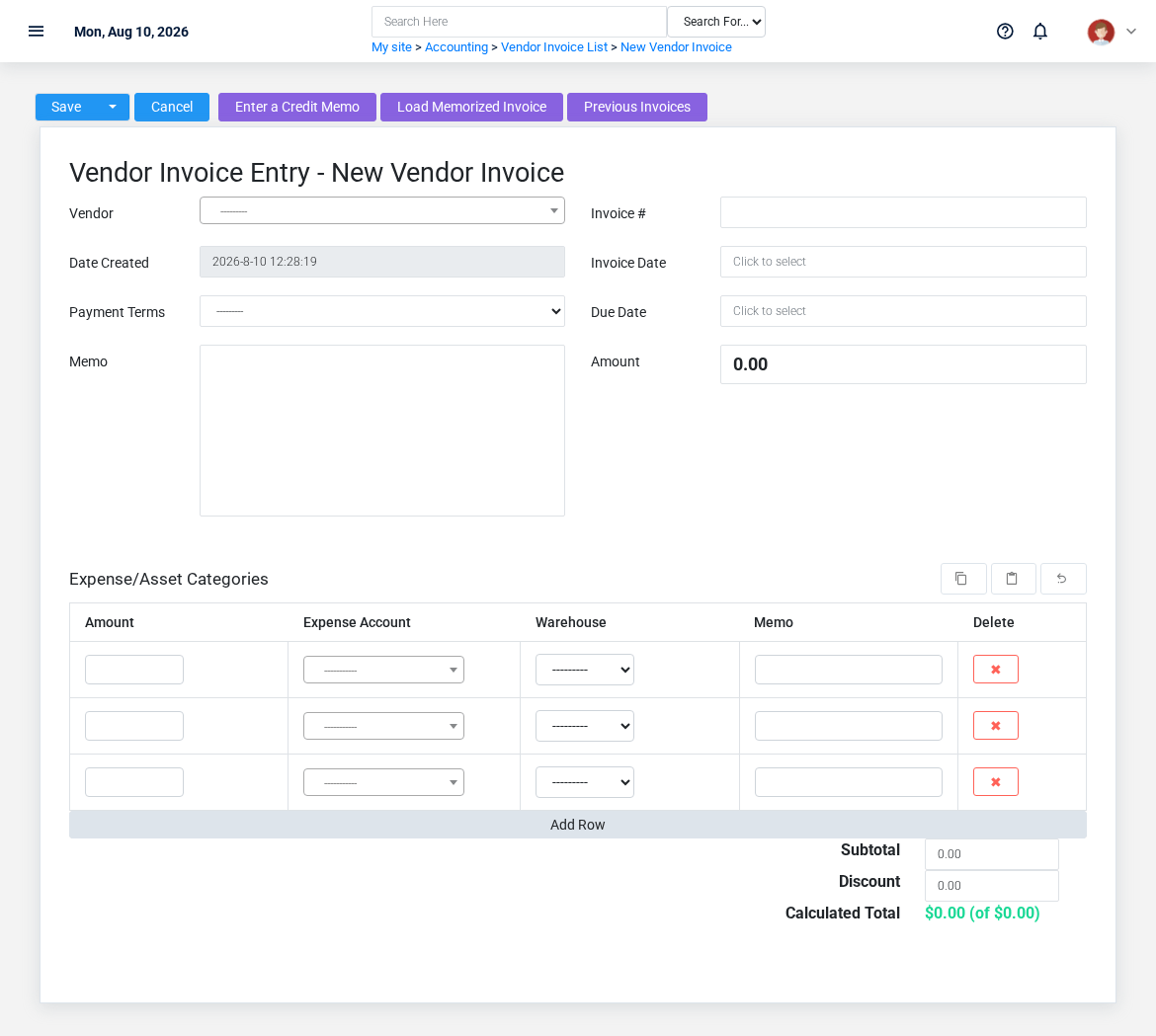
- Select the vendor and enter the vendor's Invoice # exactly enough to recognize duplicates.
- Enter Invoice Date. If the vendor has payment terms, Brisk uses them; otherwise select terms on the invoice. Brisk recalculates Due Date from that information.
- Enter a memo that will help later review.
- Add expense or asset lines. Choose the relevant account, amount, optional warehouse, and a useful line memo.
- Confirm Subtotal, Discount, and net Amount. If the discount is zero and valid prompt-payment terms apply, Brisk can calculate the discount; the amount is then subtotal minus discount, never below zero.
- Save and inspect the detail page before moving to payment.
If certificate-of-insurance warnings are enabled and the selected vendor's certificate has expired, Brisk displays a warning. Corn checkoff fields appear only when that feature is enabled.
View invoice details and related records

The detail page brings together invoice lines, credit applications, accounting transactions, related inventory receipts, and specialized commodity or freight information when present. Use View Credit Applications to inspect credits. An unpaid invoice offers Pay Invoice with the vendor and unpaid amount carried into payment entry; a paid invoice links to its latest non-deleted payment.
The unpaid amount is the invoice amount less both payment allocations and applied vendor credits. Verify those related records before assuming a checked Paid status tells the whole story.
Edit an existing invoice
Open the detail page and choose Update. Changing the vendor, invoice number, dates, terms, totals, discount, or allocation lines can require Brisk to reprocess related values. Recheck the due date and net amount after editing. Tonnage-report source dates are shown as disabled reference values when the invoice came from that process.
Delete an invoice
Deletion uses a confirmation screen. Because invoices can be protected by payment, receipt, credit, or accounting relationships, deletion may be blocked. Check related records and your accounting policy before attempting it; do not remove a posted record merely to correct an entry.
Pay an invoice
From an unpaid invoice, select Pay Invoice. Brisk carries the invoice, vendor, display name, and current unpaid amount into payment entry. Confirm the bank account, payment date, check or reference number, and allocation before saving. Continue with Vendor Payments.
Common mistakes and troubleshooting
- If the due date is unexpected, verify the invoice date, selected terms, and the vendor's default terms.
- If the net amount is unexpected, compare subtotal and discount; an eligible calculated discount may have been applied.
- If an invoice cannot be deleted, inspect payments, credit applications, inventory receipts, and accounting transactions linked on its detail page.
- If corn checkoff or tonnage fields are missing, those fields are conditional and may depend on configuration or how the invoice was created.