
Automatic Restock to Replenished Inventory
PublicationThis workflow turns maintained warehouse reorder settings into reviewed purchase orders, a partial receipt, and an updated inventory position. It begins with item and vendor setup and ends when purchasing and receiving can explain what Brisk suggested, what staff approved, what arrived, and what remains open.
Demonstration notice: All vendors, items, quantities, identifiers, costs, and transactions are fictional. The documentation run creates controlled draft records and sends nothing to a vendor.
Workflow at a glance
| Outcome | Reviewed purchasing work and a traceable partial or complete receipt |
| Starts with | Maintained warehouse reorder and vendor settings |
| Ends with | Current stock plus visible received and open quantities |
| Primary roles | Inventory manager, buyer, receiving clerk |
| Brisk areas involved | Inventory, Restock, Purchase Orders, Receiving |
| Common businesses | Feed/supply, parts, equipment, retail |
| Approximate handoffs | Two |
Why this workflow matters
Reorder settings are useful only when they become reviewable work. Brisk considers warehouse stock and incomplete purchase quantities, groups qualifying items by vendor, and creates draft orders rather than silently sending purchases.
Receiving continues from those orders. Staff can distinguish what was ordered, received, and still outstanding before accounting handles the vendor invoice.
Before you begin
- Required: stocked Inventory or Manufactured items, warehouse reorder/maximum quantities, primary vendors, units, and costs.
- Required: permission to run Restock, review Purchases, and create Receipts.
- Review incomplete purchase rows and known outside-Brisk orders before another run.
- Vendor minimums, pack sizes, lead times, and seasonal judgment remain human checks.
End-to-end steps
- Inventory manager — review setup. Open the Inventory Item and verify vendor assignment, current purchase quantity, reorder quantity, maximum quantity, unit, and cost for warehouse DOC-W-001.
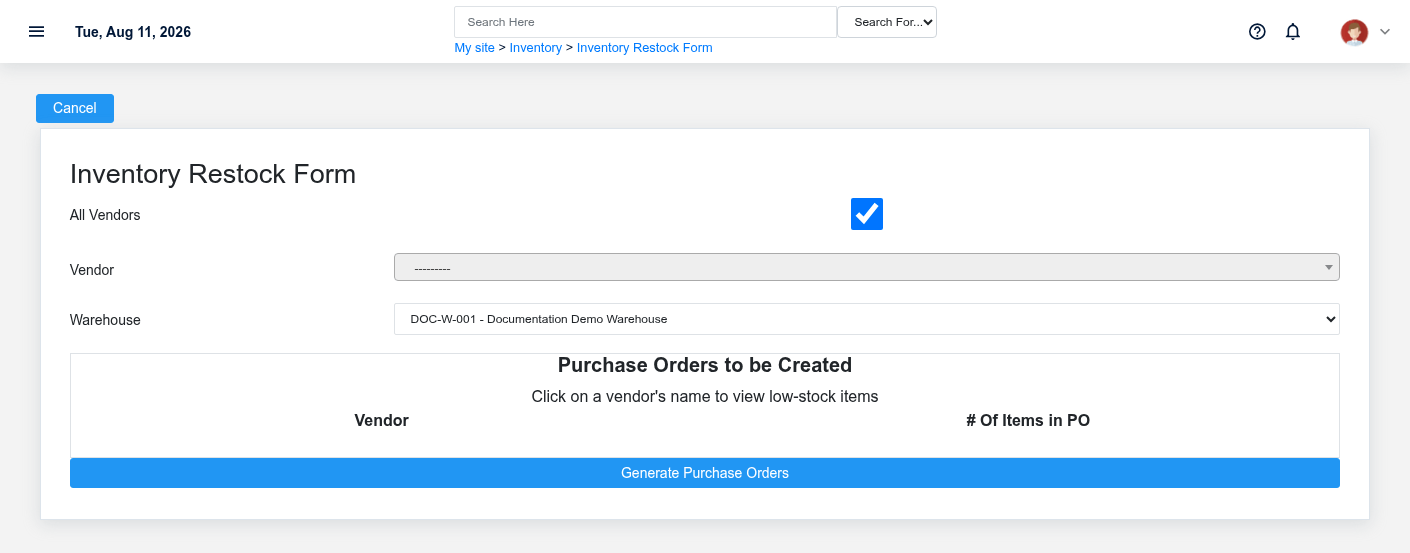
- Buyer — run Restock once. Open Restock Form, choose the intended warehouse and vendor scope, then submit.
- Brisk — calculate suggestions. Inventory and Manufactured items qualify when current purchase quantity plus incomplete purchase-order quantity is at or below the reorder quantity. Suggested quantity fills toward maximum after subtracting stock already in
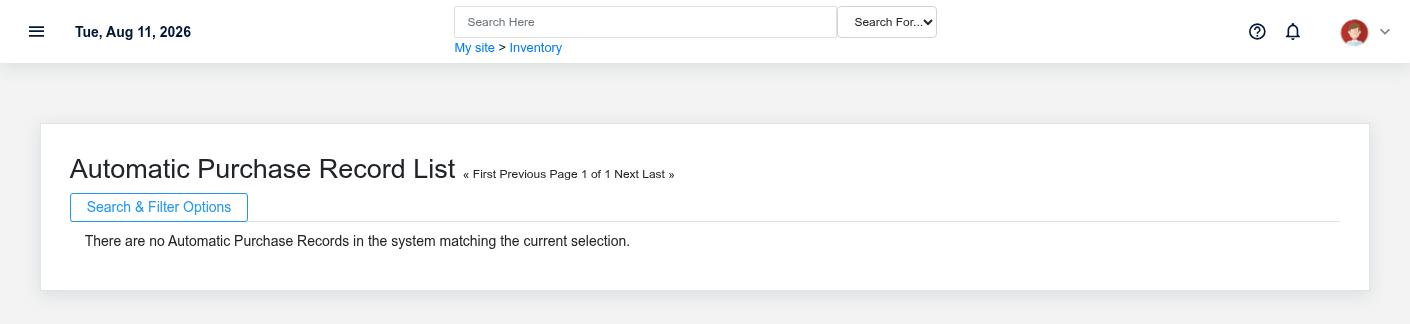
progress.the purchasing pipeline; missing or non-positive maximum setup is skipped. - Buyer — review generated work. Open the Automatic Purchase Record and each separate draft Purchase Order created per vendor. Correct quantity, cost, unit, date, pack, and vendor minimum before submission.
- Authorized buyer — submit the intended order. Submission does not mean the vendor received an external message unless that separate configured action occurred.
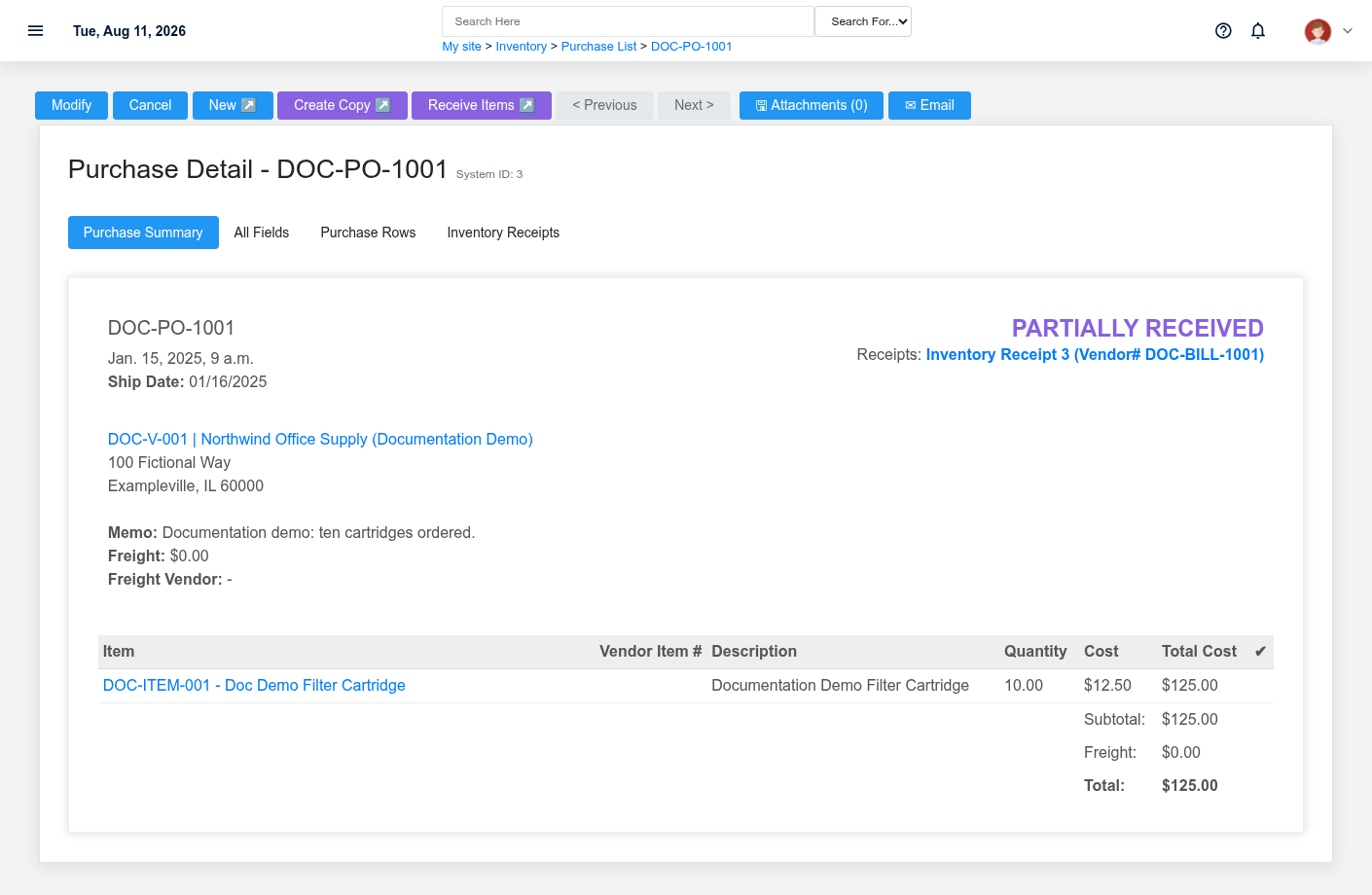
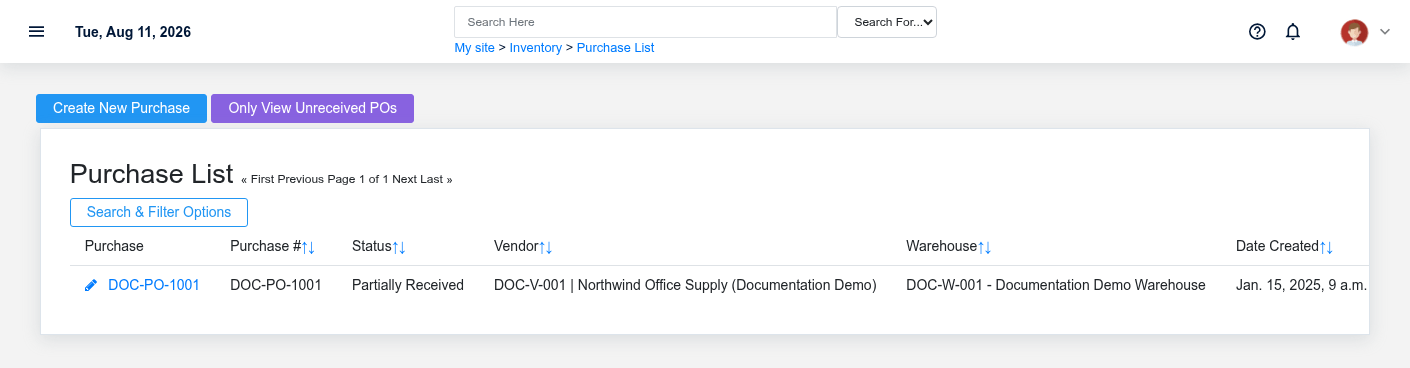
- Receiving clerk — record what arrived. Create an Inventory Receipt from the order. DOC-PO-1001 shows six of ten cartridges received, so its status is Partially Received and four remain open.
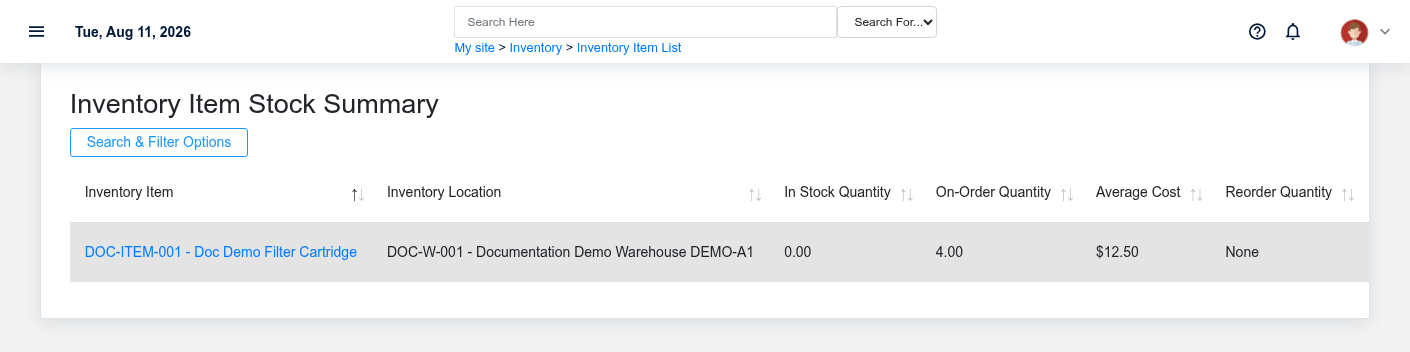
- Inventory manager — verify. Review stock summary, receipt quantity, purchase status, and open pipeline. Continue with Purchase to Pay for the vendor invoice and payment.
What Brisk keeps connected
| Action | Result or downstream record | Where to verify it |
|---|---|---|
| Run Restock | Automatic-purchase record and draft orders by vendor | Automatic Purchase Records and Purchases |
| Review/submit order | Approved vendor, warehouse, rows, quantities and costs | Purchase detail |
| Receive delivered quantity | Receipt rows linked to purchase rows | Inventory Receipt detail |
| Process partial receipt | Partially Received purchase with remaining quantity | Purchase detail and stock summary |
Handoffs and controls
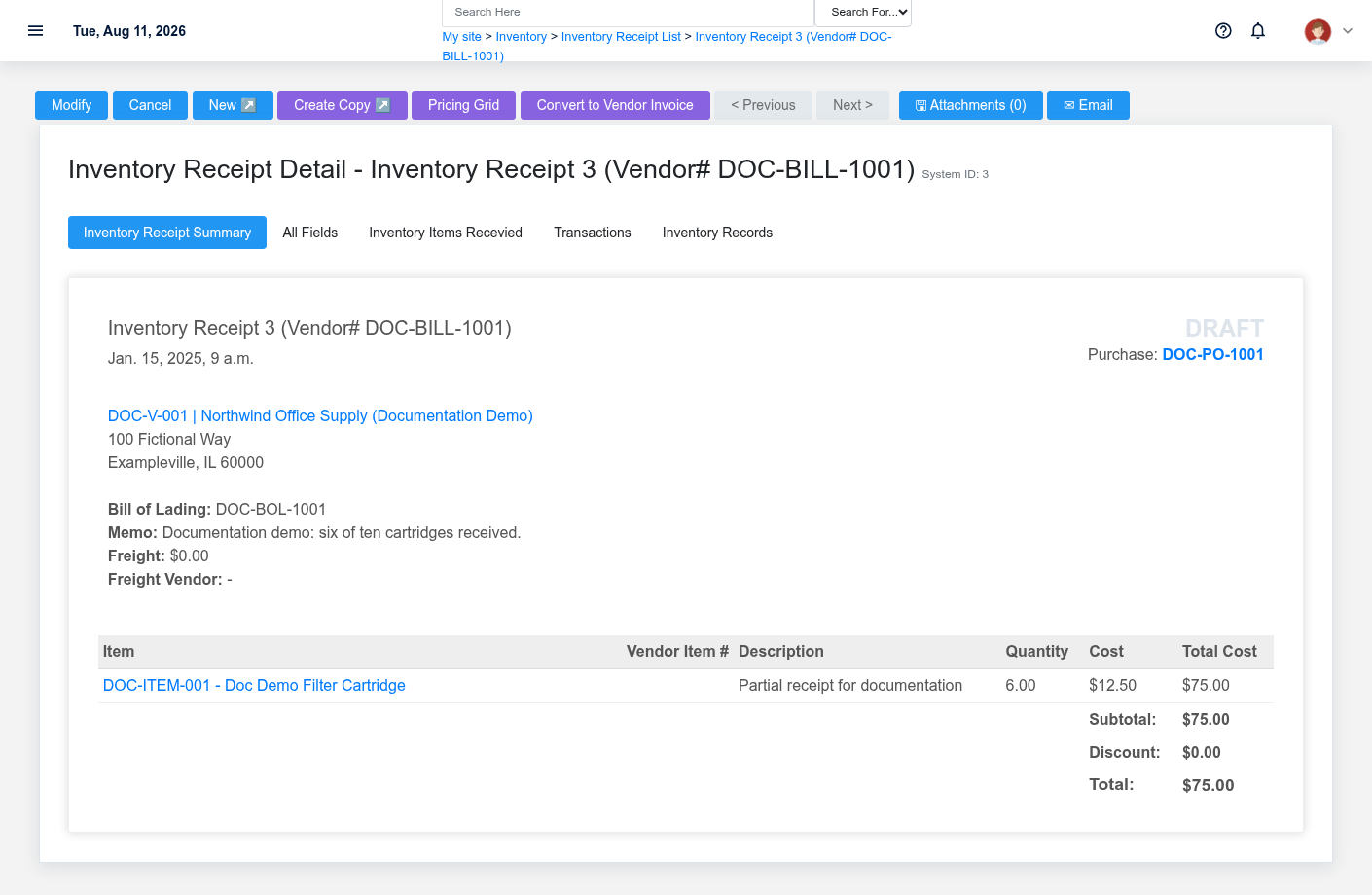
Inventory owns reorder setup, the buyer owns commercial review, and receiving owns physical quantity evidence. Draft, Submitted, Partially Received, and Received matter. The purchase order is the source for ordered quantity; the receipt is the source for what arrived.
Exceptions and safe corrections
- Item missing from Restock: inspect vendor, type, warehouse quantities, maximum, and open rows.
- Suggestion looks too large: check UOM, current stock, incomplete orders, and outside-Brisk purchases before editing.
- Wrong vendor or pack: correct the draft Purchase before submission.
- Partial or damaged delivery: receive only accepted quantity and retain the remaining exception.
- Duplicate run uncertainty: inspect Automatic Purchase Records and draft Purchases before running again.