
Sync Runs
Sync Runs
Purpose and when to use this record
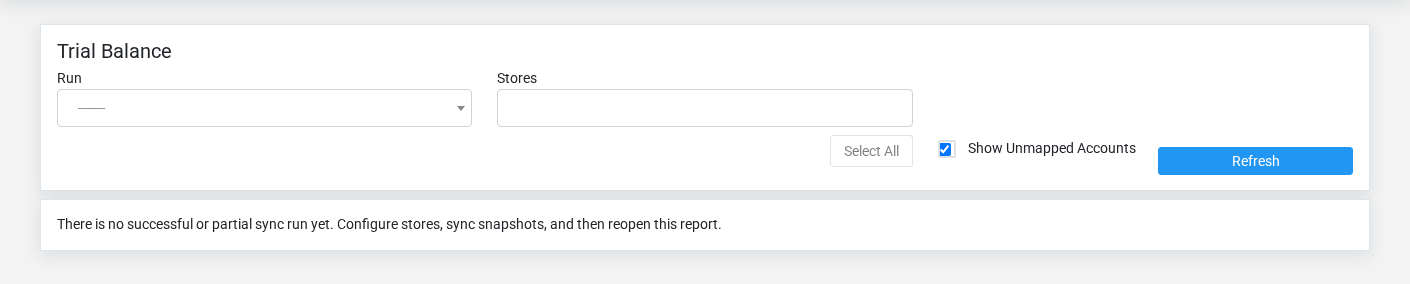
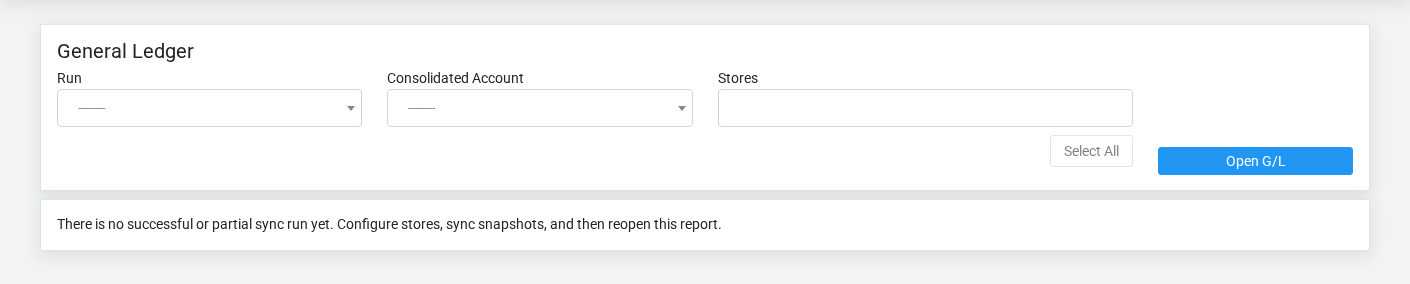
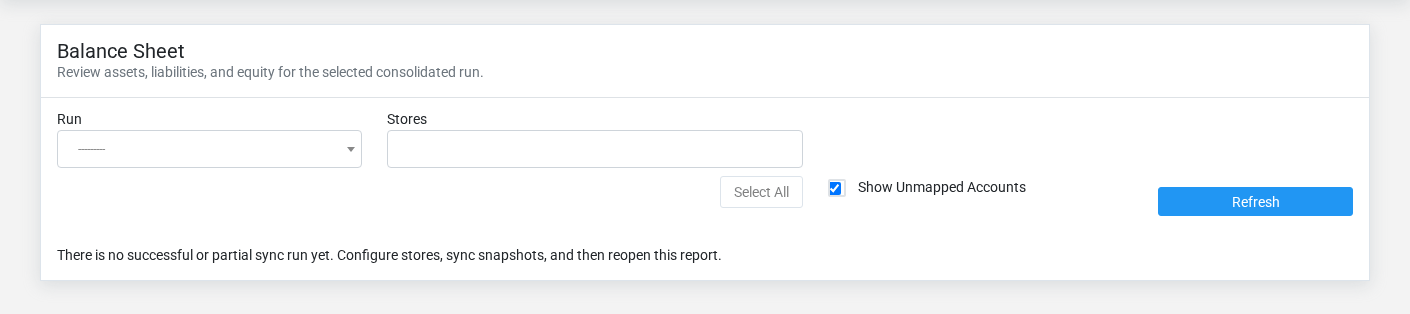
BriskRequest storesand syncmonitor runsa multi-store reporting refresh for a date range and activity or ending-balance basis.
At a glance
-
Identify it by: Start Date, End Date, and Status.
-
Check its business context: Requested By.
-
Why care: Consolidated results are only as
partreliable as store connectivity, account mapping, currency/timezone setup, and the status of theconsolidationlatestmodule.run.This -
referenceWhy care: Status communicates workflow progress to other staff. Change it only when the underlying work, approval, payment, or handoff has actually occurred.
Before you begin
You need the Brisk permission for the action you are taking on sync runs. If a Create, Edit, or Delete control is awaitingabsent, workflowdo review.
Viewwork recordaround details
it Thewith evidenceanother packetuser’s identifiesaccount; theask viewan andadministrator sourceto locationreview foryour this action. Confirm user-facing steps before approving this page.role.
Find and review recordssync runs
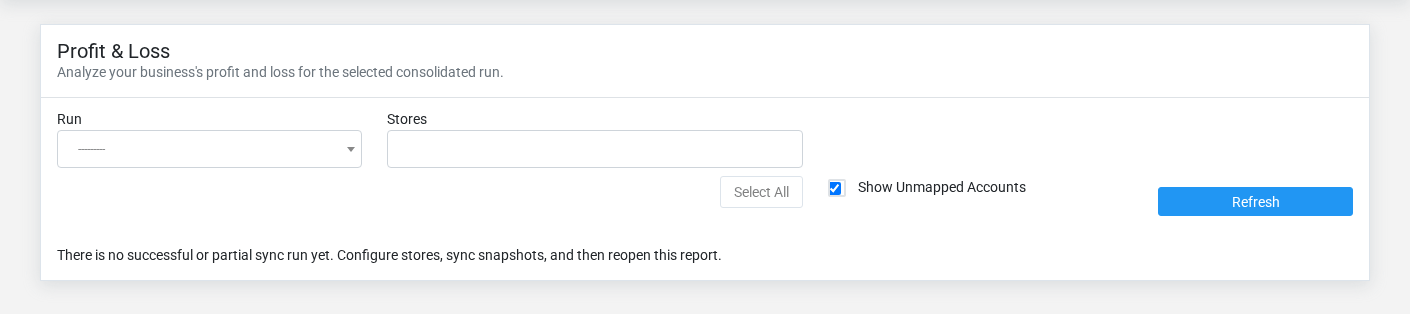
The evidence packet identifiesUse the viewSync Runs list to find the correct record before opening or changing it. Compare Start Date, End Date, and sourceStatus. locationRecords with similar names or numbers can still belong to different Requested By.
-
Keyword search checks Status, Notes, and Last Error.
-
The initial order emphasizes Created At. Select a column heading when you need a different comparison.
Open the Sync Run whose Start Date, End Date, and Status match the task. If it is missing, clear the list filters and recheck Basis, and Status rather than creating a replacement immediately.
Review Sync Run details
Use the detail page as the shared record of what this Sync Run currently means. Verify Start Date, End Date, Basis, and Status before relying on it for a decision.
Follow Requested By to determine whether the issue is on this Sync Run or on one of those linked records.
Next check: Review each store result and the Last Error field before relying on consolidated statements for the requested period.
Fields and business rules
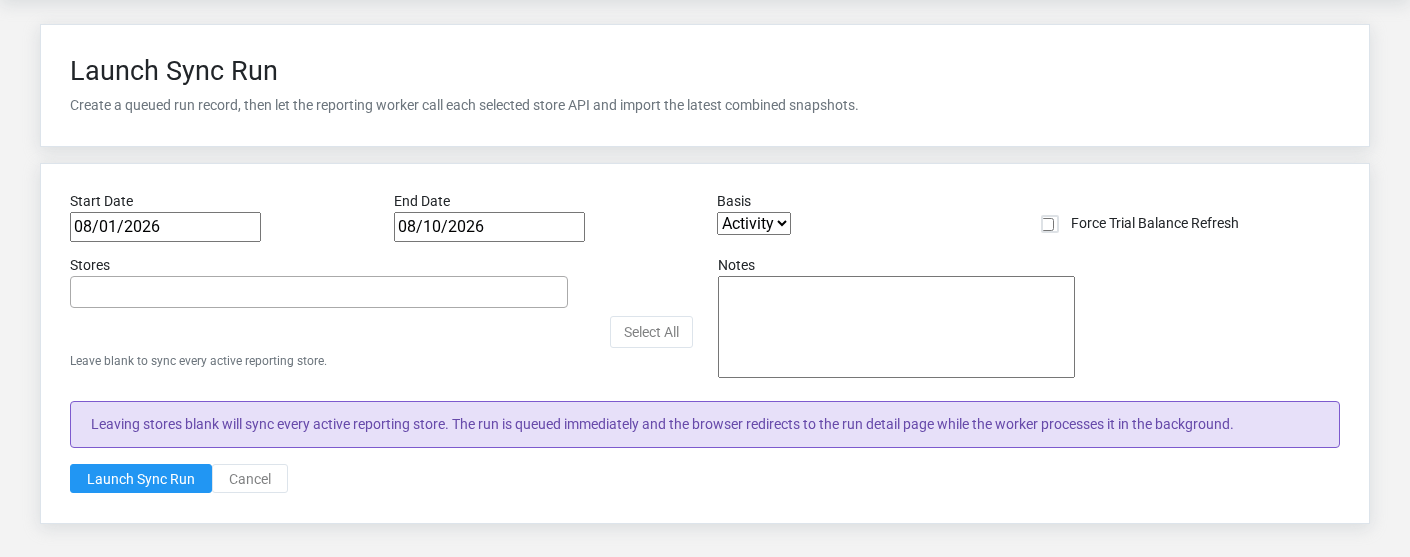
Brisk stores 10 user-relevant fields for this action.Sync ConfirmRun, user-facingincluding steps1 linked-record selection and 2 controlled-choice fields. Create and edit screens may hide calculated or workflow-managed values from this full reference.
| Field | Required | What it controls |
|---|---|---|
| Requested By | No | The requested by associated with this run. |
| Start Date | Yes | Date recorded for start date on this run. |
| End Date | Yes | Date recorded for end date on this run. |
| Basis | No | The basis recorded for this run. Available values: Activity, Ending. |
| Force Refresh | No | Whether the force refresh option applies to this run. |
| Status | No | Current status of this run. Available values: Pending, Running, Success, Partial, Failed. |
| Started At | No | Date and time recorded for started at on this run. |
| Finished At | No | Date and time recorded for finished at on this run. |
| Notes | No | Additional internal notes about this run. |
| Last Error | No | The last error recorded for this run. |
What happens next
Review each store result and the Last Error field before approvingrelying thison consolidated statements for the requested period.
Common mistakes and troubleshooting
-
The record will not save: Recheck Start Date, and End Date and any message beside the field. A required related record may also be inactive or unavailable to your role.
-
The record saved but is not available where expected: Recheck Basis, and Status, then clear the filters on the destination list. A saved record can still be inactive, unpublished, locked, unapproved, or in the wrong workflow state.
-
The values look right but the result is wrong: Open Requested By from the detail page. Correct the specific relationship that is wrong instead of forcing a total or status to compensate for it.