
Customers
Customers
Purpose and when to use this record
Brisk stores customers as part ofMaintain the managementpeople module.and Thisorganizations generatedthat referencebuy from the business, including billing, tax, pricing, credit, and contact defaults.
At a glance
-
Identify it by: Customer #, First Name, Last Name, Tax Code, and Last A/R Payment Date.
-
Check its business context: Division, Salesperson, Class, Freight Zone, and Discount Schedule.
-
Why care: These master records supply defaults and choices to later transactions. Correct duplicates and inactive records before staff build more activity on the wrong record.
Before you begin
You need the Brisk permission for the action you are taking on customers. If a Create, Edit, or Delete control is awaitingabsent, workflowdo review.not work around it with another user’s account; ask an administrator to review your role.
Have valid Class, Tax Code, Receivable Account, and Payment Terms records ready first. Those selections determine where this Customer belongs and which later screens can find it.
Create a recordCustomer
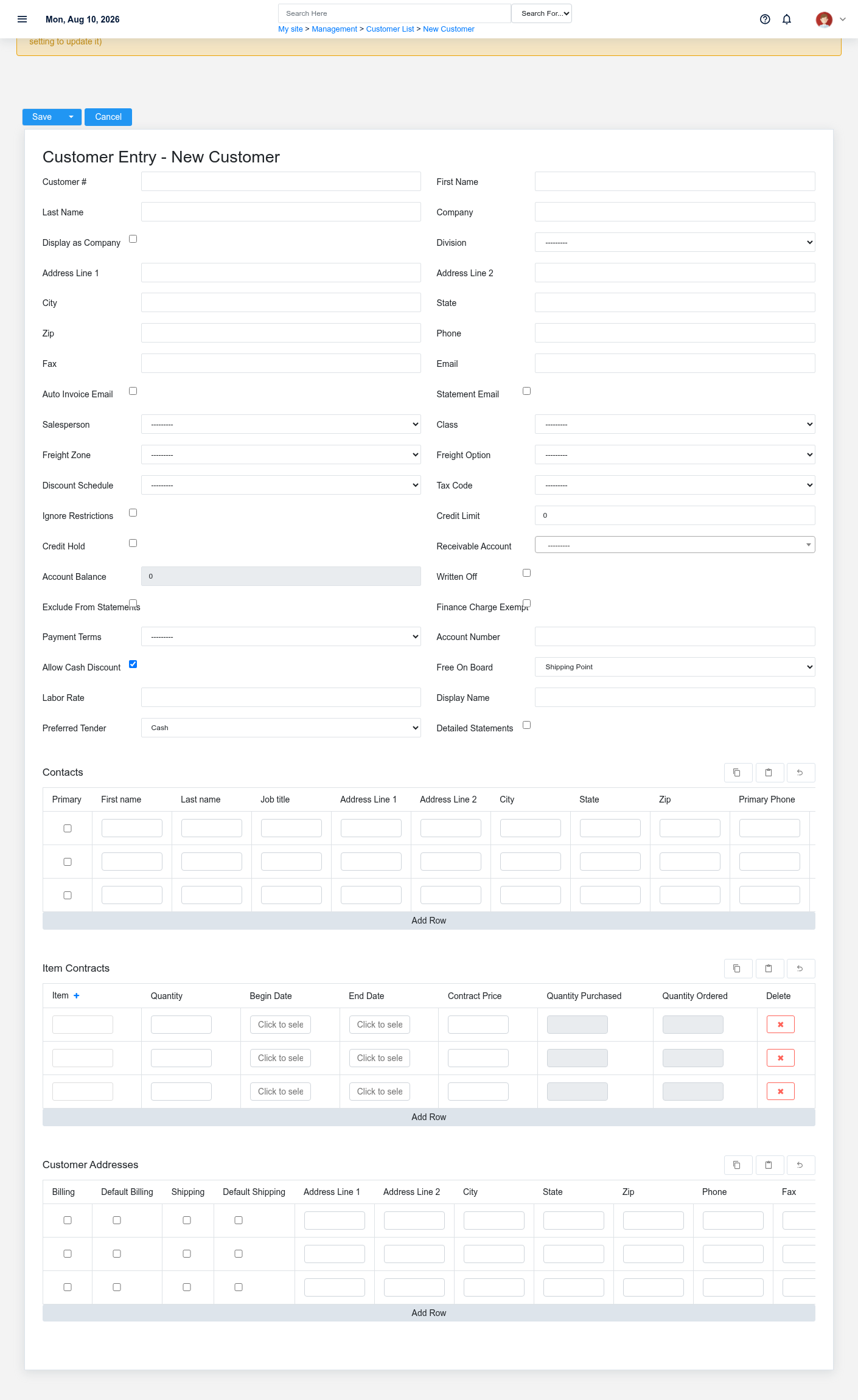
TheCreate evidencea packetCustomer identifiesafter searching for the viewperson, organization, item, location, or resource under alternate names and sourceidentifiers. locationMerge or correct an existing master record instead of creating a duplicate.
-
Select the business context first: Division, Salesperson, Class, Freight Zone, Discount Schedule, and Tax Code, plus the remaining screen fields.
-
Enter the required identifying and operational values: First Name, Last Name, Class, Tax Code, Receivable Account, and Payment Terms.
-
Review Display As Company, Auto Invoice Email, Statement Email, Freight Option, Ignore Restrictions, and Active Prescription, plus the remaining screen fields deliberately; these choices control availability or workflow rather than merely describing the record.
-
Save the Customer, then confirm Customer #, First Name, Last Name, Tax Code, and Last A/R Payment Date on its detail page before continuing.
After saving: Verify this Customer in Bookings, Contacts, Customer Addresses, and Customer Aging Snapshots, plus the remaining screen fields before staff build new activity on it; correct ownership, classification, and active state now rather than after transactions accumulate.
Delete a Customer
Delete this Customer only if it is an unused duplicate or setup mistake. Once other records refer to it, preserve that history and make the value inactive when the screen provides that option.
Before confirming, check for thisrelated action.Bookings, ConfirmContacts, user-facingCustomer stepsAddresses, beforeCustomer approvingAging Snapshots, and Customer Balance Import Lines, plus the remaining screen fields. Brisk may refuse deletion when another record depends on this page.one; resolve the duplicate or use the supported correction workflow instead of breaking the trail.
On the confirmation page, verify Customer #, First Name, Last Name, Tax Code, and Last A/R Payment Date. After confirmation, return to the Customers list and make sure only the intended Customer was removed.
ViewReview recordCustomer details
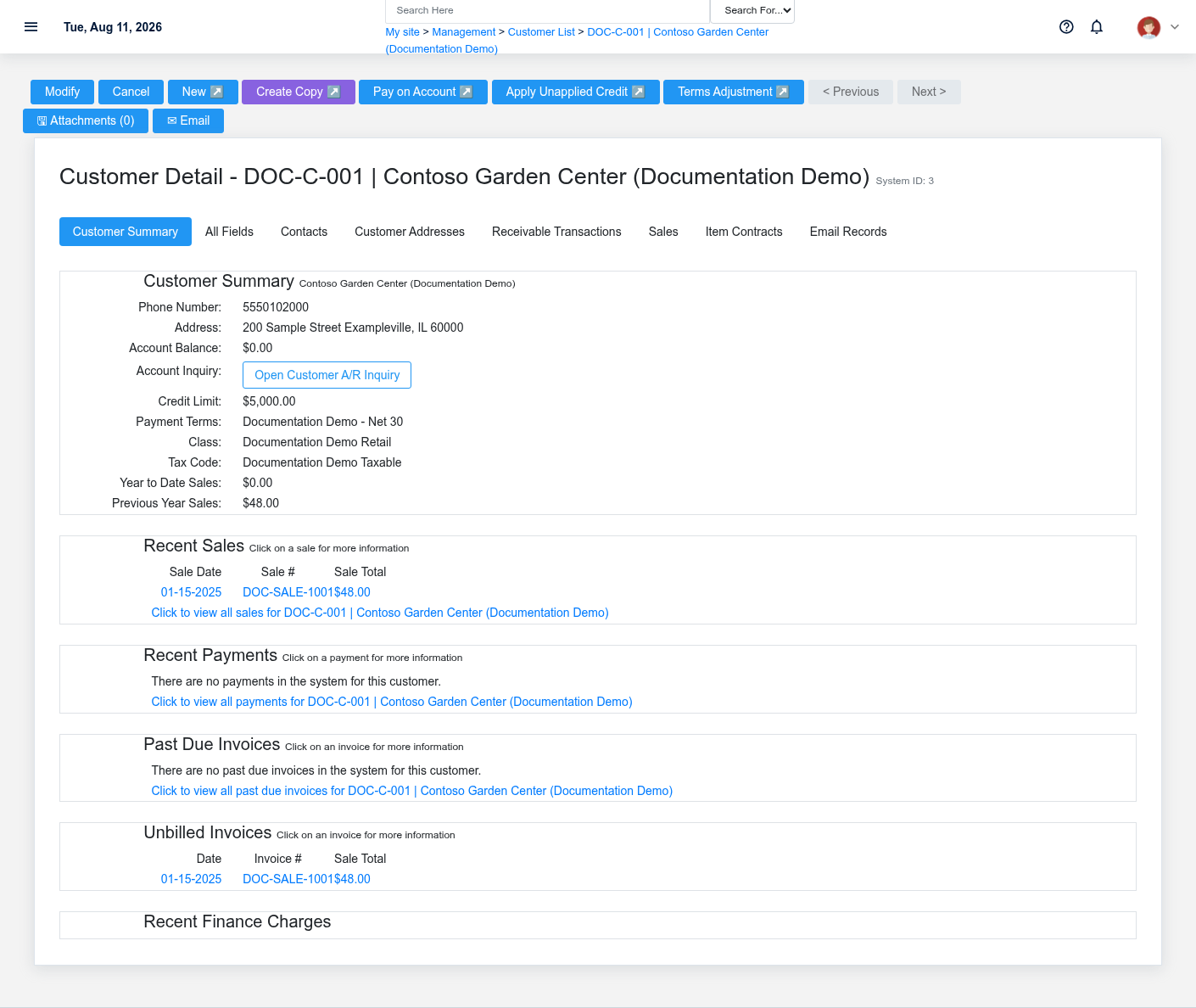
The evidence packet identifiesUse the viewdetail page as the shared record of what this Customer currently means. Verify Freight Option, Active Prescription, Account Balance, Last A/R Payment Date, Last A/R Payment Amount, and sourceFree locationOn Board, plus the remaining screen fields before relying on it for a decision.
Follow Division, Salesperson, Class, Freight Zone, Discount Schedule, and Tax Code, plus the remaining screen fields to determine whether the issue is on this action.Customer Confirmor user-facingon stepsone of those linked records.
Next check: Verify this Customer in Bookings, Contacts, Customer Addresses, and Customer Aging Snapshots, plus the remaining screen fields before approvingstaff build new activity on it; correct ownership, classification, and active state now rather than after transactions accumulate.
Edit an existing Customer
Edit this Customer to keep the same real-world party, item, location, or resource accurate. Do not repurpose it for a different entity after activity is attached.
-
Open the detail page. Compare Division, Salesperson, Class, Freight Zone, Discount Schedule, and Tax Code, plus the remaining screen fields with the supporting document or approved request.
-
Recheck Customer #, Class, Freight Option, Active Prescription, Receivable Account, and Account Balance, plus the remaining screen fields. These values are most likely to change future transactions, defaults, assignment, pricing, and reporting.
-
Save the change, return to the list, and confirm that the Customer now appears under the expected Freight Option, Active Prescription, Free On Board, and Preferred Tender.
After the change: Verify this Customer in Bookings, Contacts, Customer Addresses, and Customer Aging Snapshots, plus the remaining screen fields before staff build new activity on it; correct ownership, classification, and active state now rather than after transactions accumulate.
Find and review recordscustomers
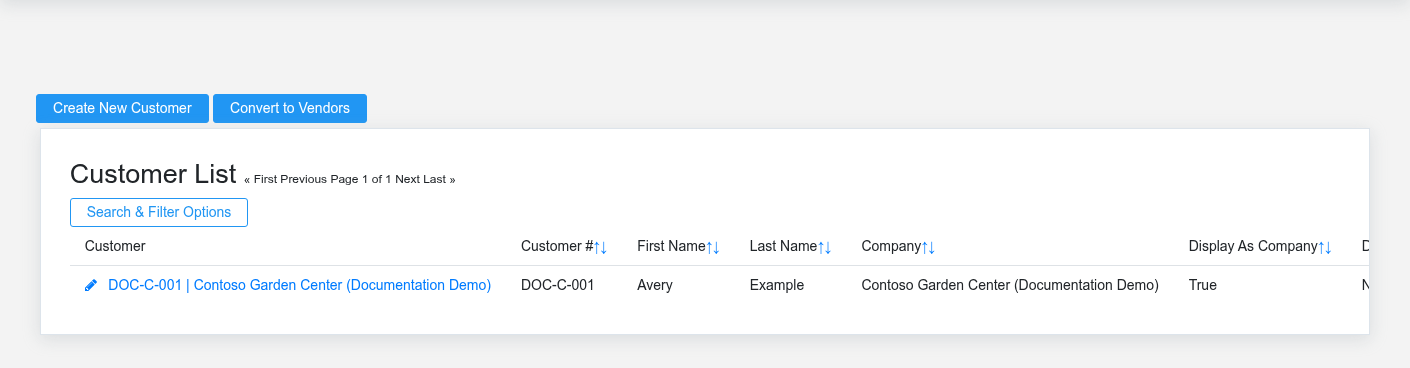
The evidence packet identifiesUse the viewCustomers list to find the correct record before opening or changing it. Compare Customer #, First Name, Last Name, Tax Code, Last A/R Payment Date, and sourceAccount locationNumber, plus the remaining screen fields. Records with similar names or numbers can still belong to different Division, Salesperson, Class, Freight Zone, Discount Schedule, and Tax Code, plus the remaining screen fields.
- Keyword search checks Display Name, First Name, Last Name, Address Line 1, Address Line 2, and City, plus the remaining screen fields.
Open the Customer whose Customer #, First Name, Last Name, Tax Code, Last A/R Payment Date, and Account Number, plus the remaining screen fields match the task. If it is missing, clear the list filters and recheck Freight Option, Active Prescription, Free On Board, and Preferred Tender rather than creating a replacement immediately.
Fields and business rules
Brisk stores 42 user-relevant fields for this action.Customer, Confirmincluding user-facing8 stepslinked-record beforeselections approvingand 3 controlled-choice fields. Create and edit screens may hide calculated or workflow-managed values from this page.full reference.
Edit
| Field | Required | What |
|---|---|---|
| Customer # | No | A customer's unique ID number. Leave this field blank for the |
| First Name | Yes | The first name recorded for this |
| Last |
Yes | The |
| Company | No | The company recorded for this customer. |
| Display As Company | No | Whether the display as company option applies to this customer. |
| Division | No | The division associated with this customer. |
| Address Line 1 | No | The address line 1 recorded for this customer. |
| Address Line 2 | No | The address line 2 recorded for this customer. |
| City | No | The city recorded for this customer. |
| State | No | The state recorded for this customer. |
| Zip | No | The zip recorded for this customer. |
| Phone | No | The phone recorded for this customer. |
| Fax | No | The fax recorded for this customer. |
| No | The email recorded for this customer. | |
| Auto Invoice Email | No | If enabled, the system will attempt to automatically email receipts to this customer at their specified email address. |
| Statement Email | No | If enabled, the system will attempt to email statements to this customer at their specified email address. |
| Salesperson | No | The salesperson associated with this customer. |
| Class | Yes | The class associated with this customer. |
| Freight Zone | No | The freight zone associated with this customer. |
| Freight Option | No | The freight option recorded for this customer. Available values: Line Item, Distributed, Other. |
| Discount Schedule | No | The discount schedule associated with this customer. |
| Tax Code | Yes | The tax code associated with this customer. |
| Ignore Restrictions | No | If this field is enabled, the selected customer will not be subject to restrictions placed on contract-restriced items. This would be appropriate for customers who are dealers or otherwise responsible for dealing with purchase restriction regulations. |
| Active Prescription | No | If enabled, this customer can be selected on sales invoices when prescription restriction is active. |
| Credit Limit | No | The credit limit value recorded for this customer. |
| Credit Hold | No | If this field is enabled, the selected customer will not be allowed to charge or purchase items by check regardless of balance and credit limit. They will still be allowed to make cash and credit/debit card purchases. |
| Receivable Account | Yes | The receivable account associated with this customer. |
| Account Balance | No | The account balance value recorded for this customer. |
| Last A/R Payment Date | No | Date and time recorded for last a/r payment date on this customer. |
| Last A/R Payment Amount | No | The last a/r payment amount value recorded for this customer. |
| Written Off | No | If this field is enabled, the selected customer will be treated as a bad debt. They will no longer accrue finance charges or be included in batch statement printing. |
| Exclude From Statements | No | If enabled, this customer will be skipped during batch customer statement creation and statement emailing for manual statement handling. |
| Finance Charge Exempt | No | If enabled, this customer will not accrue finance charges regardless of payment terms. |
| Payment Terms | Yes | The payment terms associated with this customer. |
| Account Number | No | An optional field that allows storage of a legacy customer account number or other identifying account information. |
| Allow Cash Discount | No | If this field is disabled, this customer will not be allowed to receive cash discounts or early payment discounts. |
| Free On Board | No | The free on board recorded for this customer. Available values: Shipping Point, Destination Point. |
| Labor Rate | No | Sets the default labor rate for the service customer in the service module. |
| Display Name | No | The display name recorded for this customer. |
| Customer Pays Tonnage Tax | No | Enable for customers that use the product for manufacturing, resale, or other non-end-user purposes and therefore pay their own tonnage tax. |
| Preferred Tender | No | The customer will have this payment method selected by default when making a sale. Available values: Cash, Check, Debit Card, Credit Card, Customer Account. |
| Detailed Statements | No | If this field is enabled and an appropriate statement template is being used, the selected customer will receive line item detail on their monthly statements. |
What happens next
Verify this Customer in Bookings, Contacts, Customer Addresses, and Customer Aging Snapshots, plus the remaining screen fields before approvingstaff thisbuild new activity on it; correct ownership, classification, and active state now rather than after transactions accumulate.
Common mistakes and troubleshooting
-
The record will not save: Recheck First Name, Last Name, Class, Tax Code, Receivable Account, and Payment Terms and any message beside the field. A required related record may also be inactive or unavailable to your role.
-
The values look right but the result is wrong: Open Division, Salesperson, Class, Freight Zone, Discount Schedule, and Tax Code, plus the remaining screen fields from the detail page. Correct the specific relationship that is wrong instead of forcing a total or status to compensate for it.