
Vendors
Vendors
Purpose and when to use this record
BriskMaintain storessuppliers vendorsand aspayees partused offor purchasing, receiving, vendor invoices, credits, payments, and 1099 reporting.
At a glance
-
Identify it by: Vendor #, Vendor Name, Account Number, and Coi Expiration Date.
-
Check its business context: Payment Terms, Payable Account, and Charges/Fees Account.
-
Why care: These master records supply defaults and choices to later transactions. Correct duplicates and inactive records before staff build more activity on the
managementwrongmodule.record.This
Before you begin
You need the Brisk permission for the action you are taking on vendors. If a Create, Edit, or Delete control is awaitingabsent, workflowdo review.not work around it with another user’s account; ask an administrator to review your role.
Have valid Payable Account, and Charges/Fees Account records ready first. Those selections determine where this vendor belongs and which later screens can find it.
Create a recordvendor
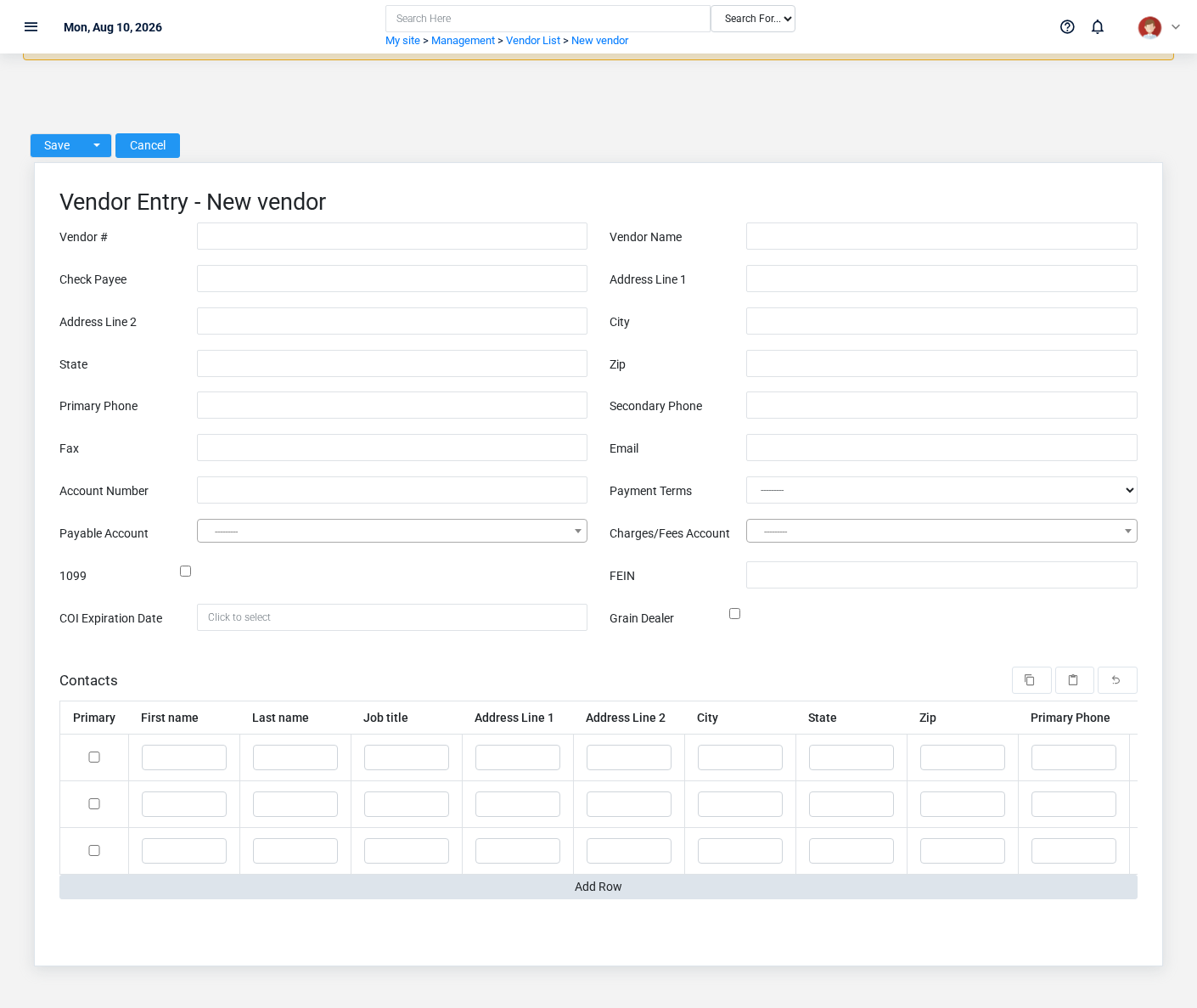
TheCreate evidencea packetvendor identifiesafter searching for the viewperson, organization, item, location, or resource under alternate names and sourceidentifiers. locationMerge or correct an existing master record instead of creating a duplicate.
-
Select the business context first: Payment Terms, Payable Account, and Charges/Fees Account.
-
Enter the required identifying and operational values: Vendor Name, Address Line 1, City, State, Zip, and Primary Phone, plus the remaining screen fields.
-
Review 1099, and Grain Dealer deliberately; these choices control availability or workflow rather than merely describing the record.
-
Save the vendor, then confirm Vendor #, Vendor Name, Account Number, and Coi Expiration Date on its detail page before continuing.
After saving: Verify this vendor in Commodity Sales, Contacts, Credit Card Accounts, and Credit Card Charges, plus the remaining screen fields before staff build new activity on it; correct ownership, classification, and active state now rather than after transactions accumulate.
Delete a vendor
Delete this vendor only if it is an unused duplicate or setup mistake. Once other records refer to it, preserve that history and make the value inactive when the screen provides that option.
Before confirming, check for thisrelated action.Commodity ConfirmSales, user-facingContacts, stepsCredit beforeCard approvingAccounts, Credit Card Charges, and Inventory Receipts, plus the remaining screen fields. Brisk may refuse deletion when another record depends on this page.one; resolve the duplicate or use the supported correction workflow instead of breaking the trail.
On the confirmation page, verify Vendor #, Vendor Name, Account Number, and Coi Expiration Date. After confirmation, return to the Vendors list and make sure only the intended vendor was removed.
ViewReview recordvendor details
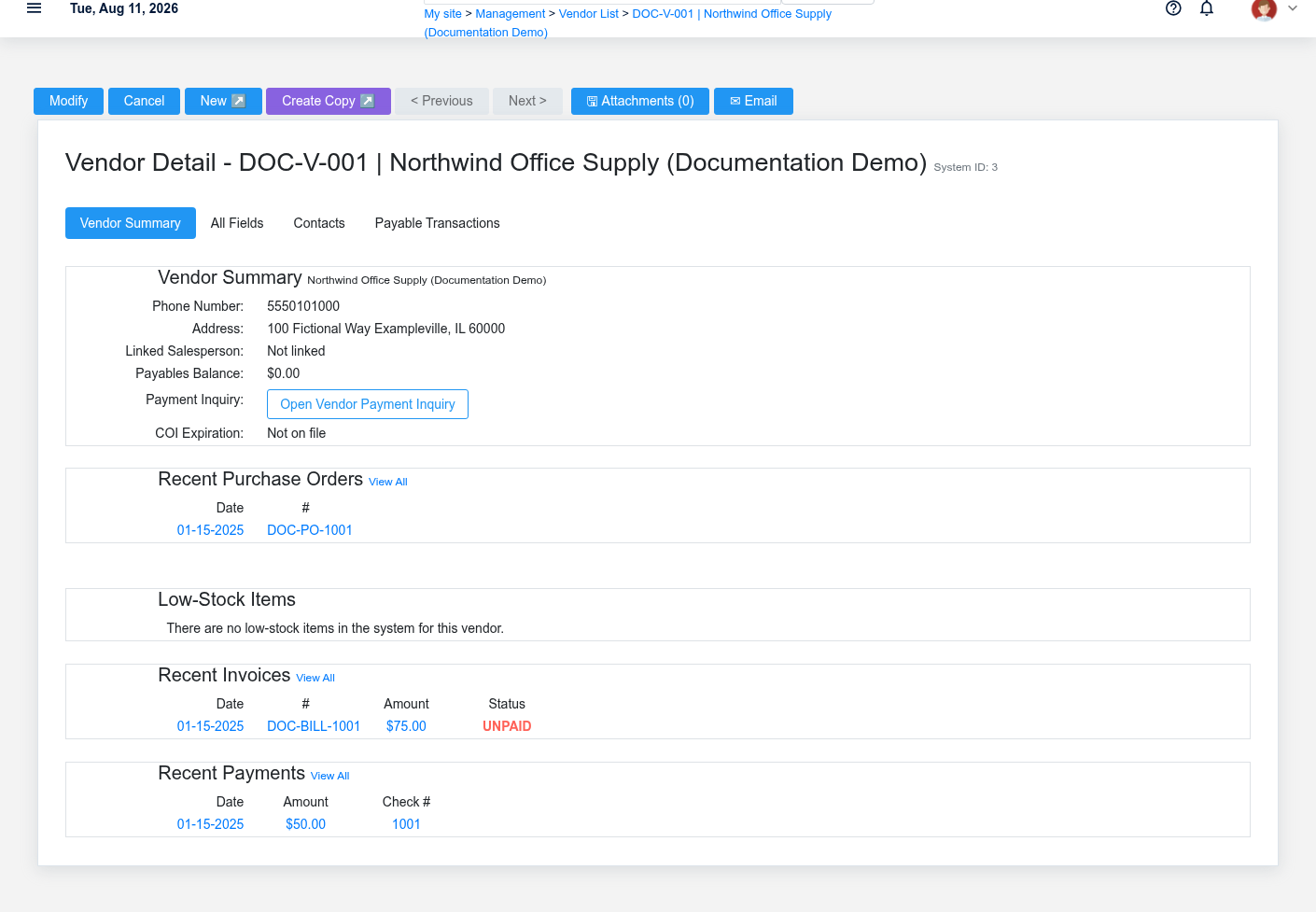
The evidence packet identifiesUse the viewdetail page as the shared record of what this vendor currently means. Verify Coi Expiration Date before relying on it for a decision.
Follow Payment Terms, Payable Account, and sourceCharges/Fees locationAccount to determine whether the issue is on this vendor or on one of those linked records.
Next check: Verify this vendor in Commodity Sales, Contacts, Credit Card Accounts, and Credit Card Charges, plus the remaining screen fields before staff build new activity on it; correct ownership, classification, and active state now rather than after transactions accumulate.
Edit an existing vendor
Edit this vendor to keep the same real-world party, item, location, or resource accurate. Do not repurpose it for a different entity after activity is attached.
-
Open the detail page. Compare Payment Terms, Payable Account, and Charges/Fees Account with the supporting document or approved request.
-
Recheck Vendor #, Account Number, Payable Account, Charges/Fees Account, and Coi Expiration Date. These values are most likely to change future transactions, defaults, assignment, pricing, and reporting.
-
Save the change, return to the list, and confirm that the vendor now appears under the expected Vendor #, Vendor Name, Account Number, and Coi Expiration Date.
After the change: Verify this action.vendor Confirmin user-facingCommodity stepsSales, Contacts, Credit Card Accounts, and Credit Card Charges, plus the remaining screen fields before approvingstaff thisbuild page.new activity on it; correct ownership, classification, and active state now rather than after transactions accumulate.
Find and review recordsvendors
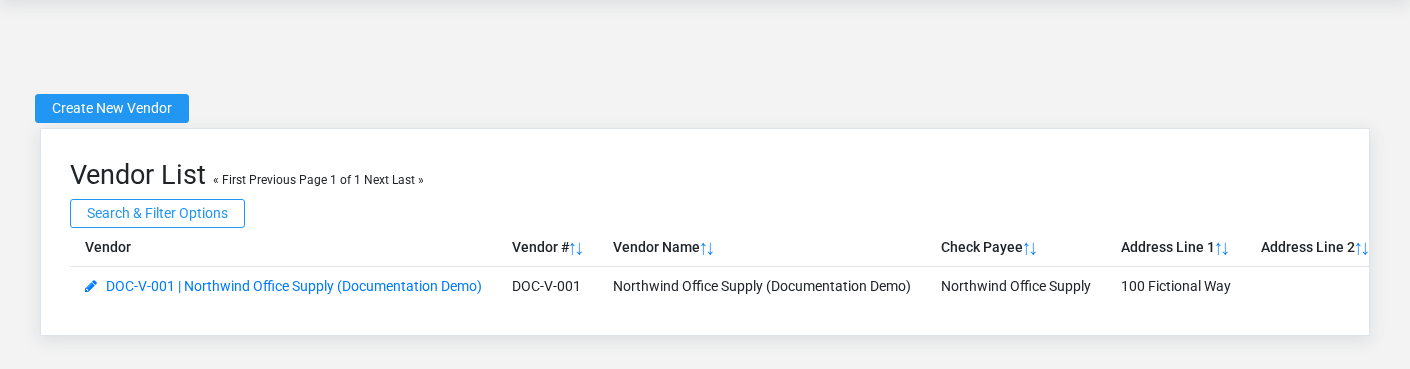
The evidence packet identifiesUse the viewVendors list to find the correct record before opening or changing it. Compare Vendor #, Vendor Name, Account Number, and sourceCoi locationExpiration Date. Records with similar names or numbers can still belong to different Payment Terms, Payable Account, and Charges/Fees Account.
-
Keyword search checks Vendor Name, Vendor #, Address Line 1, Address Line 2, City, and State, plus the remaining screen fields.
-
The initial order emphasizes Vendor Name. Select a column heading when you need a different comparison.
Open the vendor whose Vendor #, Vendor Name, Account Number, and Coi Expiration Date match the task. If it is missing, clear the list filters and recheck the identifying information shown on the screen rather than creating a replacement immediately.
Fields and business rules
Brisk stores 20 user-relevant fields for this action.vendor, Confirmincluding user-facing3 stepslinked-record beforeselections approvingand 0 controlled-choice fields. Create and edit screens may hide calculated or workflow-managed values from this page.full reference.
Edit
| Field | Required | What |
|---|---|---|
| Vendor # | No | A vendor's unique ID number. Leave this field blank for the |
| Vendor Name | Yes | Enter the name of the company or individual that will identify this vendor. |
| Check Payee | No | If different from the Vendor Name, enter the name as it appears on checks here. |
| Address Line 1 | Yes | The address line 1 recorded for this |
| Address |
No | The |
| City | Yes | The city recorded for this vendor. |
| State | Yes | The state recorded for this vendor. |
| Zip | Yes | The zip recorded for this vendor. |
| Primary Phone | Yes | The primary phone recorded for this vendor. |
| Secondary Phone | No | The secondary phone recorded for this vendor. |
| Fax | No | The fax recorded for this vendor. |
| No | The email recorded for this vendor. | |
| Account Number | No | List your business account number with this vendor. |
| Payment Terms | No | The payment terms associated with this vendor. |
| Payable Account | Yes | Designates the account that will track any accounts payable transactions for this vendor. |
| Charges/Fees Account | Yes | Designates the expense account that will be used if finance charges or restocking fees are included in a credit memo. |
| 1099 | No | Determines whether to issue 1099s to this vendor or not. |
| Fein | No | Store the Federal Employer Identification Number here. |
| Coi Expiration Date | No | Date that the vendor certificate of insurance expires. |
| Grain Dealer | No | Determines whether or not this vendor is a grain dealer for the purposes of federal corn checkoff regulations. Grain dealers are expected to handle paying corn checkoff, so it will not be deducted from their payments. |
What happens next
Verify this vendor in Commodity Sales, Contacts, Credit Card Accounts, and Credit Card Charges, plus the remaining screen fields before approvingstaff thisbuild new activity on it; correct ownership, classification, and active state now rather than after transactions accumulate.
Common mistakes and troubleshooting
-
The record will not save: Recheck Vendor Name, Address Line 1, City, State, Zip, and Primary Phone, plus the remaining screen fields and any message beside the field. A required related record may also be inactive or unavailable to your role.
-
The values look right but the result is wrong: Open Payment Terms, Payable Account, and Charges/Fees Account from the detail page. Correct the specific relationship that is wrong instead of forcing a total or status to compensate for it.