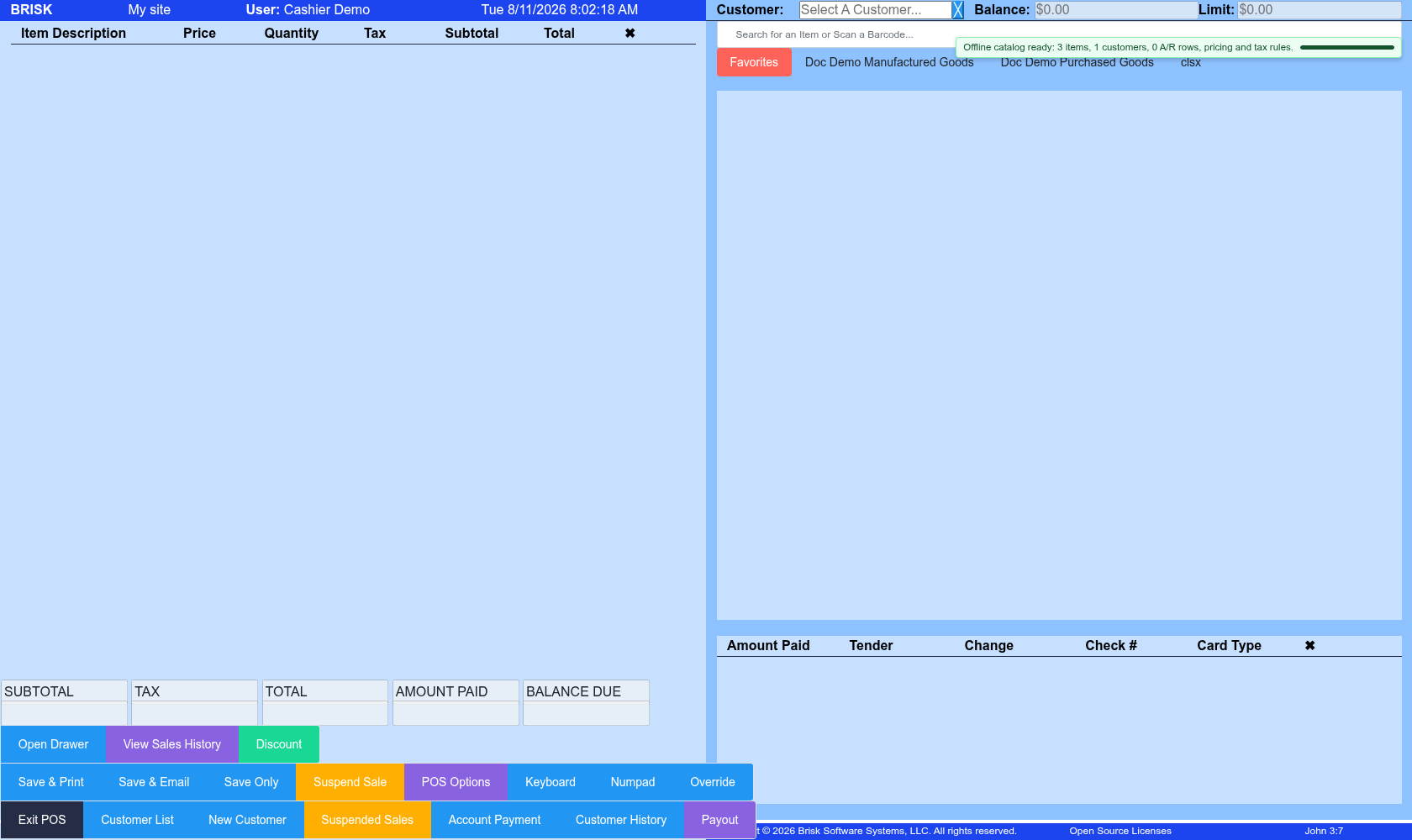
Point of Sale is the cashier workspace for selecting a customer, scanning or searching items, applying permitted pricing and tax behavior, accepting tender, printing receipts, and handling foodservice tickets or customer-account payments. Finalizing creates business and accounting effects; the cart is the last safe place to correct ordinary entry mistakes.
Work in Point of Sale
The Brisk Point of Sale workspace with its fictional offline-ready demo catalog.
1. Confirm the workstation and **Cash Drawer**, when shown. The drawer should match the physical till that will be reconciled.
2. Select the customer before relying on price class, tax code, credit limit, account balance, or fulfillment defaults. Use the correct cash/walk-in customer when identity is not required.
3. Search or scan each item. Verify description, unit, quantity, price, discount, tax, options, and fulfillment behavior on every row.
4. For foodservice, confirm ticket/order type, table, server, guest count, notes, options, and whether kitchen or shelf tickets have been printed.
5. Review subtotal, discount, tax, total, and customer/account context before opening payment.
6. Select the actual tender and enter reference/check/card information as required. Do not mark a payment successful until Brisk and the terminal/processor agree.
7. Finalize once, read the confirmation, and provide the intended receipt.
Pause or recover a sale
Use [Suspended Sales](https://help.brisksystems.us/link/2748#bkmrk-overview) for an unfinished live ticket that should be resumed later. Use the [Offline POS Queue](https://help.brisksystems.us/link/2952#bkmrk-overview) only when connectivity caused a browser-local ticket. Search live sales before retrying uncertain work so a delayed response does not become a duplicate charge or sale.
Customer account payments
In the account-payment dialog, confirm customer, balance, amount, tender, check/reference or card type, memo, and invoice applications. Auto Apply is a convenience; review how the amount is distributed and whether any remainder should stay unapplied before saving.
Working safely and effectively
Do not share supervisor credentials for overrides. If a price, tax, credit, inventory, or payment warning appears, resolve the cause or obtain the authorized override. For a completed error, use the supported return, void, or correction workflow tied to the original [Sale](https://help.brisksystems.us/link/2746#bkmrk-overview); do not create an unrelated opposite sale merely to make totals net to zero.