
Service Mobile Alerts
Service Mobile Alerts
Purpose and when to use this screen
ReviewMobile Alerts registers the current browser for service alerts intended for mobile usersdispatch and followtechnician thempush tonotifications. theRegistration affectedis work.per browser/device, not per phone number, and depends on browser push support, notification permission, a service worker, and server-side VAPID configuration.
Review mobile alerts
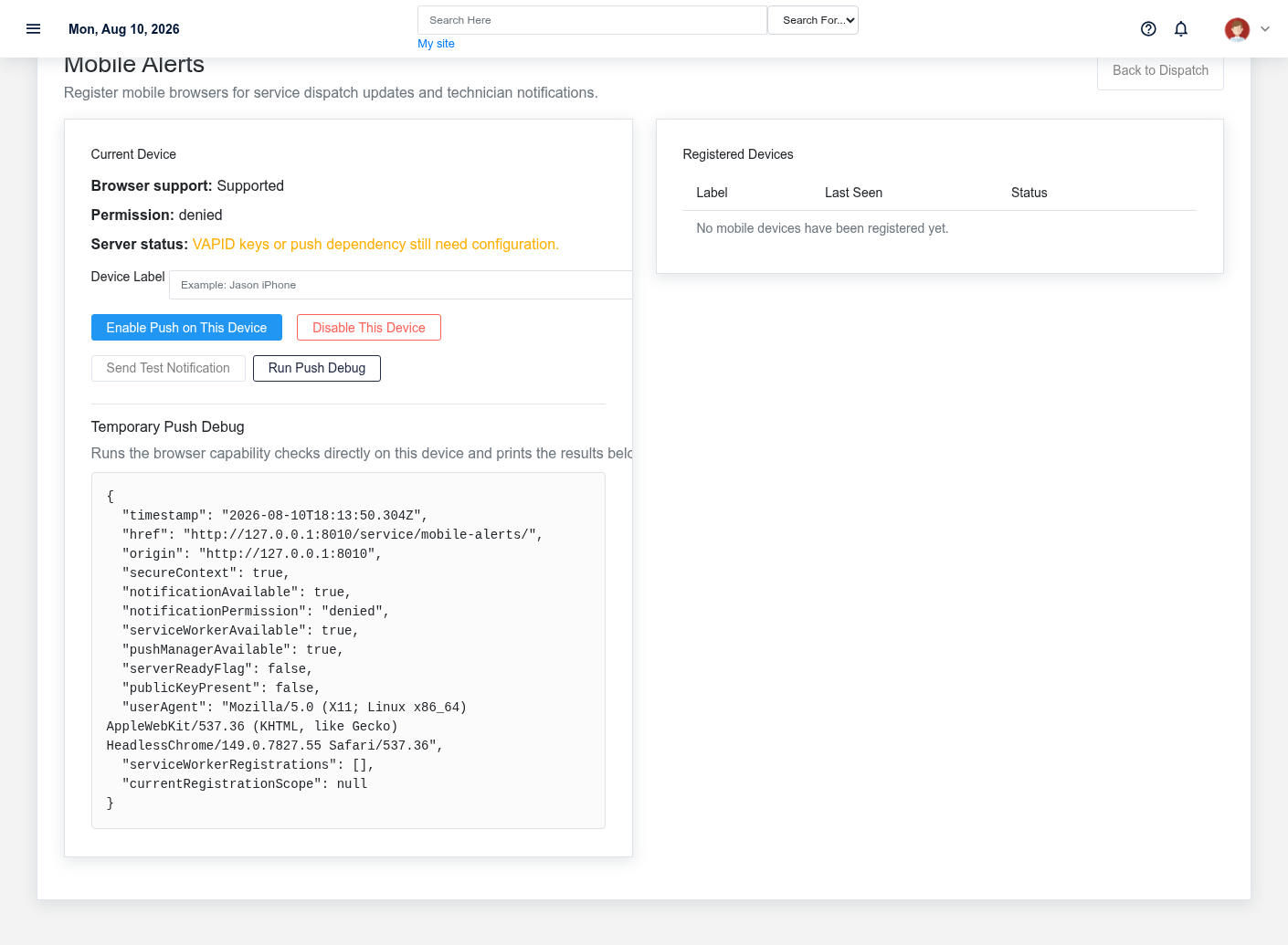
- Open the page on the device and browser that should receive alerts.
- Review Browser support, Permission, and Server status. If the server is not ready, an administrator must configure the push dependency and VAPID keys.
- Enter a meaningful Device Label, such as
Jason iPhone, so the subscription can be recognized later. - Select Enable Push on This Device and respond to the browser permission prompt.
- Select Send Test Notification and confirm the notification appears while the browser is both open and in the background.
Manage registered devices
The Registered Devices table shows label, last-seen time, and active/disabled state. Remove an old subscription after a phone is replaced, a browser profile is reset, or a device should no longer receive work information. Use Disable This Device when working on the currently registered browser.
Act on an alert
Open the relatedlinked Service Order or booking and verify the customer, equipment, priority, schedule, technician, and current status. A push alert may be stale after reassignment or completion; the service record,record confirmis the alertsource isof current,truth.
Troubleshoot delivery
Use Run Push Debug to capture browser capability results. Check operating-system notification settings, browser permission, network access, active subscription status, and takeserver readiness. Record the indicateddevice operationallabel action.and debug output when escalating, but do not include customer or job details in an external support ticket unless authorized.