
Bookings
Bookings
Purpose and when to use this record
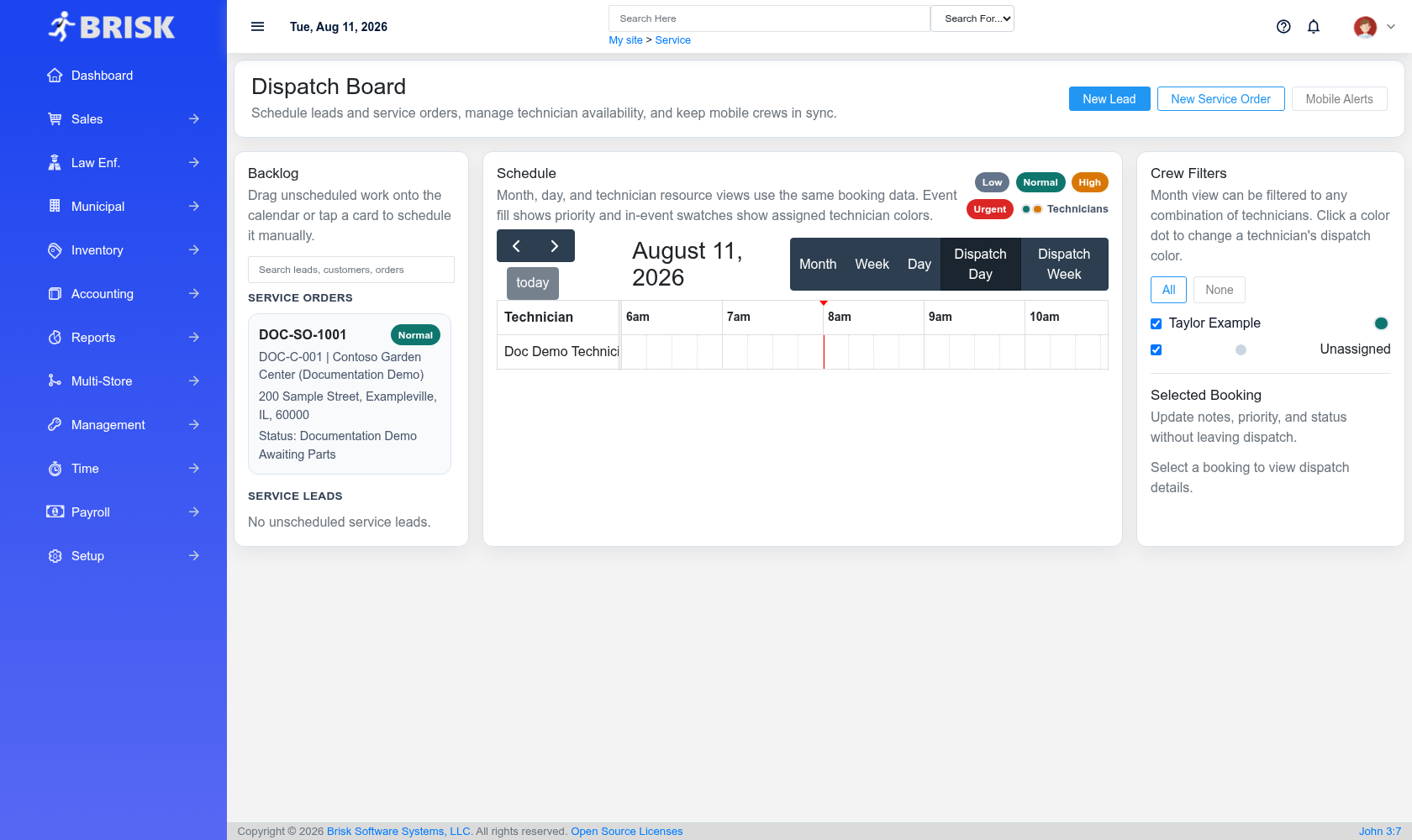
BriskReserve storesservice bookingstime asfor parta customer, piece of equipment, technician, and planned work window before or alongside the service module.order.
At generateda referenceglance
-
Identify it by: Booking Date, and Status.
-
Check its business context: Customer, Service Order, and Service Lead.
-
Why care: Customer, equipment, scope, priority, technician availability, parts, labor, and status must stay aligned from intake through billing.
-
Why care: Status communicates workflow progress to other staff. Change it only when the underlying work, approval, payment, or handoff has actually occurred.
Before you begin
You need the Brisk permission for the action you are taking on bookings. If a Create, Edit, or Delete control is awaitingabsent, do not work around it with another user’s account; ask an administrator to review your role.
Fields and business rules
Brisk stores 16 user-relevant fields for this Booking, including 3 linked-record selections and 2 controlled-choice fields. Create and edit screens may hide calculated or workflow-managed values from this full reference.
| Field | Required | What it controls |
|---|---|---|
| Booking Date | Yes | Records the date and time of this booking. |
| Booking End | No | End time of this scheduled job. |
| Title | No | Short title shown on the dispatch board. |
| Customer | No | The customer for this booking. |
| Service Order | No | Connects this booking to a service order. |
| Service Lead | No | Connects this booking to a lead before it becomes a service order. |
| Status | No | Current status of this booking. Available values: Unscheduled, Scheduled, Dispatched, In Progress, Completed, Canceled. |
| Priority | No | The priority recorded for this booking. Available values: Low, Normal, High, Urgent. |
| Dispatch Notes | No | The dispatch notes recorded for this booking. |
| Unscheduled | No | Marks jobs that should stay in the backlog until explicitly placed on the calendar. |
| Routesequence | No | Optional route ordering for the day. |
| Address Line 1 | No | Enter the address of this booking. |
| Address Line 2 | No | The address line 2 recorded for this booking. |
| City | No | The city recorded for this booking. |
| State | No | The state recorded for this booking. |
| Zip Code | No | The zip code recorded for this booking. |
What happens next
Use Customer, Service Order, and Service Lead to interpret this Booking. If it records a failure or exception, correct the source process and create a new successful event rather than rewriting the audit trail.
Common mistakes and troubleshooting
-
The record will not save: Recheck Booking Date and any message beside the field. A required related record may also be inactive or unavailable to your role.
-
The record saved but is not available where expected: Recheck Status, and Priority, then clear the filters on the destination list. A saved record can still be inactive, unpublished, locked, unapproved, or in the wrong workflow
review.state. -
The values look right but the result is wrong: Open Customer, Service Order, and Service Lead from the detail page. Correct the specific relationship that is wrong instead of forcing a total or status to compensate for it.