# Users and Permissions
# Users and Access
# Users and Access
Purpose and security boundary
Use user records to give one person an identifiable Brisk sign-in and only the access required for that person's work. User administration is restricted setup work. Never copy passwords, recovery codes, API tokens, or customer information into documentation or support notes.
Review users
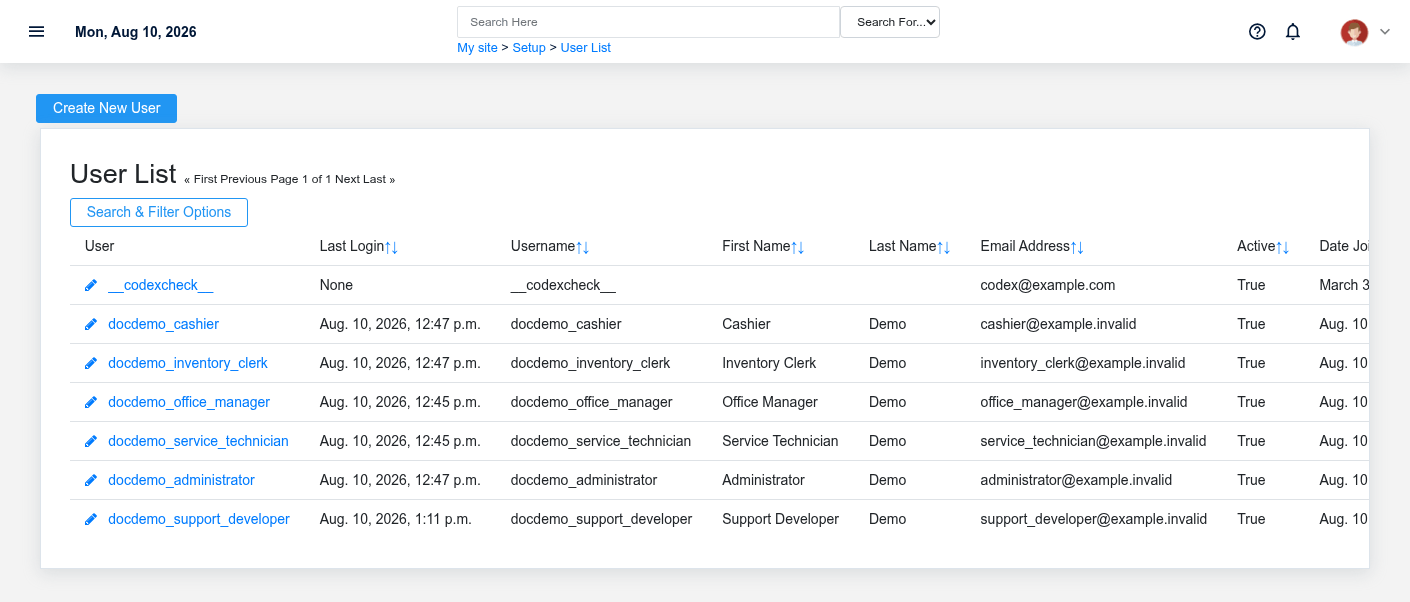
The Users and Access list screen in the Brisk documentation demo.
Open **Setup → Users** and review active accounts regularly. Investigate accounts that no longer have an owner or need. Use the user's detail page to review their profile before changing access.
Create a user
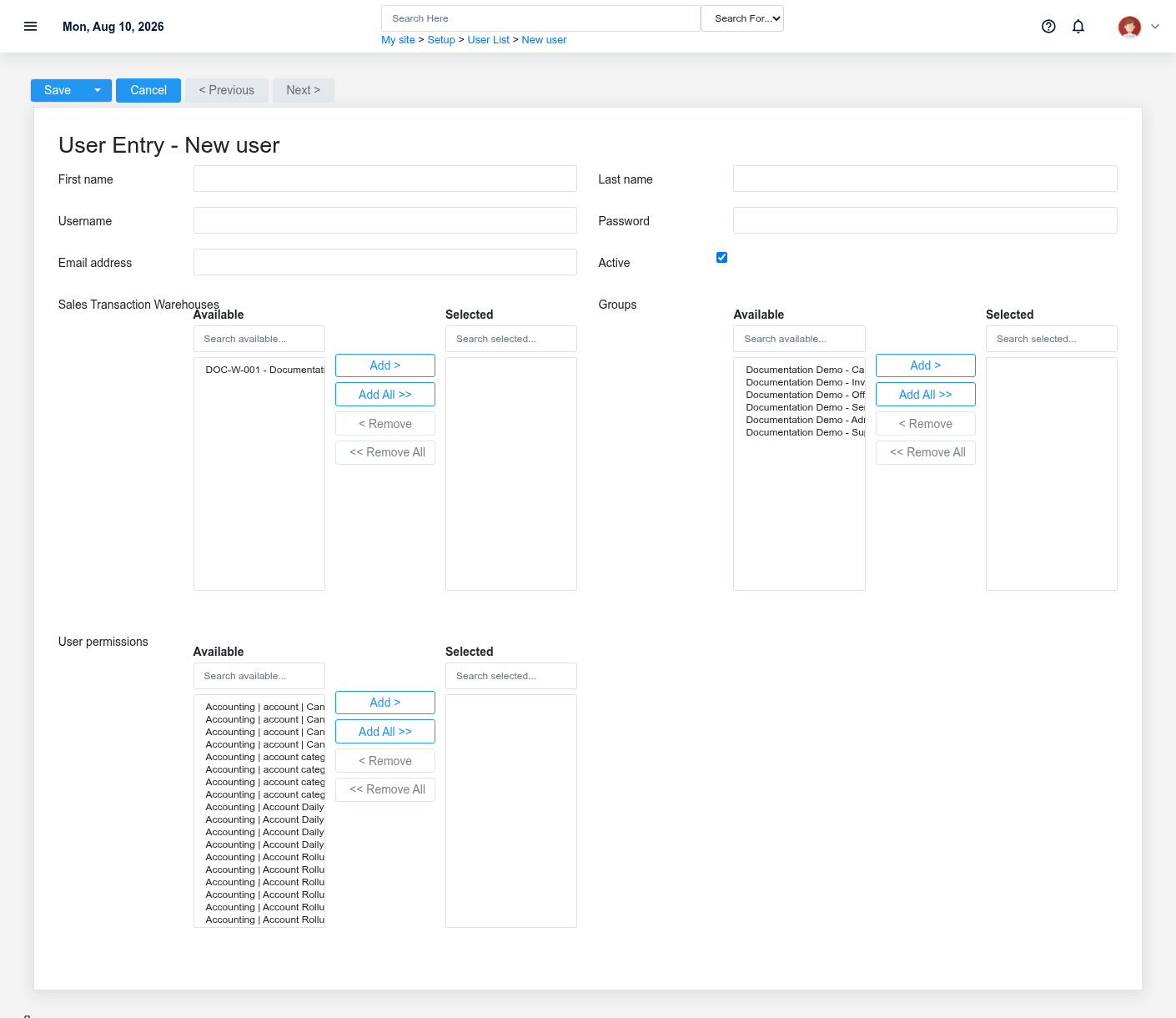
The Users and Access create screen in the Brisk documentation demo.
1. Create a distinct account for the person; do not share a generic sign-in.
2. Enter the required identity and sign-in fields.
3. Assign only reviewed groups and permissions for the person's job.
4. Set an initial password through the protected password workflow, then have the user configure account security.
5. Test a representative task as that role without exposing another user's session or credentials.
View a user
The detail page is the starting point for profile, access, preference, and password administration. Treat staff and superuser flags as elevated access, not convenience settings.
Update a user
Change identity or access only with authorization. Removing access can interrupt current work; adding broad access can expose financial or administrative functions. Record the business reason using your organization's access-review process.
Manage another user's settings
User preference pages change account-specific Brisk behavior. Adjust only the relevant section, and distinguish user preferences from system-wide settings before saving. See the [User Preferences Reference](https://help.brisksystems.us/link/2964#bkmrk-overview) for every preference grouped by its screen section.
Change a user's password
Use the dedicated password action. Do not transmit a reusable password through ordinary notes or documentation. Follow the organization's identity-verification and secure-delivery procedure.
Remove or disable access
Historical records may refer to a user, so deletion can be inappropriate or blocked. Prefer the approved deactivation process where audit history must remain attributable.