
Data Import
Data Import
Purpose and when to use this screen
Prepare,Data validate,Import run,loads supported CSV datasets while preserving a run record, row-level diagnostics, source-system identity, and reviewdry-run/apply supporteddistinction. master-dataUse andit historical-datafor imports.controlled migration or conversion—not as a shortcut around normal validation or as a replacement for database restore.
Choose an import workflow
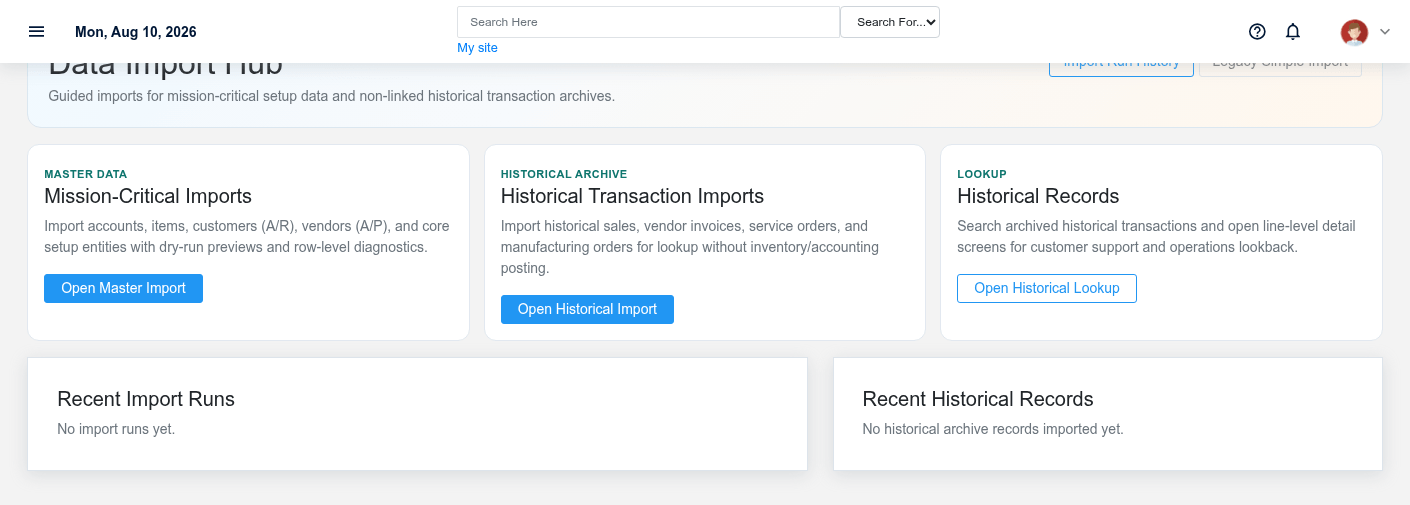
SelectUse Master Data Import for accounts, items, customers, vendors, payment terms, taxes, item classes, customer classes, and units of measure. Use Historical Import for archived business transactions that must remain searchable without becoming ordinary live operational records. Download/use the supportedheaders importshown type that matchesfor the sourceselected datadataset andrather intendedthan Briskguessing records.column names.
Import master data
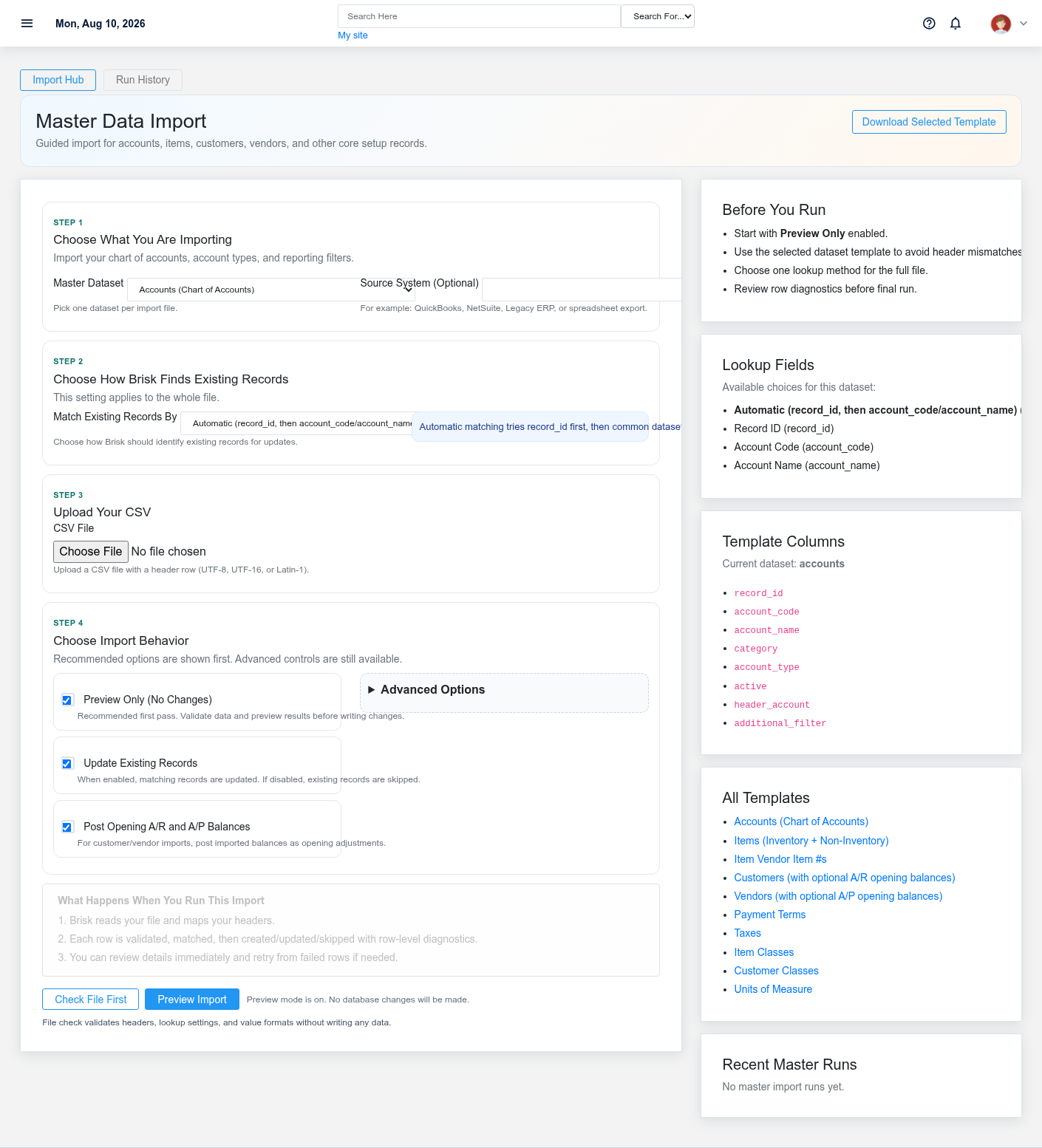
Validate
- Select the dataset and
identifiersidentify the source system. - Choose the lookup strategy that matches reliable source identifiers. Auto is not permission to accept ambiguous matches.
- Upload the CSV and run File Check/Preflight. Fix blocking errors and review warnings.
- Leave Dry Run selected for the first import. Review created, updated, skipped, warning, and error counts.
- Decide whether existing records may be updated, missing related records created, opening balances applied, and blank source values allowed to clear existing data.
- Apply only after the dry-run result and representative row mappings are approved.
Opening customer/vendor balances and account balances have accounting consequences. Confirm effective date, offset/control accounts, duplicate prevention, and reconciliation plan before importingapplying customers, vendors, items, or other master records.them.
Import historical data
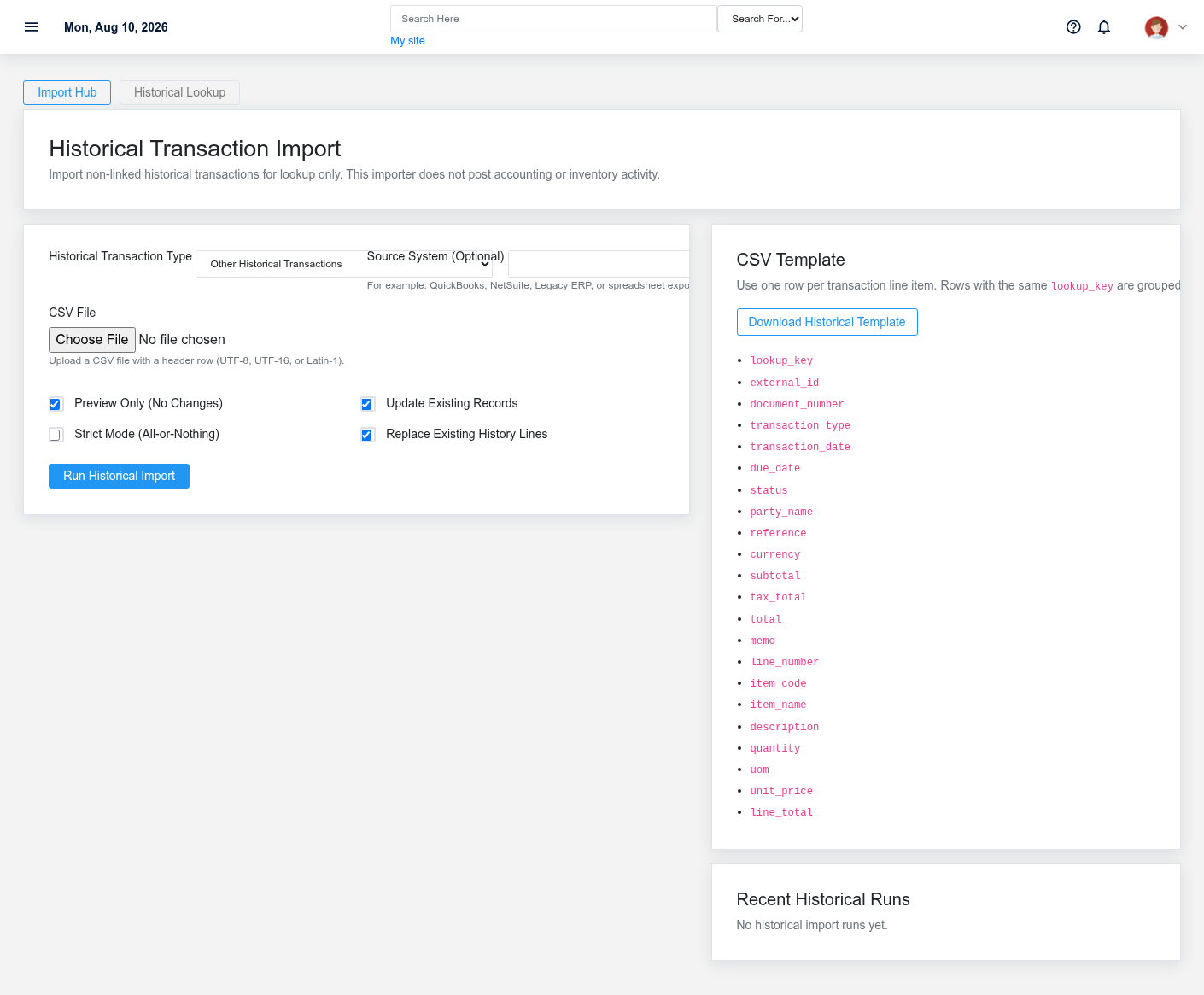
ConfirmSelect historicalthe transaction type, source system, and CSV. Start with dry run, verify external/document IDs, party, transaction date, reference, memo, amounts, and line detail. Decide whether an existing archive record types,may dates,be updated and relationshipswhether beforeexisting staginglines should be replaced. Historical archive entries support lookup and migration history; do not assume they post to inventory, receivables, payables, or the import.general ledger.
Review import runs
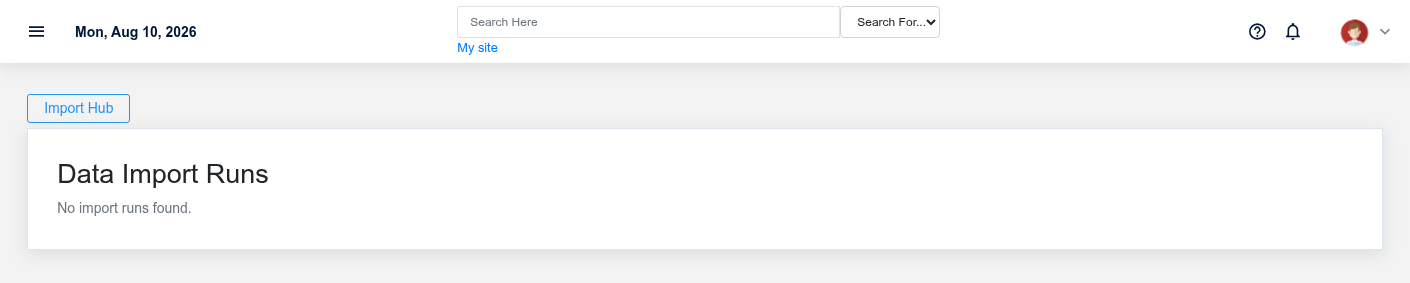
ReviewOpen countsthe saved run and issues for eachreview import type, dataset, filename, source system, options, timestamps, status, counts, lookup strategy, and up to the recorded row-level issues. Download failed rows, correct the source CSV, and retry from the run beforelink treatingso itdataset/source ascontext complete.is preserved. Do not repeatedly apply the entire original file when only failed rows need correction unless the chosen upsert keys make that safe.
Look up imported history
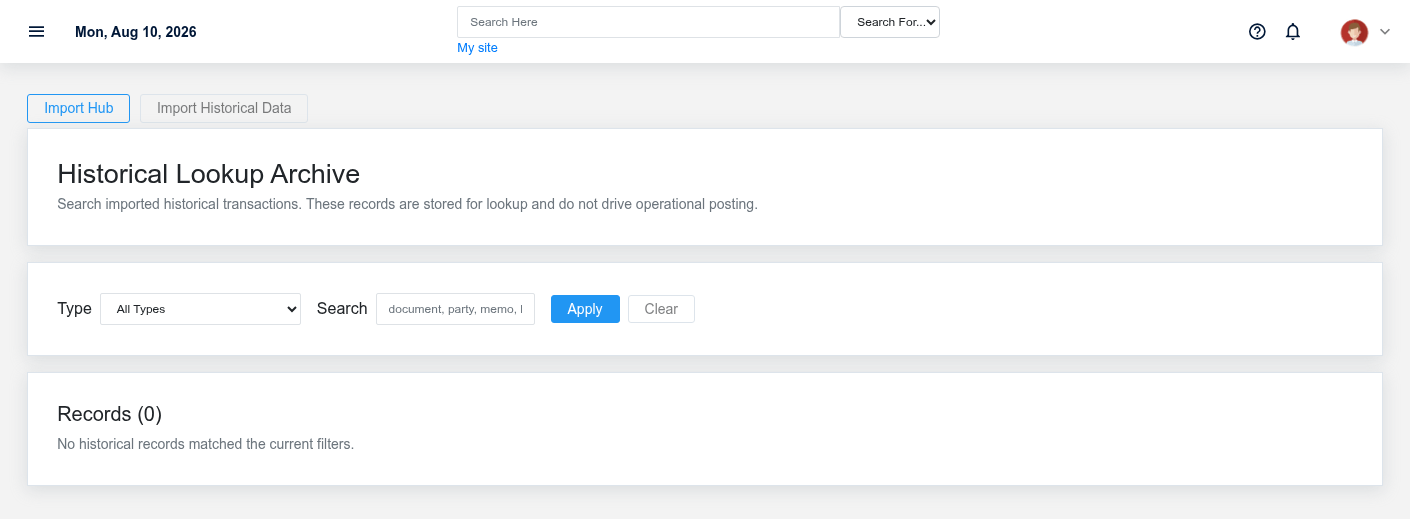
UseFilter Historical Lookup by transaction type and search document number, external ID, party, reference, memo, or lookup key. Open a representative sample across dates and transaction types and verify header/line totals and source identifiers. The archive retains up to the lookupdisplayed screensearch toscope; confirmuse importedrun/detail recordsviews andfor investigateprecise run issues.diagnostics.
Working safely and effectively
ImportBack intoup the database and media first, test on a safenon-production environment first. Correct source datacopy, and retain the original file, transformed file, mapping issuesrules, ratherrun thanIDs, repeatedlyapprovals, importingand uncertainreconciliation files.results. After apply, verify record counts, duplicates, relationships, balances, permissions, and representative downstream screens/reports. Roll back by restoring the tested backup when the import’s effects cannot be safely and completely reversed through normal records.