
Close Accounting Periods
Close Accounting Periods
Purpose and when to use this screen
CompletePeriod end-of-day,close end-of-month,establishes operational and end-of-yearfinancial closecutoffs and makes reports available from a stable boundary. Close from the smallest period outward: work inperiods first, then the correctmonth, order.then the year. The selected Closing Date & Time is an accounting control; do not use the current time automatically when the intended business cutoff is different.
Close a work period
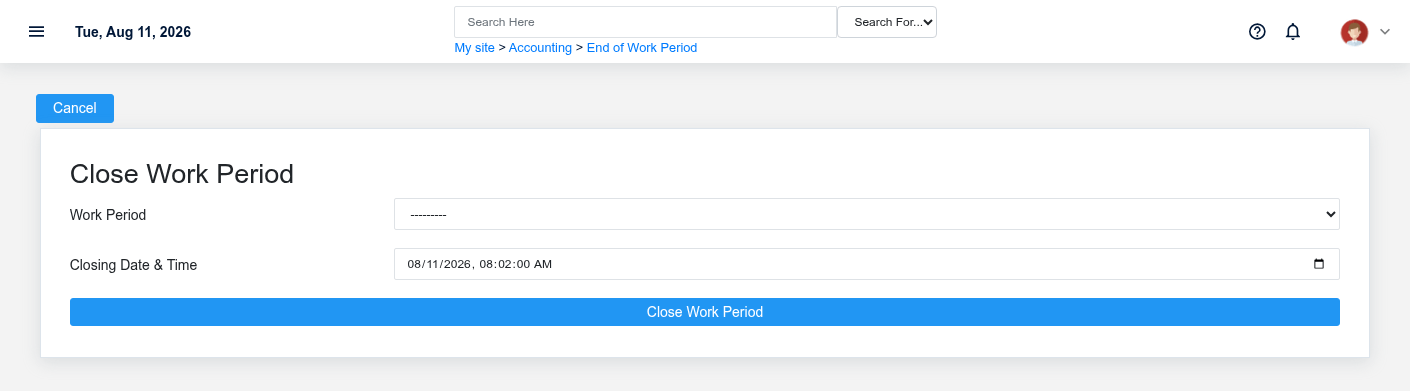
ReviewSelect thean work-periodopen totalsWork Period and unresolvedconfirm its warehouse, open time, expected cutoff, sales/tenders, deposits, cash drawer activity, payouts, returns, tax, and over/short activitytransactions. beforeResolve completingopen sales, missing deposits, uncertain payments, and unexplained differences. Enter the day-levelclosing close.timestamp once and process End of Work Period. Brisk redirects to the period detail where close reports can be reviewed.
Close a month
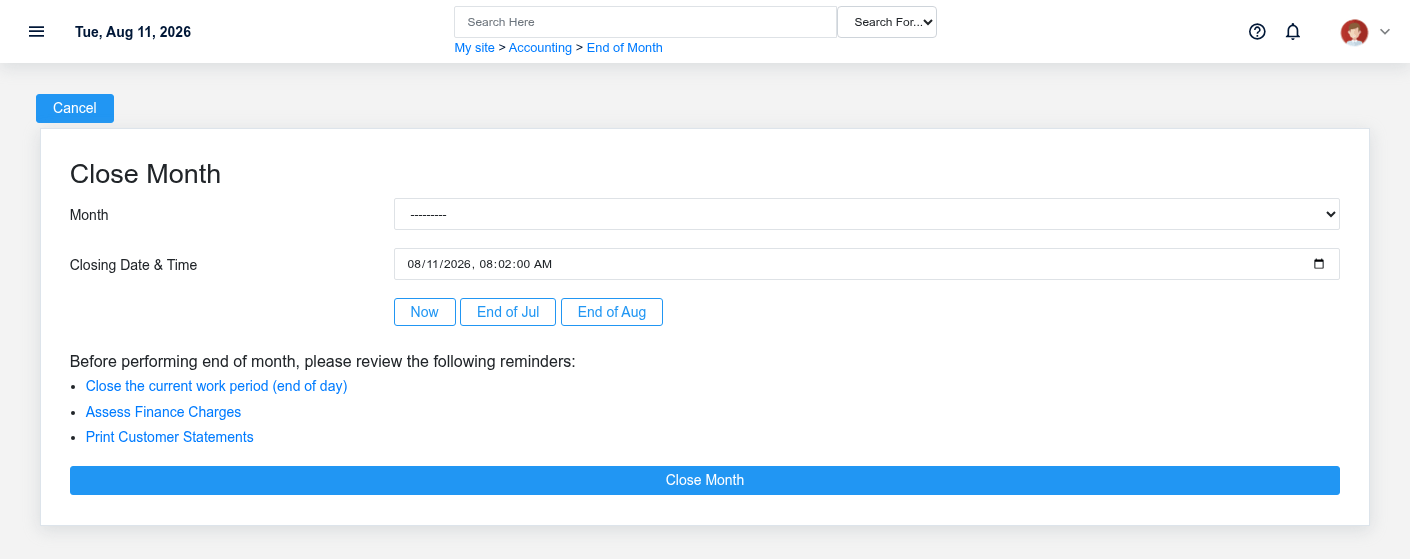
Confirm dailyevery required work period is completeclosed and all sales, receivables, payables, inventory receipts, vendor invoices, payments, deposits, reconciliations, tax work, and approved journal entries belong to the intended month. Preview finance charges and required customer statements according to policy. Select the open Month, use End of previous month or End of current month only when it matches the intended cutoff, and review thereports monthafter controls before closing the accounting month.closing.
Close a year
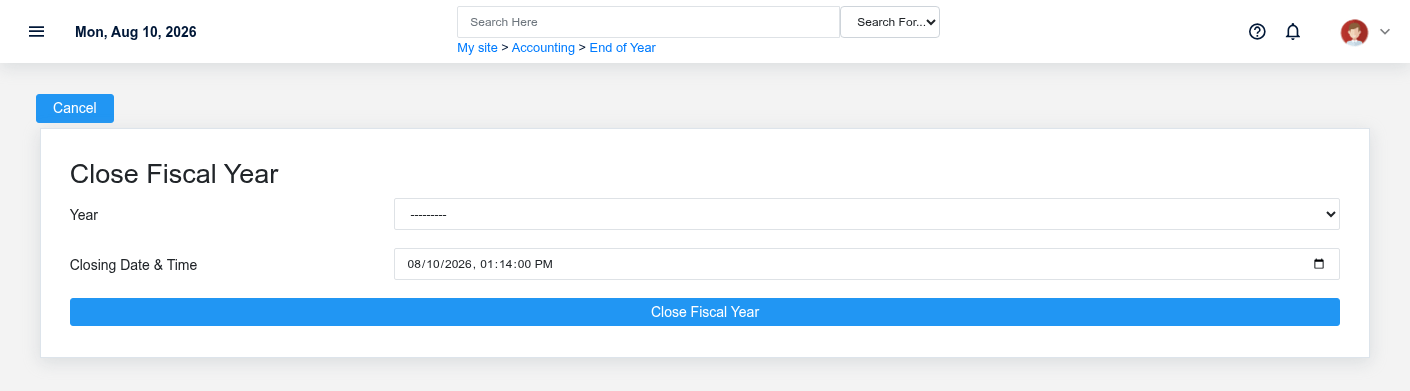
CompleteClose the year only after all required month-months are closed and year-end workadjustments, reconciliations, tax reporting, inventory valuation, receivables/payables review, and management approval are complete. Select the open Year, enter the approved fiscal cutoff, process once, and retain the year-end report package and review year-end balances before closing the accounting year.evidence.
Working safely and effectively
ClosingRecord who approved the close and reconcile pre-close control totals to post-close reports. If a close request times out, inspect the period candetail restrictbefore retrying. Do not create a new period, backdate into a closed period, or changeuse a journal entry to conceal an operational error without accounting authorization. Reopening or correcting closed periods requires an explicit, documented process because later postingreports behavior.may Correctalready exceptionshave firstbeen distributed.
If the expected period is unavailable
The selectors show open periods only. Confirm it is not already closed, the prior period sequence is complete, the user has permission to change that period type, and followthe intended warehouse/year structure exists. Investigate the organization'scurrent approvalstate process.rather than creating a duplicate period.