
Receivables, Statements, and Finance Charges
Receivables, Statements, and Finance Charges
Purpose and when to use this screen
These screens turn posted Receivable Transactions into collection analysis, customer statements, and finance charges. Use them after sales, payments, credits, write-offs, and customer setup are complete for the reporting cutoff. Resolve questionable balances before communicating them to customers or creating new charges.
Review accounts-receivable aging
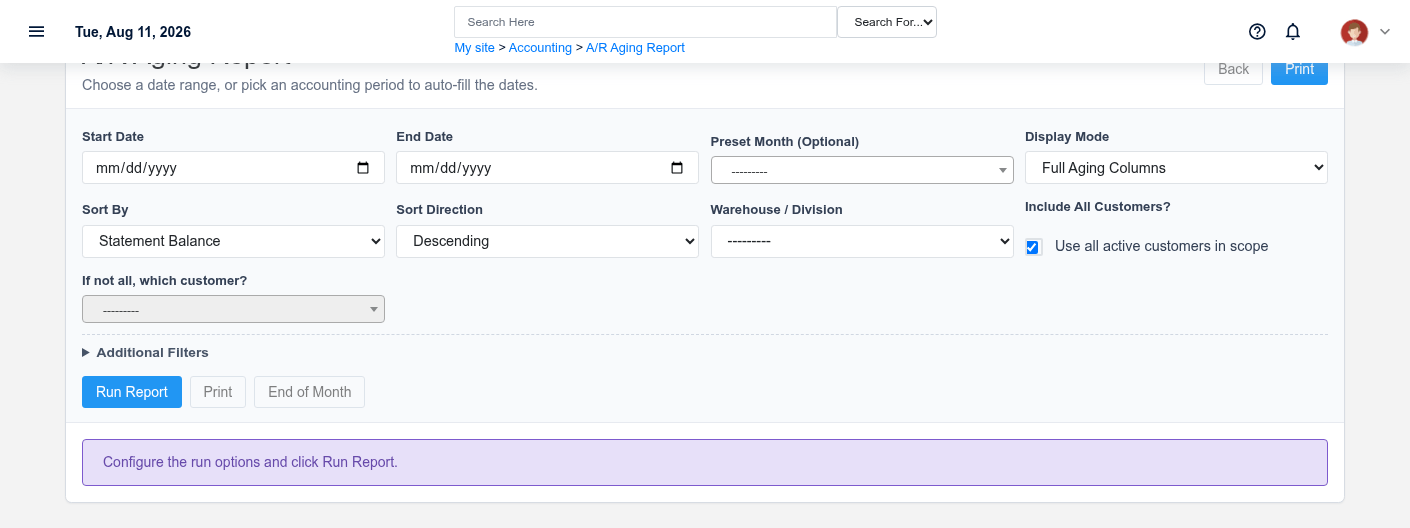
Choose a start/end date or a closed-month preset, then set display mode, sort, warehouse/division, and customer scope. Decide whether to include zero balances, credit balances, only overdue buckets, written-off customers, and customer numbers. Run the report and read Statement Balance, Current, 30, 60, 90, 90+, Overdue Total, and credit amount together. A customer with a credit or unapplied payment can have a misleading gross aging if you focus on one bucket alone.
Sort by overdue total or oldest bucket for collections work; use customer-name/number order for reconciliation and filing. Confirm the report cutoff before comparing it with a live customer balance.
Prepare customer statements
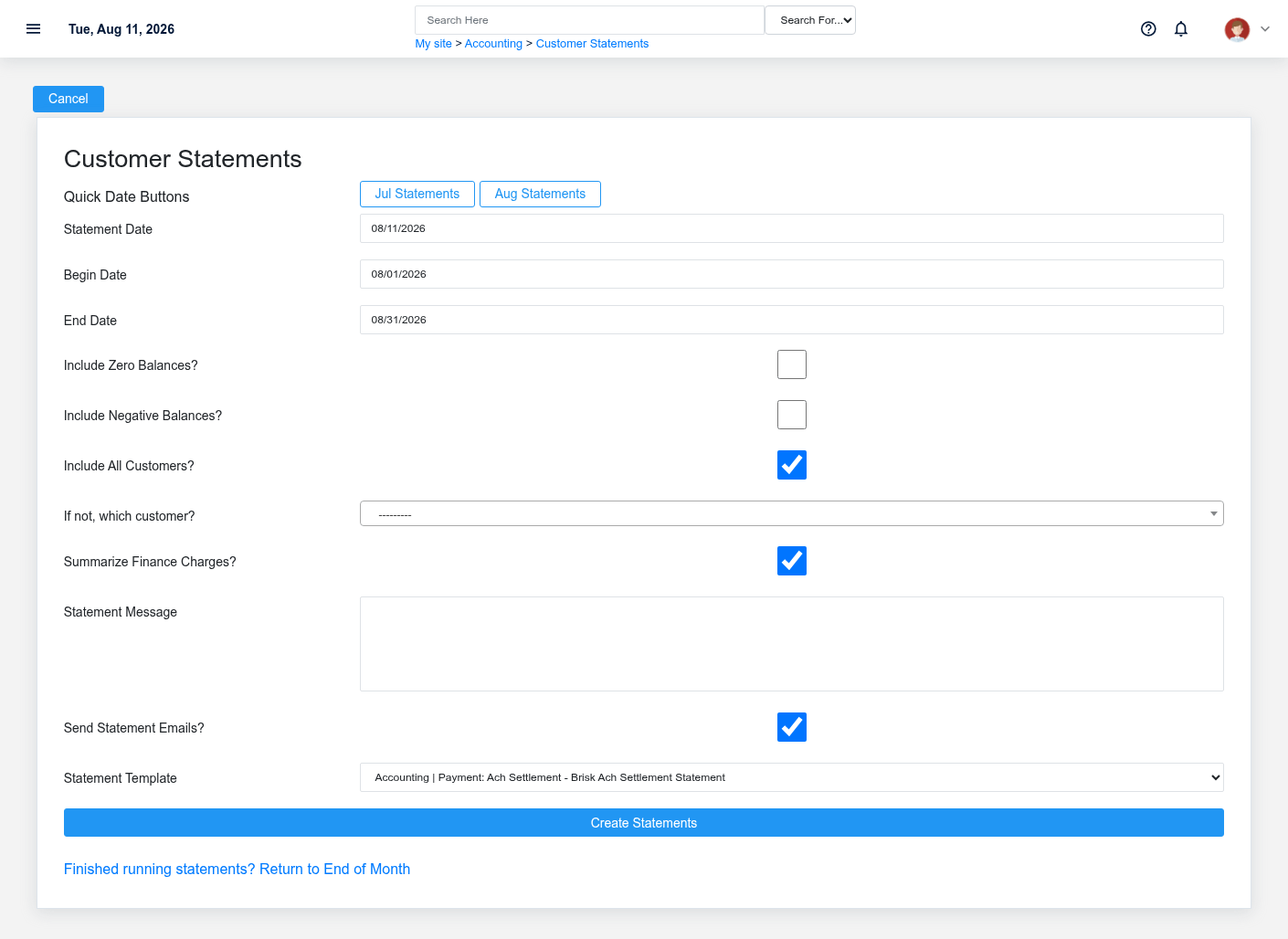
Set Statement Date, Begin Date, and End Date, or use the quick month buttons. Choose all customers or one customer and decide whether to include zero or negative balances. Select whether finance charges are summarized, enter the customer-facing statement message, choose the statement PDF template, and review Send Statement Emails? before generating.
Preview representative statements before a batch send. Confirm opening activity, invoices, payments, credits, finance charges, ending balance, remittance details, branding, pagination, and customer email address. A statement is communication, not a posting transaction; correct the source record and regenerate it rather than editing the output.
Assess finance charges
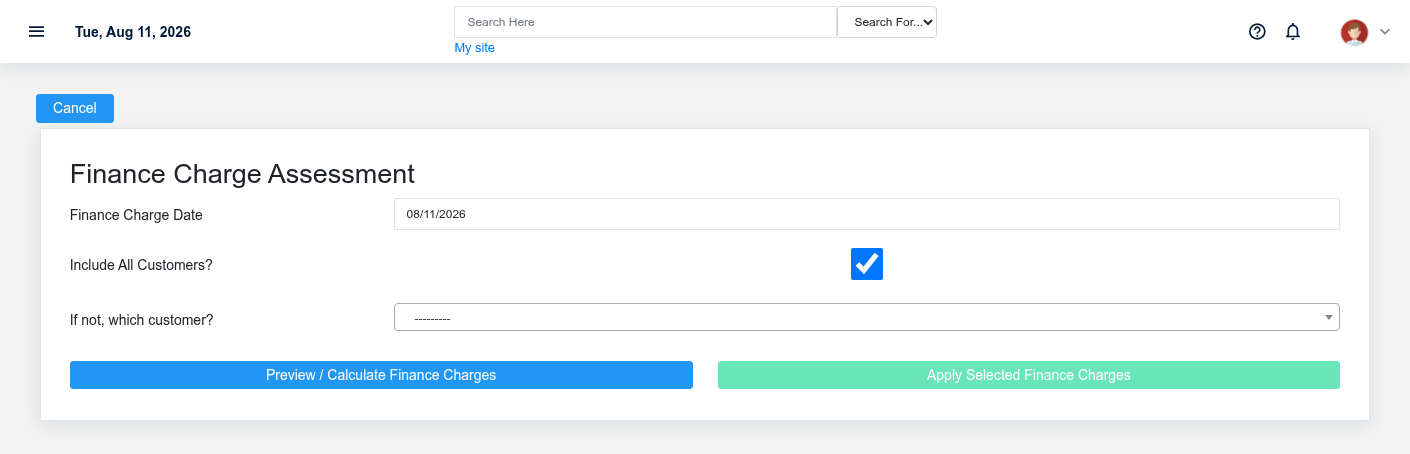
Select the finance-charge date and customer scope, then use Preview / Calculate Finance Charges. Review every proposed customer, charge amount, original transaction source, and memo. Clear any row that should not be applied and investigate why it qualified. Apply only from the current preview; Brisk uses a preview token to protect the calculation/apply sequence.
Finance-charge eligibility comes from customer/group and payment-term policy plus the overdue transaction state. Fix incorrect terms, dates, groups, payments, credits, or write-offs before applying. Afterward, review the applied list and regenerate statements if they should include the new charges.
Working safely and effectively
Reconcile aging totals to the receivable register, document exceptions, and restrict statement/email output to authorized recipients. Do not repeatedly apply finance charges because a page timed out; check the customer’s transactions first. Preserve the original charge and use the approved credit/adjustment process when a posted finance charge must be reversed.
No comments to display
No comments to display