
Case Tally Definitions
Case Tally Definitions
Purpose and when to use this record
Define a countable case outcome or activity and the category under which it is reported.
At a glance
-
Identify it by: Name.
-
Check its business context: Category.
-
Why care: Use the agency’s approved terminology and access policy. Preserve dates, responsible personnel, case links, and audit history because these records may support official reporting or custody review.
-
Why care: Availability and publication flags affect future use without erasing history. Prefer disabling an obsolete setup record when existing transactions still refer to it.
Before you begin
You need the Brisk permission for the action you are taking on case tally definitions. If a Create, Edit, or Delete control is absent, do not work around it with another user’s account; ask an administrator to review your role.
Have valid Category records ready first. Those selections determine where this Case Tally Definition belongs and which later screens can find it.
Create a Case Tally Definition
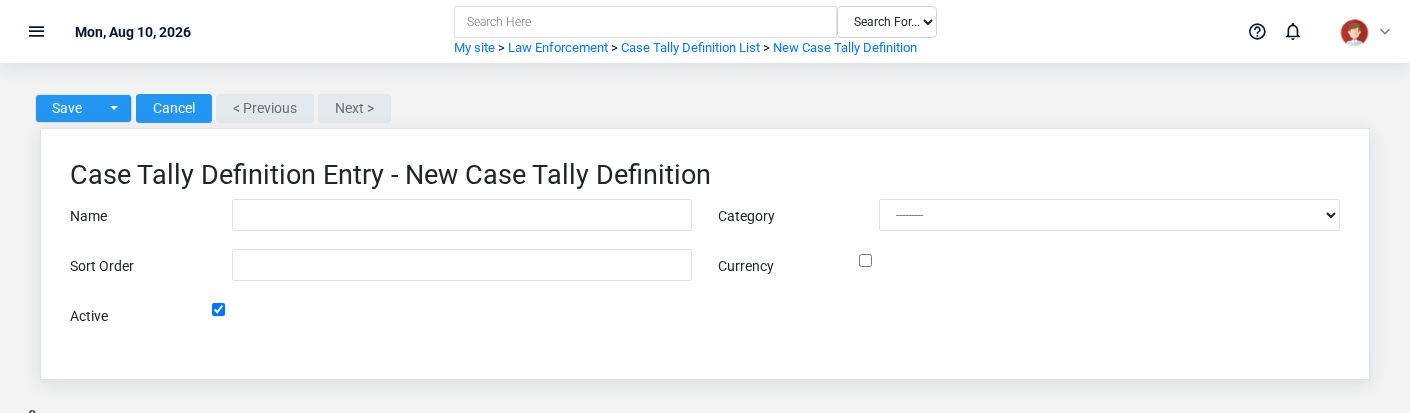
Create a Case Tally Definition only when the existing choices do not represent the policy or classification you need. Near-duplicate setup values split reporting and make later selection harder.
-
Select the business context first: Category.
-
Enter the required identifying and operational values: Name, and Category.
-
Review Currency, and Active deliberately; these choices control availability or workflow rather than merely describing the record.
-
Save the Case Tally Definition, then confirm Name on its detail page before continuing.
After saving: Open Case Tallies and confirm the Case Tally Definition appears with the intended label and availability. Keep the old value for historical records when changing it would split or relabel prior reporting.
Delete a Case Tally Definition
Delete this Case Tally Definition only if it is an unused duplicate or setup mistake. Once other records refer to it, preserve that history and make the value inactive when the screen provides that option.
If the record is merely obsolete, use Active to remove it from future use while preserving existing references.
Before confirming, check for related Case Tallies. Brisk may refuse deletion when another record depends on this one; resolve the duplicate or use the supported correction workflow instead of breaking the trail.
On the confirmation page, verify Name. After confirmation, return to the Case Tally Definitions list and make sure only the intended Case Tally Definition was removed.
Review Case Tally Definition details
Use the detail page as the shared record of what this Case Tally Definition currently means. Verify Active before relying on it for a decision.
Follow Category to determine whether the issue is on this Case Tally Definition or on one of those linked records.
Next check: Open Case Tallies and confirm the Case Tally Definition appears with the intended label and availability. Keep the old value for historical records when changing it would split or relabel prior reporting.
Edit an existing Case Tally Definition
Edit this Case Tally Definition when the underlying policy or classification changed. First determine whether historical transactions should retain the old value; if so, deactivate the old choice and create a new one.
-
Open the detail page. Compare Category with the supporting document or approved request.
-
Recheck Active. These values are most likely to change case history, custody, dispatch, official reporting, or audit review.
-
Save the change, return to the list, and confirm that the Case Tally Definition now appears under the expected Active.
After the change: Open Case Tallies and confirm the Case Tally Definition appears with the intended label and availability. Keep the old value for historical records when changing it would split or relabel prior reporting.
Find and review case tally definitions
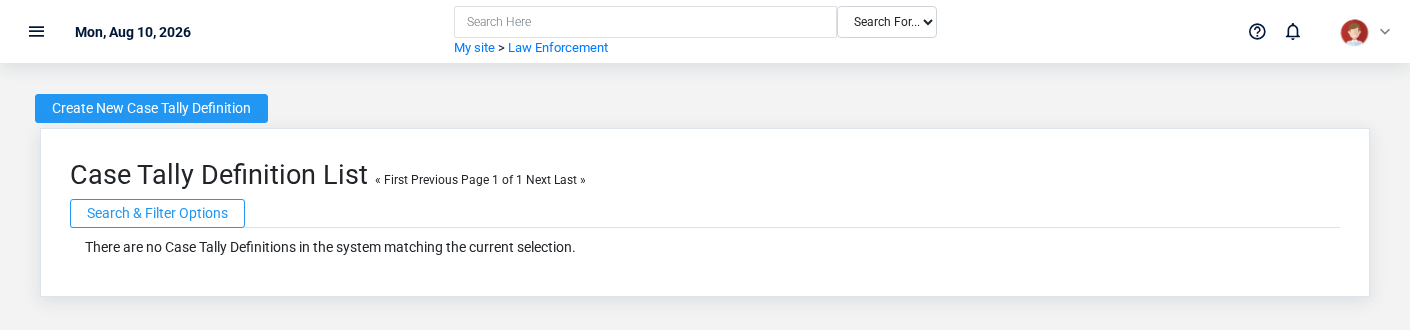
Use the Case Tally Definitions list to find the correct record before opening or changing it. Compare Name. Records with similar names or numbers can still belong to different Category.
Open the Case Tally Definition whose Name match the task. If it is missing, clear the list filters and recheck Active rather than creating a replacement immediately.
Fields and business rules
Brisk stores 5 user-relevant fields for this Case Tally Definition, including 1 linked-record selection and 0 controlled-choice fields. Create and edit screens may hide calculated or workflow-managed values from this full reference.
| Field | Required | What it controls |
|---|---|---|
| Name | Yes | Sets the name of this tally. |
| Category | Yes | The category associated with this case tally definition. |
| Sort Order | No | Sets the order that this tally appears within its category. |
| Currency | No | If enabled, this tally will be a dollar amount on reports. |
| Active | No | If this field is unchecked, this definition will no longer appear in reports. |
What happens next
Open Case Tallies and confirm the Case Tally Definition appears with the intended label and availability. Keep the old value for historical records when changing it would split or relabel prior reporting.
Common mistakes and troubleshooting
-
The record will not save: Recheck Name, and Category and any message beside the field. A required related record may also be inactive or unavailable to your role.
-
The record saved but is not available where expected: Recheck Active, then clear the filters on the destination list. A saved record can still be inactive, unpublished, locked, unapproved, or in the wrong workflow state.
-
The values look right but the result is wrong: Open Category from the detail page. Correct the specific relationship that is wrong instead of forcing a total or status to compensate for it.
No comments to display
No comments to display