
Technician Workspace
Technician Workspace
Purpose and when to use this screen
Technician Workspace is the signed-in technician’s daily service landing page. It combines today’s schedule, the actionable work queue, upcoming bookings, timer state, leave requests, and notification-device status. It is a working view of assigned records; the service order and booking remain the source of truth.
Use the technician workspace
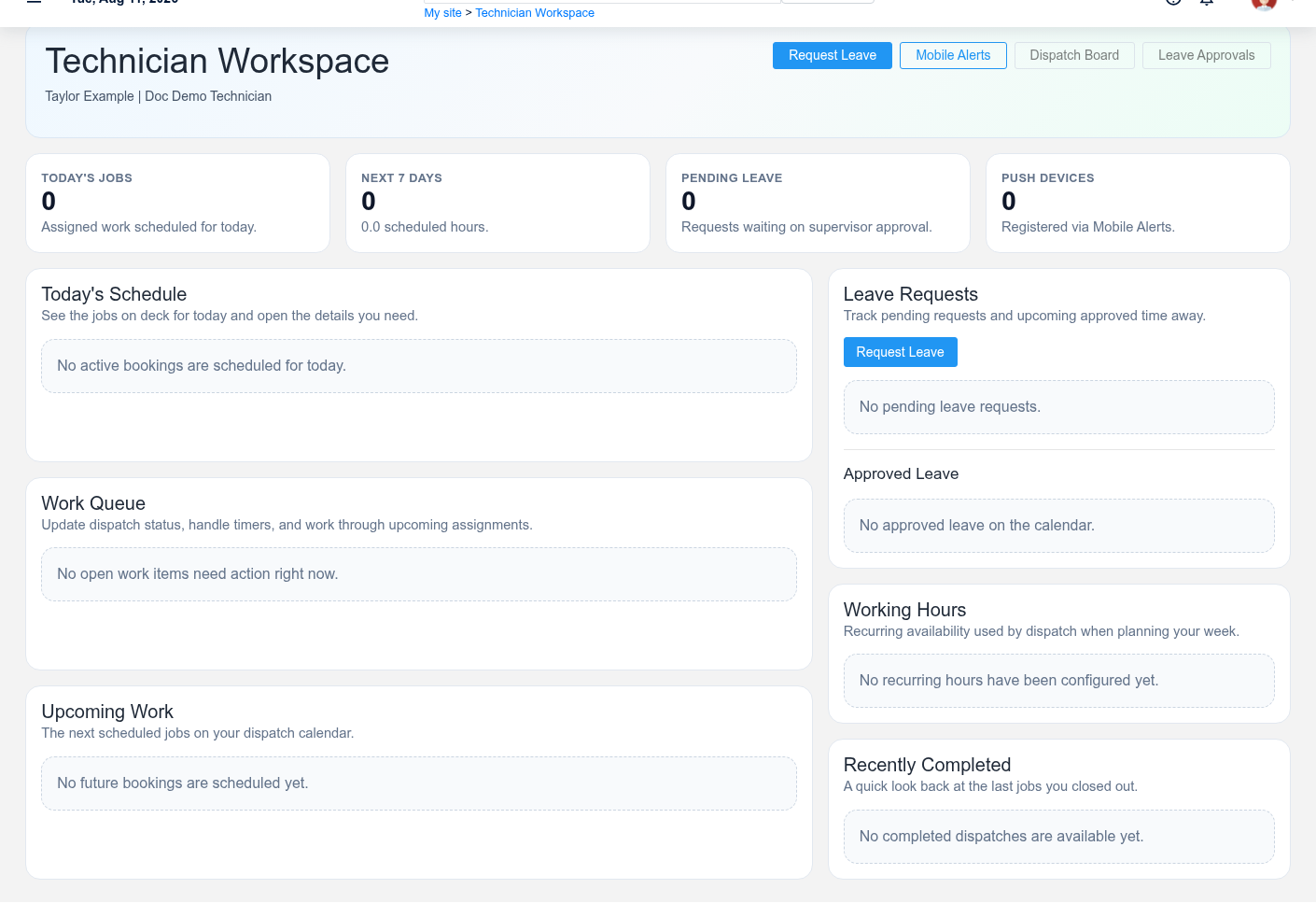
Start with Today’s Jobs and the Work Queue. For each card, confirm customer, job reference, priority, status, scheduled time, and location. Read dispatch notes before traveling. Use Directions for navigation, then Open Job to review equipment, approved scope, parts, labor, notes, and customer context on the Service Order.
Update status and time as work happens
Use only the status actions offered on the booking, such as marking the next dispatch state. Do not advance status to remove a job from the queue when the underlying event has not occurred. Start the timer for the service order when billable or tracked work begins and stop it when that work pauses or ends. Only one active timer should represent the technician’s current job; resolve an unexpected running timer before starting another.
Review upcoming work and capacity
The next-seven-days metric and Upcoming Work table help the technician anticipate appointments, locations, and schedule conflicts. They are not a substitute for dispatch approval. If a job is missing, duplicated, assigned to the wrong technician, or scheduled at an impossible time, contact dispatch rather than editing unrelated records.
Manage leave and alerts
Use Request Leave to submit planned absence and track it as Pending until a supervisor acts. An approved request affects scheduling capacity; technicians cannot simply rewrite approved leave. Use Mobile Alerts to register or test the current device. Open the linked job from an alert and verify it is still current before acting.
If the workspace is empty or unavailable
Confirm the user is linked to an active Technician and Employee, the bookings are assigned to that technician, and the schedule/status is within the workspace scope. Dispatch-board and approval links appear only when the user has the corresponding permissions.
No comments to display
No comments to display